
A training coordinator has a short, approved script for demonstrating how to use a fire blanket in a controlled instructional setting. The coordinator wants a quick video for an internal course, not a replacement for certified instruction. CapCut Script to Video can assemble an initial video from written copy, stock assets, and editing elements. The risk is that an automated storyboard can rearrange steps or choose footage showing an unsafe action. Every scene needs a review against the approved source.
CapCut documents a mobile path through All tools to Script to video, with an option to use your own script and generate with stock or local media. That makes it valuable for drafting, but it does not turn the generated order into an authoritative safety procedure. The illustrative sequence in this article intentionally avoids giving operational emergency instructions; an organization’s approved training material and qualified safety reviewer remain the only authority for actions and wording.
Start from a signed-off script and scene map
Use only the training text that the safety lead has approved for the organization. Give each sentence a scene number and identify its role: purpose, equipment description, demonstration moment, warning, or closing recap. Do not allow the video generator to fill gaps in safety policy from general internet knowledge. The creator’s task is to preserve the message, not to improvise a new emergency response procedure in an engaging format.
Create a source table with columns for approved sentence, required shot, forbidden visual, and reviewer. For the fire blanket example, distinguish generic product identification from any depiction of actual handling; a safety lead must check the latter. If the organization cannot provide accurate footage, use non-operational diagrams or a title slide rather than invented demonstrations. The original script and every review note should remain accessible after export.
Choose the script-led path in CapCut
CapCut’s official App tutorial describes opening All tools, selecting Script to video, and choosing between writing a script and using an AI writer. Choose the own-script option when preserving exact wording matters. Enter the approved text only, keeping the scene identifiers in an external reference sheet if the tool might voice them aloud. The mobile interface may differ from desktop and web paths, and feature availability can depend on the current app configuration.
The same documentation describes Smart generation for stock materials and Local materials for uploaded assets. Prefer approved local footage when the exact action or equipment must be represented. Use stock materials only when they clearly convey a non-critical illustrative concept and are licensed for the intended distribution. Neither route guarantees that the edited sequence is safe, contextual, or accurate without manual comparison.
Review scene order before polishing visuals
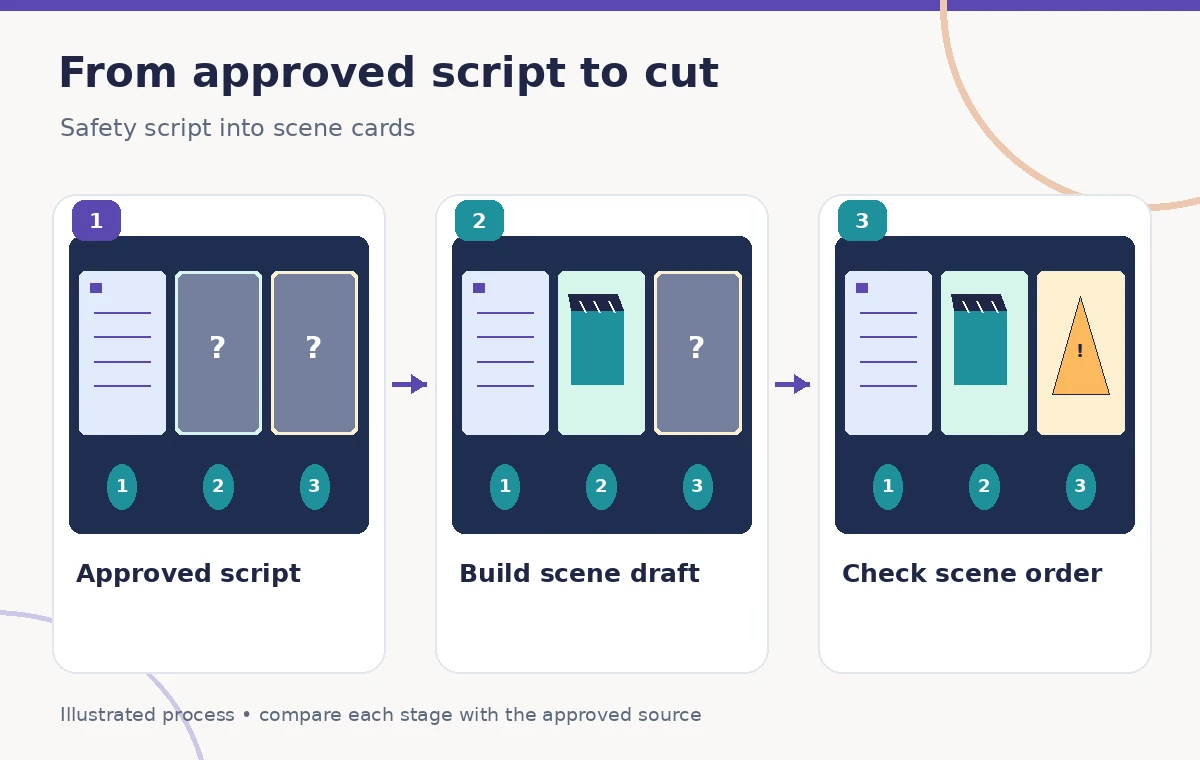
Compare the first generated cut with the scene-numbered source table. A storyboard may jump from an equipment close-up to an ending title while omitting a crucial warning. It may also insert a generic training shot that contradicts the narration. Mark every mismatch by scene number and timecode. Do not solve an incorrect sequence by simply adding more energetic transitions; correct the underlying assembly.
For this example, the process diagram shows approved copy flowing into a scene draft and then a review gate. Its icons stand for abstract training sections, not the actual operation of a fire blanket. The contrast matters: a tool can produce a plausible montage while still mixing the order of the source. If a missing segment cannot be sourced responsibly, remove the misleading video draft from circulation until a qualified trainer resolves it.
Check captions and voiceover against approved language
Inspect the generated narration and every caption, especially negations, qualifiers, and numbers. Automated transcription or voice generation may omit a small word while leaving the sentence sounding polished. Never accept “looks close enough” for safety-sensitive wording. Read the script aloud with the qualified reviewer and check timing against the displayed sentence. Keep the captions legible for viewers who rely on them rather than matching every fast cut.
If the script mentions conditions under which a step should not be attempted, verify those conditions remain attached to the correct sentence and scene. Do not add synthetic dialogue attributed to a real instructor without permission. Where synthetic narration is used, label it appropriately and confirm that the voice, pronunciation, pacing, and attribution meet the organization’s accessibility and communications rules.

Separate illustrative footage from demonstrations
An automatically selected stock clip may show a different country’s equipment, a different product type, or an irrelevant action. Those are not harmless substitutions in training content. Review every shot with the same rigor used for the script. Replace misleading segments with authorized footage, a still icon, or a clearly marked conceptual diagram. Do not describe generic stock footage as a real event recorded at the organization.
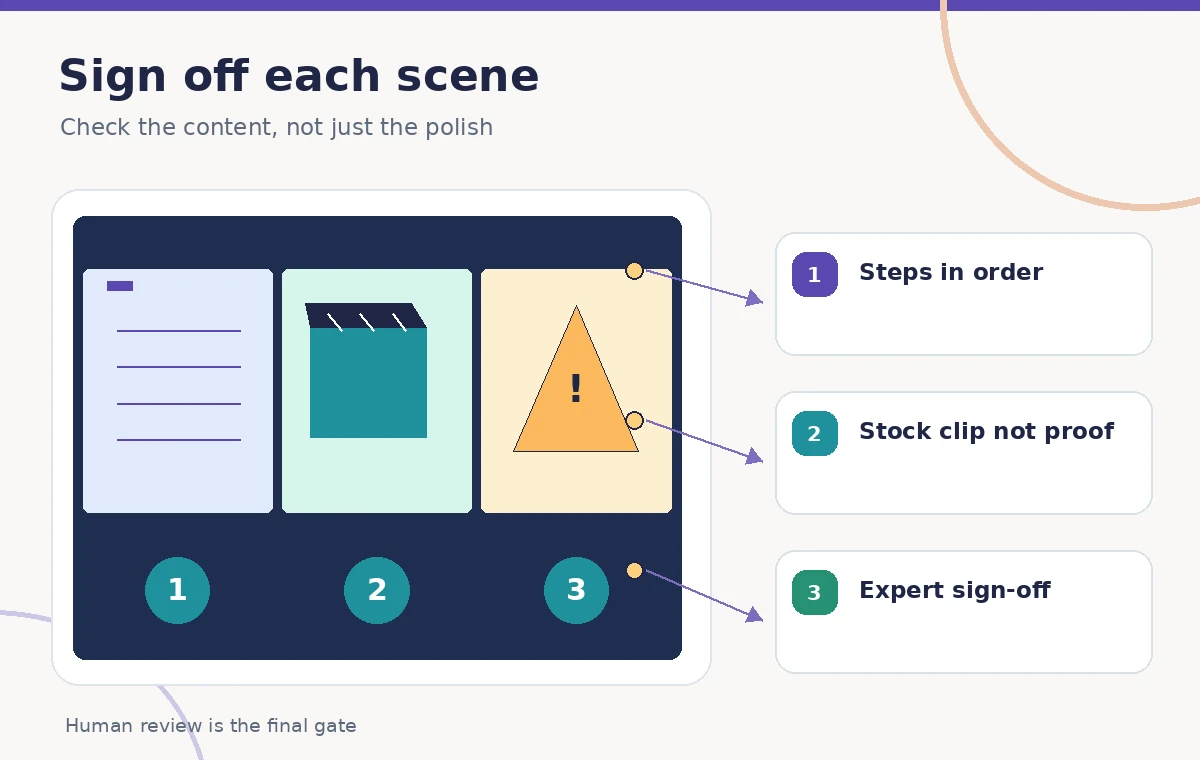
When choosing local materials, confirm filming permissions and that the person depicted was trained and agreed to the intended use. Frame the footage so important objects are visible, but let the safety lead decide what visual detail is necessary. The graphic comparison shows a mismatched scene and a reviewed sequence schematically; no safety operation or actual CapCut output is represented.
Build a timecoded human approval pass
Use a simple sign-off sheet that records each scene’s start time, approved script passage, visual source, and reviewer decision. A reviewer should be able to say, for example, that scene four was returned because its footage suggested a different order, or that a caption lacked a qualification. Track those as concrete changes rather than general requests for a more polished look. The final review must play the full video at normal speed.
Have a qualified trainer sign off on any depiction of emergency equipment, and have an accessibility reviewer check captions and pacing. A generated training video is especially likely to be viewed without context after being shared. Add a visible title or accompanying description specifying the intended audience and the need to follow local approved instructions. Do not bury important limitations in a tiny footer.
Export a video the next editor can audit
Export a review copy with clear version naming and keep the original script, scene table, license notes, and source files together. Rewatch the exported video instead of assuming the editor preview matches the deliverable. Confirm that the closing instructions, captions, and audio are complete after compression. Keep a plain transcript for search and accessibility, and ensure any linked policy reference leads to the current approved source.
If your team runs updates to the safety policy, treat this video like a versioned training asset, not an evergreen social-media clip. Record the responsible owner and a review date. AI video generation should reduce assembly time without making it harder to identify the people accountable for the content or the version being taught.
Know when Script to Video is the wrong tool
If the source involves detailed life-safety procedures and no verified footage exists, automatic stock assembly may add more risk than value. A conventional slide sequence with approved photos and a trainer’s voice may be safer and easier to inspect. CapCut can still be useful for subtitles or final editing, but the choice should follow the nature of the task rather than the novelty of a generation feature.
Accept a Script to Video draft only after every scene has a source, an accurate position in the sequence, and an explicit approval. The diagrams on this page are original teaching visuals designed to show editorial checks, not evidence that any particular CapCut generation preserved a real emergency procedure.
How We Research
We used CapCut’s Script to Video App instructions and script-led workflow guidance to identify the own-script route, stock-versus-local material choice, and preview/export checkpoints. The instructions were reviewed November 3, 2026. We did not generate a training video or verify an actual emergency procedure; the numbered scene panels are original schematic artwork. A qualified organization-specific safety lead, rather than this editorial example or an automated storyboard, must validate any life-safety wording, imagery, or sequence before distribution.
Frequently Asked Questions
CapCut documents a Write your own script path in its Script to video workflow. Use that route when fixed wording matters, then verify the generated first cut.
No. Smart generation can assemble stock materials, but the creator must verify license, relevance, scene order, and whether the clip actually shows the approved concept.
No. For safety-sensitive topics, obtain approved source material from a qualified trainer and require a human safety review before publication.
Check the generated scene sequence against the approved numbered source and correct missing, reversed, or mismatched sections before refining transitions.
No. They are conceptual diagrams illustrating review checkpoints; they are not screenshots, actual CapCut results, or emergency operating instructions.