
A community center has a short teaching video of a basket weaver working against a crowded storage wall. Replacing that wall with a calm background would make hand positions easier to follow, but automatic person segmentation might remove the thin reed ends between the instructor’s fingers. Those small movements are the lesson, not decoration.
TechSmith describes Camtasia AI Background Remover for camera recordings of people and documents limits for cropped sources and screen content. The workflow below is a hypothetical editing exercise; it does not claim that a specific basket clip has been segmented or that every fiber can be preserved by the tool.
Choose an appropriate camera source before editing
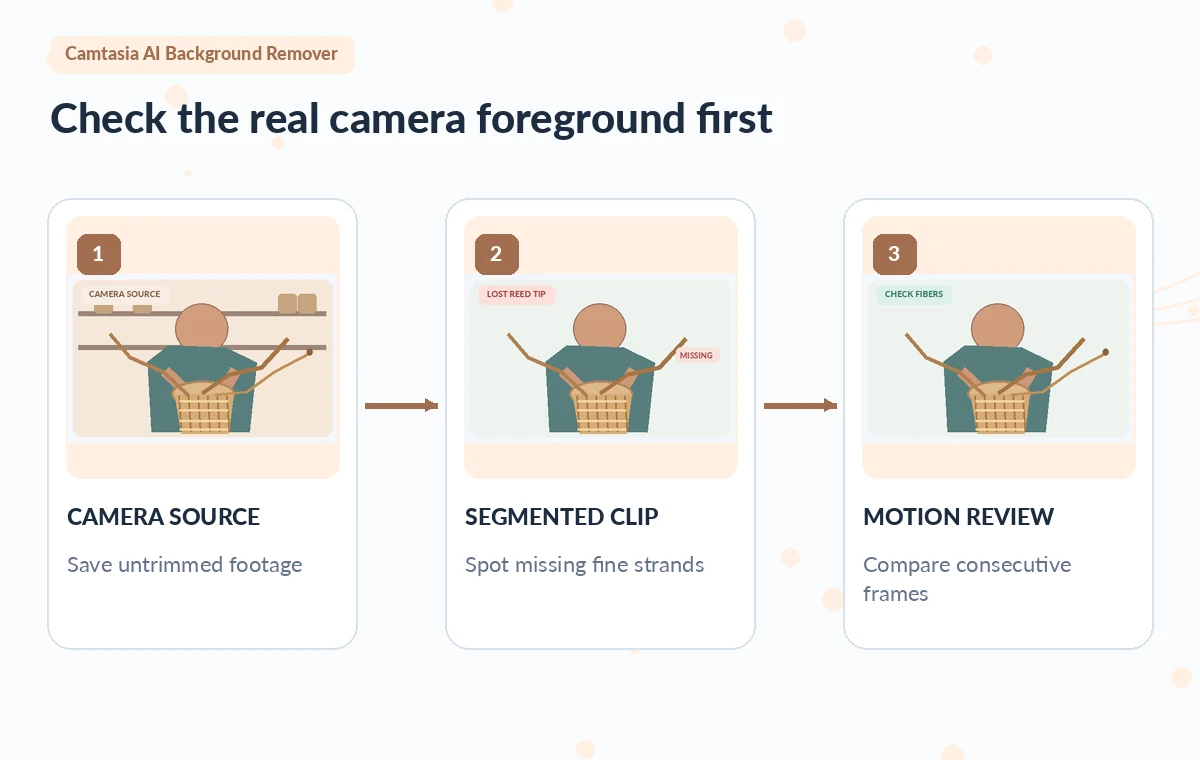
Begin with the original untrimmed camera recording in which the instructor’s upper body and basket are visible. TechSmith states that its background remover is designed for camera footage of a person, not cropped recordings or plain-background screen shares. Check the source clip type before adding effects to a composite timeline.
Save the untouched video and its frame rate. Because the feature identifies the person more reliably than an independent tool or reed, do not assume that every loose material crossing the frame will be retained. Make the weave itself the visual success criterion.
Plan a background that improves the actual demonstration
Choose a simple warm-gray or low-contrast workroom backdrop that provides separation from the tan reeds without impersonating a real teaching location. Do not use an elaborate artificial workshop photo that might make viewers believe the instructor worked in that place.
Avoid a background that obscures captions or reduces the contrast between the instructor’s sleeves and fingers. If the lesson includes a printed safety sign or tool diagram behind the speaker, removing the background could delete useful information; retain that information separately as a truthful overlay or insert instead of quietly losing it.
Apply the effect to the camera shot, not the screen track
In Camtasia Editor, follow the documented AI-powered background-removal workflow on the camera recording and preview a short range containing fast hand movement. TechSmith says the tool can remove or blur the existing background and substitute another scene or a solid color.
A cropped camera source may not behave as expected, so test the original source first. Keep the instructor’s original audio synchronized. This is not the same as using a chroma-key effect on a perfect green backdrop, and it should not be described as a manual rotoscope that guarantees every woven strand.
Watch thin reeds and fingers across consecutive frames
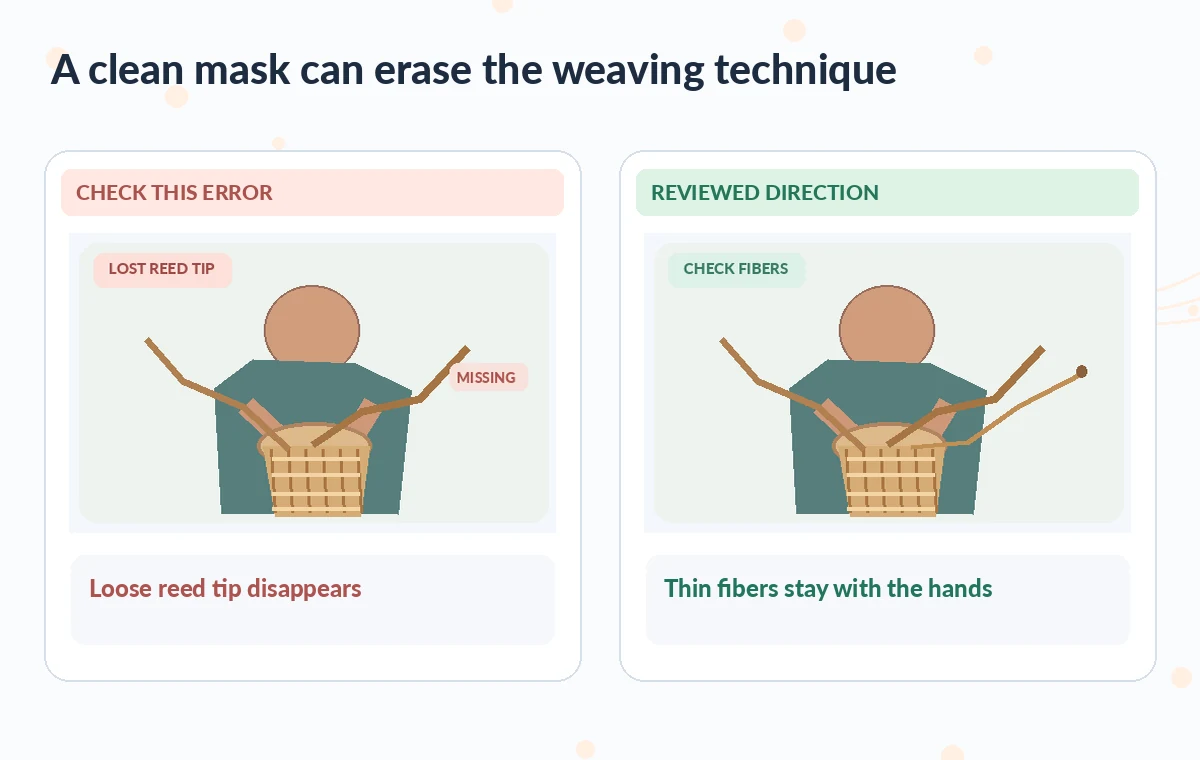
Pause on moments when a flexible reed arcs beyond the instructor’s shoulder or crosses the basket rim. In the risk diagram, the segmented image loses a reed tip even though the hand remains visible. The example is illustrative, not a tested Camtasia result.
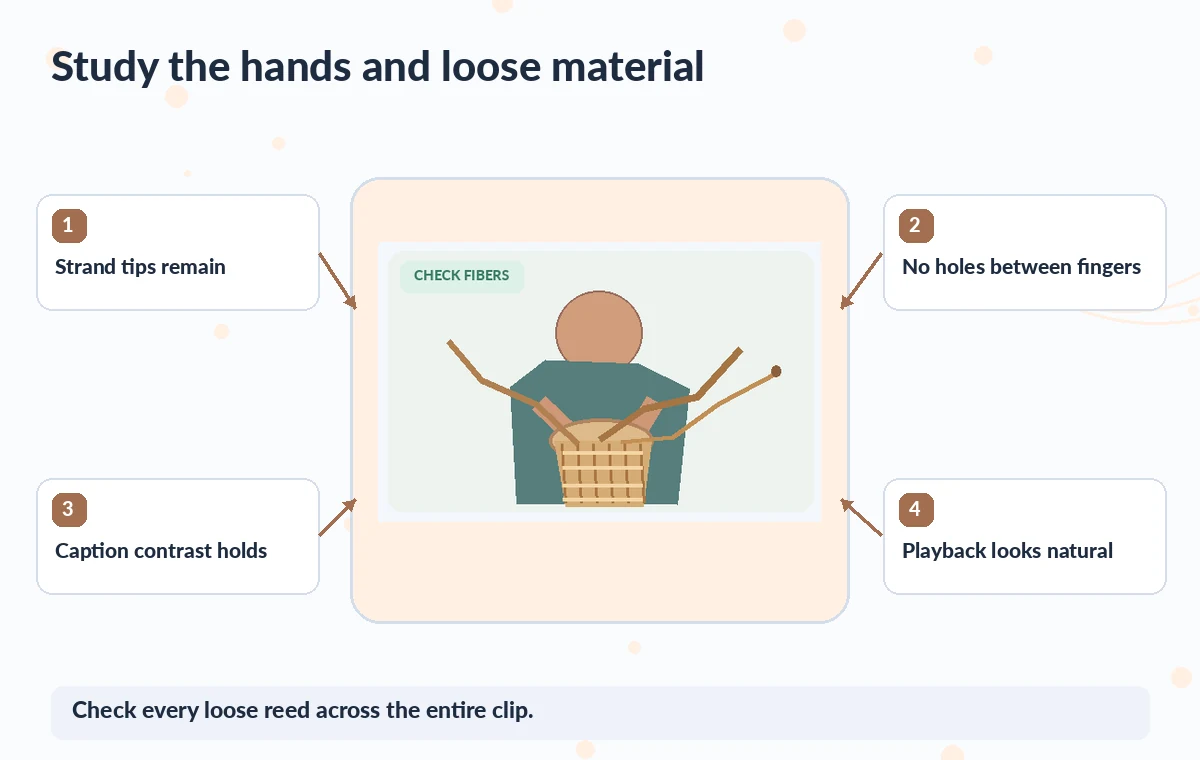
Check at full resolution and again at playback size. Look for flickering, holes between fingers, missing strand ends, transparent basket handles, and irregular halos around the sleeve. If the tool hides the instruction-critical reed, a cleaner-looking background has made the video worse. Preserve the original shot for that section.
Compare the cutout against the unprocessed movement
Use a source-versus-output comparison at matched timecodes, not two unrelated attractive stills. The camera position, hand angle and strand arrangement should match in each pair. Note where a strand separates from the subject and passes into the former wall; those edges are the most vulnerable. Check a slow-motion preview solely for editing inspection, then also view at natural speed to detect temporal shimmer. Neither an AI mask nor a static overlay can demonstrate that the edited gesture remains fully legible unless the movement is actually reviewed.
Try a conservative alternative when the mask fails
If several reed tips vanish, consider keeping the source background and using a mild blur or crop that preserves the work area, rather than forcing a perfect cutout. Another option is to record a new demonstration against a cleaner real wall with better lighting and greater subject/background contrast.
TechSmith advises using a physical green screen for difficult cases and applying background removal to a separate camera source before combining it with a screen share. Those alternatives protect the lesson even if they take more work. Do not paint fake reed motion into safety or skill instruction.
Check captions, contrast and hands after export
After choosing the edit, run a complete viewing pass with the captions turned on and off. Verify that no major hand movement is hidden under on-screen text and that the background does not shift dramatically between cuts.
The basket rim and loose strands should remain visible in the final export resolution, not only in the editor preview. Check audio for accidental desynchronization and retain any spoken correction that changes how a reed is placed. Ask a person familiar with the craft whether the weave sequence can still be followed without looking at the untouched source.
Disclose the background change without faking the workshop
When publishing the tutorial, distinguish the recorded demonstration from the substituted backdrop if setting authenticity matters. Do not imply that the edit reconstructs a real studio. Preserve the unprocessed footage for future instructional corrections, and keep notes on which shot ranges received segmentation.
The success condition is the learner’s ability to see hands and material accurately. A removed storage wall is useful only if the AI did not remove the strand that explains the technique. That judgment belongs to a human editor and instructor.
How We Research
We prepared this guide on November 4, 2026 by reviewing developer documentation: Camtasia AI-powered video background removal; TechSmith background removal limitations; TechSmith AI technology overview. We checked what each named function can do, its documented plan or format constraints, the available controls and the documented review and handoff points. The project examples are hypothetical teaching scenarios, not real software trials, customer records, measured benchmarks or evidence of a particular output. The original diagrams show the risks editors should inspect; they do not reproduce or impersonate product screenshots. For a live assignment, verify the current feature availability, rights, security requirements and output against the real source materials, then require a named human to authorize release.
Frequently Asked Questions
No. TechSmith documents AI-assisted removal for camera footage of a person; a physical green screen can be a more reliable fallback in difficult scenes.
TechSmith says its person-oriented background remover is not intended for plain-background screen recordings or previously cropped sources.
There is no such guarantee. Compare the edited clip with source frames, especially where the reed crosses background and fingers.
Yes. Camtasia documents background blur and replacement choices, which may be less distracting depending on the shot.
Keep the untouched camera clip, the edited project and a review note identifying any strand or hand-edge problems in the export.