
An AI image resizer can help a store owner prepare a neat collection grid, but it cannot decide which parts of a product are safe to crop. Inconsistent ratios, synthetic edges, small labels, and auto-filled surroundings can make items look unlike what customers will receive. This guide builds a repeatable image-preparation workflow for a fictional ceramic mug catalog. It separates a routine resize from a crop and from generative expansion, then provides an approval worksheet for every hero image. The result is a production checklist, not a claim that we tested a particular Shopify theme.
Start with the storefront layout, not the AI tool
Open the live collection page and product detail template first. Record the preferred image shape, the amount of whitespace around the item, and whether the theme uses square tiles, portraits, or variable-height cards. Shopify’s product-media documentation says consistent aspect ratios are needed when collection images should appear the same size; the theme can also request resized versions through its delivery service. For a mug assortment, choose one consistent rectangular canvas, keep handles and rims inside it, and allow equal breathing room around every item. Do not change the mug’s physical proportions just to fill the square. A good catalog looks consistent because the framing policy is consistent, not because a model has stretched five different mugs to the same silhouette.
Calculate pixel dimensions and protect source quality
Shopify’s official image guidance allows product and collection images up to 5000 by 5000 pixels or 25 megapixels, with a file smaller than 20 MB. Its help center recommends 2048 by 2048 pixels as a useful square product-image size. Those are platform facts, not proof that every theme displays an image at that exact dimension. Build a source ledger with original width, original height, target ratio, file type, and whether the manufacturer or owner supplied the photograph. For a 1600 by 1200 original, cropping to a square removes image information; merely naming the file 2048 does not create new detail. Preserve the original so future themes and crops can be redone.
Choose crop, canvas padding, or AI expansion intentionally
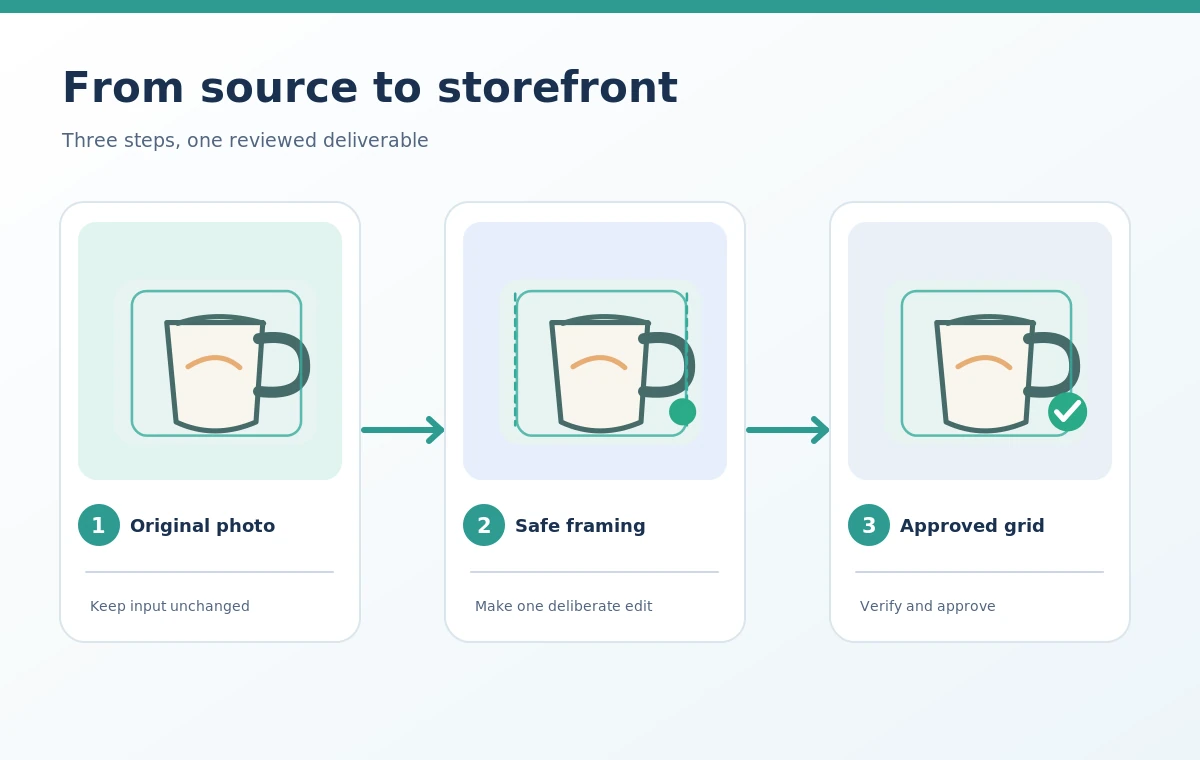
Use an ordinary center or subject-aware crop when there is genuine unused background around the object. Use padding or a newly designed neutral background when cutting into the product would hide a handle, label, cable, or packaging edge. Consider generative expansion only when the missing area is surrounding context, and label it as altered background in the internal asset record. Image expansion can invent props, reflections, and material finishes. For commerce, the safest rule is to lock the photographed product pixels and allow edits only outside the object mask. An automated resizer that makes the mug wider or rewrites its printed wording has failed even if the final layout looks attractive.
Batch the images with a measurable review sheet
Work through a small sample before processing the entire catalog. Select three difficult items: the widest handle, the tallest silhouette, and the smallest lettering. Produce the intended aspect ratio, then inspect the full-size file and its thumbnail representation on a collection page. Record four decisions per asset: ratio correct, product untouched, edge clean, and thumbnail readable. Review the unprocessed original beside the final image, not only two exported variants. A five-column worksheet can contain SKU, input resolution, chosen framing method, human reviewer, and export approval. Store approval dates and originals separately from generated outputs so a later correction does not silently overwrite the source.
Check visual truthfulness and conversion-critical details
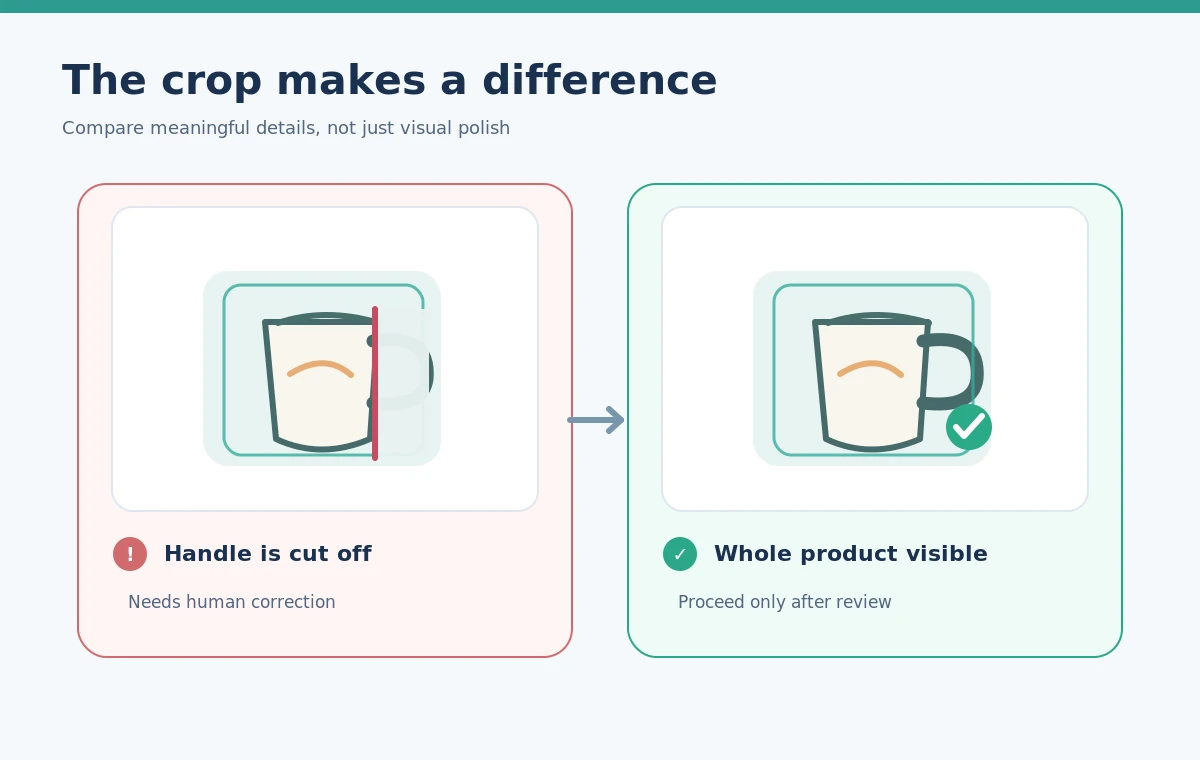
Inspect text, logos, seams, materials, colors, handles, small shadows, and transparent edges at 100 percent zoom. Color corrections should be modest and consistent with what the buyer can expect. A generated second handle or an erased manufacturer’s marking is a factual change, not routine beautification. If a product is sold in several colors, review each real variant independently; do not copy a recolored photo as evidence for a color that was never verified. On a grid, look for awkward jumps in subject scale, unusual floating shadows, and missing corners. On the detail page, check whether the viewer allows customers to zoom enough to notice invented texture. Reject a visually polished output when source fidelity is uncertain.
Keep export formats and file history predictable
Shopify accepts formats including PNG, JPEG, and WebP and serves media through a system that can select an appropriate format for a customer’s client. An export labeled WebP is not automatically better if its compression creates halos around text. Test a single sample at the actual display dimensions, especially for thin packaging lines and transparent cutouts. Use a filename that includes the product SKU and an approved view description; store the revision in an asset log rather than adding visible internal labels to the image. Preserve the original, the crop mask, the approved export, and the human sign-off. A reversible workflow costs slightly more setup time but avoids recreating an entire catalog after a merchandising change.

Apply a final publish gate to every product tile
Before uploading, open a desktop collection grid and a narrow mobile view. Compare subject size across adjacent tiles and confirm no key handle or edge is missing. Zoom into the detailed original and approval export to ensure the AI has not manufactured decorative details. Ask one reviewer who did not generate the imagery to compare against the true product. If the store theme changes, rerun the crop validation instead of assuming the previous images still fit. The decision is simple: an export can be accepted only when framing is coherent, dimensions fit the platform, and the depicted item remains accurate. If any of these fail, revise the layout, not the truth of the object.
How We Research
We reviewed Shopify’s official product-media guidance (help.shopify.com), focusing on supported image types, sizing limits, and consistent ratios. We used its recommendations to define a hypothetical mug-catalog QA workflow; we did not create a real Shopify store, measure conversion changes, or run performance tests. All image mockups here are conceptual rather than product interface screenshots.
Frequently Asked Questions
No. Shopify supports different image proportions, but its help center recommends a consistent ratio when featured images should line up in a collection grid.
Not necessarily. Enlarging pixels cannot guarantee faithful letters or packaging details. Compare against the original and a verified product sample.
No. Use a wider crop, padding, or a different layout that preserves the real product silhouette.
It may be an appropriate presentation choice if the pictured product remains accurate and store or marketplace rules permit the edited image.
Track SKU, source dimensions, target ratio, crop or padding method, and a named human approval decision.