Disclosure: LabFin is reader-supported. If you sign up for a tool through links on this page, we may earn a commission at no extra cost to you. Commissions vary between providers and our ratings do not — here’s our full disclosure.
How to use ChatGPT effectively in 2026 starts with a choice the app no longer makes for you. Since September 14, ChatGPT Plus and Pro stopped switching automatically from Instant to Thinking, according to OpenAI’s release notes. So the effort level you pick decides how carefully it works through a hard question.
The other habits are about context and data. ChatGPT now offers projects with their own memory, files you add once and reuse, and temporary chats that stay out of your history. Each of those also changes what OpenAI keeps, so the settings matter as much as the prompt.
How to Use ChatGPT Effectively: The Short Answer
Pick the effort before you send a hard question, and keep each subject in its own project. In addition, give ChatGPT files rather than long pastes, and use deep research when you need sources.
Then check what memory shaped an answer, and turn off training in Data controls if your chats are private. For anything you will publish or send, verify the figures yourself, because a faster answer is not a checked one.
How to Use ChatGPT Effectively, Step by Step
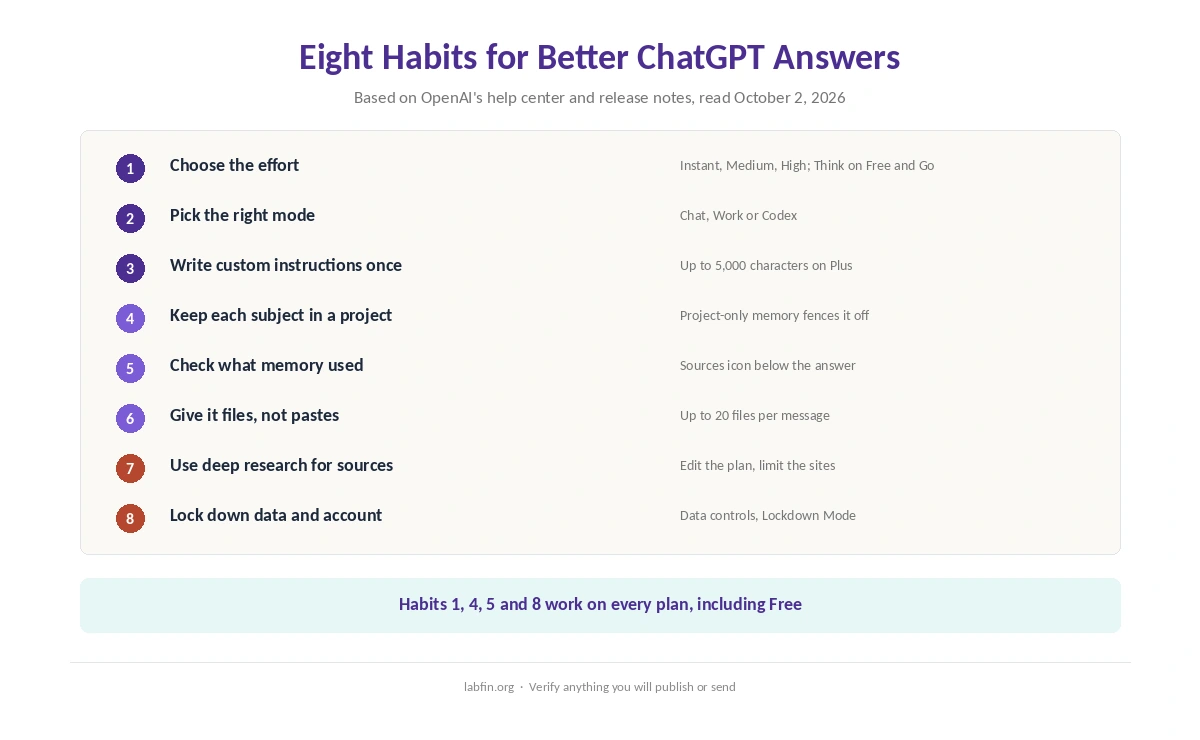
Here is how to use ChatGPT effectively in eight habits, each based on OpenAI’s help center and release notes, read on October 2, 2026.
1. Choose the effort for each question. On Plus and Pro, the model picker offers Instant, Medium and High, plus Extra High on Pro. For example, use Instant for quick facts and drafts, and Medium or High for analysis, math or code. Free and Go users get a Think button on the web for harder questions.
2. Pick the right mode. Chat suits questions and short drafts. Work, by contrast, is an agent for longer tasks that ends in a finished document, spreadsheet or presentation, and it excludes Free and Go. Our guide to ChatGPT for productivity covers Work in more detail. Meanwhile, Codex handles code, and our guide to ChatGPT for coding covers its limits.
3. Write your custom instructions once. First, tell ChatGPT who you are, what you work on and how you want answers formatted. Since July 15, Plus, Pro and business plans allow up to 5,000 characters, up from 1,500. Our guide to writing better prompts shows what to include.
4. Keep each subject in a project. Projects hold their own files, instructions and chats on every plan. Furthermore, since August 14 you can switch an existing project to project-only memory, so it ignores chats from outside and keeps its own details out of them.
5. Check what memory used. Below an answer, the Sources icon shows the saved memories, past chats and instructions that shaped it, on all consumer plans. You can also correct or delete each one. For a one-off question, start a temporary chat instead, which stays out of your history unless you save it.
6. Give it files, not pastes. You can attach up to 20 files in one message, and pastes over 10,000 characters now become attachments automatically. Files you upload stay in your Library for reuse. ChatGPT also works inside Word, Excel and PowerPoint through Microsoft add-ins, Word included since September 17. For drafting tips, see our guide to ChatGPT for writing.
7. Use deep research for sourced answers. It returns a cited report on every plan, though Free allows less of it. You can now edit the research plan before it starts and limit it to sites you trust. Our guide to ChatGPT for research covers the limits.
8. Lock down your data and account. Personal plans train on your chats by default, so opt out in Data controls if they are private. Also consider Lockdown Mode, which limits web and app access to reduce prompt-injection risk, and review Active sessions under Security.
Which Mode for Which Task
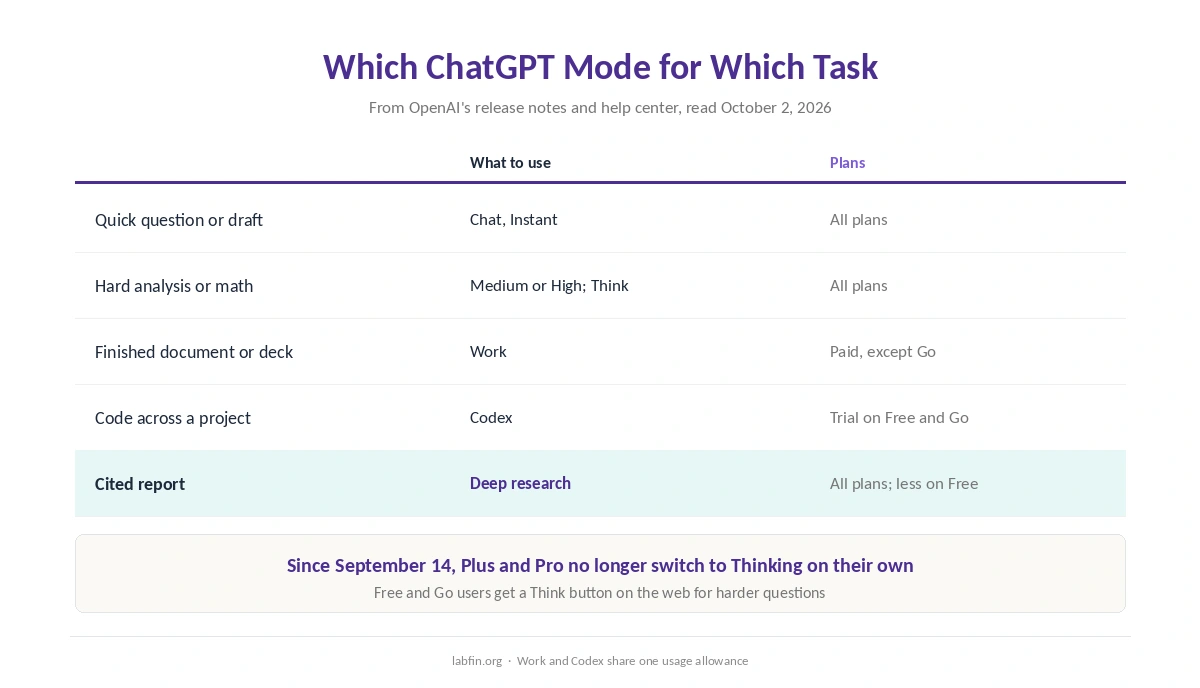
| Task | What to use | Plans |
|---|---|---|
| Quick question or short draft | Chat, Instant | All plans |
| Hard analysis, math or logic | Chat, Medium or High; Think on Free and Go | All plans |
| Finished document or deck | Work | Paid plans except Go |
| Code across a project | Codex | All plans; trial on Free and Go |
| Cited report | Deep research | All plans; less on Free |
Common Mistakes
The costliest mistake is trusting a confident answer. One independent test, as reported by Tabbit, found that GPT-5.6 Sol, the Plus chat model, rarely declines a question it cannot answer. OpenAI says its August 6 update made facts more reliable, but our comparison of ChatGPT vs DeepSeek shows why checking still matters. So trace every figure, quote and date, as our guide to fact-checking AI output sets out.
Another mistake is mixing subjects in one long chat. Old context then leaks into new answers, and as a result the useful parts are hard to find later. Similarly, leaving memory on for sensitive topics means those details can resurface elsewhere.
A third is paying for the wrong plan. Go costs $8 a month in the US but may show ads, while Plus at $20 is ad-free and adds Work and Codex allowances. Our comparison of free and paid AI tools covers what each step adds, and our AI tool limits page covers the caps.
Settings Worth Changing Today
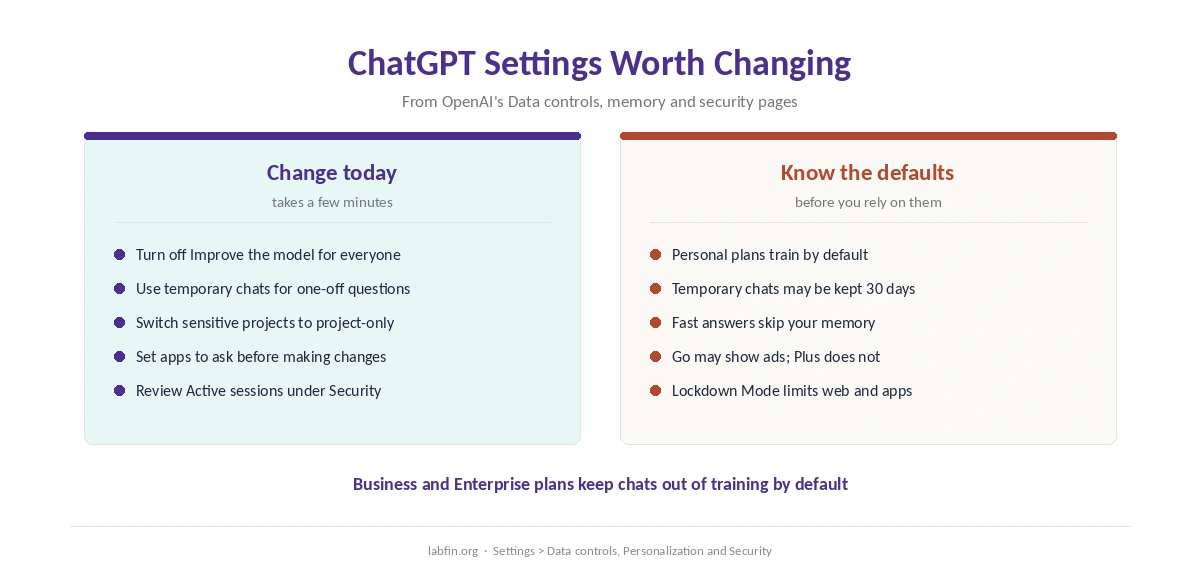
Turn off Improve the model for everyone in Data controls if your chats include client or personal material. Then decide on memory: keep it on for continuity, or use project-only memory and temporary chats to fence off subjects.
Next, set app permissions to ask before changes, so connected apps such as Gmail cannot act without you. Finally, turn off Fast answers in Personalization if you always want answers that draw on your context, since those quick replies skip memory.
What Is Changing Soon
OpenAI plans to retire custom GPTs and move them to plugins, which combine reusable instructions with connected apps. If you rely on a GPT, note who built it and test the migrated plugin when it arrives. For tasks ChatGPT handles less well, our list of ChatGPT alternatives compares the options.
How We Research
This guide on how to use ChatGPT effectively draws on OpenAI’s ChatGPT release notes and help center articles on projects, memory and deep research, read on October 2, 2026. Plan prices come from chatgpt.com/pricing, read on September 30.
The accuracy note comes from the independent tests cited in our ChatGPT review. We run no tests of our own, and our about page explains how we source.
How to Use ChatGPT Effectively FAQ
Pick the effort for each question, keep subjects in separate projects, attach files rather than pasting, and use deep research when you need sources. Then verify figures before you rely on them.
Use Instant for quick facts and drafts, and Medium or High for analysis, math or code. Since September 14, Plus and Pro no longer switch to Thinking automatically, so choose it yourself.
Turn off Improve the model for everyone in Data controls. Temporary chats are also kept out of training, though OpenAI may keep a copy for up to 30 days.
It limits a project to its own chats and keeps its details out of chats elsewhere. Since August 14, you can switch an existing project to it in Project settings.
Yes. Since September 17, 2026, ChatGPT for Word works on all plans, including Free, through a Microsoft add-in. It joins the Excel and PowerPoint add-ins.
The Verdict
Learning how to use ChatGPT effectively is mostly about a few deliberate choices: the effort level, the mode and where each subject lives. Projects, files and deep research do the rest of the heavy lifting.
However, the settings matter just as much. Turn off training if your chats are private, check memory sources now and then, and verify anything you will publish.