
A library receives dozens of requests for weekend workshops: some need a quiet room, some ask about wheelchair access, and some contain unclear dates. Staff want to group requests by topic without silently accepting or rejecting participants. Airtable Field Agents can generate record-level text or select-field values based on configured inputs, but interpretation is not the same as authority. This fictional workflow shows how to create triage categories, preserve uncertainty, and separate an AI suggestion from a human acceptance decision. None of the sample requests are real participant records.
Define the field that AI may fill
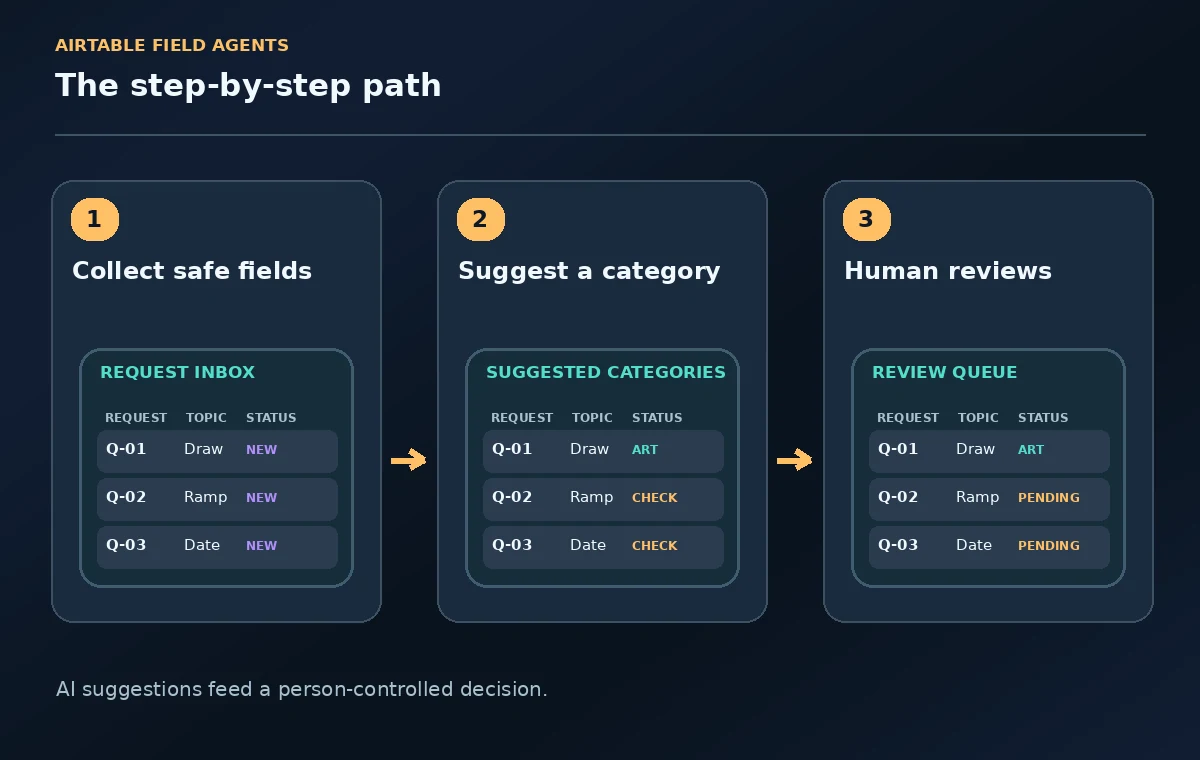
Start with one narrow outcome: a suggested request category such as Art, Coding, Accessibility Question, or Needs Clarification. Do not ask the AI to determine whether a child, adult, or applicant qualifies for a place. Keep a separate manual field called Review Decision, with values such as Pending, Contacted, Approved, and Not Approved. The approved decision must be set by an authorized staff member. This design prevents the model from quietly turning incomplete requests into final eligibility determinations. It also lets staff distinguish a useful classification from an answer that merely sounds certain.
Prepare a minimal and safe input table
Create columns for request ID, workshop interest, preferred date, special requirements category, staff notes, AI Suggested Category, and Review Decision. Avoid putting unnecessary medical details, private family situations, or unrelated personal identifiers into fields the model is told to analyze. Use an access-controlled base, redact test records, and consult your organization’s data handling rules before activating AI. The more specific the model’s task, the less sensitive information it usually needs. If a request mentions accessibility, route that question to an appropriate staff member; do not let AI judge the legitimacy of someone’s accommodation request.
Choose the appropriate Airtable Field Agent type
Airtable’s current help describes Field Agents across long-text and select fields, with other supported AI field types as well. A single-select category is a sensible fit for a bounded triage label, while a long-text agent can explain why a request needs follow-up. In the table, add a new field and look for Field agents; select Build a field agent or a suitable catalog option. Configure the output type and custom instructions. AI in fields requires an eligible paid plan, enabled workspace AI, and AI credits. Owner or Creator permissions are needed for configuring agents, while permitted editors can generate content.
Write a conservative classification instruction
A practical instruction is: “Read only the request topic and date fields. Return one of Art, Coding, Accessibility Question, or Needs Clarification. If the request is missing a topic, asks for an exception, or conflicts with a category, use Needs Clarification. Do not infer age, health status, eligibility, or acceptance.” Add a small collection of invented test rows to see whether that instruction is interpreted consistently. Avoid open-ended category names that staff may not understand. A category is meant to route a request to a person, not to tell that person what final action to take.
Test the edge cases before applying it broadly
Include a blank request, a request mentioning two workshops, an unsupported workshop topic, and one with contradictory dates. Check whether the agent returns Needs Clarification when evidence is insufficient. Airtable notes that a formula follows explicit rules exactly, whereas a Field Agent can make assumptions. That distinction matters when the output could affect a person. Where a deterministic rule can check for an empty required field or a known date format, use a standard formula or validation first. Save the model for interpreting genuinely variable language, not for replacing hard eligibility checks.

Review the suggested values with a visible queue
Add a view filtered to Review Decision = Pending and arrange the columns so the original request sits beside the AI category. A librarian should inspect the exact source sentence before accepting the routing suggestion. If the agent marks an accessibility-related question as a general art request, correct the routing label and notify the appropriate specialist. Keep uncertain cases visible instead of forcing a single confident choice. Where staff change a label, retain a simple note explaining the correction, so you can improve the agent instruction without exposing personal details.
Prevent accidental downstream approval
Do not trigger registration confirmations, payment requests, rejection emails, or schedule assignments directly from the suggested category. If automation is used later, require an explicit human Review Decision before any consequential external message. Test the flow with a dummy request and confirm that Pending creates no acceptance notice. A person may be incorrectly categorized for benign reasons, such as spelling errors, multiple requests in one message, or missing dates. The safe operational boundary is a recommendation field feeding a review queue, not an AI field controlling a final decision.
Watch credits, reruns, and changing inputs
Airtable documents AI credits and settings for Field Agents. Treat generated results as a snapshot of the record information used at that moment. When a requester edits their date or topic, decide whether to regenerate and then review the suggestion again. Do not assume that the latest text has automatically been reflected in the previous AI output. Monitor any paid usage and choose a bounded pilot dataset. Record the date of last review and avoid constantly regenerating unchanged records when a deterministic rule would suffice.

Publish a human-approved intake outcome
Before sending a workshop confirmation, the staff reviewer should check capacity, age requirements if legally relevant, available accommodations, date, contact method, and the current program policy. Record the decision in the manual field and use an approved message template. If an unanswered question affects participation, reply with a request for information rather than filling a gap with an estimate. This workflow succeeds when it shortens the sorting stage while preserving the participant’s right to a careful and explainable human decision.
How We Research
This guide was prepared by reading the named official documentation—Airtable Support, Using Airtable AI in fields—and cross-checking the described feature, its workflow, platform or plan restrictions, and the point at which a person must review the result. The scenario, illustrations, example inputs, approvals, and sample outputs are hypothetical editorial teaching aids; we did not access a customer account, run a live product test, measure model accuracy, or verify an actual organizational policy. Screens, plan rules, and labels can change after this documentation review. Always confirm the currently available feature and the authoritative source documents before acting on any AI-generated wording.
Frequently Asked Questions
They can generate or classify values, but staff should not equate those outputs with an eligibility decision. Keep a separate human-controlled decision field and gate external actions on that reviewed value.
Airtable’s current help lists AI in fields for paid plans, with workspace AI enabled and AI credits available. Permissions also affect who can configure a Field Agent.
Yes when the rule is deterministic, such as checking whether a date is blank or whether a selection is from an allowed list. Airtable notes formulas are preferable for exact rules and do not spend AI credits.
A reviewer should correct the suggestion, use the original request to determine routing, and adjust the instruction or category definitions if the error repeats. Never let the wrong suggestion trigger automatic rejection.
Some Field Agents can work with document text, but Airtable notes limitations, including that image content in attachments is not supported by the document extractor. Verify the supported input type before relying on it.