
A community arts center tracks workshops in Airtable. Coordinators need a dashboard of total seats, registrations, and waitlist pressure, but volunteers should not see participant names, accessibility requests, or private phone numbers. Airtable Omni can build and change parts of an Airtable base and create AI-generated interface elements from natural-language instructions. That power makes an explicit privacy boundary essential. This hypothetical build sets the data contract first, reviews Omni’s proposed changes, tests permissions as a limited user, and treats public-facing information as a separate editorial product.
Create a minimal reporting contract before the prompt
Describe the dashboard in terms of workshop title, date, room capacity, confirmed count, waitlist count, and a simple capacity status. Do not give Omni a brief that says “show everything useful” because useful can include sensitive columns. Define which records are active, how cancellations affect a count, and whether pending applications consume a seat. Separate contact information from aggregation fields in the underlying design. The capacity threshold and any accessibility accommodations must follow the center’s actual policy, not an assumption made by an AI agent. A fictional sample data set is safer for the first layout review.
Check account permissions and AI credits first
Airtable’s October 2026 documentation says Omni is available across plan types, with AI credits and feature enablement affecting full usage. Base owners or creators configure important Omni settings, and what Omni may change depends on the user’s permissions. That is more specific than saying the feature is simply free. Identify whether the person testing the dashboard has creator access or only an editor role; do not casually elevate permissions for a one-off experiment. Review the organization’s policy for using customer records with AI and decide whether anonymized sample rows are required.
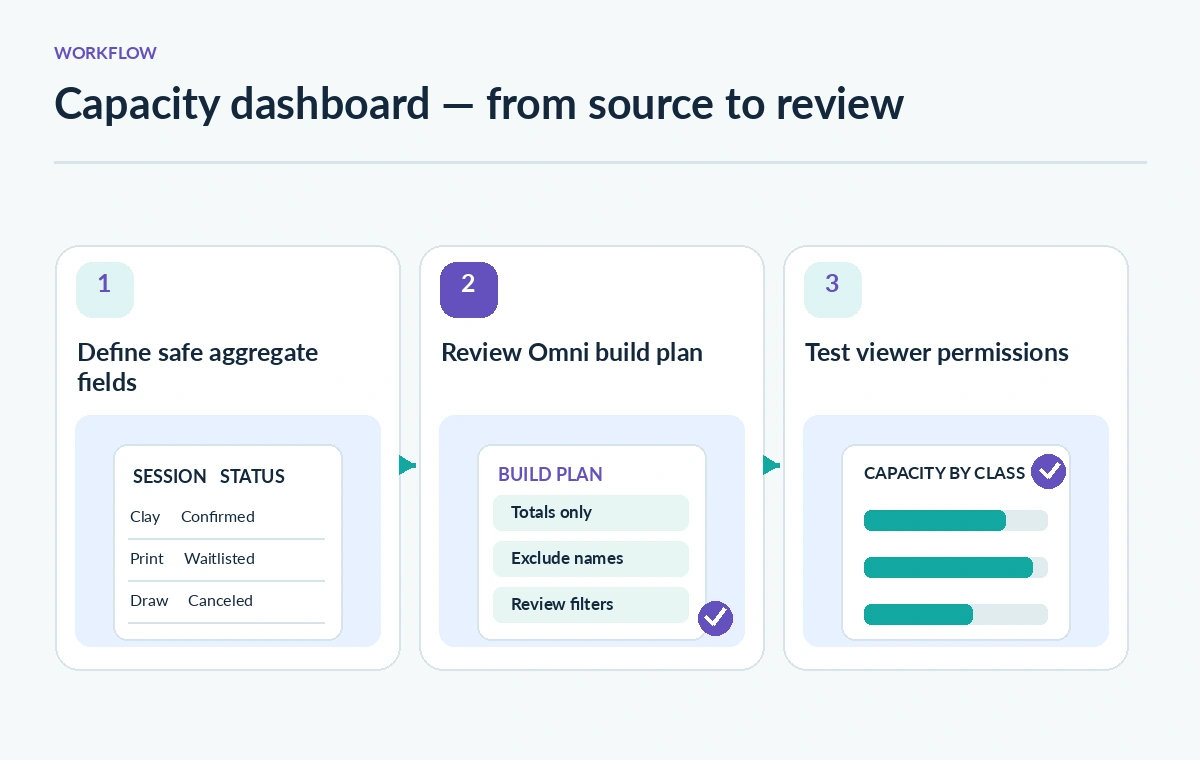
Ask for a dashboard with an explicit deny list
Open the base, launch Omni, and give a bounded request: build a workshop-capacity view from confirmed registrations; show totals and seat availability; do not display names, emails, phone numbers, payment notes, or accommodation requests. Ask Omni to describe the required fields, views, and calculations before building anything. Make “pending approval” a visible value when counts are ambiguous. If the base has multiple sessions with the same title, require an unambiguous session ID to prevent double counting. Never ask the model to create a public signup list or publish the interface without a formal privacy review.
Review Omni’s proposed work before selecting Build
The Airtable support instructions describe a proposed plan for generated interface elements, followed by a Build it action. Read that plan line by line. Confirm which tables, fields, automations, and interface pages Omni proposes to create or alter. For this scenario a capacity dashboard should not need automatic deletion, invitation emails, or a change to the source attendee table. Reject unexpected structural changes and clarify that all existing sensitive fields must remain inaccessible to broad audiences. Keep a copy of the intended schema so the team can compare it with the finished interface.
Choose generated elements or native pages deliberately
Airtable distinguishes AI-generated custom interface elements from traditional Interface Designer pages. A request to “build an interface” can create generated elements rather than a standard native page, so specify the desired type when consistency or accessibility tooling matters. The support materials describe dashboard elements and full-table layouts, and note placement restrictions for custom elements. If a generated chart looks attractive but makes its data sources opaque, prefer a simpler native summary. Visual polish is secondary to accurate counts, clear labels, and a reviewer’s ability to trace every number back to a table.

Check each calculated total with a hand sample
Create a small approved test with one full workshop, one near capacity, one with a canceled booking, and one waitlisted application. Calculate expected counts on paper and compare against the rendered dashboard. The illustration here shows an erroneous design exposing participant names beside a chart and a corrected design presenting only aggregate bars; it does not claim Omni made either outcome in a live test. Check sorting and grouping: a chart grouped by workshop title alone can merge two different session dates. Document the formula or filter logic behind every displayed status so an editor can audit it later.
Treat privacy as access control, not just a hidden label
Hiding a column on one dashboard is not proof that a participant cannot access the underlying data through another interface, link, or base permission. Review the intended recipients, their role, interface sharing settings, and the sensitivity of record details. Test with a least-privilege account, including search, row drill-downs, exports, and any embedded element. Airtable warns that interface-only collaborators can be allowed to create, update, and delete information through Omni under a configurable setting. An organizer should deliberately disable unnecessary writes. Do not let a private registration record become visible simply because the summary page looks anonymous.
Review approval boundaries on AI-created changes
Omni can update a base and build interfaces, but its post-response behavior and publication boundaries vary by feature. Airtable says that automations it creates are initially off, and it leaves interface publishing to the user; other capabilities may request confirmation before destructive changes. Treat those controls as guardrails rather than a substitute for governance. Record the requested changes and check the actual base history before announcing completion. For a workshop dashboard, preserve an easy rollback path and require a human to approve any automation that changes attendee statuses or sends notifications.
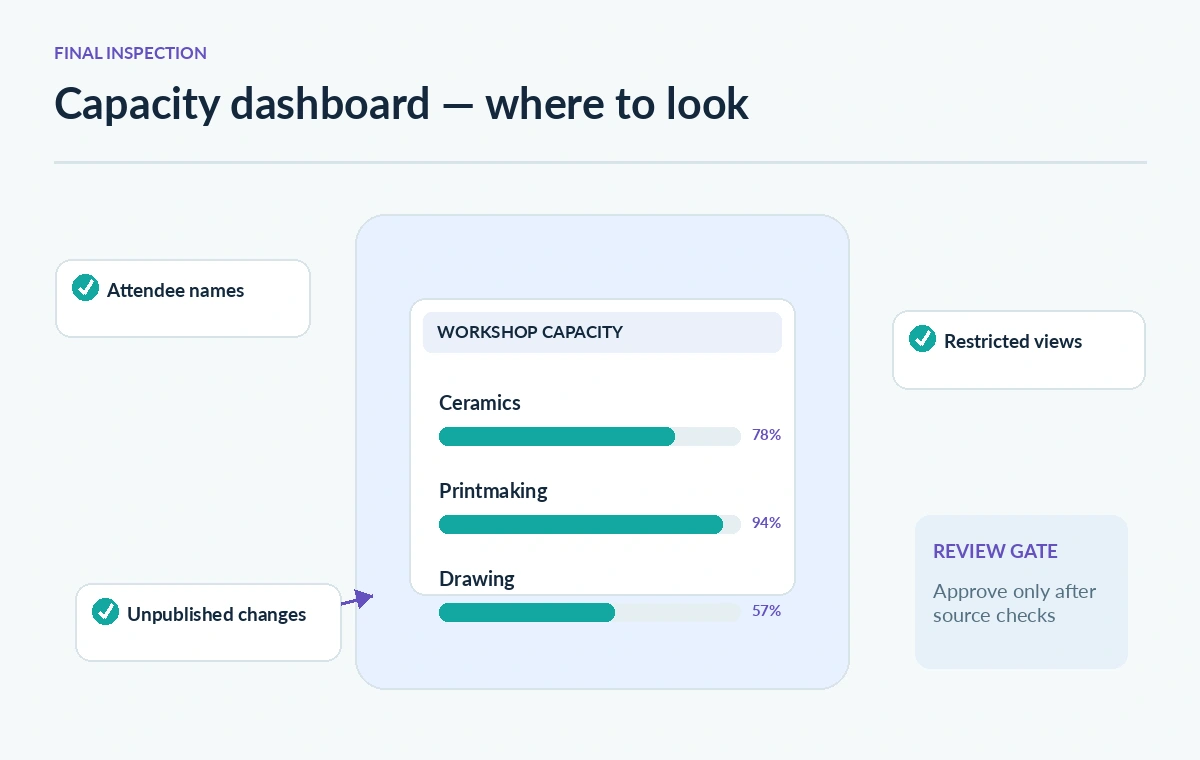
Publish only a tested, deliberately scoped view
Obtain approval from the program lead and privacy owner after comparing the generated summary to the source counts. Check the layout on mobile and at narrow widths, making sure color is not the only signal for a full session. Add a text alternative such as “12 of 12 seats filled” to any progress bars. If a public dashboard is required, consider copying only aggregate figures to a separate publication-safe table instead of granting broad access to the working base. Recheck counts when attendance changes and establish who owns periodic refreshes. This workflow has not created a live Airtable app or processed real registrant data.
How We Research
This article was researched using the named official product documentation: Airtable Support — Using Omni AI and Airtable Support — AI-generated interface elements. We checked the described features, interface entry points, documented access conditions, and limitations relevant to this exact scenario, then developed a human-verification workflow. The scenario, graphics, sample material, model outcomes, approvals, and examples are editorial illustrations, not an account test. We did not operate a customer workspace, measure speed or accuracy, capture actual UI screenshots, or verify private project policies. Confirm current entitlements and instructions in the official documentation before acting.
Frequently Asked Questions
Airtable lists Omni across plans, but enabled AI features, credits, and permissions determine what a particular account can do.
Yes. Airtable documents AI-generated dashboard elements, subject to placement, permissions, and model access restrictions.
No. Review record-level and interface access, exports, drill-downs, and collaborator permissions.
The documented general workflow leaves publication decisions with users; review current feature behavior and account settings.
No. Capacity reporting and approval decisions should be separated unless an explicitly reviewed business process governs both.