
Disclosure: LabFin is reader-supported. If you sign up for a tool through links on this page, we may earn a commission at no extra cost to you. Commissions vary between providers and our ratings do not — here’s our full disclosure.
To generate UI with AI well, describe each screen, its states and its users before prompting. Then iterate in small steps and check accessibility before shipping. Tools such as v0, for example, turn a description into working React components in minutes.
This guide covers which tools fit which job, a six-step workflow, and the checks generated interfaces still need. It works for prototypes, internal tools and production front ends.
How to Generate UI with AI: The Short Answer
First, write what each screen shows, what users do there, and its empty, loading and error states. Then generate in a builder such as v0 for React interfaces, or Lovable and Bolt.new for whole apps.
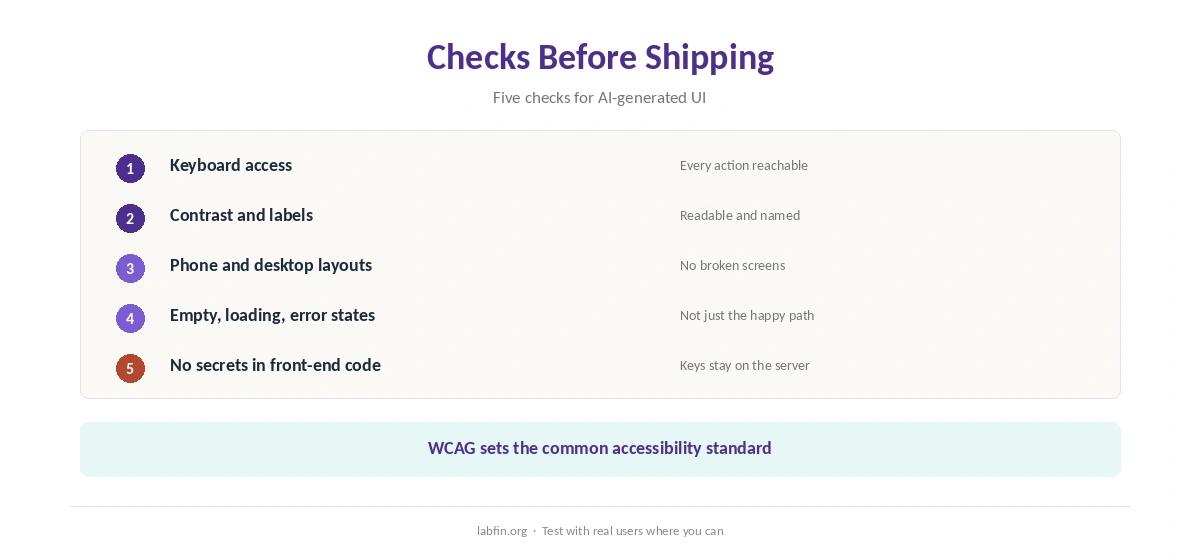
Next, however, refine one change at a time, check keyboard access, contrast and mobile layouts, and review the code before real users arrive. Our list of the best AI app builders ranks the tools.
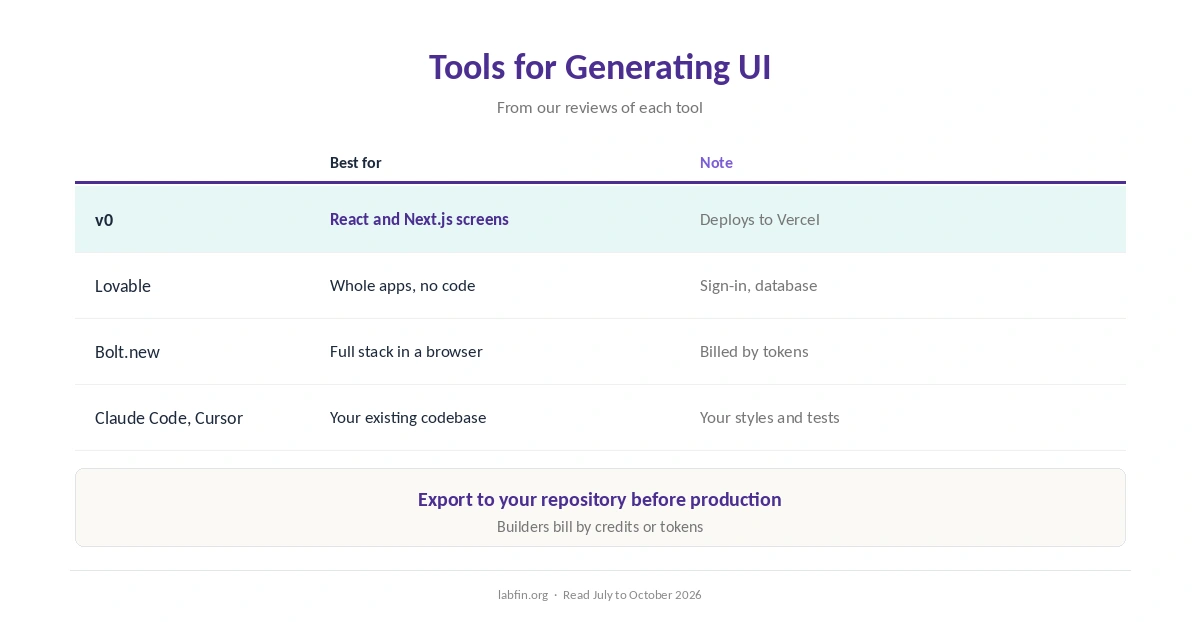
Tools for Generating UI
v0 turns prompts into React and Next.js components with a live preview and deploys to Vercel, as our v0 review covers. Lovable and Bolt.new, by contrast, build whole apps around the interface, as our Lovable review and Bolt.new review explain.
For an existing codebase, coding agents such as Claude Code and Cursor generate components in your own project and style, as our Cursor review and Claude Code review explain.
Step 1: Describe Screens and States
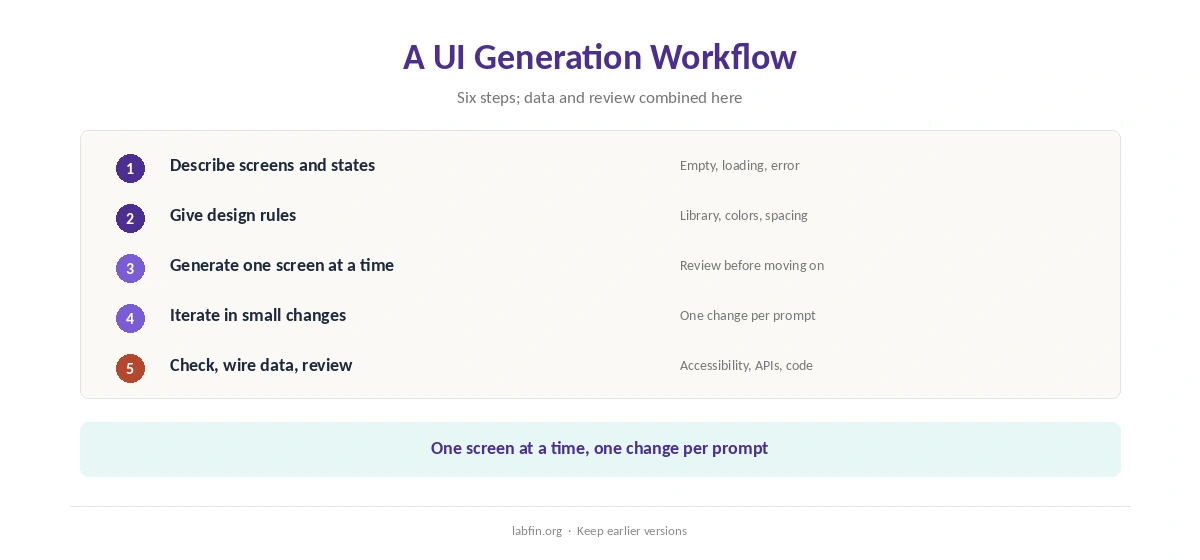
For each screen, list what it shows, the main action, and its empty, loading and error states. Generated UIs, otherwise, tend to show only the happy path.
Step 2: Give Design Rules
Name your component library, colors, spacing and type sizes, or paste your design tokens. As a result, the output matches the rest of your product instead of a generic look.
Step 3: Generate One Screen at a Time
When you generate UI with AI, ask for one screen, review it, then move on, rather than requesting a whole app at once. Our guide to writing better prompts covers how to be specific.
Step 4: Iterate in Small Changes
Request one change per prompt, such as spacing or a new state, and keep earlier versions. Large rewrites, moreover, often break parts that already worked.
Step 5: Check Accessibility and Layout
Test with a keyboard, check color contrast and labels, and view the screen at phone and desktop widths. The W3C’s WCAG guidelines set the common standard.
Our guide to reviewing AI-generated code covers the code side.
Step 6: Wire Real Data and Review
Replace sample data with real API calls, handle errors, and keep secrets out of front-end code. Our guide to using AI for API integration covers the details, and our guide to using AI for unit testing helps lock behavior in.
Prototype or Production
For prototypes and internal tools, a builder alone can be enough. For production, however, export the code to your repository and continue with a coding agent, as our Cursor vs v0 comparison explains.
How We Research
This guide on how to generate UI with AI draws on our reviews of each tool, read between July and October 4, 2026, and on the W3C’s WCAG overview.
We run no UI tests of our own. Our about page explains how we research, and our list of the best AI for coding ranks agents.
How to Generate UI with AI FAQ
For React interfaces, v0; for whole apps, Lovable or Bolt.new; for existing code, coding agents such as Claude Code or Cursor.
It can, but check keyboard access, contrast and labels against WCAG yourself.
No. Generate one screen at a time and change one thing per prompt.
Not without review: wire real data, handle errors, keep secrets out of the front end and test.
Give the AI your component library, colors, spacing and type sizes, or your design tokens.
The Verdict
AI generates interfaces fast when you describe screens and states clearly. Without checks, however, it ships happy-path screens with gaps in accessibility and error handling.
So describe, generate one screen at a time, iterate in small steps, and check before shipping. That is how to generate UI with AI that holds up.