
An equipment volunteer records a seven-minute demonstration of a folding step stool. The speaker pauses while setting the locking bar, repeats one sentence, and says a short safety warning before anyone steps onto the platform. The team wants a tighter onboarding clip, not a different set of operating instructions. VEED Magic Cut can automatically trim pauses, filler words, mistakes, and silence, but its speed is exactly why the safety-bearing section needs a human review before the video is distributed.
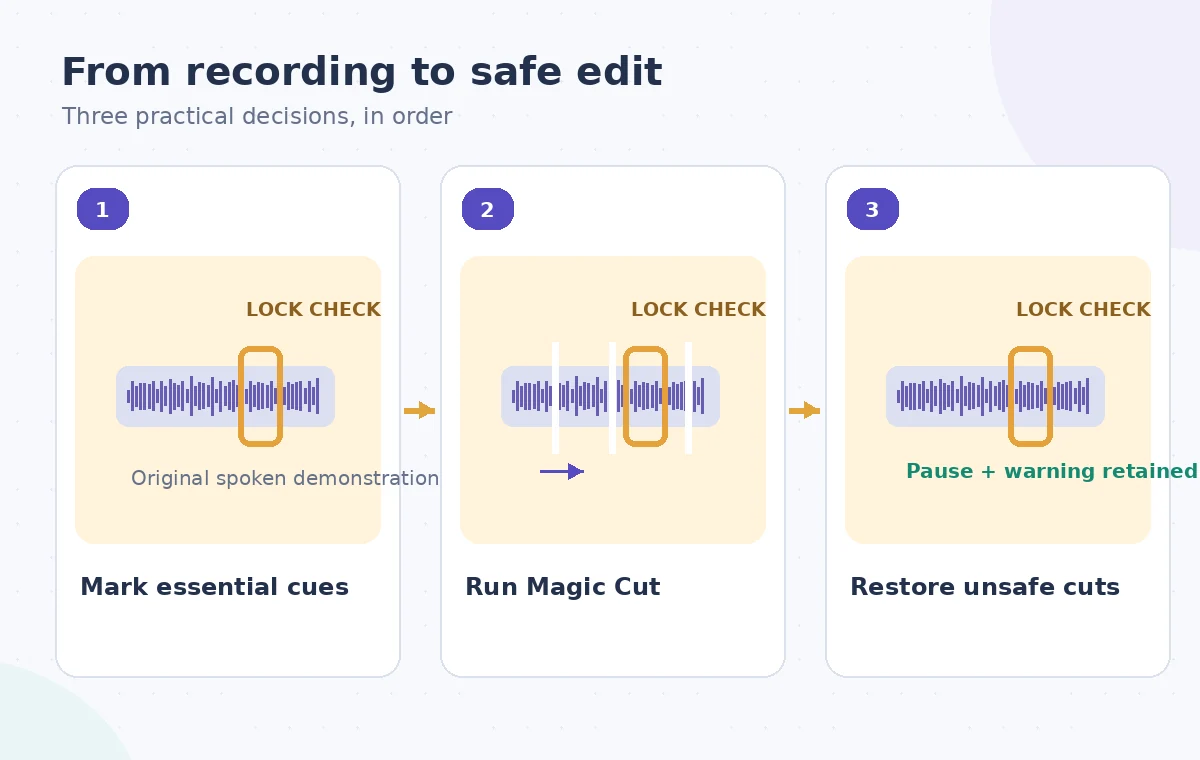
Define the segments that must survive editing
Before using any automatic cut, watch the entire recording and list the moments a trainee needs to understand: unfolding the stool, engaging the locking mechanism, checking the footing, and hearing the warning not to climb until the lock is secure. Record the approximate positions of those moments on the original timeline. This preservation map gives an editor a way to detect damage without relying only on how polished the shortened clip feels.
Distinguish a hesitation from a purposeful wait. A quiet moment in which the demonstrator tests the lock is instructional action, not unwanted dead air. An audible pause before a warning can be important because it separates the danger from routine narration. Decide which pauses can shrink and which should remain visible before running the automated tool; the distinction depends on the lesson, not the waveform alone.
Check VEED access and language support
VEED’s published Magic Cut instructions describe the feature as available on all plans, including the free plan, and state that Magic Cut currently supports English. That is a feature-specific statement, not a promise about watermark-free export or every account’s available limits. Confirm the current plan, recording language, and export constraints on the account used for production. Do not plan a multilingual training workflow around automatic English-only speech detection.
The official guide says the input clip must include speech. The editor selects the video clip in the timeline, opens Magic Cut under the Video menu, and continues to start processing. The tool then merges remaining segments for review. Do not assume the tool understands that a step-stool warning is legally or operationally important; its purpose is to identify likely trimming opportunities in spoken material.
Run Magic Cut on a reviewable working copy
Make a duplicate project or preserve a copy of the original recording. Upload the narrated demonstration, confirm that the right source clip is selected, and choose Magic Cut. After processing, treat the shortened sequence as a rough edit. Scrub through the joints between the resulting clips; the absence of an awkward noise does not prove an action or instruction survived. Keep the original timing list visible beside the edited video.
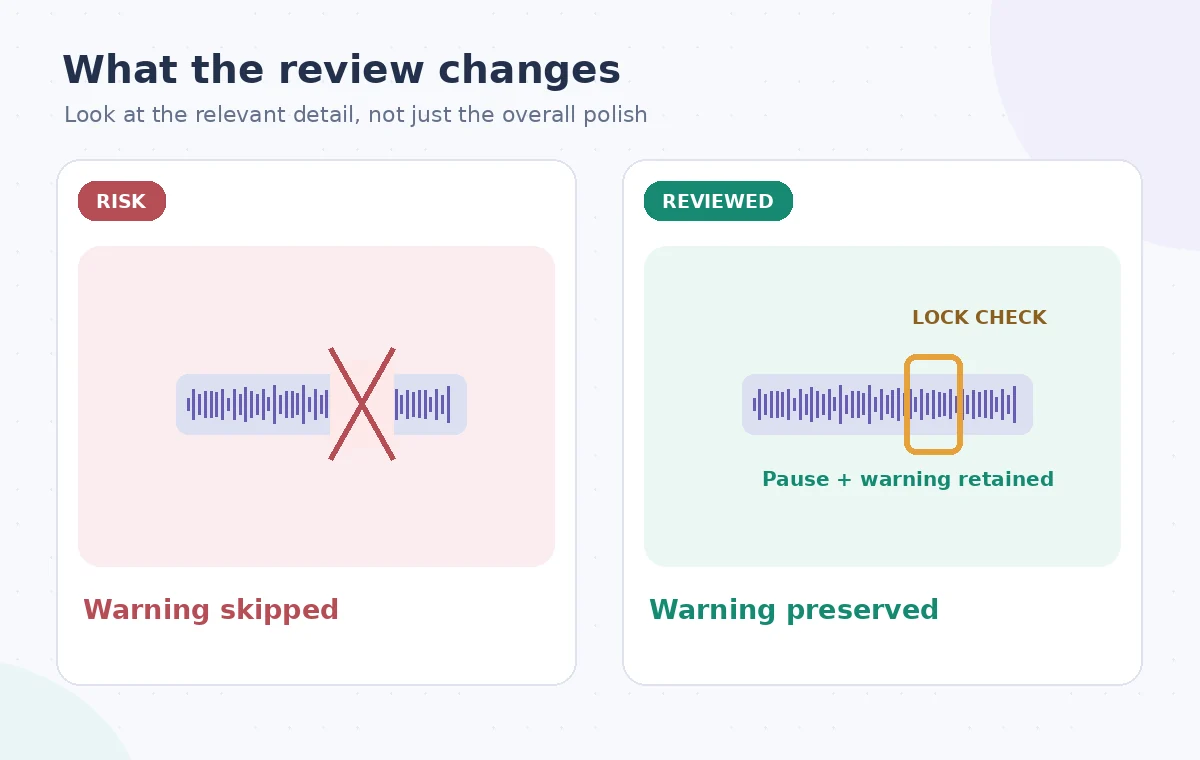
The high-risk moment is the transition from setting the lock to climbing onto the stool. If Magic Cut removes the short quiet inspection while leaving the later action, the sequence can imply that the inspection is unnecessary. Likewise, deleting part of the spoken caution might make the speaker seem to approve climbing before checking stability. Evaluate the edited sequence as a first-time trainee would, not as someone who already knows the procedure.
Use the AI tool selection checklist
Use the script view to repair the timeline
VEED also documents Edit by Script for transcript-linked video editing, including restoring previously removed words and controlling silence or filler-word deletion. When Magic Cut has shortened an essential sentence or pause, use the available editing controls to bring it back and inspect the connected footage. A transcript can highlight a missing word but will not reveal that a necessary hand movement occurred silently off-camera.
Read the full warning against the organization’s approved training script. Check negations, numbers, and sequence words such as before, after, and only. Those small terms determine what a novice will do. When transcript text is wrong, do not repair the apparent mistake by deleting the associated footage without listening; verify the original audio first. Restore the authentic action and narration, then refine cuts around it.
Inspect cut points and visual continuity
At each automatic cut, watch several seconds before and after the edit. Is the stool in the same physical state? Are the demonstrator’s hands positioned consistently? Did a safety pin appear to jump from open to locked without showing the intermediate step? A purely audio-driven reduction can produce a visual discontinuity that makes an instructional task hard to follow, even when every retained sentence is grammatically correct.
Maintain enough screen time for trainees to see the locking bar click into place and to read any on-screen warnings. Avoid using an ultra-fast pace solely to reach a shorter runtime. If a cut skips the essential movement, restore the original segment, insert a clearly truthful shot from the same recording, or rerecord that part. Do not fabricate a missing demonstration with an unrelated stock clip.
Plan a safer multi-tool workflow
Check captions and accessibility after the final edit
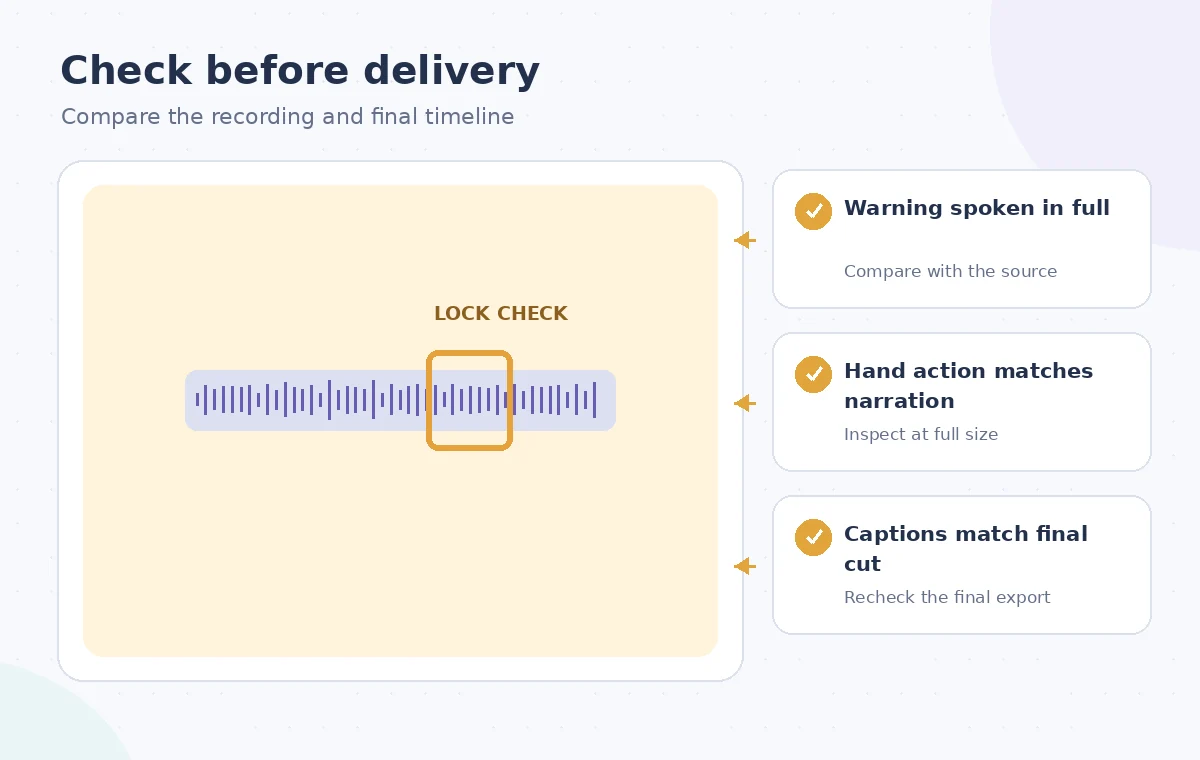
Generate or update captions from the final timeline rather than reusing captions timed for the longer original. Inspect the safety instruction word for word and check that it remains on screen long enough to read. For a learning video, a trainee should be able to identify the locked part visually without relying exclusively on the narration. Describing a critical action solely in a sound effect can exclude people who cannot hear it.
Review the shortened video at normal speed on a phone-sized display. Confirm the warning is audible, the critical movement is visible, and captions do not cover the hands or the locking bar. A video can be concise without being rushed. Keep any necessary long pause where a demonstration depends on a real mechanical delay; removing that delay may teach an unsafe expectation of the equipment’s behavior.
Approve with the person responsible for training
Send the proposed cut to the safety owner or training lead with a simple comparison note: original timestamps, edited timestamps, restored warnings, and any remaining visual gaps. Ask for approval of the actual exported version, not the script alone. The reviewer should judge whether an unfamiliar volunteer can reproduce the procedure safely. This practical human approval is independent of whether Magic Cut identifies the audio as redundant.
Archive the uncut source, the approved export, and a brief change record. Reopen the rendered file to check its audio, captions, and sequence one last time. Do not claim VEED validated the instructions or certified the step stool. VEED offers a useful automated first pass; responsibility for training accuracy stays with the people who know the equipment and its approved operating process.
How We Research
We consulted VEED Help: How to use Magic Cut and VEED Help: Edit by Script. We compared the named capabilities and limitations against the workflow described here, then designed an independent source-preservation and human-review checklist. This is a hypothetical teaching example with original explanatory illustrations, not an account-based hands-on test, measured output, or actual software screenshots. We did not process real customer files, verify a subscription on a live account, or claim that a vendor certified the final result. Confirm the installed version, applicable permissions, current licensing, and site-specific requirements before following the steps.
Frequently Asked Questions
VEED’s Magic Cut help article says the tool is available on all plans, including Free; check current export and account limits separately.
The official Magic Cut help page says English only. Do not assume identical results on translated or multilingual narration.
VEED documents editable cuts and transcript-based restoration controls. Compare the edit with the original to restore any essential action.
The pause may show a required physical check, such as confirming that a locking bar is engaged before climbing.
The training owner should approve the final exported video after reviewing warnings, motion continuity, captions, and the order of steps.