
A small museum adds a gentle instrumental bed to a narrated audio tour. Most narration is clear, but a guide speaks the sentence ‘Please keep behind the rail’ more quietly than the preceding description. Adobe Audition’s Essential Sound panel can automatically lower music beneath dialogue in a multitrack session. That convenience does not guarantee that the quietest words will be intelligible. This tutorial uses a fictional audio-guide scenario to show how to configure ducking, inspect generated fades, and verify the complete delivered mix rather than assuming automation heard the warning correctly.
Identify the safety-critical phrase before mixing
Prepare the original narration, licensed or owned music, a script, and a timeline showing where visitors hear essential instructions. The quiet warning must be marked independently of its measured loudness: its importance comes from the instruction, not from being the loudest sentence. Listen to it in isolation for clipping, distortion, missing syllables, or excessive noise. Ducking can make space around speech but cannot repair a badly recorded word or prove the message is accurate.
Leave the source track unmodified and make a working multitrack session. If the audio guide is used in noisy galleries, plan for different playback conditions, including a modest phone speaker and single-ear listening. Consider whether the museum also needs a readable transcript or captions for accessibility. A music mix should never be the only delivery method for a critical route or barrier instruction.
Set content types in Essential Sound
Adobe’s Audition documentation describes tagging the relevant clips in the Essential Sound panel, then enabling Ducking for clips designated as Music or Ambience. The music is configured to respond to chosen target content types, such as Dialogue. Keep the spoken guide categorized consistently so the music clips have an identifiable trigger. A multitrack session is required for the documented workflow, rather than attempting to process a finished single-file mix as though its layers were still separate.
Tagging is functional metadata, not an editorial verification. A recording mislabeled as dialogue or a short silent gap between sentences can alter the proposed envelope. Confirm the track layout visually: narration above, music below, and any sound effects in separate, clearly named tracks. Save a before state that permits returning to the original background-music level when a fade feels unnatural.
Adjust Duck Against, Sensitivity, Reduce By, and Fades
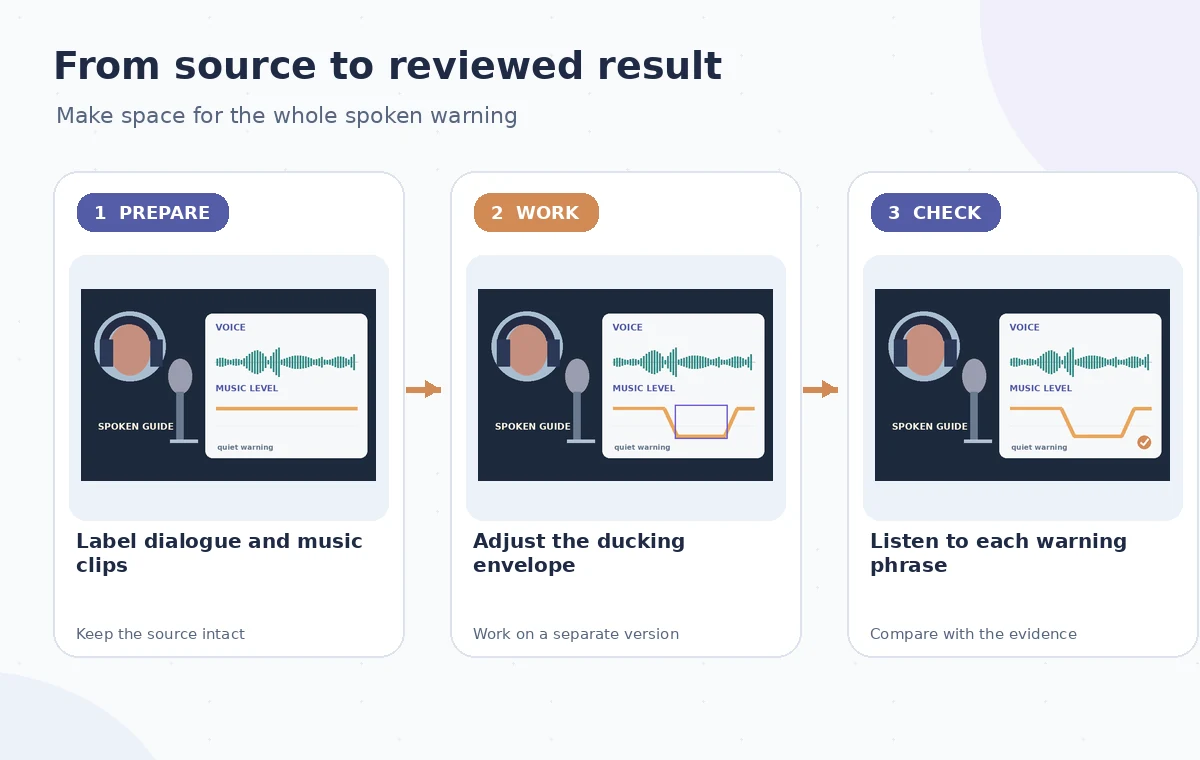
For the music clip, enable the Ducking section. Adobe documents Duck Against for choosing trigger types, Sensitivity for how readily the target content causes ducking, Reduce By for attenuation, and Fades for how quickly music moves down and back up. Begin with a conservative background level, then adjust the sensitivity to make sure the softly spoken warning actually triggers a reduction. Do not treat any single preset or numerical setting as a universal speech-safety threshold.
Play the seconds before and after the warning. A fade that starts late may hide the first word; a quick return can cover the end of a low consonant. Conversely, excessive reduction can make the music pump distractingly at every breath. The process diagram depicts conceptual music automation under a voice waveform, not a real Audition session or measured attenuation. Use your own recording and playback context to choose a suitable envelope.
Use the AI tool selection checklist
Review the automated envelope rather than just the button
Inspect the generated or updated ducking behavior wherever the narration changes intensity. Pay special attention to the initial ‘Please’, the word ‘behind’, and the final ‘rail’, because a low-energy consonant can vanish under bright instrumentation. Listen to the mix both with and without the music, matching the playback volume. The warning must be understandable without relying on a listener already knowing the script.
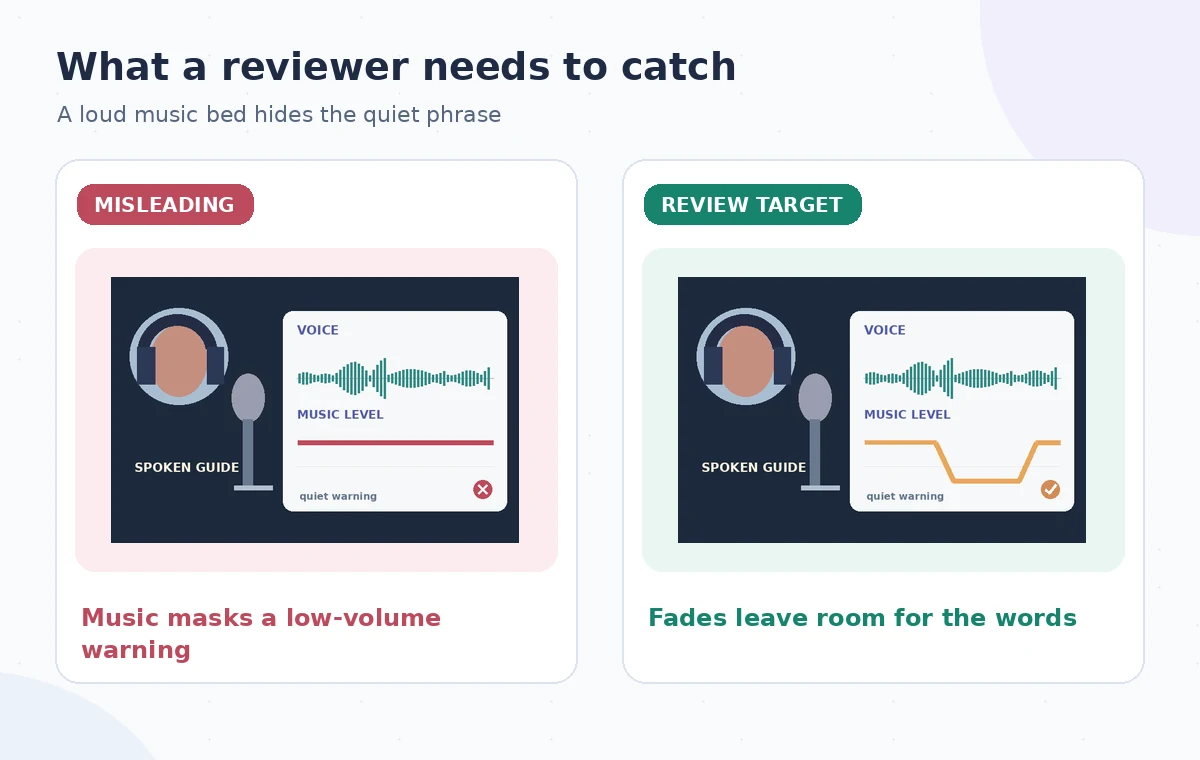
The comparison image illustrates two conceptual mixes: one where the music remains high under a quiet phrase and one where its curve leaves a deliberate trough. It is not an acoustic measurement or proof of an Audition result. Ask another listener to transcribe the warning without seeing the script. If they hesitate, reduce or temporarily remove the music around the phrase or rerecord the narration; do not merely raise every track.
Account for edits after ducking
Narration timing often changes when a curator revises a sentence or an editor shortens a pause. Adobe describes Monitor Clip Changes, which updates ducking after relevant edits, and Reanalyze Clips, which can trigger a fresh analysis when automatic monitoring is off. Check the current behavior in your Audition version. After moving or replacing a narration clip, listen again through its entrance and exit rather than assuming a prior envelope is still synchronized.
Also check sound effects: a bell, door-close sound, or exhibit audio accent may overlap the warning and cause masking independently of the music bed. A valid music envelope is not a complete mix review. Keep target categories intentional, and avoid using a complicated stack of automation when simply muting a decorative track during one crucial instruction is clearer and safer.
Plan a safer multi-tool workflow
Export and run a listener-focused quality check
Export the audio in the museum’s required format, then listen to the delivered file from beginning to end. Test the actual distribution version, not just a preview inside Audition. Confirm that the instrumental introduction returns smoothly, the warning has sufficient space, the ending is not clipped, and no unexpected fade occurs when a new track starts. Use your institution’s established loudness and accessibility specifications rather than inventing standards for this article.
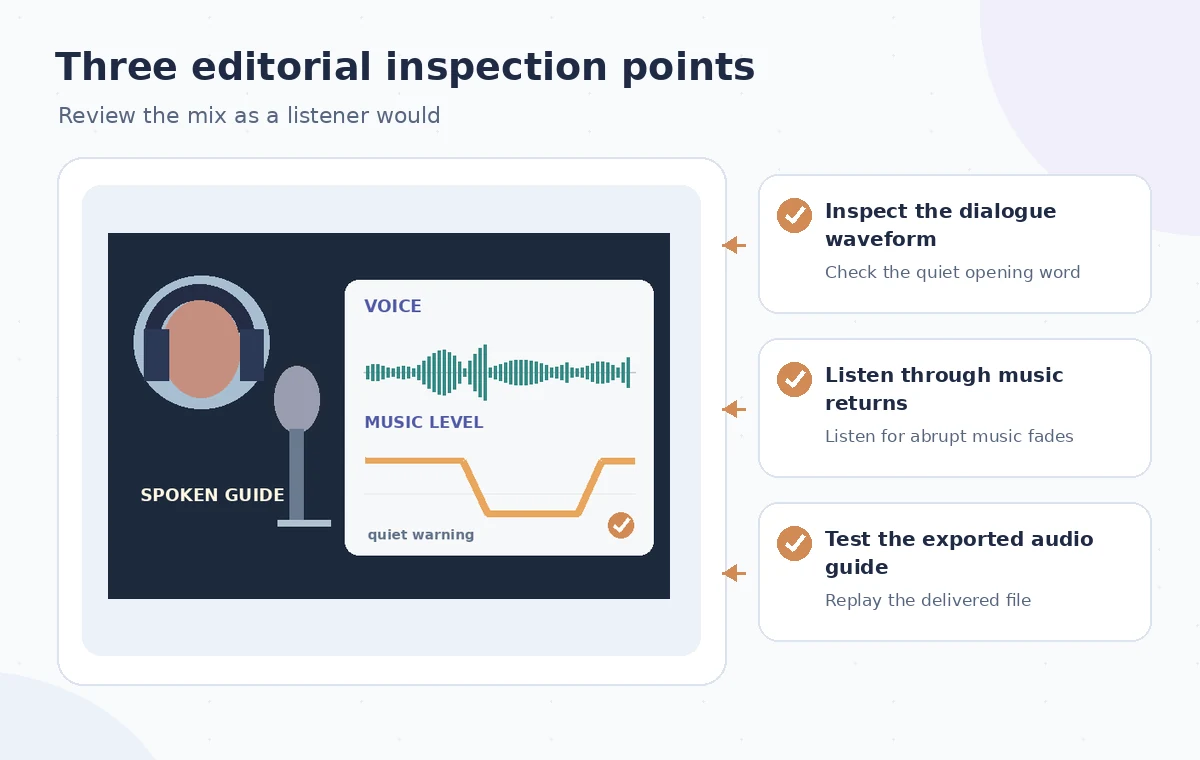
Have a reviewer unfamiliar with the edit listen once in a plausible public-gallery environment and repeat the warning. If the message cannot be reproduced reliably, revise the mix or provide a clear alternative. Record the reviewer’s note with the export version. The checklist drawing points to the dialogue envelope, music transition, and delivered file, because the most important errors may occur after a seemingly successful automatic pass.
Choose manual editing when the instruction is too important
A manual automation lane or a deliberate music mute may be more reliable for one safety-critical sentence than sensitivity-based processing across the entire tour. Likewise, an unaccompanied warning may be editorially appropriate. Auto-ducking is a labor-saving proposal for routine mixing, not a substitute for rehearsed narration, accessible content, or an organization-approved visitor safety instruction.
No audio was actually processed for this guide. The waveforms and envelope illustrations are educational drawings rather than exported Audition screenshots. Product behavior is grounded in Adobe’s Essential Sound description; perceptual quality and venue-specific accessibility were not tested. To apply the workflow responsibly, check the real source audio, all triggers, and the final playback experience independently.
How We Research
We checked the named vendor documentation: Adobe Audition: Essential Sound panel and auto-ducking and Adobe Audition: Editing audio files. We compared its stated user controls, availability warnings, workflow stages and limitations against the concrete scenario described here. We then developed original educational diagrams and a separate human-review procedure for the materials that need independent evidence. The scenario is hypothetical: we did not sign into a paid account, upload a real customer asset, operate the feature on the example, or measure output quality. The figures are schematic, not actual interface captures or recorded processing results. Product menus, permissions and plans can change; verify the current installed edition and applicable policies before relying on this method.
Frequently Asked Questions
Yes. Adobe documents ducking for Music and Ambience clips in the Essential Sound panel of a multitrack session.
It determines which tagged audio content types trigger a reduction of the selected music or ambience clip.
Sensitivity, fade timing, a competing effect, or the original recording may be responsible. Listen to the specific phrase and adjust the mix manually if needed.
Check Monitor Clip Changes. Adobe describes Reanalyze Clips as an option when automatic clip-change monitoring is disabled.
No. Verify intelligibility using the exported file, consider transcripts and alternate formats, and follow the venue’s own accessibility policy.