
A miniature railway club has permission to share an old handheld demonstration of a model train entering a station. The camera shakes, the carriage edges smear, and a painted identification number flashes past the lens. A cleaner-looking video would help viewers follow the movement, but a confidently sharpened number that never existed in the source would make the archive less accurate.
Topaz Video documents separate Stabilization and Motion Deblur filters, with Themis used for motion deblurring. This guide describes a proposed editorial workflow, not an actual render or an assessment of Themis on the club’s footage. The diagrams depict hypothetical frame defects; the original recording remains the evidence.
Identify motion blur before attempting to sharpen it
Inspect a few original frames where the locomotive first enters view, the carriage passes the camera, and the train slows. Motion blur appears as smeared detail inside an exposure, while camera shake changes the apparent position or rotation of successive frames.
These faults can coexist but are not the same. A painted number that is unreadable in every source frame should be marked unknown; processing must not be presented as a forensic reconstruction of its characters. Record the source resolution, frame rate and intended output before changing the timeline.
Preserve the archival source and choose the test segment
Make a working copy while retaining the untouched file, its metadata and the club’s original caption. Pick a five- to ten-second segment that includes the sharpest frame of the carriage number, a difficult moving frame and straight platform edges.
That combination provides a useful challenge for both perceived clarity and geometry. Keep audio in the review because altering the video can accidentally disturb synchronization in an export. Write down what each visibly legible marking says before you see a processed candidate.
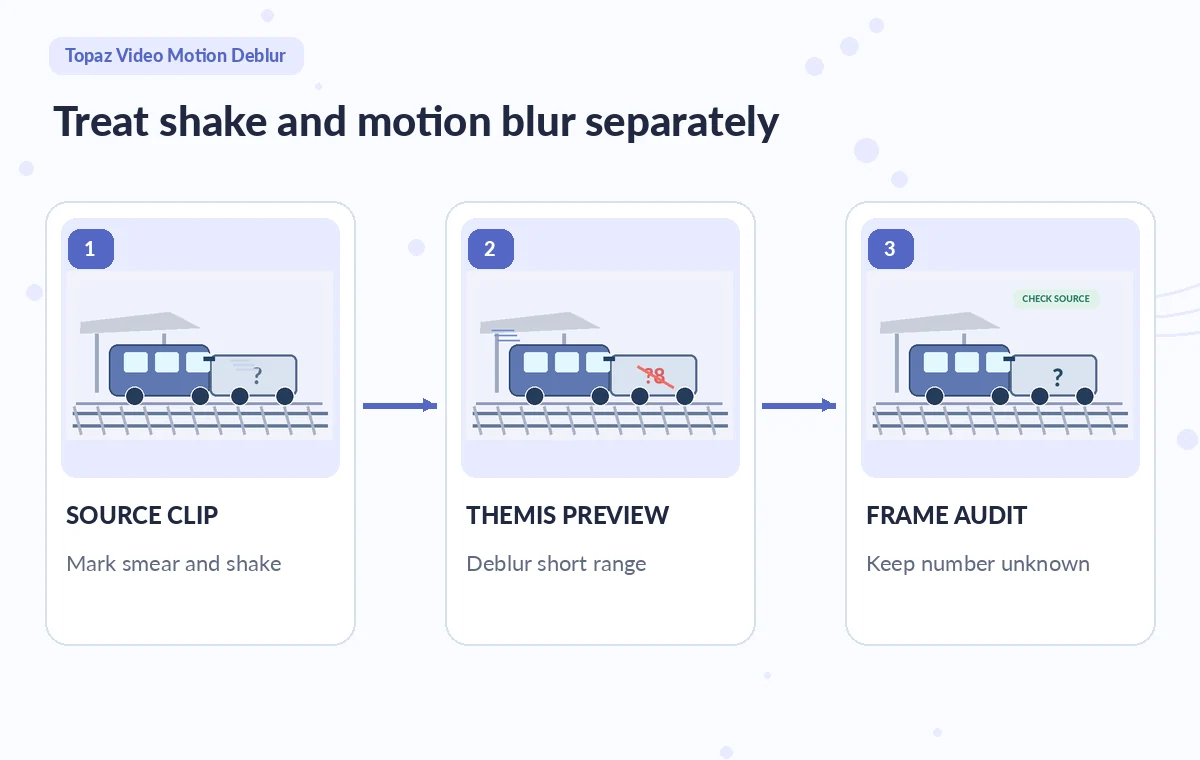
Locate Themis and understand what the control does
In the current Topaz Video interface, Topaz places Motion Deblur in the Adjustments sidebar near Stabilization. The developer identifies Themis as its motion-deblur model and describes it as having no extra strength sliders in that panel.
Enable the filter on the short in/out range, then generate a preview rather than exporting the whole program immediately. Availability and computing requirements can vary by installation and hardware, so check the current release notes and machine requirements. Do not attribute invented strength presets to Themis.
Consider stabilization only when the frame itself moves
If the handheld view also jumps, compare Topaz Stabilization in Auto Crop and Full Frame modes before adding motion deblur. Auto Crop can remove frame edges; Full Frame may fill missing borders with synthesized pixels.
Those choices matter when the track extends toward the corners or a station sign sits near the edge. Keep an unprocessed, stabilized-only, and deblurred candidate as separate files. Changing two filters at once makes it harder to identify which created a warped rail or missing carriage detail.

Compare details that matter rather than overall sharpness
Place the source and candidate side by side at matched zoom and pause on the same timecode. Inspect the white outline of the carriage, the painted digits, wheel spokes and parallel rails.
A plausible-looking numeral is not acceptable evidence of an actual marking; confirm it only against the original or a separately documented carriage inventory. Check motion across at least three consecutive frames so an attractive still does not hide a flickering or wobbly number. If the output adds a second edge around a wheel, back off or reject the edit.
Look for temporal and edge artifacts in movement
Play the slow approach and the faster passage at normal speed. Watch the platform roof and rail joints for bending, repeated texture, halos and sudden changes in crispness; compare the nose of the train as it enters and leaves the crop.
Try a less demanding processing path if motion between frames becomes unnatural. Motion Deblur changes the rendering of detail, not the historical reality of the event. The output should never be used to infer a different train number, speed or safety procedure.
See how AI tools work together
Document the comparison without a fake test claim
A useful editorial comparison identifies three distinct states: unprocessed shake or smear, a candidate stabilized frame with possible crop, and the selected render after a source check. Label these as conceptual in the article’s explanation or alt text, not as measured performance or software screenshots.
Keep frame identifiers and the source file in your project notes. When the number remains illegible, say “number not legible in the recording” rather than allowing an AI-generated shape to enter the description as a fact.

Export for the audience and retain a reversible trail
After a named reviewer approves the train silhouette and caption, export with an appropriate codec and the original frame rate unless the delivery format requires otherwise. Reopen the export to check sync, edge cropping, text overlays and the first and last frames.
Archive the source, settings notes, rendered preview and final file as separate assets with a review date. For an historical club record, a slightly soft authentic clip is preferable to a visually crisp one containing misleading carriage markings or synthetic station signage.
How We Research
This guide was prepared on November 4, 2026 by reviewing the official documentation Topaz Video: Stabilization and Motion Deblur and Topaz Video: Stabilization filter reference and Topaz Video: Stabilize and remove motion blur. We checked the named function, the developer-described entry points, editing choices and relevant limits, then applied those facts to a clearly hypothetical editorial scenario. No live account, subscription plan, customer data, software processing run or performance benchmark was used to claim real-world results. Every illustration is original conceptual teaching art rather than a screenshot, measured before-and-after test, or verified output. The publisher should confirm current menus and entitlements, check the actual output against independent authoritative project records, and obtain the necessary human approval before release.
Frequently Asked Questions
Themis is the model that Topaz documents for its Motion Deblur filter, which aims to reduce blur caused by camera or subject movement.
Only if camera shake needs correction. Test stabilization separately because Full Frame may synthesize borders and Auto Crop may remove important information.
It may change perceived clarity, but it cannot establish a historical number without support from original frames or independent records.
Topaz describes the Motion Deblur Themis panel without additional strength controls. Check the current software version for changes.
Check moving edges, numbered markings, wheels, straight rails and several neighboring frames, not just one attractive paused image.