
A small crafts studio owns a modest-resolution photo of a patterned ceramic tile. It needs a larger reference image for a workshop handout, but the motif has delicate blue lines and an irregular glaze crack that should not turn into new ornamentation. Topaz Gigapixel can increase pixel dimensions with AI-assisted models, yet no upscaler can confirm details that the source never captured. This hypothetical guide distinguishes enlargement from evidence, compares conservative settings, and builds a visual QA process before delivering a print-ready reference.
Identify what the source truly contains
Start with the original image at 100 percent and record its actual dimensions, crop, focus quality, and compression damage. Distinguish a genuine thin painted line from an aliasing edge or a JPEG block. If the source is already interpolated, a higher pixel count may represent false resolution rather than added information. Preserve the untouched file and avoid renaming an upscaled version as the original artifact photograph. The tile illustrated here is an invented four-petal motif; its cracks and curves are pedagogical features, not documentation of a historical object.
Set a realistic enlargement goal
Choose the physical output dimensions or digital layout first, then decide what pixel dimensions are needed for that specific delivery. Topaz documents both scale-factor and dimension-based resizing, with up to 6x enlargement in the app. That range is an available control, not proof that 6x will look authentic for your particular tile. Keep the original aspect ratio unless the handout layout explicitly demands cropping. For a reference image, retaining the border may matter as much as maximizing the motif. Note whether annotations or legends will be recreated as separate text rather than enlarged from blurry pixels.
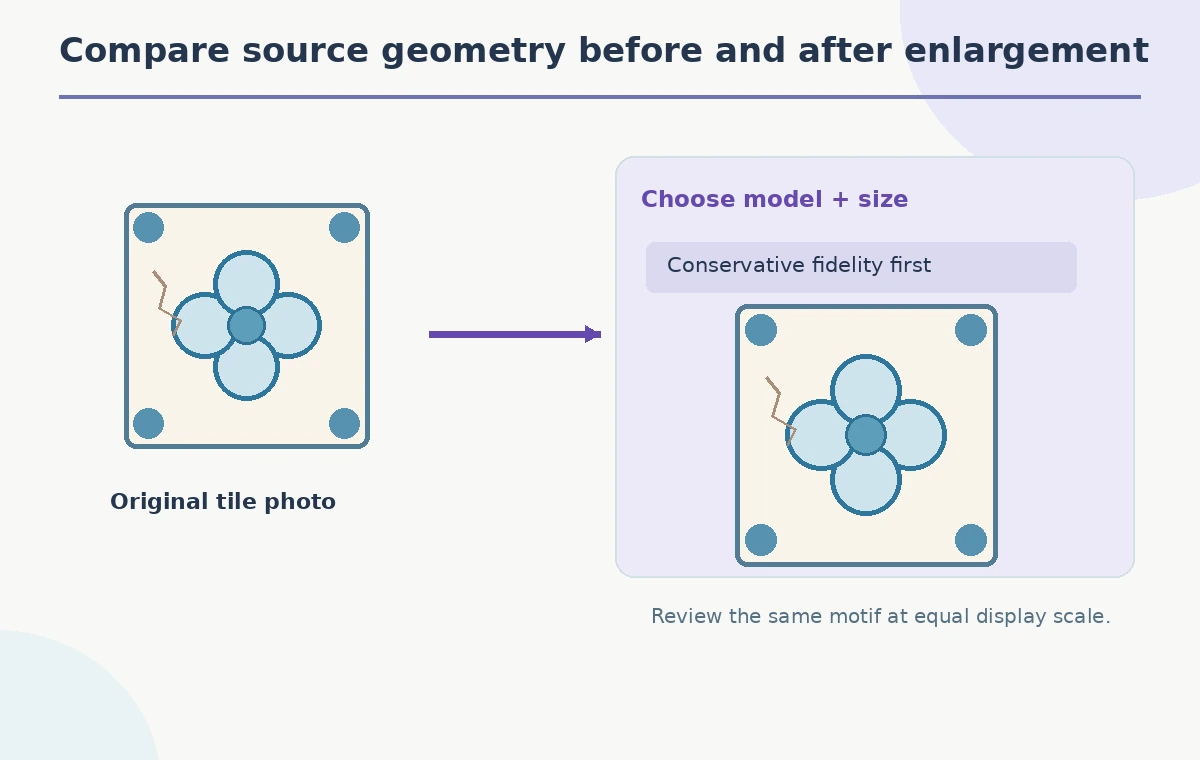
Choose a fidelity-oriented model before a creative one
Gigapixel offers multiple AI models; Topaz describes Core models as emphasizing controlled enlargement and generative models as introducing more reconstruction. For a ceramic pattern where exact line bends matter, begin with a restrained, fidelity-oriented option and compare previews. If you use a generative model, recognize that highly plausible new glaze texture may be visually attractive without being factual. Do not present a model name as universally optimal; performance depends on the original image and current application version. The diagram shows a decision fork, not results measured from specific Topaz models.
Examine one identifiable motif at identical zoom
Pick a recognizable four-petal center, a border corner, and a glaze crack. Compare the original and the intended enlarged result at equivalent display scale for content, not just at native pixel scale where the larger file naturally looks smoother. Count the petals, inspect their spacing, and trace the exact crack path. If a segment becomes a new curl, or the border gains a repeated flourish that was absent in the source, the enlargement has changed evidence. The educational before-and-after tile drawings intentionally show this failure mode; they are not authentic Topaz screenshots.
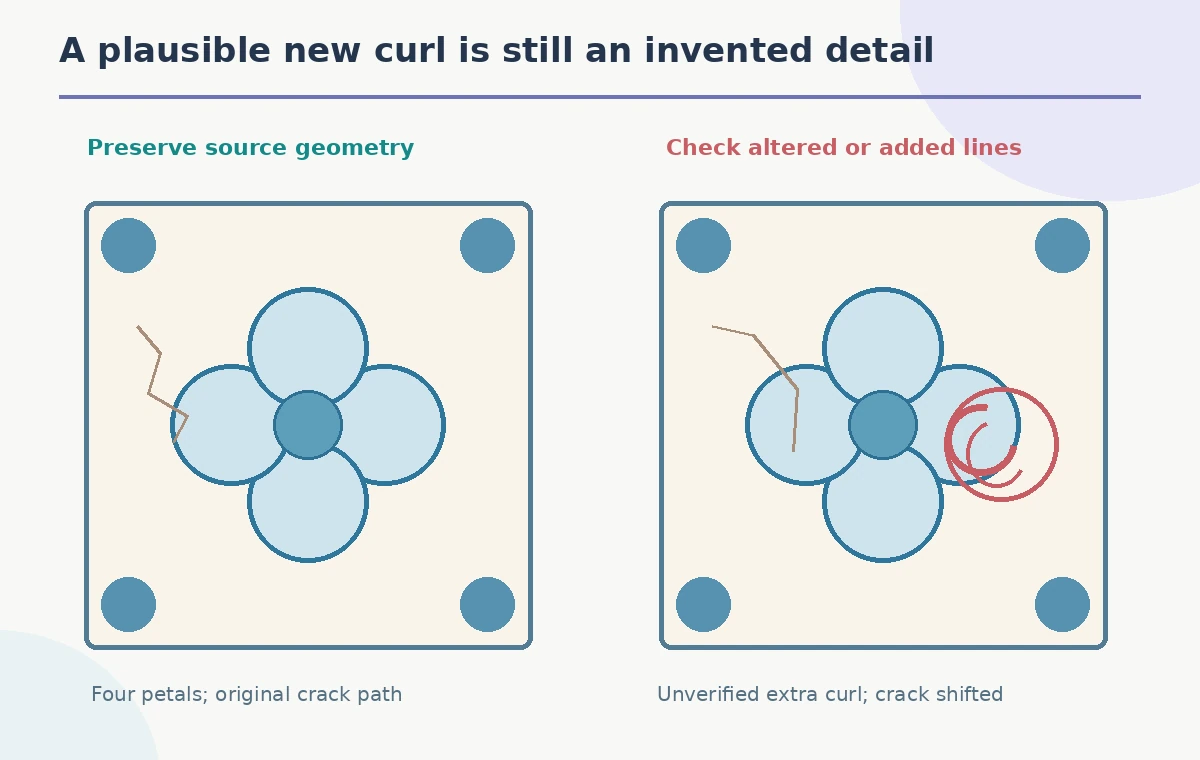
Watch for decorative hallucinations
A repetitive tile pattern encourages the eye to accept symmetry. That is dangerous when an upscaler invents a missing leaf, closes an intentional gap, or turns noisy glaze into an engraved symbol. Inspect irregularities precisely because they may be the original artisan’s work. In a restoration context, annotate uncertain details and refer to another source photograph if available instead of letting AI decide the pattern. The better-looking result is not automatically the truer one. This is especially important for museum cataloging, condition reports, or provenance research where visual uncertainty must remain visible.
Diagnose false resolution and compression
Topaz warns that some scans and online images have already been enlarged without new detail. At 100 percent, those files can show soft blocks, stair-stepped contours, or ringing along contrasting edges. Before large upscaling, consider whether careful pre-processing or a lower effective resolution provides a better input. Avoid repeatedly upscaling an export and calling each step new detail. Save distinct version files with documented processing choices. If an edge is beyond the capture’s ability to resolve, label it uncertain in the handout rather than drawing a confident blue line through the blur.
Preserve geometry and color separately
Verify straight borders, square corners, and the spacing of the four petals. A model that produces attractive microtexture can still bend grout lines or distort the design’s proportions. Compare hue and saturation against the source under consistent display conditions; AI enhancement should not be mistaken for a color-calibrated photographic record. Keep any text label, measurement scale, or catalog ID outside the generatively altered region. For print, retypeset those elements using verified data instead of asking a model to reconstruct lettering from an illegible patch.
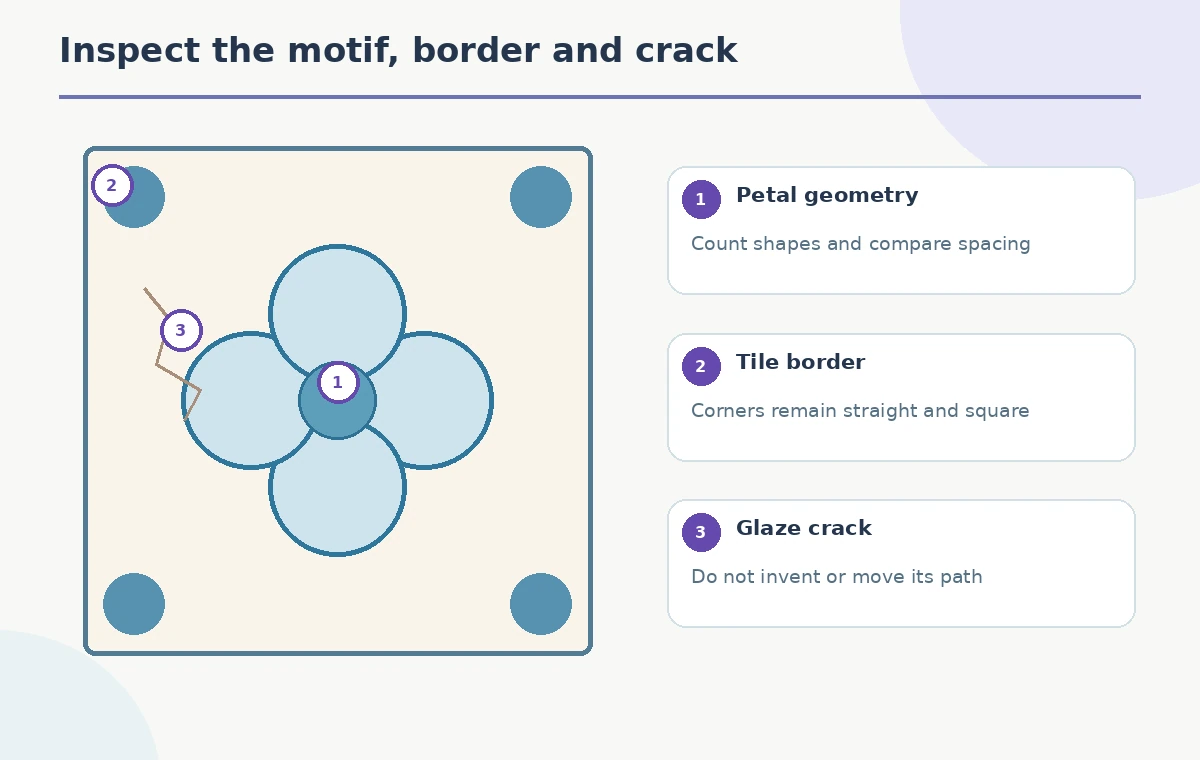
Review the export in its actual handout
Export an appropriate file format and view it in the final page layout at the intended size, not only in a high-zoom application preview. Check that the motifs remain distinguishable, the edges are not overly sharpened, and the surrounding whitespace supports explanatory captions. Keep the source filename and processing notes in the editorial record. Topaz documents local and cloud rendering options with hardware and subscription implications; select only an approved workflow if the image is confidential or owned by another institution. This guide does not claim access to either rendering environment.
Make the handoff honest about reconstructed detail
Deliver the enlarged reference together with the original and a note explaining that AI upscaling may infer surface detail. In ordinary workshop materials, this may be acceptable when the design is decorative, but it is not evidence that a crack or line actually existed on the physical tile. Ask a reviewer to verify the center motif, two border corners, any visible lettering, and the glaze crack. If no reviewer can distinguish original information from model-added detail, use the more conservative image or a smaller print. No actual tile image was enhanced or experimentally compared for this article.
How We Research
We checked Topaz Labs’ Gigapixel Upscale documentation, its Core model descriptions, and its false-resolution troubleshooting guide. No Topaz app, rendering credit, artifact photograph, or print test was used. Tile patterns are drawn examples of image-fidelity risks.
Frequently Asked Questions
No. A larger image may contain AI-inferred texture; accuracy requires source evidence.
Prefer restrained fidelity and compare artifacts; generative reconstruction may introduce unsupported details.
An image has many pixels but little real information because it was previously interpolated or compressed.
Only with rigorous provenance, review, and a clear disclosure that AI enhancement may alter visible details.
No. They are original schematic comparisons of common fidelity risks.