
A small museum wants a short welcome video for a lobby display. The message is simple: greet visitors, point them toward the entrance desk, and remind them that gallery photography rules vary by room. Adobe Express Animate Characters can turn recorded or uploaded voice into movement for a selected character. The animation does not verify the museum’s opening hours or visitor policy. This workflow focuses on an approved short script, a suitable preset character, and careful timing. The drawings illustrate a museum-themed character and storyboard rather than a generated Express output.
Start with an approved, short welcome script
Write a script that can be spoken clearly in one breath at a time: “Welcome to the museum. Please check in at the desk. Follow the signs to today’s exhibitions.” Leave any hours, ticket fees, or photography restrictions out until staff verifies them. A voice-driven character is not a source of factual policy. Use an authorized speaker and ensure you are permitted to use the recording in the intended space. Choose a friendly tone that fits a public lobby, not a theatrical delivery that obscures the directions. Break long instructions into short, listenable sentences.
Choose a character the tool actually offers
Adobe Express documents selecting a Character in its Animate Characters quick action. Use one of the available presets rather than promising that every custom mascot file can be imported as a speaking character. Pick an expression and silhouette appropriate for mixed-age visitors. For our fictional example, the diagrams use a simple illustrated guide figure, not an exact representation of an Adobe library character. If the museum has a proprietary mascot, treat a branded character workflow as a separate production requirement that must be verified before promising it to stakeholders.
Build the scene using the available quick action
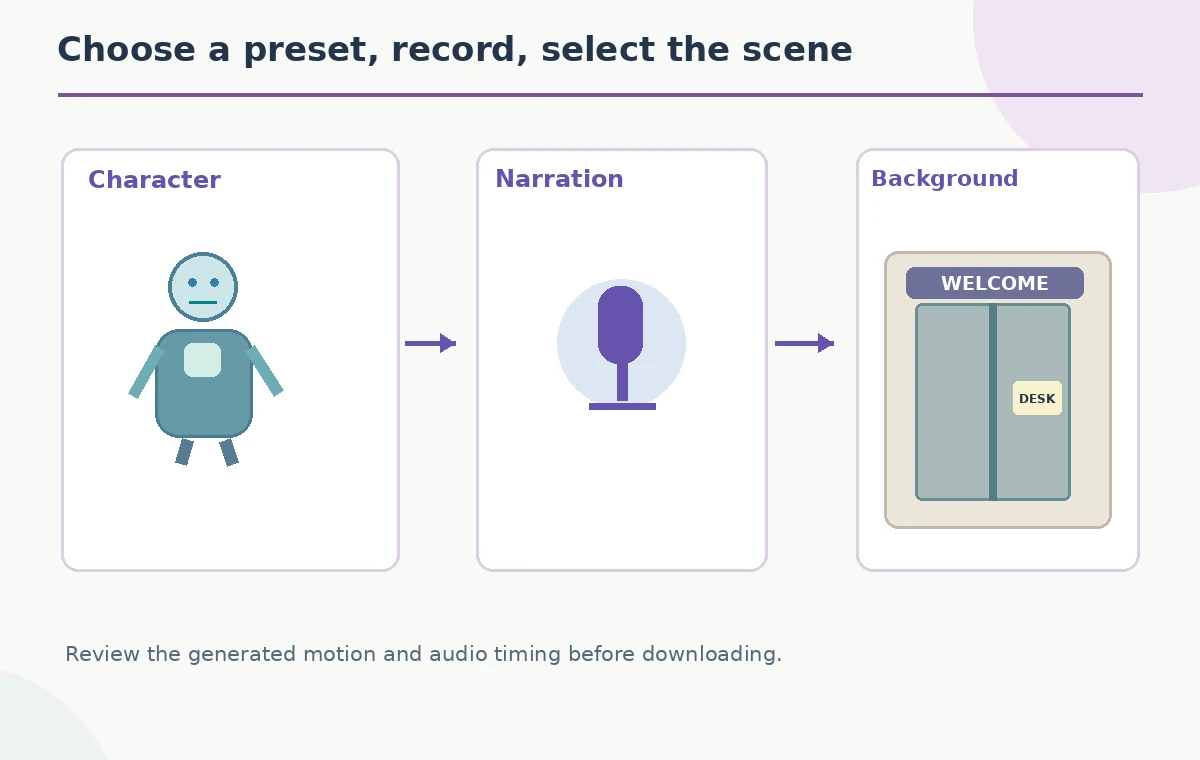
From Adobe Express, open the plus menu, choose Quick actions, and select Animate characters. Select the character, choose a background or upload an appropriate image, and set the size or aspect ratio. Then record or upload the approved narration. The exact screens can evolve, so the official help page is the authority for current control names. Keep the museum lobby background uncluttered and avoid small text that becomes unreadable on a screen across a room. The process diagram shows these stages as character, audio, scene, and review rather than counterfeit screenshots.
Match character movement to the spoken message
Listen to the recorded sentences and verify that the animated character’s movement does not pause while a key instruction is being spoken. The tool can sync movement to audio, but the overall composition still needs review. Watch the beginning and end of each sentence for delayed motion or awkward cutoffs. Avoid interpreting the character’s gestures as an exact transcription of meaning; the viewer gets important instructions from the clear words and supporting on-screen signs. If the generated motion is distracting, simplify the recording or choose a less expressive preset.
Use a storyboard before making the final clip
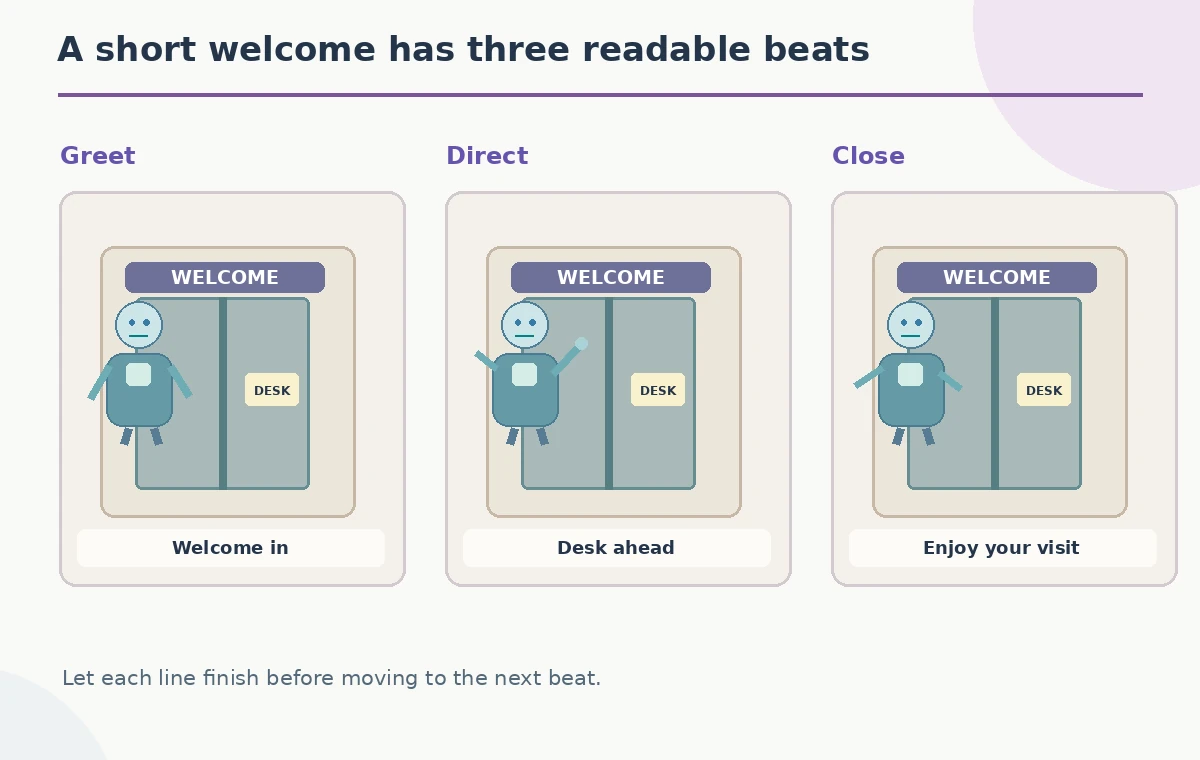
Plan a sequence with three distinct beats: a greeting near the entryway, a direction toward the welcome desk, and a gentle closing. The comparison diagram shows those moments with a consistent character and the same background. A bad version might cut mid-sentence or cover the doorway sign; the corrected storyboard gives the visitor time to locate the desk. The frames are teaching illustrations, not evidence of exact product behavior. Leave enough quiet space for captions, because many lobby displays play without sound or under substantial ambient noise.
Keep the background informative, not deceptive
Adobe Express allows choosing or uploading a background. If the institution uses a real lobby photo, obtain appropriate permission and avoid composing an impossible map of doors. Use simple illustrated signage if the video is clearly stylized, but do not invent an accessible entrance or claim a gallery is open. Position the character so the important direction arrow remains visible. A small shift of the character may solve a clarity problem better than adding more motion. Verify any building labels with staff, especially if exhibits and visitor routes change seasonally.
Consider captions and no-audio viewing
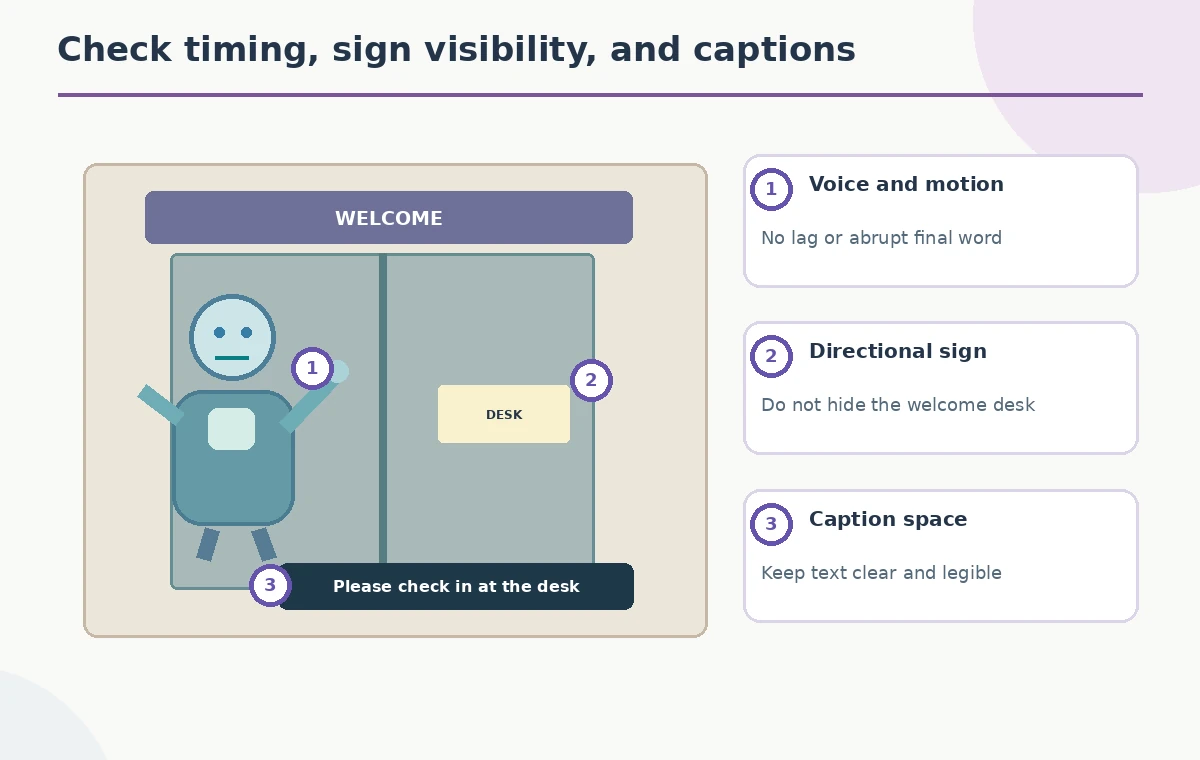
Public displays often compete with conversation and HVAC noise, so the message should remain understandable at low volume. Add captions in the broader editing workflow when needed and verify every line against the approved script. Keep captions away from the character’s mouth, the directional sign, and the bottom of any screen that may have a bezel or interface overlay. Use adequate contrast and ordinary language. Review the video once muted and once with audio. The illustrated check zones identify voice timing, sign visibility, and caption-safe space as separate editorial responsibilities.
Verify recording rights, audience, and duration
Use a recording you made with permission or that your institution is licensed to use. Do not treat an AI-generated animation as granting extra rights to another person’s voice or to a trademarked museum character. Adobe’s product page describes short-form workflows and includes guidance about audio and sizes, but plan limits and export options can change. Avoid asserting that an exact duration, character, or asset is free without checking the account at production time. For a public-facing screen, follow the museum’s accessibility and content review policies.
Review the last second before download
The end of a brief welcome is easy to overlook: a word can be cut off, captions can disappear early, or the character may freeze in an odd expression. Watch from the first word through the last frame. Confirm the greeting begins only after the picture appears and the final instruction finishes before the video ends. If the display loops automatically, include a visually calm transition to avoid a jarring restart. Download a review copy using the current Express workflow, inspect the actual file, and retain the approved script alongside it.
Do not confuse an animated guide with official policy
A cheerful character can make instructions memorable, but visitors may assume every statement in a museum video is current and authoritative. That is why staff approval matters more than animation novelty. Check the script against live visitor guidance before each seasonal update, and provide an accessible written alternative for people who cannot hear or see the clip. Use clear wording such as “Please ask at the desk” when rules differ by gallery. The finished piece should help people navigate the building without claiming results or access that have not been confirmed.
How We Research
This article was researched against the current official guidance: Adobe Express animate characters help and Adobe Express audio animation overview. We compared documented workflow steps, version or subscription limits, and stated capabilities with the specific editing decisions in this hypothetical scenario. We did not open a paid account, process the described media, inspect a real project, time a render, or assert measured results. All visuals in this guide are explanatory drawings, not screenshots or recordings of a completed tool run. The editorial assessment is source-based; no paid account, hands-on benchmark, or measured before-and-after result is claimed. Review the current vendor documentation again before a production run because interfaces and entitlements can change.
Frequently Asked Questions
Yes. Adobe documents recording audio or uploading a compatible existing clip in the Animate Characters workflow.
Do not assume that. The quick action uses available preset characters; verify a separate custom-character workflow if required.
No. Treat directional communication as a separate editing and signage review task.
It should be planned to do so using reviewed captions and visible directions, even if the character animation uses audio.
No. Museum staff must approve all hours, routes, ticket information, and room-specific rules.