
An onboarding trainer has a concise slide that reads “Report incidents promptly” and needs a spoken explanation, not a wall of on-screen text. PowerPoint Copilot can generate speaker notes for a current slide or an entire deck, but a fluent draft can add unsupported deadlines, invented examples or policies that were never approved. This walkthrough uses a fictional workplace orientation deck, not a file uploaded to Copilot. Its diagrams distinguish original slide evidence, suggested speaking text, and a reviewer’s approval decisions so the training session remains truthful and useful.
Audit the slide deck before asking for notes
Begin with a short, approved training deck whose bullet points match current company policy. Remove outdated process slides and identify who owns the factual source for each one. In the hypothetical session, the deck covers incident reporting, help contacts and secure equipment storage. The visual plan shows three slides with source-document icons; these are conceptual design objects, not Microsoft PowerPoint screenshots. A speaker note cannot repair an incorrect slide. If “report immediately” is ambiguous in the official policy, clarify it with the owner before generation rather than letting an AI infer a fixed number of minutes.

Confirm access and choose a manageable deck
Microsoft documents this feature in PowerPoint for Microsoft 365, with Copilot access depending on subscription and organization settings. Its help notes that speaker-note generation works best with presentations containing fewer than 50 slides. Do not imply everyone with a PowerPoint license will see the same menu. For a long training course, plan smaller reviewed sections or work slide by slide. Keep a saved copy of the presentation and clear version names. This feature is a drafting aid within a presentation, not a guaranteed replacement for an instructor or a verification system.
Use the documented Notes command
In PowerPoint, go to the View tab and select the Notes dropdown. Microsoft lists Generate speaker notes for all slides and Generate speaker notes for current slide. Choose a single slide first when policy language is sensitive, then inspect the generated draft. The review interface provides Keep and Discard choices. Do not accept all notes just because the feature offers bulk generation. Our process diagram shows a deck moving into a speaking-script panel with a human approval gate; the drawing does not reproduce an actual Copilot interface or claim the example text was generated.
Separate supported facts from helpful transitions
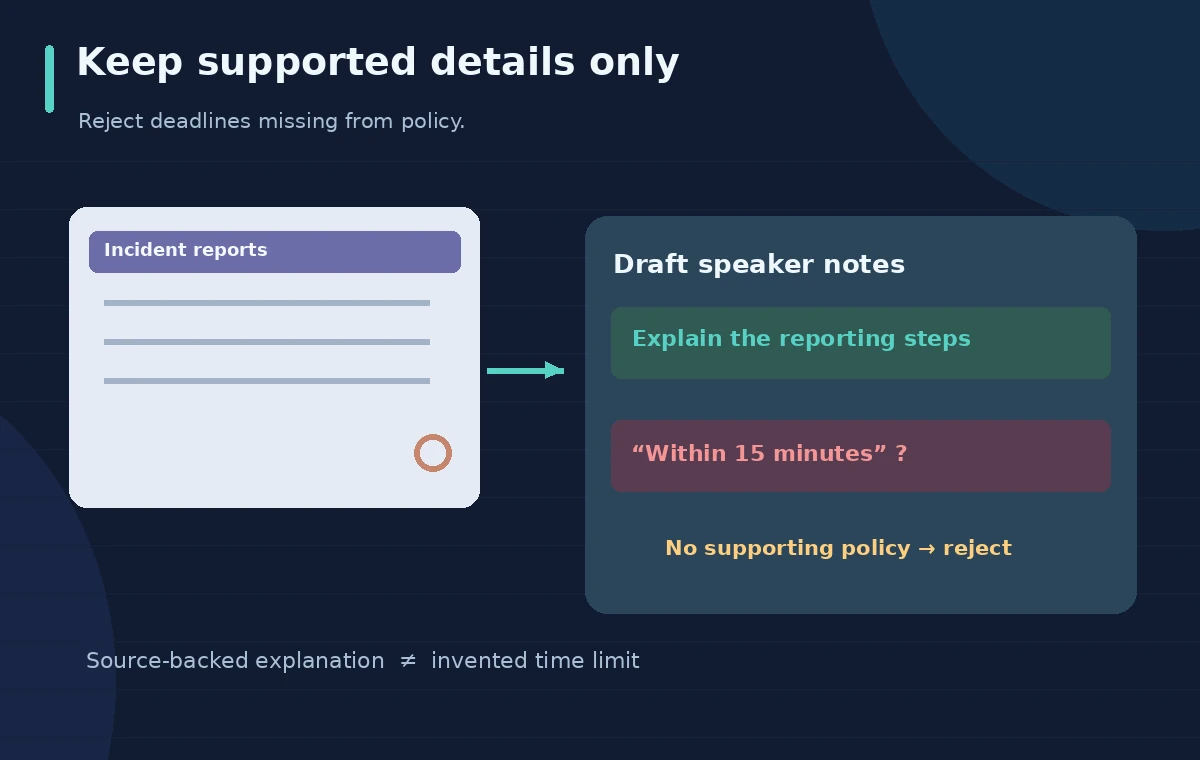
Read each generated paragraph line by line against the slide and its authoritative source. A useful transition may be “Next, here is how to find the reporting form”; a risky addition would be “All incidents must be filed within fifteen minutes” if no source says so. Put such additions in a review queue instead of silently keeping them. The comparison diagram marks unsupported timing and policy details as rejected and retains source-backed talking points. Make sure examples are clearly hypothetical. Fluent presentation language is not evidence that an instruction is correct, current or sanctioned by the organization.
Align notes with the exact slide and presenter flow
Speaker notes should elaborate the slide visible to the audience. Check each slide number, image reference and sequence before rehearsal. A note about passwords placed under an incident-reporting slide can confuse an instructor, even if the sentence itself is valid elsewhere. Remove repeated openers, verbose recaps and statements that describe a diagram not shown. Keep a short prompt for when to advance or pause for a question, but do not assign precise speaking duration without an actual rehearsal. The illustrated review sheet maps each slide to its source, accepted notes and unresolved questions.
Check safety language and invented quantities
Treat dates, percentages, phone numbers, department names, deadlines and emergency instructions as high-risk content. Compare them against a controlled policy or verified contact directory. In training, a made-up help-line number is more dangerous than an awkward sentence. The inspection scheme uses magnifying areas around a fictional phone icon, a timer and a policy reference to demonstrate targeted review. Never cite Copilot itself as the policy source. If the original slide lacks sufficient evidence, mark the note for expert input and omit the dubious claim until that input arrives.

Rehearse aloud and rewrite for natural delivery
A paragraph that reads smoothly on screen may be hard to speak. Rehearse in a realistic setting, shorten long subordinate clauses and add breathing spaces where the audience needs to study a visual. Verify that you can say each acronym and that the slide advances at the moment the explanation changes. If a discussion question is essential, make it explicit in the notes; if it could distract from a safety step, move it to the end. Record observed rehearsal improvements only after actually performing them, not as fabricated timing estimates. The notes should support a human presenter’s judgment.
Save an approved deck, not an unreviewed draft
After review, retain the source policy references, approved deck and edited speaker notes under an appropriate revision label. Have the responsible trainer or policy owner sign off on the final version if required. Verify presenter view and the export format do not expose private notes to unintended recipients. If the deck is distributed without its notes, confirm the on-screen slides still stand on their own. We have not opened Microsoft 365, generated notes or delivered a live training session for this article; the described steps and diagrams are meant to make later verification practical.
How We Research
We checked Microsoft’s speaker notes instructions for the View > Notes menu, Keep/Discard controls and the under-50-slide recommendation. We also reviewed its presentation preparation guidance emphasizing human editing and fact checks. We did not use a licensed tenant, generate notes or time a rehearsal. The slide and note examples are fictional and must be verified against a real source policy.
Frequently Asked Questions
Microsoft documents the Notes dropdown on the View tab, with commands for the current slide or all slides.
No. Availability depends on your Microsoft 365 plan, Copilot entitlement and organization settings.
Microsoft says the feature works best with fewer than 50 slides; review any longer deck carefully.
AI-generated notes may introduce claims not supported by your slides. Verify every time limit and policy statement against a source.
No. Retain only reviewed notes; discard or rewrite unsupported claims and rehearse before presenting.