
A pottery collective has a narrow photograph of a blue handled cup on a market table. Its owner wants room for a newsletter headline, but the cup, its handwritten inventory tag, and the small display behind it must remain faithful to the photograph. A generated extension could quietly insert a realistic-looking discount tag or a second cup that never existed. That would be misleading in a product listing even if the composition looked polished.
Picsart describes AI Expand as generating content beyond an existing photograph when its edges or aspect ratio are enlarged. The walkthrough below is an illustrative editing plan, not a report of a live Picsart session. It treats the original photo as the source of truth and the added area as synthetic, especially where a viewer might interpret a label, quantity, or object as factual evidence.
Define the output canvas before creating pixels
Start with the intended publication size: for example, a wide newsletter hero and a narrower social post. Mark the boundaries of the original capture on a working copy before extending anything. Note where the cup handle, real tag, table seam, and shadows cross that boundary.
If an advertising headline must sit to the left, expand the left side rather than requesting a dramatic new display wall on both sides. A small controlled extension is easier to assess than an entirely new shopping scene. Keep the unmodified file, the crop dimensions, and an annotated proof in the project folder so reviewers can distinguish camera evidence from generated background.
Use the documented AI Expand controls on a copy
Picsart documents a web editor path through Apps to AI Expand, where you can drag the photo borders or choose an aspect ratio. Its mobile apps also offer the tool under editing tools, with an Apply action to generate additional space. Use a duplicate image and choose the smallest margin that will support the copy.
The developer advises simple image edges and high-resolution sources; do not treat a complex row of shelves or handwriting as automatically reconstructable. Each expansion consumes credits under Picsart’s rules, so decide on a crop and review criteria before spending generations. Save a comparison, not just the preferred output.
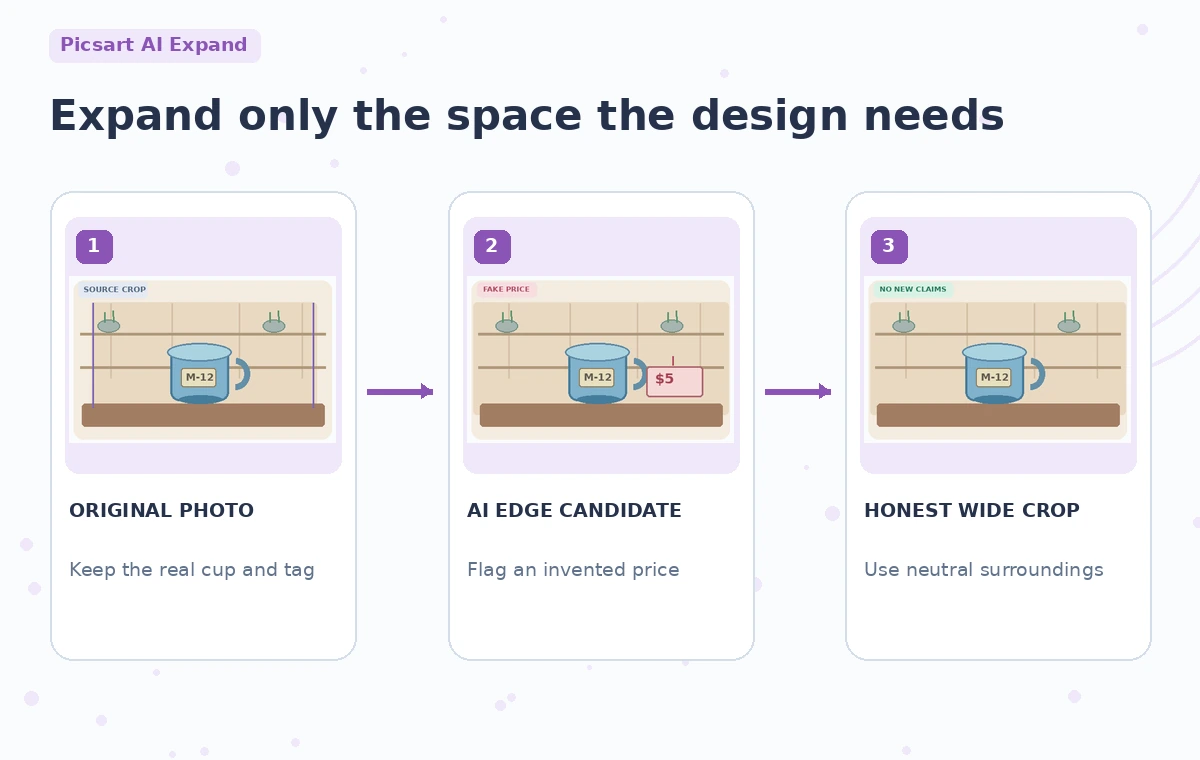
Keep the original cup and inventory label untouched
The cup is the object being represented. Put a visual protection boundary around its rim, handle, glaze texture, and the real paper inventory tag. AI Expand adds pixels at the canvas edges; it should not be used to improve or rewrite the actual product.
In a mock comparison, a new red price card appears beside the cup; the danger is not the card’s color but its implied factual price. Remove or reject such output, even when it looks plausible. If genuine pricing is needed, add independently approved text as an intentional graphic layer after the image has passed the background review.
Inspect geometry, repeated objects, and shadows
At full resolution, trace the table seam from source into new pixels. An impossible seam, duplicate handle, or shadow pointing in the wrong direction is a useful warning that the generated surroundings may have changed the visual story. Compare the boundary at 100% with the saved original, not solely the entire thumbnail.
Examine reflections in nearby ceramics: generated reflections can imply products or people outside the actual scene. A clean illustration can extend a neutral wall; a commerce image may need a disclosure or a conventional crop instead. Choose the less ambitious result if it keeps the merchandise honest.
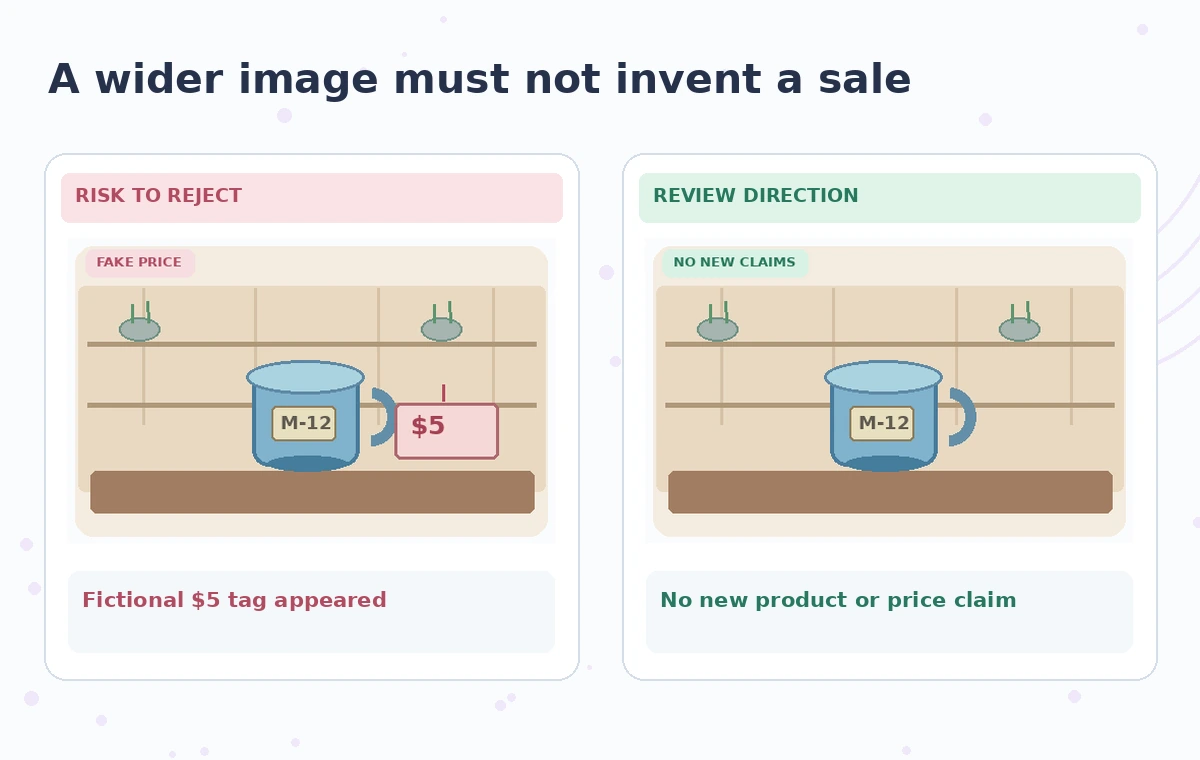
Separate designed labels from photographed evidence
Keep the generated background and any editorial text on separate layers when your workflow allows. The market’s approved name, opening date, actual product code, and prices should come from the seller’s current materials, not from objects that appear in newly generated pixels.
Ask a second reviewer to search for unexpected numbers, logos, QR codes, signs, and duplicate merchandise across the widened edges. Even nonsense lettering can be confused with a real batch number in a small mobile crop. If you need a price, set it in native typography with a named approver and date; do not let outpainting fabricate it.
Plan disclosures and usage rights before distribution
For an internal layout sketch, the extension can be marked as a synthetic background in the project notes. For a public commercial listing, decide whether the generated area could misrepresent the stall inventory or product condition. Rights to the original picture and permission from recognizable sellers still matter regardless of the editing tool.
Remove newly invented people, third-party marks, or nearby merchandise that could imply endorsement. Consider a conventional blurred background or graphic color field if the extension would be materially misleading. AI image generation is a design option, not proof of what the market looked like on a given day.
Run three publication-size comparisons
Inspect a source-overlaid version, a full-size expanded version, and a phone-sized preview. The first catches boundary alterations, the second catches new products and labels, and the third shows whether the cup is still clearly the same item.
Check the real inventory tag letter by letter, verify no false price or discount appeared, and make sure the text-safe area has enough contrast for its eventual headline. Compare the image in both light and dark email layouts if it will sit behind type. Record rejection reasons, because the most attractive option may be the one that adds the most unsupported visual detail.
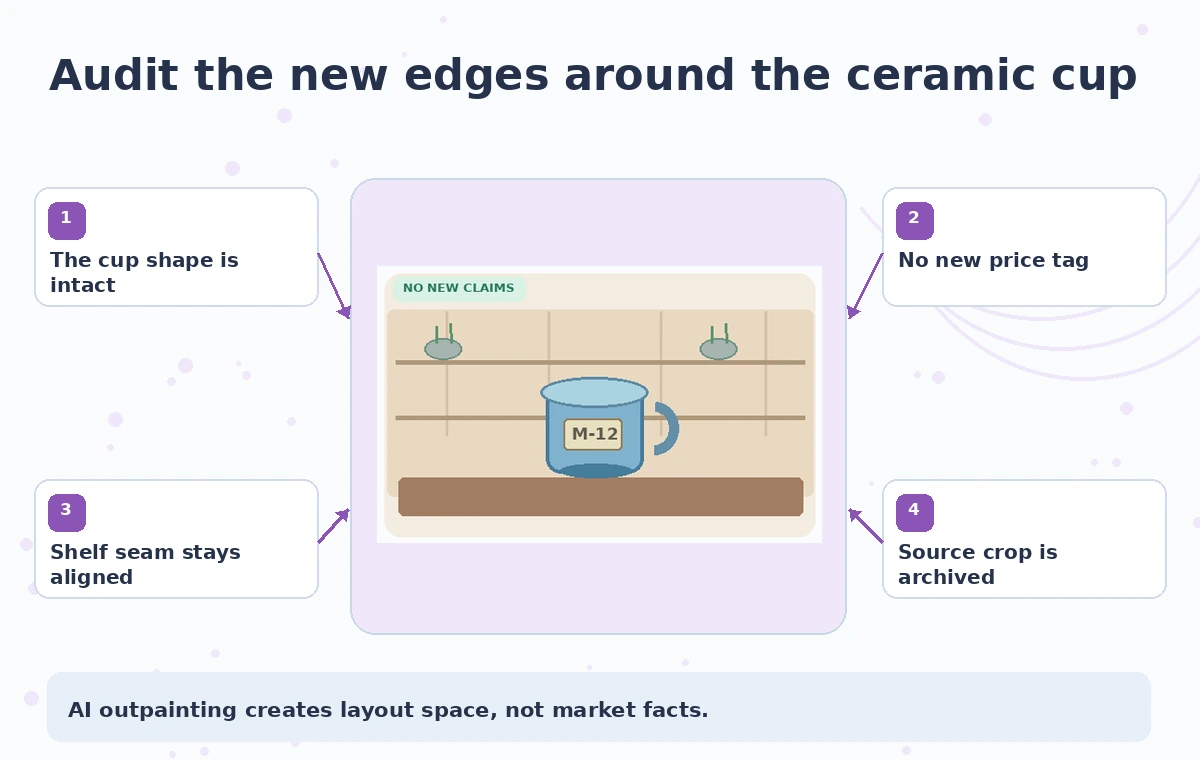
Deliver a conservative asset with its source
Export the approved image at the required resolution and review that export, not only the editor canvas. Put the untouched original, generated candidate, final graphic, and approval notes into one asset folder.
The final image should be described internally as a composite or AI-extended crop, not a wider photograph captured by the camera. If the news story needs documentary context, use the original photo instead. The point of AI Expand in this scenario is extra layout space while protecting the source cup and factual metadata, not a chance to invent a more successful-looking pottery stall.
How We Research
We prepared this guide on November 4, 2026 using named official documentation: Picsart Help Center: How to use AI Expand; Picsart AI Image Extender. We checked the feature description, documented controls and edition requirements, and how the tool may be misunderstood in the specific scenario. We did not run a live account, upload real customer assets, measure outputs, or produce service screenshots. The images are original instructional art; each failure is a hypothetical risk, not a claim that the developer produced that result. Access, labels, model behavior, licensing and billing may change. A human reviewer must confirm any factual claim, rights, and the final result against independent source material before publication.
Frequently Asked Questions
Yes. It generates new edge content, which can include plausible but unverified objects and text.
Picsart documents AI Expand on its website and in its iOS and Android apps; interfaces can vary by version.
Picsart says each AI expansion uses credits. Check your account before doing several variants.
No. Use verified seller data and add approved typography separately; reject fabricated photographed price tags.
No. It is an original schematic demonstrating an editorial failure and a safer direction.