
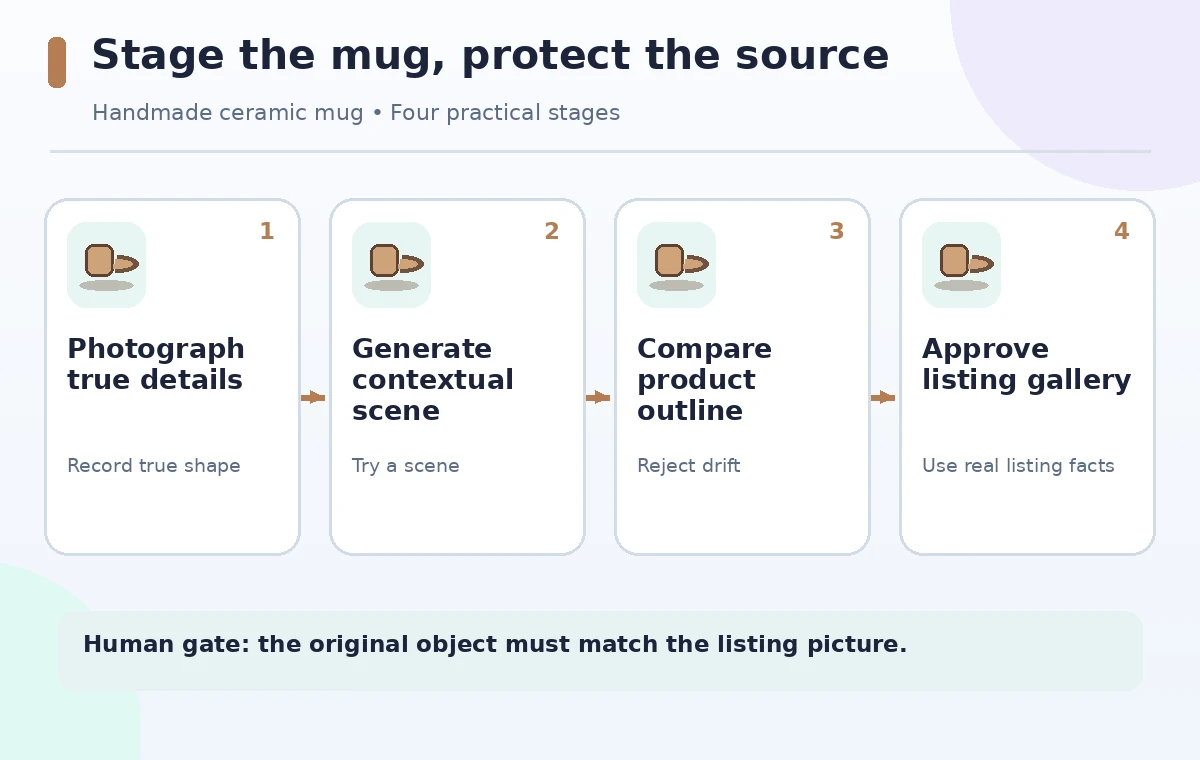
A ceramic seller has a clean photo of a speckled handmade mug and wants a lifestyle image showing it on a breakfast table. Photoroom Product Staging can generate contextual settings, sometimes including a person’s hands, but an attractive scene might change the mug’s handle, glaze, rim, or scale. A listing must describe the actual item rather than an AI interpretation. This hypothetical guide shows how to use the original product photo as a reference, assess generated variants, and distinguish decorative context from evidence of the product’s physical details.
Make an accurate source record for the actual mug
Photograph the real mug in even light against a plain background and capture separate evidence images of the handle, rim, base, maker’s mark, and glaze. Record its actual dimensions and material in product data outside the AI scene. For a handmade product, one-off irregularities may be the reason someone buys it; don’t retouch those into a generic factory finish. Keep the source image unchanged and label it as the primary evidence of the specific item. If there are multiple mugs with slightly different glazes, do not mix reference photos. Staging should never be the only image a buyer can inspect.
Check Product Staging controls and AI credits
Photoroom’s current help describes Product Staging as an AI background-and-context tool with source images, aspect ratio or Size, a prompt, and optional brand influence. The web workflow includes choosing a Space, navigating to Explore and Product Staging, uploading a product photo, and generating images. The tool consumes AI credits, and plan-specific availability may vary. Some generated scenes introduce hands or a person using the item; those interactions are synthetic, not proof that an actual customer handled the mug. Avoid making a claim about a feature you do not see in your account. Note the image orientation before requesting a marketplace hero.
Write a scene brief that protects product characteristics
Keep the prompt short and specific: ‘Speckled handmade ceramic mug on a warm wood breakfast table, natural side light, no added label, no second mug; preserve the original product shape.’ This is a request, not a guarantee that the model will obey. Avoid specifying ‘premium polished glaze’ if the actual item is matte. If the marketplace requires a white-background primary photograph, create lifestyle assets for secondary positions instead. Choose brand style only when it does not pressure the generator to recolor the product. Background, props, and mood may vary; the product itself should remain evidence-based.
Generate several variations without overwriting the original
Use the documented Generate action, inspect the results, and if needed vary a setting or prompt for another option. Save candidates separately with traceable filenames and retain the original reference. More outputs do not necessarily improve fidelity; if the tool repeatedly invents a second handle or removes the maker’s mark, stop and choose a conventional photo setup. Look for a plausible tabletop contact shadow and a cup that is resting rather than floating. AI-generated hands require special attention to finger-object contact and whether the scale makes the mug look like a miniature. Never treat a pleasing result as equivalent to a product photograph.
Compare the real handle with an invented one
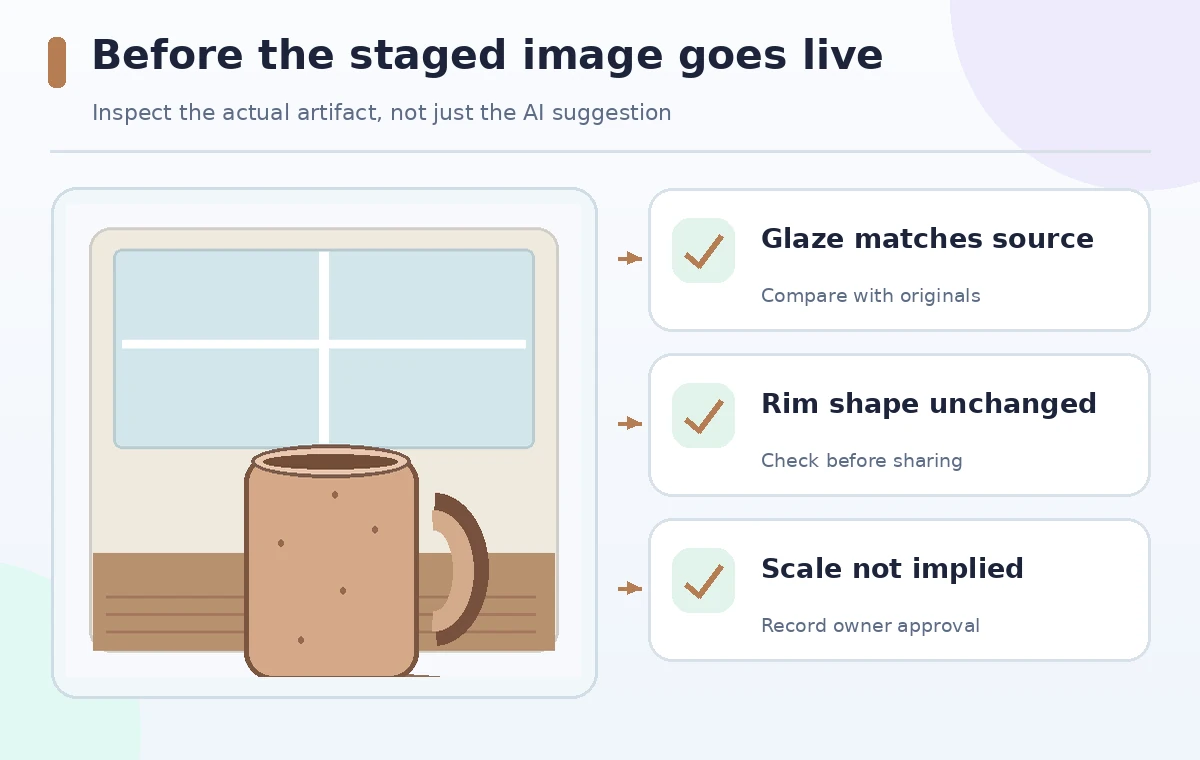
The comparison illustration shows an intentionally incorrect generated mug with a second, distorted handle beside a reviewed version that matches the source silhouette. This is a conceptual QA teaching graphic, not a screenshot from Photoroom. Zoom in on handle attachment points, inner rim thickness, glaze flecks, and the outline of the base. Confirm that any added steam is only decorative and does not suggest a heated or insulated feature the item does not have. If the mug has a visible chip or unique mark that matters to a purchaser, a generated scene must not conceal that detail while pretending to represent the actual product.

Audit context, lighting, and buyer expectations
Review whether light direction on the mug matches shadows on the tabletop and props. A clean image can still be deceptive if a generated hand makes the vessel appear larger or the background implies professional food-safe certification. Lifestyle context is not evidence of dishwasher safety, microwave use, or capacity. Include measured specifications in the listing and photograph them where helpful. If AI-assisted staging is material to how the image is presented, follow marketplace policies and consider a clear disclosure. Keep edited variants separate from the documentary gallery of the real object so a buyer can compare them.
Use the editor carefully after an AI generation
Photoroom allows reviewing a generated image and opening it in the main editor for additional adjustments. According to its help, background removal may run automatically when opening an AI image for editing and the product may become its own layer; the user can also bypass that step in some flows. Inspect the compositing edge around the ceramic handle and rim before making further changes. Do not assume that layers restore original geometry if the generated pixels are already wrong. Add marketing text after final image approval, and avoid placing a discount sticker over a unique glaze feature that buyers need to see.
Choose a safe image set for the listing
Publish the original accurate product photograph as the canonical visual reference where the marketplace allows it. Add only reviewed staging images that do not materially change physical characteristics. Maintain a simple QA sheet recording which source photo supports the handle, glaze, mark, and dimensions in each variation. If none meet the standard, use the original photo instead of grading the least bad hallucination as acceptable. Store the prompt, export date, and accepted image together for future corrections. The goal is a truthful picture of how the mug might look in a room, not evidence of a scene that actually happened.
How We Research
We reviewed Photoroom’s official Product Staging overview for source images, staging behavior, and editable variations, plus its web-app workflow for prompts, settings, and AI credit requirements. The ceramic item and before/after comparisons are illustrated hypotheticals, not generated test results. We did not operate a real store or verify the accuracy of a specific output; review marketplace rules and product facts independently.
Frequently Asked Questions
No. The feature generates a scene based on the source image; compare the handle, shape, texture, marks, and scale against genuine photos.
Yes. The official web-app instructions say each generation uses AI credits, with availability depending on the subscription.
No. The scene is synthetic. Use actual measurements and documentary product photographs to support dimensions and physical claims.
Reject that variation rather than explaining away the defect; adjust the brief or return to an ordinary photo setup.
Yes. Photoroom describes reviewing generated images, opening them in its main editor, and making further changes before export.