
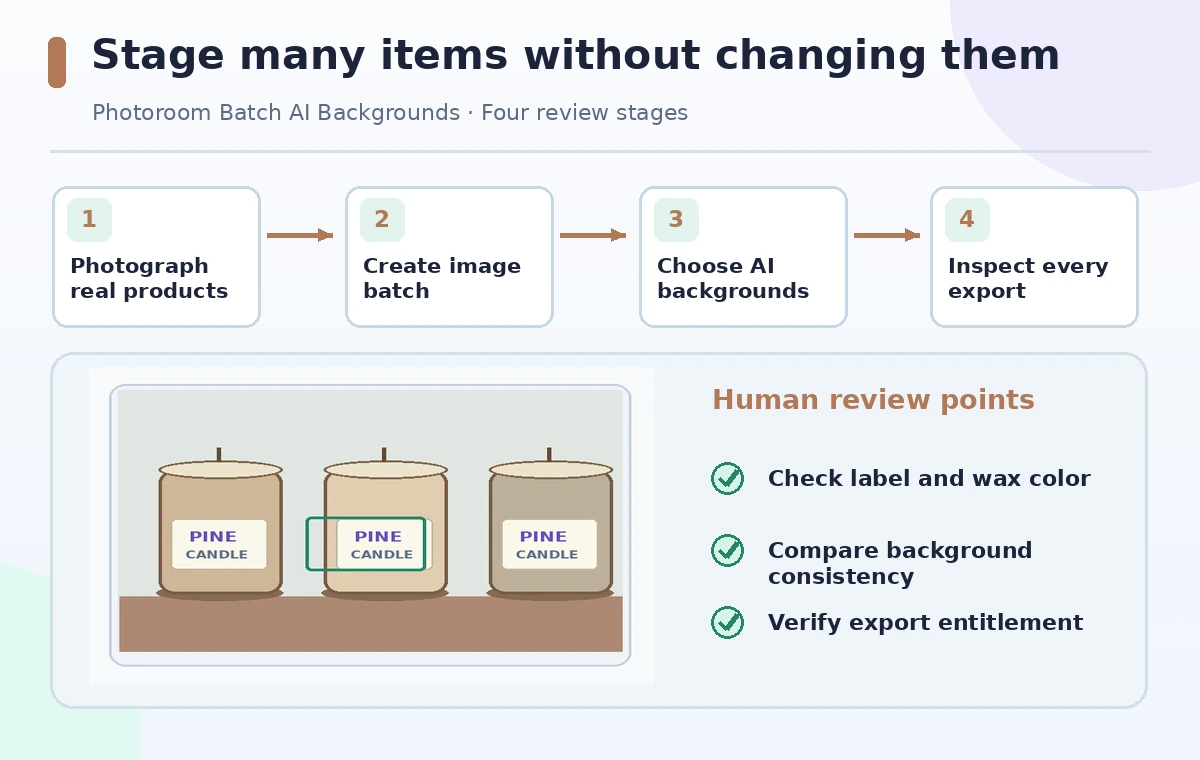
A candle maker wants twenty product pictures to feel like one catalog, even though the original photographs were taken on different tables. Photoroom Batch can change backgrounds for multiple images, including AI-generated backgrounds, but a shared prompt does not guarantee identical scenery across the batch. The tool may adapt each image’s lighting and generate a different result. This hypothetical workflow distinguishes a consistent visual style from a pixel-identical background, preserves genuine candle labels and wax colors, and checks plan limits before export. The aim is to stage products honestly, not make a small handmade candle look like a different item.
Capture trustworthy source photographs first
Take clear pictures of each candle with its label facing the camera and enough space around the edges. Record an item code, scent, container color, and size alongside the source file. Keep the unedited originals before running any batch operation. If the wax appears cream in person, do not ask an AI background to make it pure white or a different hue. A synthetic shelf or window can be an acceptable marketing backdrop, but the actual product remains the claim customers rely on. Make sure packaging, safety marks, and sizes are represented honestly. Keep usage rights for any third-party props or brand elements that may appear.
Understand Batch access and paid export limits
Photoroom’s help center describes Batch editing across its apps, including changing backgrounds for multiple product images. Its availability article says batch viewing and editing can differ from export rights: exporting batches is associated with paid tiers and plan-based quotas. Other AI features use credits. Do not assume a free account can export unlimited images or that every platform has identical controls. Check the current subscription, AI-credit balance, and batch-export allowance before starting a large catalog. Run a small proof set before spending time processing all products. This matters when the user has a deadline and cannot discover a quota at the final download step.
Choose between a similar style and an identical backdrop
The Batch editor offers AI Backgrounds, static image backgrounds, and solid colors. For AI Backgrounds, Photoroom explains that ‘Apply to all’ reuses a prompt but may generate a different scene for each photo to match the product’s individual light. That can be useful for natural-looking styling but unsuitable for a catalog demanding identical shelf geometry. A consistent color palette is not the same thing as matching every plank, shadow, or prop. Set the visual requirement before editing: do you need a family resemblance or exactly the same background image? If exact sameness matters, consider a static background rather than independent AI generations.
Run a small batch and inspect item boundaries
Use the documented Batch workflow to select several source images and apply an appropriate background. Start with three products that differ in color and container shape. Check the border between the candle and generated scene, especially transparent jars, handles, shiny lids, and thin wicks. AI processing can blur a fine edge or invent a shadow that makes a product appear taller or wider. Review the label letter by letter. Do not use an AI-restored label as proof of the wording printed on the real jar. If a background forces the generator to reinterpret the object, return to a plain photographic or static alternative.
Compare product identity as well as scene appearance
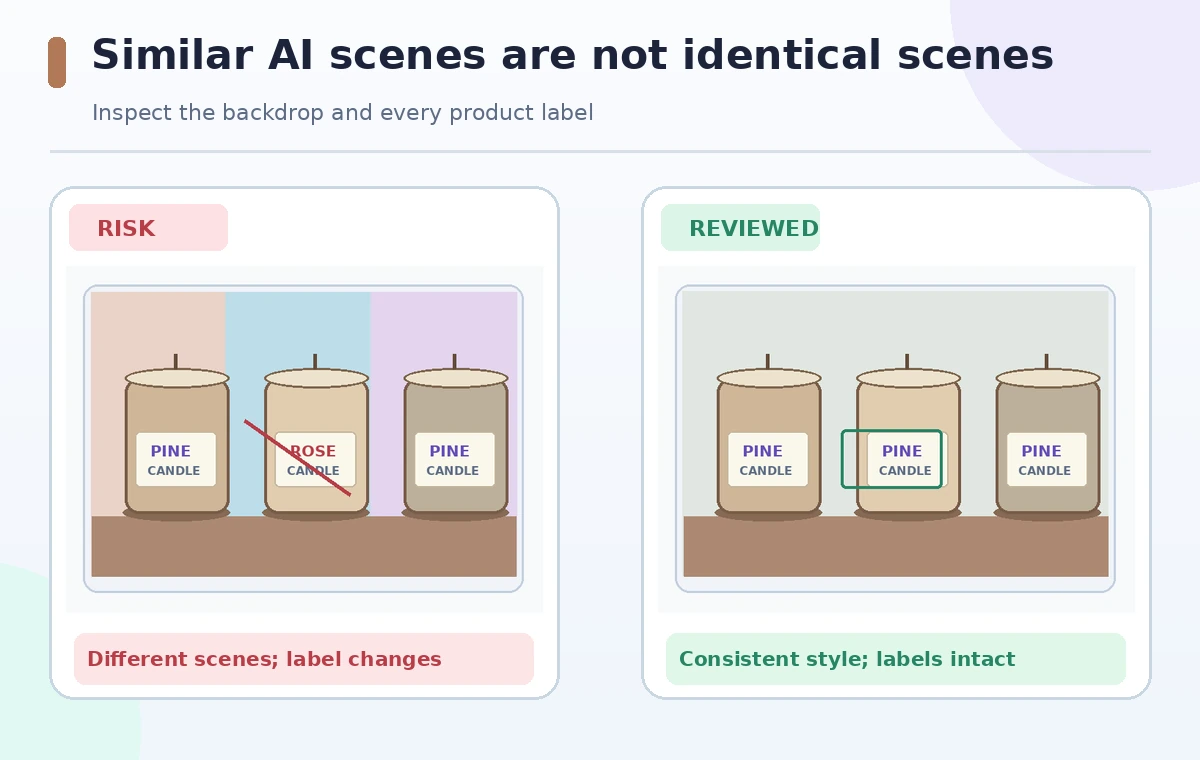
The comparison graphic contrasts a risky result with varying backdrops and a changed label against a reviewed set where labels remain readable and the scenes follow one consistent direction. This is an illustrative scenario, not a live Photoroom output. The label and wax color are more important than decorative matching. Keep a contact sheet of original and edited images side by side, with one row per product code. Spot-check a dark jar against a light one because the background algorithm may behave differently. If the staged photo implies a larger candle or a premium accessory not included in the sale, remove the misleading elements.
Use static backgrounds when strict uniformity is essential
Photoroom documents a separate method for reusing the very same AI-generated background: create a background from one product, remove the foreground object in a retouch step, then use the resulting empty scene as a static image background in the batch. This is more involved than pressing Apply to all. It also requires checking that the new candle’s contact shadow and scale match the scene. If matching shadows look unnatural, a neutral studio-color background may be preferable. For marketplaces with strict image policies, check those rules before adding any AI-generated context. A branded consistent look should not compromise compliance with listing standards.
Check dimensions, visual balance, and credit usage
After processing, ensure products are centered with comparable visual scale, not automatically resized to give smaller items a false impression of size. Keep captions or product codes outside the artwork where possible; text drawn into AI backgrounds is not a reliable source of label information. Inspect image edges for halos and check reflections. Export a small sample before the entire batch to verify output resolution and file quality. Review the plan’s Batch limits and AI-credit charges in the account rather than trusting a static article for pricing. Save each original beside its final version so a team member can investigate a disputed detail.
Approve the whole catalog before publishing
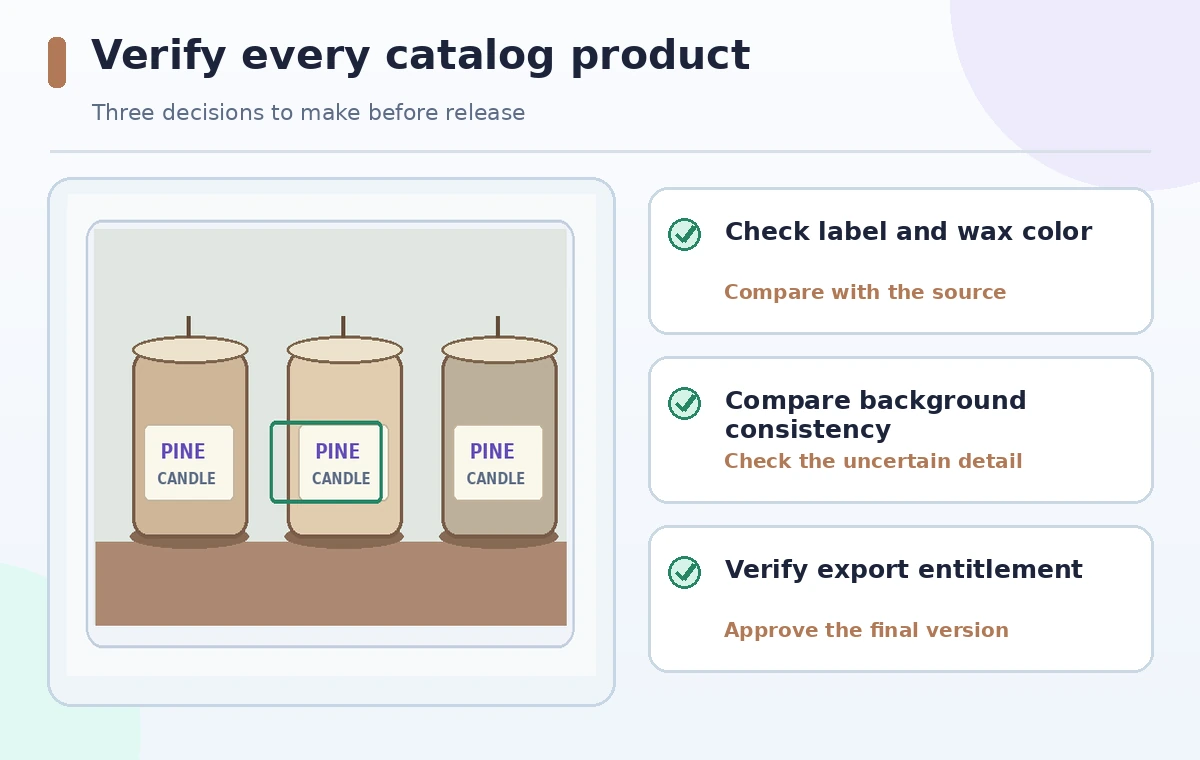
Assign a product owner to verify item codes, wax colors, container profiles, logos, and warning labels. A designer should review staging consistency across all thumbnails at the size shoppers will see. If one image falls below the standard, fix that item rather than approving the whole batch because most examples look good. Keep the staging method and file version in the catalog production notes. An editor can use AI to save time arranging backgrounds while maintaining an accurate picture of each product. Do not publish until both product truthfulness and visual coherence pass review.
How We Research
We reviewed Photoroom’s Batch background guide for the Web App, its identical AI background workaround, and the Batch availability and export limits page. The candle images and label changes are conceptual artwork, not live Photoroom results. We did not process a merchant product or verify account-specific credits or export rights.
Frequently Asked Questions
No. Photoroom explains that it reuses the prompt, while each image can receive a newly generated background.
Use a static background; Photoroom documents generating one background, removing the product, and applying the empty scene as an image background.
No. Photoroom lists paid-tier export rights and plan-dependent quotas; check the current subscription.
No. Compare every label, warning, and logo with the original physical product and source photograph.
Check product identity, color, shape, scale, edge quality, scene consistency, and export rights for every item.