
A maker sells a hand-sewn indigo apron with a small embroidered three-leaf sprig beside the front pocket. A plain tabletop photo shows the product clearly, but buyers also want to understand the approximate drape when worn. An AI fashion model could make a lifestyle image quickly. It could also redraw the sprig, relocate the pocket, or change the length, leaving a persuasive picture of an item that does not exist.
Photoroom documents AI Fashion Models as a source-image-driven tool that can generate clothing and accessory images on virtual models, with settings for model, scene, pose, and other options. The available settings and AI credit requirements depend on the product and subscription. The scenarios here are conceptual review illustrations, not output from a live generation or evidence that any source photo was processed.
Document the garment before using a model
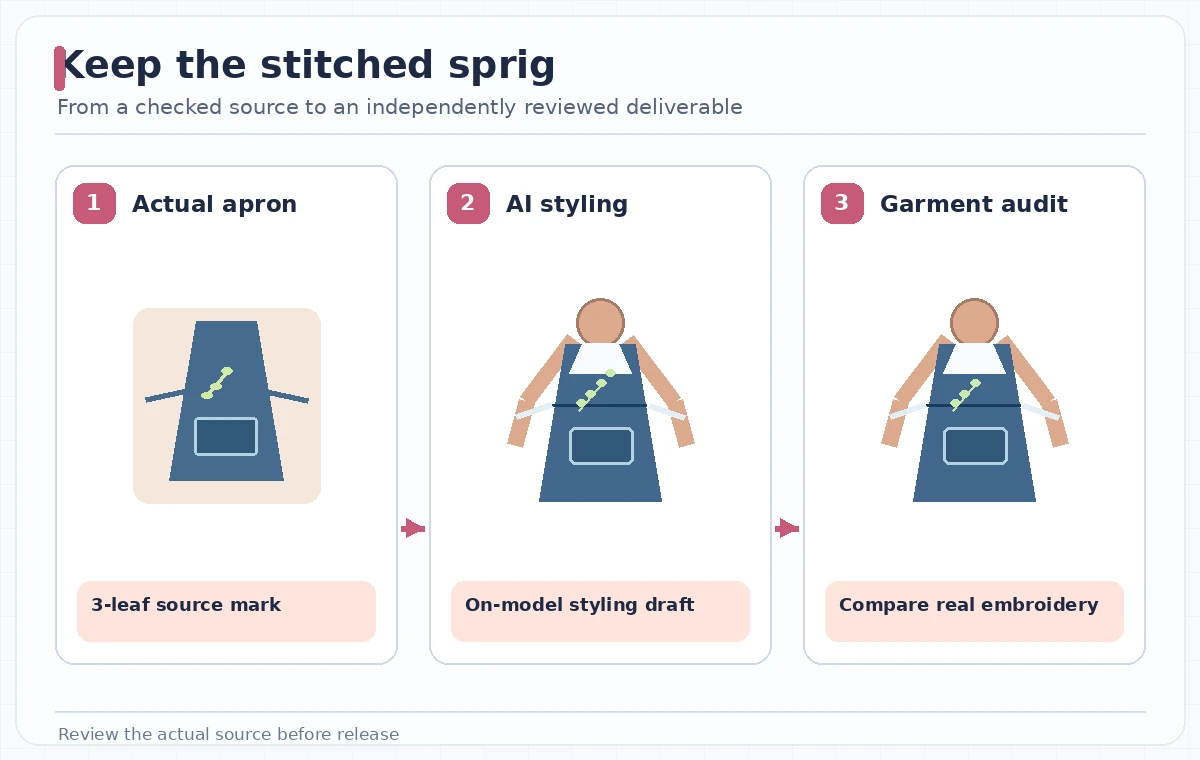
Shoot the apron flat on an even surface with front, back, and close views of the embroidery, ties, pocket corners, and label. Record the actual garment dimensions separately. For this teaching case, the sprig contains exactly three leaves. The number is a made-up reference detail for the mock product, not a claim about a real seller’s inventory. It is useful precisely because it gives reviewers something objective to compare.
Choose which product attributes may not change under any circumstances: fabric color, pocket placement, seam count near the bib, shape of the sprig, and tie position. Keep a dated source set and an approved product description. If you have only one angle, state what it cannot establish. A generated body pose can suggest fit, but does not measure actual sizing or how the garment behaves on different bodies.
Start with the documented AI Fashion Models workflow
According to Photoroom’s help, provide at least one clothing source photo, then select an AI model, background, pose, quality, size, brand preferences, and optional prompt. The tool can create variations and allow further editing. The help center describes AI credit use and access across supported platforms, which should be checked against the present account before production.
Keep the prompt narrowly descriptive: “Show this indigo handmade apron on a neutral standing model in a quiet studio; preserve the embroidered three-leaf sprig, pocket seam, and ties.” This is a direction to the generation process, not a guarantee. Avoid prompts that imply certifications, textile origin, size performance, or production methods not supported by the seller’s records.
Choose a pose that exposes the details buyers need
A front-facing standing pose is a useful first review frame for an apron because the bib, pocket, and waist ties remain visible. Avoid crossed arms, a handbag, or props that hide the exact embroidery customers are choosing. When the tool offers custom models, check likeness permissions separately. For the purpose of this case, a preset virtual model is sufficient and avoids using a real person’s identity without agreement.
Use a neutral background so garment hue is easier to compare with the original. Photoroom also supports custom backgrounds and scenes, but attractive context can make fabric differences less obvious. Do not rely on an AI model’s proportions as a numerical fit chart. Match the approved source color under consistent viewing conditions and keep the actual dimensions in text.
Reject plausible images with incorrect embroidery
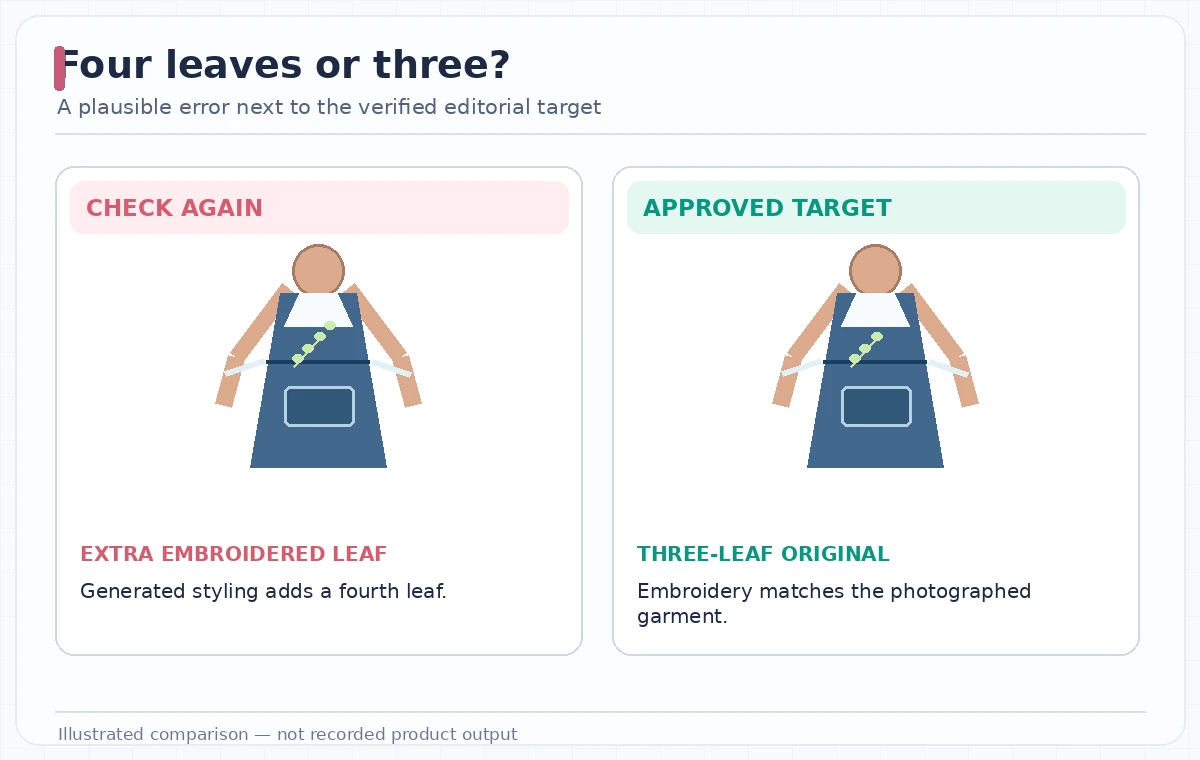
Our comparison shows the editorial problem in a clear hypothetical form: a rejected mockup adds a fourth leaf and moves the pocket seam, while the desired target retains the original three-leaf mark and pocket position. The image is not an actual Photoroom output, and the difference should not be presented as a measured error rate. It is an instruction for how to check a product-specific invariant.
Zoom to the embroidery and assess orientation, leaf count, thread color, and distance to the pocket edge. Compare the ties for continuity and check that straps attach logically. A stylized embellishment might look more polished than the real handwork, but product listings should not sell that invented detail. If the tool cannot hold the design, use a real photograph as the primary image.
Validate both image and product copy together
Put the AI mockup beside the true flat-lay and a line-by-line product specification. Verify fabric, available color, sizing, embroidery placement, closure, and washing details. Do not infer stock availability from a generated picture. A model image does not establish the item is ready to ship, ethically produced, or tested for a particular use. Those claims require independent seller evidence.
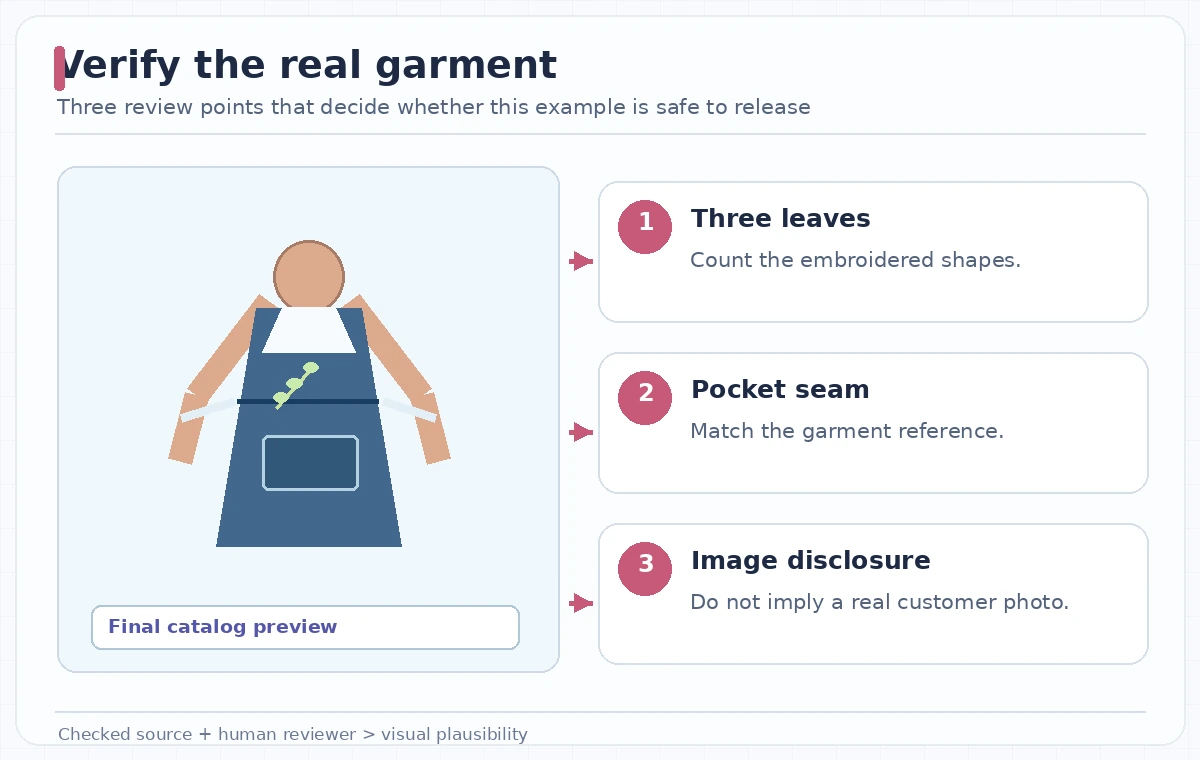
Look at the mockup at thumbnail and zoom levels. Buyers usually see the small image first, so the key details should not be concealed by hair, hands, shadows, or cropping. If the AI image remains a secondary illustrative view, label it in an appropriate manner such as “AI-generated styling preview; see actual product photos for details.” The exact disclosure should follow retailer policies and local requirements.
Check consent, brand presentation, and platform restrictions
Photoroom’s API documentation describes virtual model presets and optional custom model inputs. Reuse of an actual person’s likeness requires appropriate authorization; a preset synthetic model should not be identified as a real customer or staff member. Confirm that the service plan, credit accounting, and publishing permissions fit the seller’s needs. Terms and image limits can change, so do not treat an older price quote as permanent.
If the apron carries a protected logo or licensed artwork, make sure the seller controls the rights to that product image. A generated model should not introduce an unrelated badge or imply an endorsement. Avoid fabric tags that resemble safety certifications or origin marks unless they are visible and verified on the real item. Keep promotional scenes distinct from documentary product photos.
Release only a mockup that passes a garment-specific review
Ask a second person to compare the on-model image against the original from three perspectives: embroidery leaf count, pocket shape and location, and the continuity of the ties. Have the product owner confirm color and description before uploading the listing. Archive the source photos, output version, prompt summary, and approval; regenerate only when it is clear what needs to change.
A credible catalog can contain AI-assisted styling while staying transparent about the difference between an illustration and the purchased garment. When the synthetic image conflicts with the real item, the source photograph wins. Photoroom may make a useful visual draft, but it cannot replace the maker’s own records or the buyer’s right to accurate product information.
How We Research
This guide was researched on November 4, 2026 from named official materials: Photoroom — How to use AI Fashion Models; Photoroom — Virtual Model API documentation. We checked documented controls, availability cautions, and product-specific limitations, then designed a hypothetical editorial review around three-leaf embroidery. We did not access a subscriber account, upload source media, generate audio or images, measure model performance, or verify any real venue or product. Illustration outcomes and risks are examples for quality assurance, not claims of tested behavior. Recheck vendor documents before use because interfaces and allowances change.
Frequently Asked Questions
Yes. The documented workflow starts from one or more source images of clothing or accessories.
Photoroom documents preset or custom model options, backgrounds, poses, and prompts, subject to plan and product availability.
No guarantee should be assumed. Compare every defining stitch, mark, and pocket detail with the real source.
No. Do not imply a generated person is a real buyer. Use transparent, accurate labeling consistent with platform rules.
Keep original garment photos and measurements available; use an AI view only when it accurately represents the product.