
A parks volunteer team has scattered sticky notes from a playground walk-through: a loose handrail may need inspection, a swing seat looks worn, and a gate was difficult to open. Miro AI Docs can turn those notes into a structured draft, but it must not convert an uncertain observation into a completed repair. This hypothetical example demonstrates a safer board-to-document workflow with sources, owners, and approval stages. It is not a real site inspection, engineering judgment, or product performance test.
Build a trustworthy board before summarizing
Gather the inspection notes, photographs approved for sharing, and the date of the walk-through. Give each observation a location and a status such as reported, needs verification, inspected, or closed. Do not identify a child’s personal details or attach an unrelated visitor complaint to a public maintenance board. Separate the person who noticed a condition from the qualified person who can decide whether it is hazardous. A sticky reading ‘rail seems loose?’ should remain a question until an authorized inspector checks it. The AI draft can improve organization, but the board must retain the evidentiary uncertainty.
Know what Miro AI Docs can actually do
Miro’s help documentation describes Docs as editable objects on the canvas and explains how board elements such as sticky notes can be used as input to generate a document. The current guidance describes a unified Sidekick experience alongside Create with AI and an option to generate a Doc from selected objects. Interfaces and administrative availability may vary, and AI credit usage may apply. Do not mistake a generated summary for a new maintenance-management system: it does not automatically assign legal responsibility, confirm an inspection, or issue a work order.
Select only the observations in scope
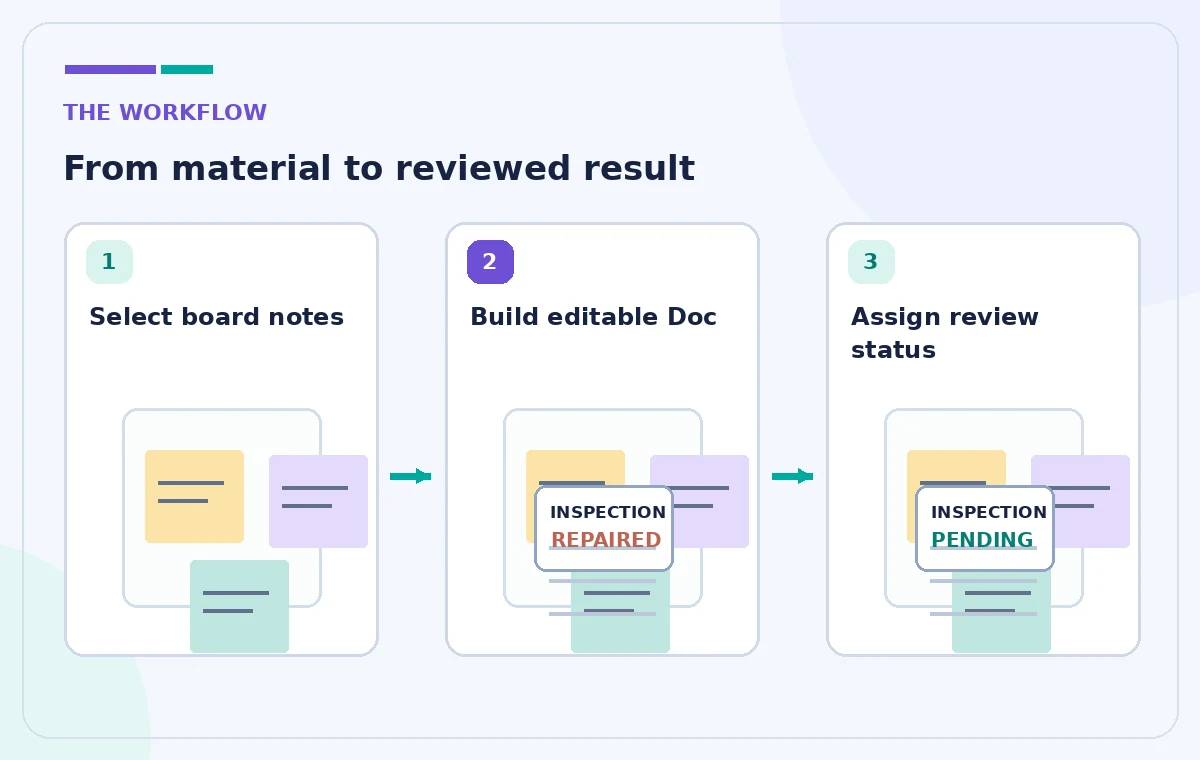
On the board, group notes by physical area and choose the relevant ones before asking for a Doc. If your current interface supports it, select objects, open the Miro AI context menu, choose a Document output, or use a custom prompt. In the unified creation flow, create a Doc from the appropriate Sidekick or Formats path. Include date, source note, location, suggested next check, proposed owner role, and current status. Explicitly request that uncertainty symbols and words like ‘possibly’ survive the conversion. Unselected evidence should not silently appear as if it was part of the inspection.
Prompt for an action register, not a verdict
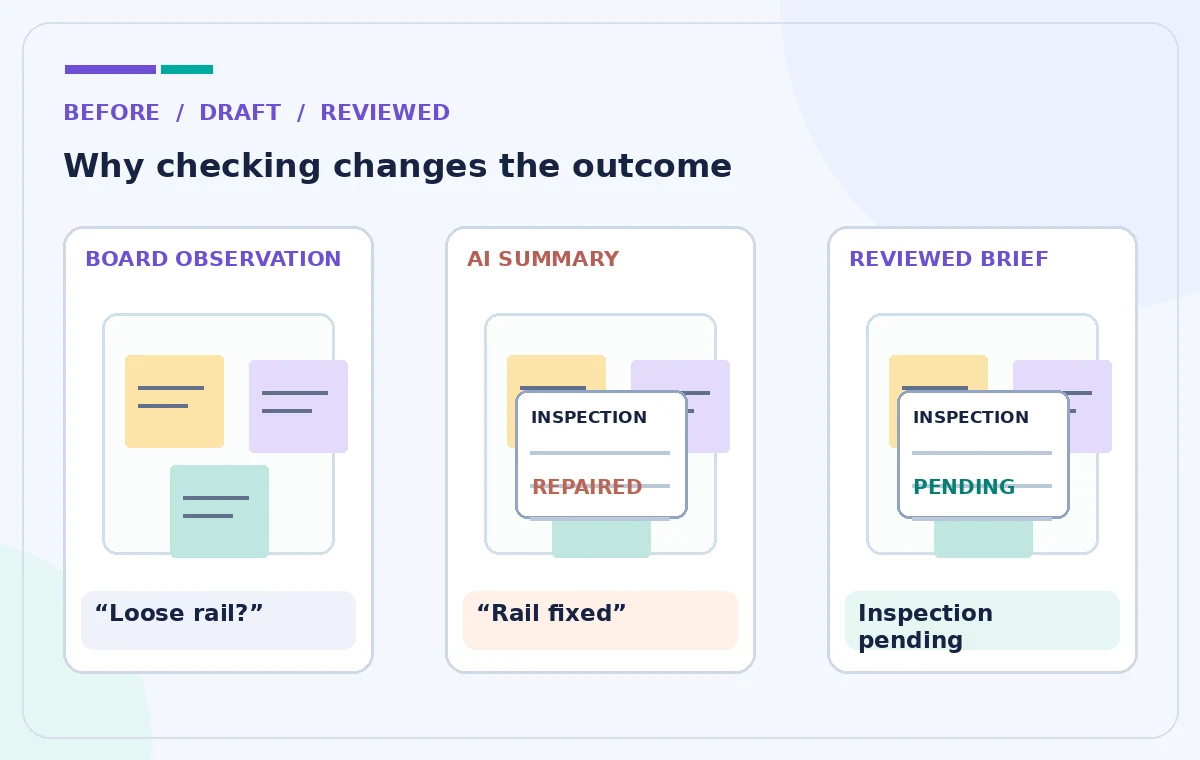
Use an instruction such as: ‘Turn these selected observations into an inspection follow-up brief. Keep each observation in its original certainty level. Do not say repairs are completed unless a source confirms that status. Include an owner-to-confirm column and a separate section for unknowns.’ This prevents a common pattern in which polished prose changes ‘gate catches sometimes’ into ‘gate was repaired.’ Ask for distinct headings for observations, evidence needed, immediate review questions, and items requiring authorization. An AI summary is useful when it makes missing decisions visible rather than smoothing them into an invented sense of closure.
Cross-check every observation against the board
Audit the draft line by line. For a swing note, compare the exact location and observed condition with the corresponding sticky, not with a nearby similar note. If the AI combined two reports from different dates, split them. Preserve contradictory statements and label them as requiring on-site verification. Do not let the document invent a risk score or claim that equipment is safe; qualified staff should determine the appropriate response under local procedures. A well-written document can still have a critical factual error, particularly when it summarizes many visually similar sticky notes.
Make owners and statuses explicit
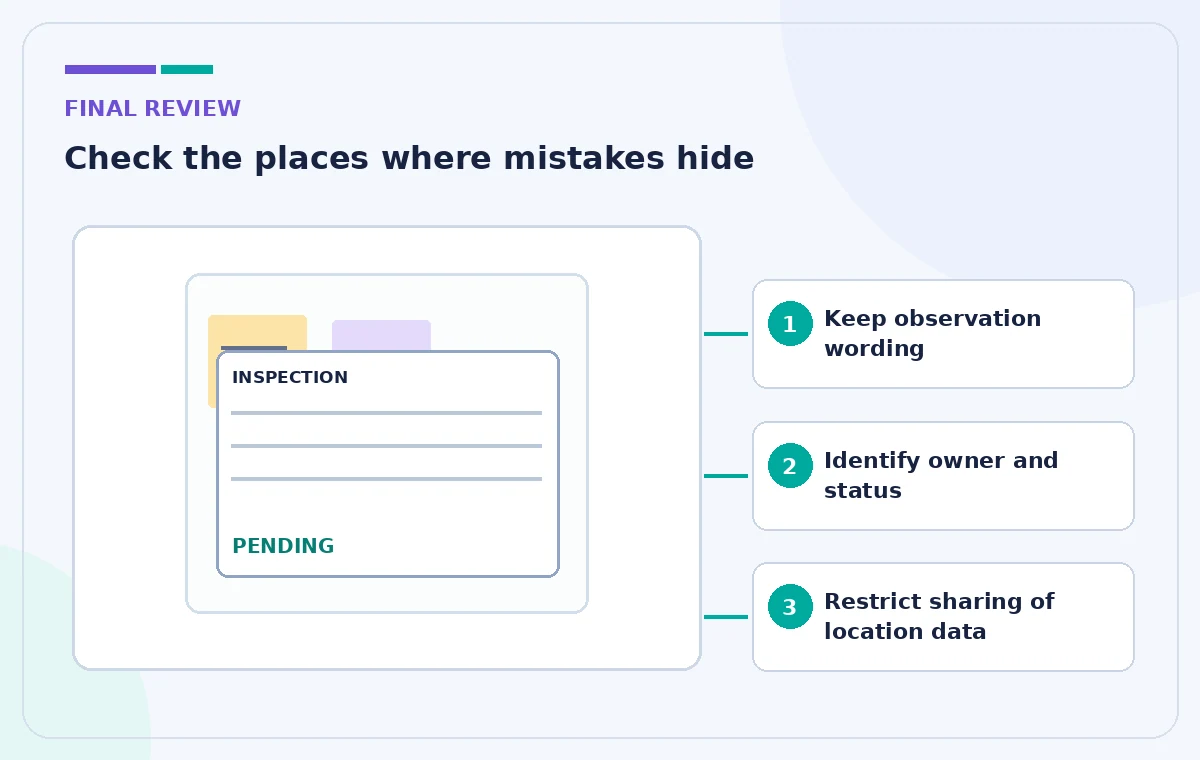
For each item, include who will check it, who can authorize work, what evidence is missing, and the next review date when approved. Avoid using someone’s name as an assigned owner solely because that person wrote the original sticky. A recorder and an accountable maintenance lead may be different people. Keep a clear distinction between proposed next steps and confirmed assignments. A color-coded status column helps scanning, but words must remain readable without color so that a red or yellow label is not the only indication of urgency.
Preserve the original visual context
Miro Docs can incorporate board objects, and its guidance notes that dragging a diagram into a Doc creates a synced, view-only copy of that diagram. That may be useful for a site map showing inspection zones, but it should not be treated as a new, independently editable diagram. Ensure that map pins reference the correct area before embedding them. If the board changes after the brief is approved, identify whether the document needs a fresh review. Keep links back to source observations so a reviewer can discover what was actually recorded instead of relying on a text-only paraphrase.
Share the brief with a controlled audience
Miro Docs can be shared and exported, including as PDF or Markdown from the document context menu. Before sending a link, confirm board permissions and whether recipients can view surrounding content. A maintenance brief may reveal access points, site vulnerabilities, and contact details that should not be published openly. For a public update, prepare a separately approved summary without sensitive location notes. Date every exported copy and identify the version of the source board. An export is a snapshot; it does not guarantee that future board edits will be reflected in the distributed file.
Close the loop with an authorized reviewer
Have the designated facilities or safety lead check the observation list, inspect items that need on-site verification, and authorize any work under normal procedures. Mark closure only when evidence such as a signed inspection record or completed work order supports it. The AI document’s purpose is to reduce clerical friction, not substitute for professional judgment. We did not access a live Miro board or measure generation quality for this scenario. If the notes concern an immediate danger, follow the organization’s urgent escalation procedures rather than waiting for an AI summary or document review.
How We Research
For this guide we examined the vendor’s official public documentation: Miro Help Center — Docs in Miro and Miro Help Center — Create with AI. We compared feature names, documented controls, format or access constraints, and supported review steps against the hypothetical scenario above. No live account, proprietary material, consent record, generated media, or measured product result was used. The diagrams are original conceptual illustrations, not screenshots or evidence of real AI output. Interface labels, plan eligibility, credits, availability, and feature limits can change; check the linked vendor pages and your account before following an operational step. Every final fact, instruction, permission and approval still requires an accountable human reviewer.
Frequently Asked Questions
Yes. Miro documents generation of editable Docs from selected board objects and AI prompting.
No. It summarizes source observations; authorized staff must verify conditions and approve work.
Yes. Miro notes that dragged diagrams create synced view-only copies, with changes made in the source diagram.
Miro documents PDF and Markdown export via the Doc context menu.
The responsible facilities or safety lead under the organization’s established inspection and sign-off process.