
A team lead records a short Loom showing colleagues how to submit a help-desk request. The narration includes several ‘ums’ and a long pause while a confirmation banner loads. Removing every silence would make the recording brisk, but it could also conceal the required wait and cause a viewer to click twice. Loom offers AI-assisted filler-word and silence removal on eligible plans. This hypothetical guide shows how to shorten the presentation without turning a careful software demonstration into a misleading sequence of steps.
Mark meaningful pauses before editing
Watch the original once and label sections where time matters: waiting for a confirmation banner, allowing a file to upload, or checking whether a status changed. Distinguish an empty hesitation from an instructional pause that proves the next action is safe. A long stretch without speech can contain the most important visual feedback in a screen recording. Note each protected time range with a short reason. If the presenter says ‘wait until you see Saved,’ the silent interval that follows is part of the instruction even though no one speaks during it.
Check which Loom tools your plan includes
Atlassian’s Loom help says Remove filler words and Remove Silence are available on the Business + AI tier, with controls in the editing side panel or trimming interface. Other editing options vary by plan. The company also notes that English-language videos are the supported case for filler removal in its transcription guidance. Check your own plan and language before relying on an automated cut. Do not tell a viewer that an option has been removed from the product simply because it is absent from a free or differently configured workspace.
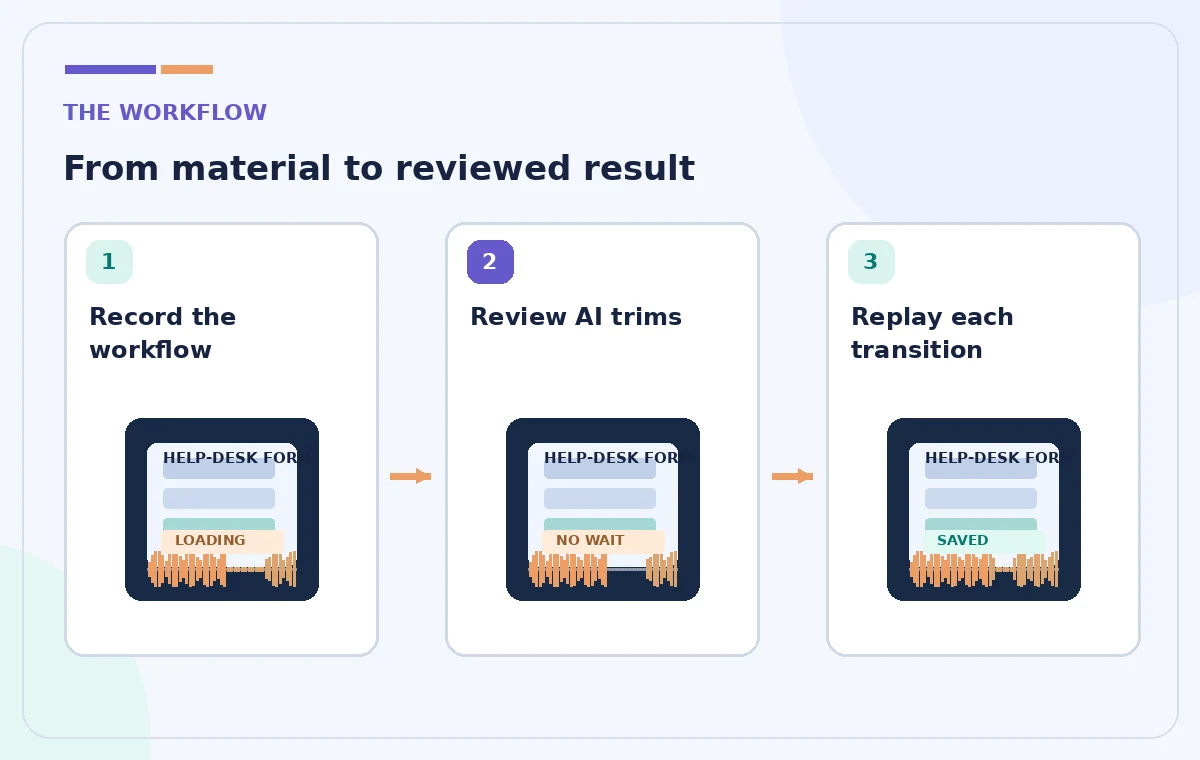
Start with a clean, documented recording
Keep the unedited Loom and a brief outline of the task: open the correct help-desk form, fill in a category, attach a sample file, submit once, wait for a saved confirmation, then record the request ID. Avoid exposing real customer information or staff credentials while filming. Use a fictional request in any training example. Say each critical warning clearly enough for speech detection to capture it, and narrate what happens during long waits. A recording that hides the important action behind a small cursor is hard to rescue with automated editing alone.
Apply filler-word removal conservatively
Open the editing controls and enable Remove filler words. Loom lets eligible users choose a narrower treatment for ‘ums and ahs’ or a broader one that also targets rambles and repeats. Begin with the narrow setting when accuracy matters. After the video reloads, compare the edited version with the original timeline. The system may leave some disfluencies because it did not detect them in the transcript; that is preferable to pretending automation can identify every redundant word. Editing is successful when understanding improves, not when every human pause disappears.
Leave automatic silence removal off initially
Filler words and silence are different editorial targets. Test them separately instead of turning on every cleanup option at once. A pause while a loading indicator spins is not a mistake. If a long wait seems tedious, consider an explicit title card or an explained speed-up in a separate edit instead of making the software appear instantaneous. When reviewing a silent gap, ask what the viewer needs to observe before continuing. Preserving an honest wait can prevent repeated clicks and mistaken conclusions about how a system behaves.
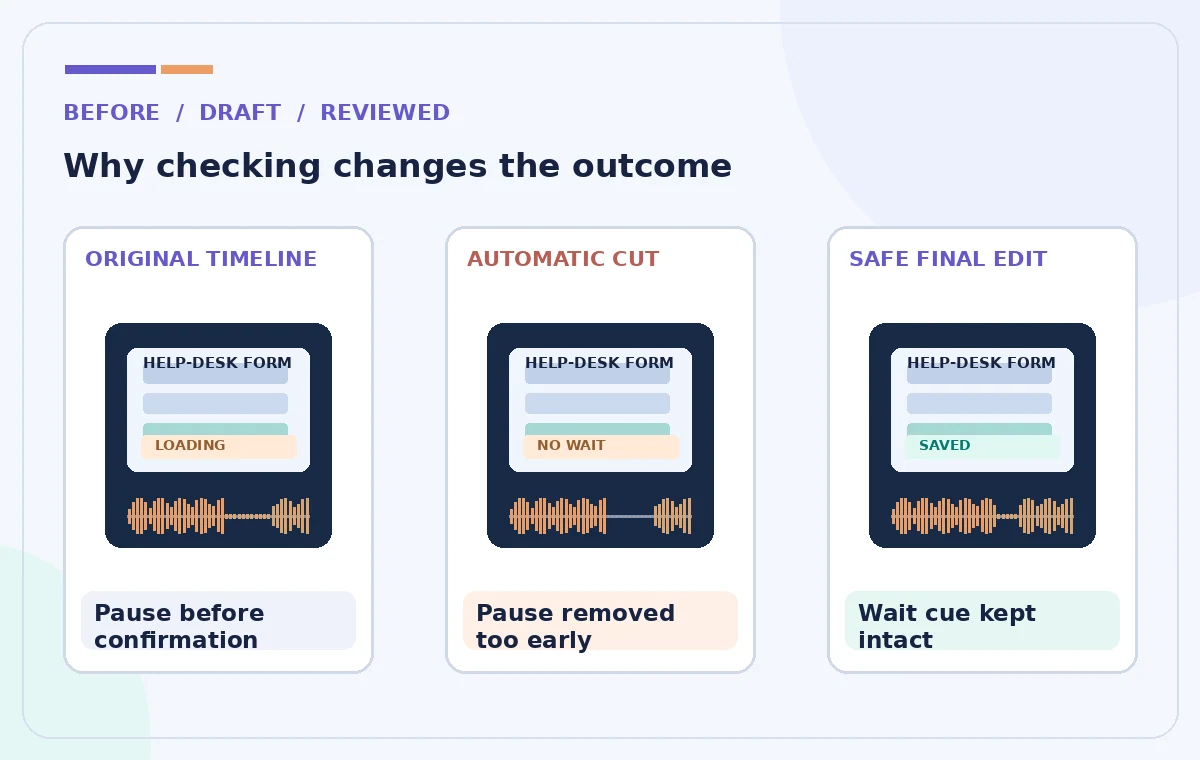
Inspect visual continuity around each cut
Replay the two seconds before and after every edit while watching the cursor and application state, not merely listening to narration. Did the button appear to change location? Does an attachment suddenly exist without the uploading step? Is a toast message visible long enough to read? Does the mouse jump from Submit to Done without showing the confirmation? Automatic removal can produce a fluent sentence alongside a confusing screen transition. Mark any cut that removes evidence of a completed action and restore the necessary frames or audio.
Audit the transcript for lost qualifications
Open the transcript if your account provides the relevant controls and check negative terms, thresholds, and conditions: ‘do not’, ‘only if’, ‘unless’, and ‘after you see’. These are the phrases that can be damaged when nearby filler speech is trimmed. Compare the edited wording with the original, especially where a false start includes a correction. A presenter may say ‘choose Public—sorry, choose Internal.’ Removing the self-correction carelessly could leave the wrong instruction. Keep the corrected direction and, if necessary, re-record that line rather than using automation to conceal the correction.
Use reversibility and access controls
Atlassian documents Revert to original for trimmed Loom videos, though editing access depends on the plan. Before distributing a link, record which version was approved and make sure the source is still accessible to the owner. Reverting affects the edit state and is not a substitute for a separate archival copy under your team’s retention policy. Review the recording’s audience permissions and remove any visible private information before sharing. The person who approves the handoff should watch the exported or shared version that recipients actually see, not only a local editor preview.
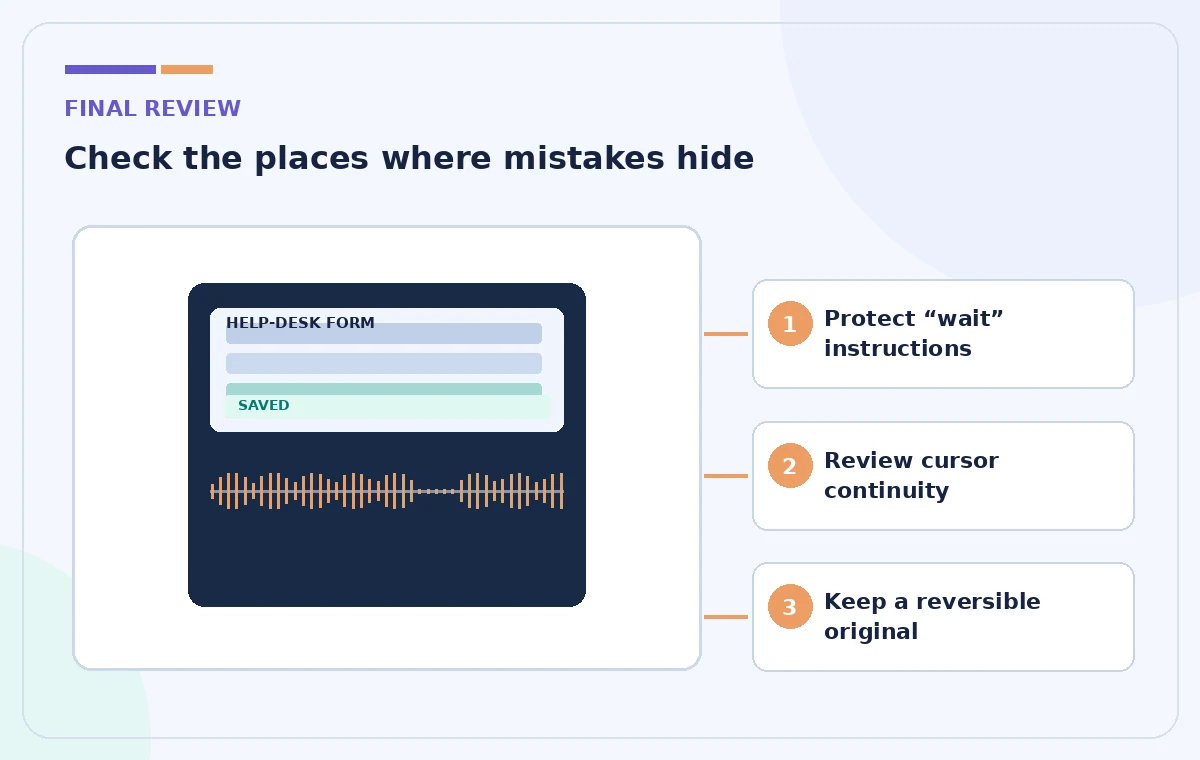
Publish a handoff that can be followed safely
Finish with a short note explaining the environment, example data, and the point at which the viewer must wait for confirmation. If the application changes, revise the video instead of trusting the old cuts. Shorter does not always mean better: a ninety-second handoff that omits a required verification step is less useful than a two-minute demonstration with one clearly explained pause. We did not run Loom or measure time savings for this guide. The practical criterion is whether a new teammate can reproduce the workflow without skipping a consequential step.
How We Research
For this guide we examined the vendor’s official public documentation: Atlassian — Remove filler words and silences from your video and Atlassian — Edit your Loom video and Atlassian — Revert your trimmed video to original. We compared feature names, documented controls, format or access constraints, and supported review steps against the hypothetical scenario above. No live account, proprietary material, consent record, generated media, or measured product result was used. The diagrams are original conceptual illustrations, not screenshots or evidence of real AI output. Interface labels, plan eligibility, credits, availability, and feature limits can change; check the linked vendor pages and your account before following an operational step. Every final fact, instruction, permission and approval still requires an accountable human reviewer.
Frequently Asked Questions
Yes, Loom documents a Remove filler words option for eligible Business + AI users.
No. Atlassian notes that undetected words in a transcript may remain.
No. They are separate controls. Review meaningful waits and loading states before cutting silence.
Yes. A jump can hide a required wait or status change, so watch the screen across each cut.
Atlassian documents a Revert to original control for trimmed videos, subject to supported editing access.