
A small library is preparing to shift a reading area into another room while a worn floor is repaired. Staff have agreed to move furniture only after the accessible route and room dimensions are confirmed. Copilot in Microsoft Planner can suggest goals, buckets and tasks from a prompt, but generated structure is not a staff assignment or a site-safety approval. This fictional walkthrough uses a proposed library move to show how to create an initial work breakdown, audit its sequence, and document who really accepts each task. No live Microsoft tenant or completed relocation is claimed.
Check the Planner plan type first
Microsoft’s Copilot in Planner documentation currently labels the feature preview and describes access in premium plans, including via the Planner app in Teams. A basic plan may not show the Copilot entry point. Confirm the organization’s license, permitted workspace and current controls before writing an interface-specific guide for colleagues. Opening a standard personal task list is not equivalent to creating a premium collaborative project. Do not promise the feature to every Microsoft 365 subscriber. If the Copilot pane is unavailable, the same approved outline can be entered manually into Planner without losing the governance checks described below.
Define the relocation boundary
List what is inside the project: inventory the reading tables, check door clearance, obtain facilities sign-off, label library materials, schedule a staffed move and verify the new room before reopening. Record what is outside it: structural repairs, fire-code decisions and any promise of an opening date without facilities authorization. The move has a responsible librarian and a facilities representative, not unnamed ‘team members’ inferred from a prompt. Keep dimensions, restrictions and approvals in a current source document. The purpose of this boundary is to keep attractive generated task lists from quietly becoming authority over the physical space.
Generate buckets and goals from approved inputs
In a premium plan, use the Copilot pane to request a work breakdown with buckets for preparation, access review, move execution and reopening. Microsoft’s official examples describe creating a plan or adding suggested goals and tasks. Ask for short task titles, not invented completion dates or names. A useful prompt says, ‘Draft tasks for a temporary library reading-room relocation; place accessibility review and facilities approval before furniture movement; leave owners unassigned.’ Inspect every suggested bucket and delete duplicated or irrelevant actions. Keep the source checklist visible so the generated plan cannot silently omit the permission gate.

Add details the model did not establish
A task title such as ‘Check room access’ is insufficient to run an actual move. Attach the authorized room plan, identify what clearance means under the local facilities policy, name the person who will inspect it, and define the evidence needed before completion. Copilot’s published FAQ notes that the preview may generate task titles rather than all detailed fields, so a created task is not an audited instruction. Enter descriptions, dependencies, owners and expected dates manually after the relevant person confirms them. Never auto-assign a library assistant to use lifting equipment based solely on job title or availability.
Review dependency order on a simple diagram
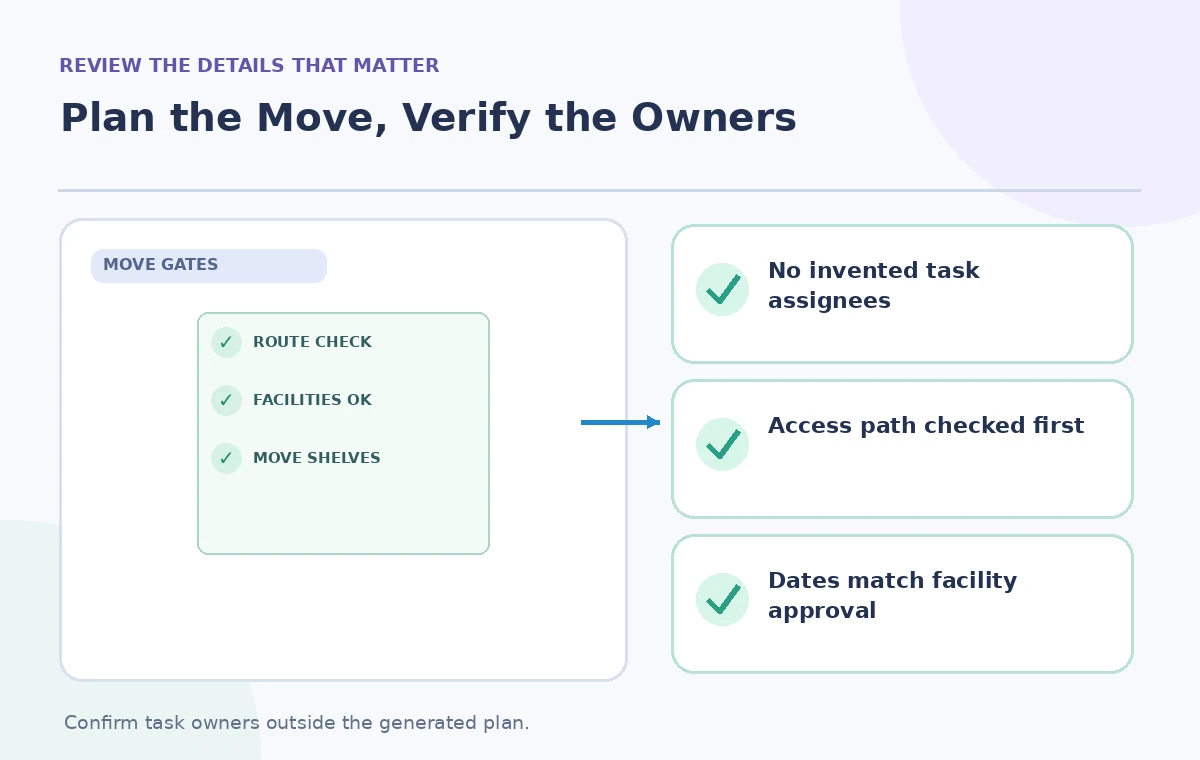
Draw the dependency chain before setting dates: inventory and photograph items, verify safe route and room readiness, obtain facilities sign-off, move items, check shelf stability and reopen. If a generated board puts ‘move shelves’ ahead of ‘verify door clearance,’ treat that as an error even if the calendar looks orderly. Identify which tasks are hard gates rather than preferences. Staff should be able to explain why moving cannot begin when a prerequisite is still incomplete. A Planner bucket is a way to organize work, not a tool that certifies building safety.

Confirm owners through a real acknowledgement
Keep generated task owners blank until a person agrees to the scope and the deadline. Record who can authorize access, who can physically perform the move, and who verifies the reopening condition; they may be different people. If a task requires multiple people, specify one accountable owner and an explicit handoff. Do not assume that being mentioned in a Teams conversation constitutes acceptance. Review workloads and leave room for staff absences. Microsoft describes asking Copilot about plan status or workload, but those answers depend on the underlying task data and cannot fix incomplete assignments.
Challenge dates and resource assumptions
The fictional target could be ‘after the room inspection on Thursday,’ but that is a condition, not a confirmed public reopening date. Check holidays, library operating hours, equipment availability and any contractor-controlled windows before assigning due dates. Mark speculative dates as proposed in notes; do not put them on a public flyer. Ask whether the plan still works if a delivery is late or a room remains inaccessible. Avoid treating automatically generated task counts or a colorful timeline as evidence that the move is adequately staffed. A manager must approve the final operational schedule.
Test exceptions before calling the plan complete
Run a tabletop review of at least three cases: a blocked doorway, a delayed floor inspection and an item with no inventory label. For each, identify who stops the move, where the problem is logged and which tasks must wait. The answer should not be ‘Copilot will resolve it.’ Verify that board columns still expose blocked tasks rather than hiding them behind completed goals. Check shared file permissions so volunteers see only instructions they need, not personnel notes or contractor contracts. These are scenario tests performed on paper for this tutorial, not claims of Microsoft Planner reliability testing.
Record a controlled review and change process
A reviewer should compare every task against the approved constraints, inspect owner acknowledgements, and approve the schedule version before it is circulated. Save the list of unresolved issues alongside the plan. Later, if the move date changes, update both dependencies and communications so an old announcement does not survive in a different channel. Reopen completed tasks if evidence shows they were marked done prematurely. Use Copilot to suggest additional tasks or to summarize the plan as a draft, then verify the summary against current tasks, not against another AI-generated narrative.
Use the generated structure as a starting point
The useful outcome of Copilot in Planner is a draft set of goals, buckets and task titles that can reduce blank-page work. It does not replace facilities expertise, consent to assignments, inspection records or project accountability. Premium licensing, preview labels and UI placement may change, so recheck current Microsoft Support pages for the organization’s environment. A manually built plan is preferable when access is uncertain or the work carries critical hazards. The review principle is simple: no public date, unsafe action or assigned owner enters the final schedule without a traceable human source.
How We Research
Our editorial research checked primary vendor documentation: Microsoft Support — FAQ about Copilot in Planner (preview); Microsoft Support — Create a new plan with Copilot; Microsoft Support — Create new tasks with Copilot. We compared the documented feature, entry point, entitlement and limitations against every practical instruction above. This is a hypothetical teaching scenario, not an account-based demonstration: no real participant was interviewed, no video or slides were generated for a benchmark, and no AI accuracy, cost savings or user metrics were measured. All diagrams are original conceptual illustrations rather than vendor screenshots. Readers should recheck the current account settings, privacy terms, approvals and vendor help pages before using these methods with actual people, records or public content.
Frequently Asked Questions
Microsoft states its Planner Copilot preview capabilities are for premium plans; check whether the Copilot control appears in your plan.
The documented preview can suggest goals, buckets and tasks, but task details, sequencing and ownership still need review.
Do not rely on generated ownership. Obtain a real acknowledgement from each accountable person.
Any unmet prerequisite such as facilities approval, an accessible route or an unsafe item should stop the dependent task.
No. A current plan status is not an independent facilities inspection or an authorized decision.