
A desk fan can make a remote training call sound like a continuous soft hiss, even when the presenter is standing close to the microphone. Krisp provides virtual microphone and speaker devices that process unwanted noise during a call. That is different from editing a finished recording. This guide explains the documented setup and a conservative listening checklist for a fictional trainer who keeps a fan running near a laptop. The waveform drawings are conceptual; no meeting was recorded and no before-and-after noise reduction was measured.
Understand which side of the call needs help
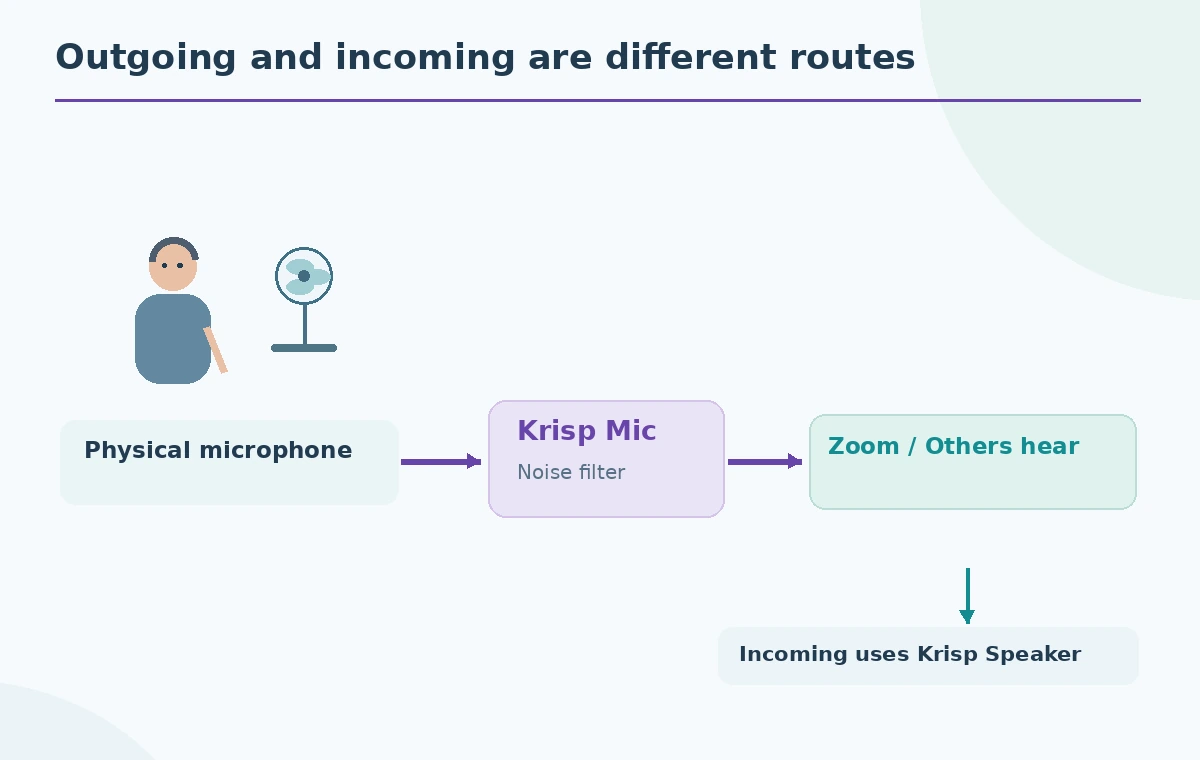
Separate outbound sound from inbound sound. A fan beside your microphone is mainly an outbound problem: other participants hear it mixed with your voice. A noisy room at someone else’s location is an inbound issue for you. Krisp provides Krisp Microphone and Krisp Speaker as virtual audio devices that sit between physical hardware and the communication app. The microphone path processes what you transmit; the speaker path processes what you receive. Only enable the path you need, and do not assume the app cleans the historical audio track of a past recording.
Select the real devices inside Krisp
Open the Krisp desktop app and choose the actual headset or desk microphone as its physical input, plus the headphones or speakers you will listen through. Krisp’s documentation explains that its virtual devices are not intended to chain through other virtual microphones. If you select an unrelated virtual cable as the physical source, unexpected routing and silence may result. If your laptop switches to a Bluetooth headset mid-call, recheck which device Krisp is taking audio from. Before the meeting, make a short live microphone check with a colleague rather than discovering a silent input during a presentation.
Route Zoom through Krisp Microphone and Speaker
In Zoom’s Settings > Audio, select Krisp Microphone under Microphone and, if incoming noise cancellation is desired, Krisp Speaker under Speaker. In Krisp, turn on the appropriate noise cancellation controls and verify the physical input and output still point to the intended headset. Krisp’s official Zoom setup recommends Low for Zoom’s own background noise removal; combining Medium or High Zoom suppression with Krisp can make speech sound thin or cut words. Names and settings can evolve across releases, so verify the controls visible in your installed app before following a screenshot from an old article.
Use a deliberate speech-and-fan check
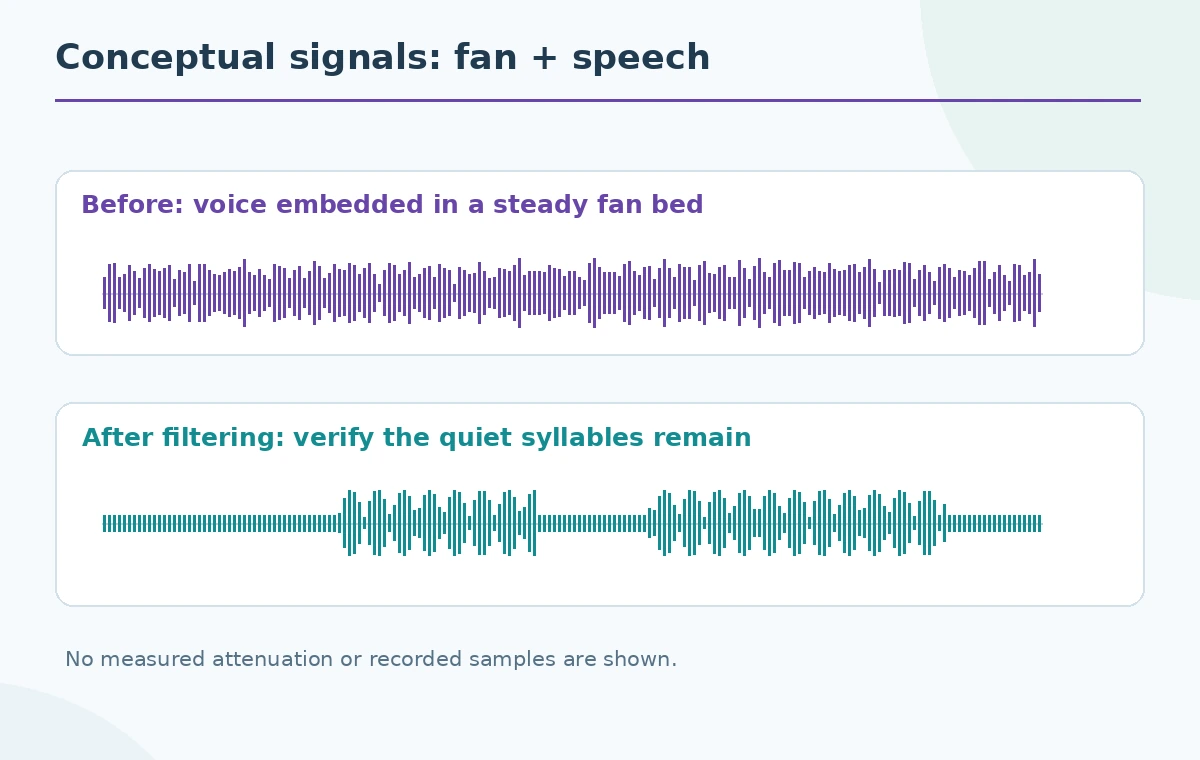
For a fair human check, ask a consenting colleague to listen while you say a short sentence with quiet consonants, pause, and continue at normal volume. Then repeat with the fan running in the same position. Avoid changing microphone gain at the same time, or the comparison cannot isolate the routing choice. Listen for soft word endings, syllables that disappear after a pause, pumping, and clipped starts. Fans are a documented noise category Krisp targets, but effectiveness will vary with microphone placement and surrounding speech. The illustration represents intended routing and possible failure points, not captured sound.
Watch for double filtering and missing words
If a remote listener hears garbled consonants, disable redundant processing one control at a time. Keep Zoom’s built-in suppression low according to the vendor’s setup guidance, then confirm that Krisp is the selected input. Do not push a noise-removal slider based on an imagined percentage improvement. Ask whether the other person can understand the softest names and acronyms, not merely whether the background sounds quieter. A clear but incomplete sentence is worse than a faint steady fan. Check microphone distance and basic acoustic placement before adding another algorithm to the path.
Distinguish incoming sound from outgoing sound
The illustrated two-way diagram uses different arrows for mic and speaker routes because each fixes a different problem. The speaker side can reduce noise you hear from other participants; it does not alter what those participants receive from your desk microphone. Similarly, switching only Krisp Microphone will not remove a colleague’s loud traffic from your headphones. Before declaring a setup successful, verify both directions with the same colleague. If you are using speakers rather than headphones, check for acoustic echo and move the microphone away from the output as a straightforward first remedy.
Plan for recordings, consent and privacy
Tell participants if the meeting will be recorded and follow the organization’s consent and retention rules. Krisp documentation describes local processing of live cancellation, but that statement should not be confused with the privacy policy for every other Krisp feature or with Zoom’s cloud recording. A recording may include audio after whichever filters were active along its actual capture path; check your settings and the resulting recording before making claims. Keep an untouched sample only if consent and policy permit it. Do not assume Krisp grants rights to use someone’s voice simply because the software can clean it.
Keep a fallback that takes seconds
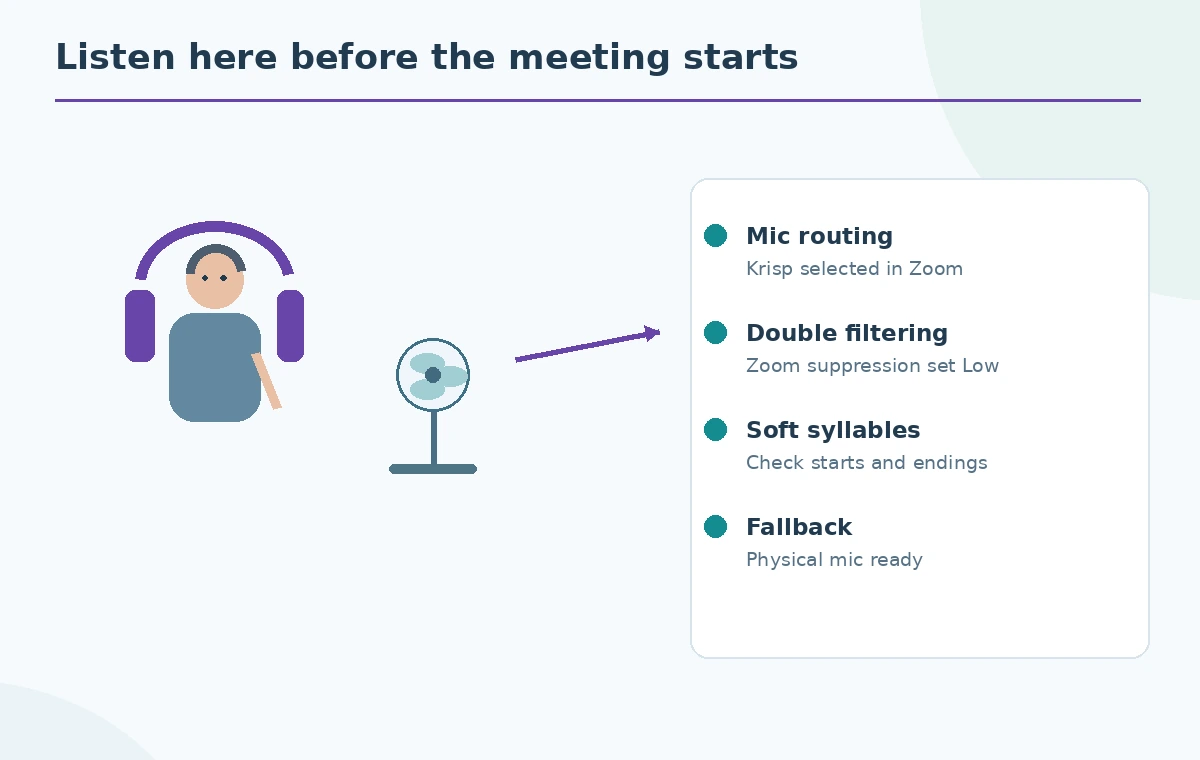
Before the call, save a short checklist: physical headset connected, Krisp Microphone selected, Zoom input and output verified, Zoom noise removal on Low, and colleague confirms intelligibility. If the virtual microphone disappears or fails, switch Zoom back to the physical device so the meeting can continue, then troubleshoot after the session. For urgent calls, reliability matters more than maximum processing. The final diagram highlights the fan, the quiet consonants and the speaker loop so a presenter knows exactly what to inspect rather than relying on a green status indicator.
How We Research
We consulted Krisp’s virtual-device audio routing reference, its Zoom configuration guide, and its noise categories and feature overview. These establish the routing pattern and the vendor’s Low suppression recommendation. We did not conduct a Zoom call, evaluate a microphone, access a Krisp plan, or measure decibel improvement. The diagrams are instructional representations.
Frequently Asked Questions
Krisp advises setting Zoom background noise removal to Low when used together to avoid over-suppressing speech.
No. Krisp Microphone handles outgoing audio; Krisp Speaker handles incoming audio when selected.
This article covers live routing, not a guaranteed post-production repair workflow.
Switch Zoom back to a known physical microphone or speaker as a fallback, then inspect Krisp device selection later.
No. They are schematic pictures of a fan-plus-voice signal and the checks a listener should make.