
A community workshop needs a short demonstration of how to inspect an unplugged desk lamp before cleaning it. The video has three scenes, and the warning must be heard before any close-up of the work begins. Google Vids can generate AI voiceovers from a script and let editors replace an out-of-date narration track. The lesson is about synchronizing an approved safety script with pictures, not generating safety instructions from the model. The scenario and diagrams are invented for instruction; no live voice synthesis or listening test is claimed.
Lock the instructional facts before voice generation
Write a three-scene script from the approved workshop instruction, not from an AI guess about electrical procedures. The first scene should carry the required warning; the second can identify tools or visible parts; the third can recap what participants should inspect. Place the rule that matters in plain, audible words, with no jargon that would make a listener infer its meaning. Confirm any technical instruction with the workshop owner before generating narration. Video-editing tools can speak a sentence fluently, but fluency is not proof that a procedure is safe or authorized.
Use a table with scene ID, exact script, picture start, and critical phrase. This lets an editor locate a missing warning without reading the whole video transcript.
Check eligible access and current limits
Google’s documentation says AI voiceovers require an eligible Workspace or Google AI plan, with certain trusted-tester availability. The help page describes creating voiceover audio for a current scene or all scenes. It also describes a script limit of 2,500 characters and up to 50 audio objects per video, with limits subject to change. Those figures apply to the documented feature, not necessarily every account configuration forever. Check plan access and supported languages before preparing a multilingual script. Avoid promising a particular voice, accent, or emotion in an edition that has not been tested.
An editor should note the exact Google Vids account context and whether the scene-level voiceover control appears; do not substitute a screenshot from a different plan.
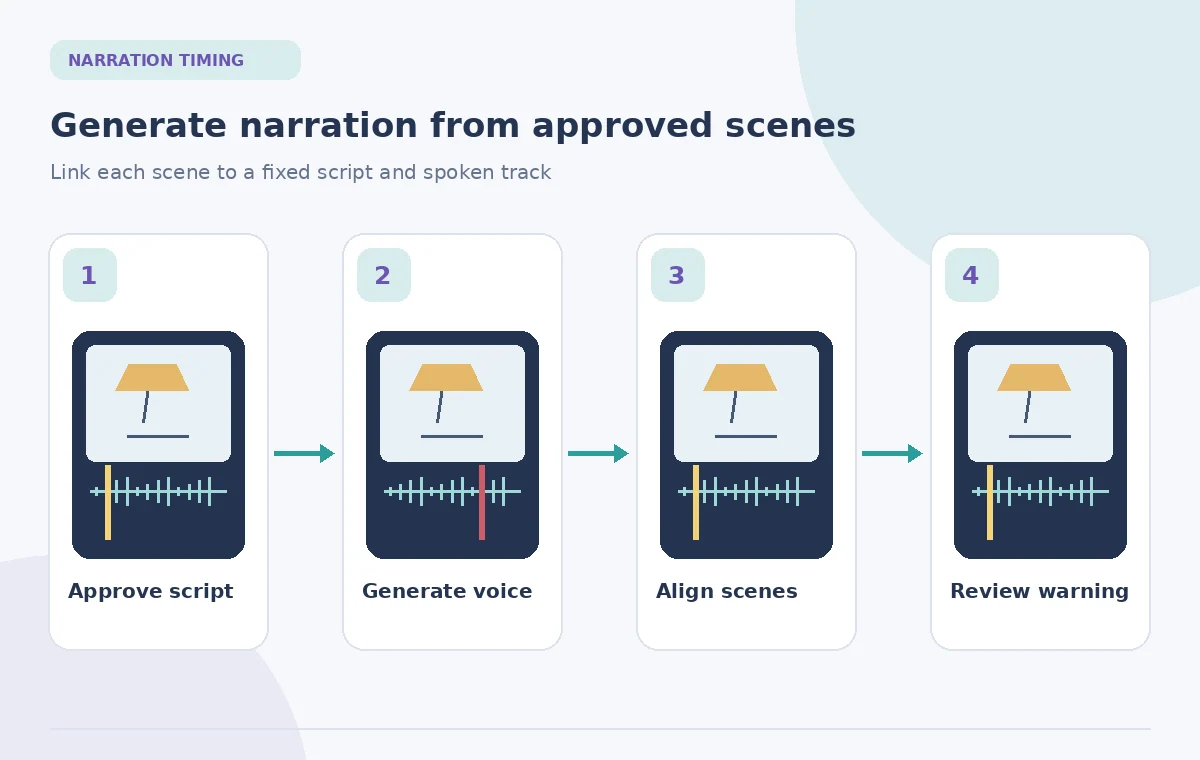
Generate from the approved scene text
Open the voiceover control in Google Vids and select the intended scope, such as Current scene. Enter the verified text and select an available voice. Google describes optional audio tags that can modify pace, pause, emotion, or delivery, but those creative controls should not alter the factual content of a warning. Insert the voiceover and keep the authoritative script in a separate review copy. If pronunciation of a technical term is unclear, revise the script or seek a human recording rather than relying on lucky output.
Generate one scene first and judge it against the timing map. Using all scenes at once can be convenient, but it also increases how many points need checking.
Watch the handoff between picture and sound
Place the warning before the first instructional action, not during a later close-up. Review the first and last word of each scene at normal playback speed. If the narration begins too late, the viewer might copy a depicted motion before hearing the caution. Check pauses around labels and ensure visual captions do not disappear while still being spoken. A synthetic voice can pronounce text while the image is showing a different step; that is a timeline problem rather than a language-generation problem.
The comparison drawing intentionally places a warning too late in its middle panel. That is an editorial risk example, not a generated Google Vids result.
Resynchronize after any script edit
The Google Vids help page describes a Voiceover outdated indicator when a scene script no longer matches the generated track. When changing a sentence, use Update voiceover and Replace for the affected scene, or the available all-scenes update path. Do not assume rewriting the text box automatically changes audio that has already been generated. Listen again after replacement because the speaking duration may have changed. A shorter sentence can shift a subsequent cut and a longer sentence can overlap the next scene. Version discipline matters even for a ten-second change.
Keep the old script next to the new one until approval. The warning is considered current only when the audible track and the visible script both contain the approved wording.

Check captions and accessible alternatives
Make an accurate transcript or captions from the final approved narration, not an earlier draft. Include non-speech cues when the activity depends on a sound and provide a text alternative for key visual steps. Verify names, numbers, and caution words manually. A caption that says unplug while the audio says plug in would make the lesson internally contradictory. If the audience includes participants who cannot hear the narration, critical instructions must remain accessible. AI-generated voice does not excuse the video editor from a complete accessibility pass.
Test the finished scene with sound muted to see whether essential safety meaning survives, then listen without picture to confirm the narration is understandable alone.
Check voice and editorial identity
Choose a neutral voice that does not imply endorsement by a real trainer who did not participate. Avoid imitation of a named instructor and disclose synthetic narration where the publishing context requires it. Preserve a copy of the written script and the editor’s change log. Do not make claims about a speaker’s personal experiences if the voice is generated. Voice styles or emotional tags should support comprehension, not dramatize an instruction into something misleading. A person trained in the subject must own the procedure and its final wording.
For a public demonstration, the voiceover is a presentation layer. It does not authorize new technical claims or substitute for instructor review.
Perform the final three-pass export review
First, compare every spoken warning and number against the approved script. Second, check scene entrances, exits, and whether captions follow the actual updated track. Third, watch the video as an unfamiliar volunteer and confirm that no action is shown before its caution. If any scene cannot be made accurate within the available tools, use an approved human narration or stop release. Keep the source project, final transcript, and export version together for future revision. The strongest outcome is a small training video whose words and pictures give the same instructions.
The quality-check diagram highlights an audible warning, a synchronized track, and a safe scene boundary. These are inspection points, not test measurements.

How We Research
We reviewed the named official product documentation, including Google Docs Editors Help: Create voiceovers with AI in Google Vids; Google Docs Editors Help: Google Vids. We used those sources to verify the feature entry point, stated capabilities and limitations, and important access caveats. The use case, source documents, example objects, and all original diagrams are hypothetical; we did not operate a live account, measure model performance, or claim real-world permission. We recommend separate source-of-truth review, independent quality checking, and approval by the person responsible for the content. Current menus, plans, and restrictions may change after this review.
Frequently Asked Questions
No. Google lists eligible Workspace and Google AI plans as well as certain experiment access; availability varies.
No. Google describes an outdated voiceover indicator and update/replace controls to regenerate affected narration.
The official help describes a 2,500-character script limit. Split the narration into reviewable scenes if needed.
No. A qualified reviewer must approve technical instructions before and after voice generation.
Confirm exact spoken warnings, updated voiceover tracks, scene timing, captions, and the accessible text version.