
A fictional temporary shelter runs a remote orientation with English-speaking staff and Spanish-speaking volunteers. Participants need to know the check-in desk, a hotline, and the accessible exit. Google Meet translated captions can make speech easier to follow, but speech recognition and translation are not authoritative safety instructions. This example uses invented room numbers and no real attendee data. It describes how to prepare, check, and correct live captions without replacing a qualified interpreter where one is needed.
Create an approved bilingual reference sheet
Before the meeting, write a short bilingual reference containing the room numbers, address, emergency contacts, and precise names of responsible staff roles. Have a qualified bilingual reviewer approve it. For the teaching example, the supply desk is Room 12 and the visitor entrance is Door C; these are illustrative labels, not directions to a real shelter. Keep the source sheet visible to facilitators while the meeting is running.
Separate low-risk discussion from critical instructions. It is reasonable for a participant to use captions to follow a general overview, but a mistaken exit number or medication instruction can create harm. Decide in advance which phrases must be repeated or confirmed aloud. Share the approved reference through an accessible written channel so participants do not need to reconstruct a long phone number from scrolling captions.
Check account access and language support
Google’s documentation lists translated captions for specific Workspace editions, including qualifying Business and Enterprise offerings. Availability and languages can roll out unevenly; participants should test the feature in their actual account rather than assuming every free meeting supports it. Open Meet on a computer, join a test meeting, and find Captions and translation or the Captions section in settings.
Choose translated captions and set the source and target languages. Confirm the direction explicitly: English speech into Spanish text is not the same configuration as the reverse. Enable ordinary live captions first if a translation option is not visible, then verify account permissions with the administrator. Do not promise that a translated-caption option will appear identically across browsers, phones, and Workspace editions.
Rehearse the three high-risk statements
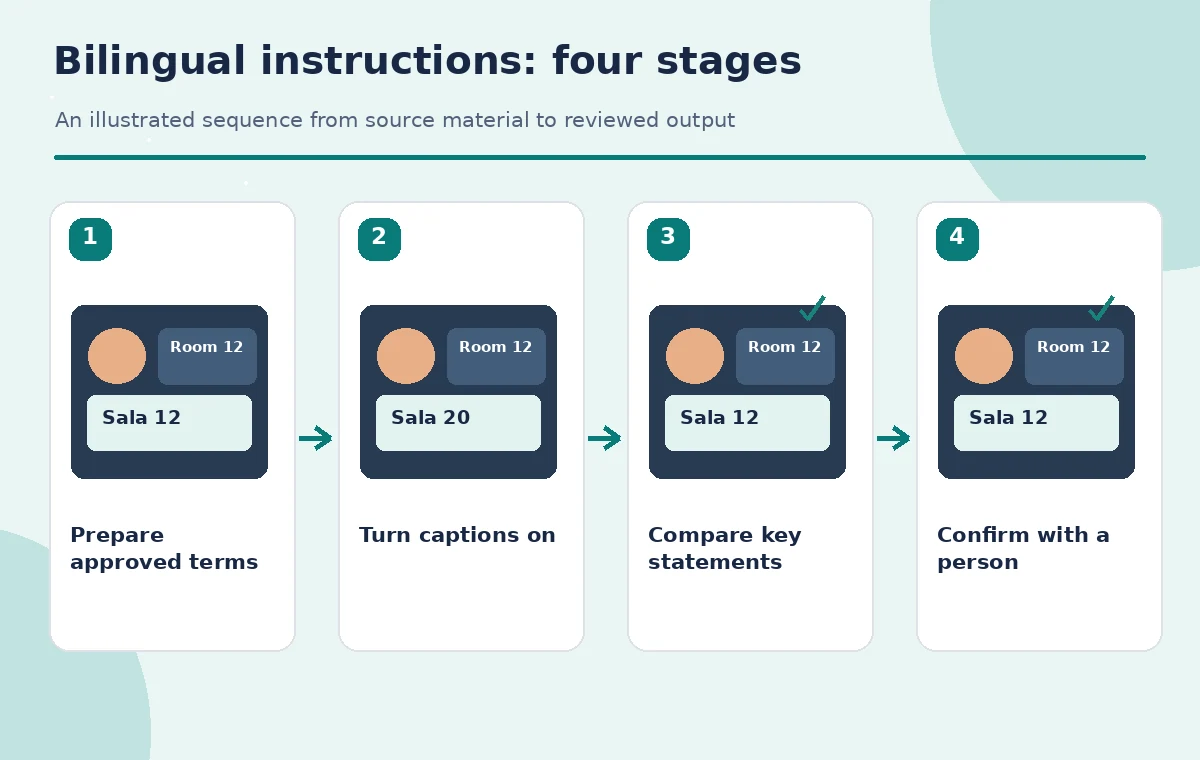
Ask a colleague to read the approved check-in instructions at conversational speed. Monitor how the destination room, door letter, and hotline appear. Numbers may be transcribed as words, omitted, or attached to a neighboring phrase; the visual confidence of a caption is not evidence it is correct. If a critical line looks wrong, stop and repeat it slowly, then confirm through the approved written reference.
For example, the spoken phrase ‘Room twelve, door C’ might be visually mistaken for ‘Room twenty, door D.’ That hypothetical contrast illustrates a risk, not observed Meet output. The bilingual reviewer should verify the exact digits and letters, especially where two sounds are similar. Keep the practice short and document known terms before the live event, rather than testing accuracy on an actual emergency.
Manage timing and speaker changes
Live captioning introduces delay, and multilingual meetings have additional timing complexity. Pause after instructions that contain multiple steps, especially when switching from a route direction to an exception. Announce speaker changes and keep microphones separated where possible. Do not treat the text visible at one instant as a complete transcript of the sentence just spoken; give readers time to receive the end of a clause.
Avoid having two coordinators speak at once during the most important instructions. Repeat telephone numbers as grouped digits and display them in approved text. If someone asks a question while the captions are still catching up, the facilitator should summarize the question before answering. An accessible process relies on clear turn-taking and a human check, not solely on a translation setting.
Provide a fallback for misunderstandings
Assign a named person who can answer in the participant’s language or bring in a qualified interpreter. Explain the fallback at the beginning of the session. A bilingual attendee should not have to guess whether ‘remain inside’ was rendered as ‘go outside’ or rely on an unverified chat translation in a consequential moment. Share a pause-and-clarify phrase participants can use whenever a caption is confusing.
If a live translation appears inconsistent with the approved reference, stop the flow and resolve the discrepancy before proceeding. Document the corrected instruction in the meeting chat or follow-up handout, respecting organizational privacy policies. Do not silently edit the reference sheet to match the AI caption: the source-approved instruction has priority until the responsible staff explicitly revise it.

Decide whether a recording is appropriate
Translated captions shown during a call are not automatically a durable, corrected transcript. Google’s help describes a Record captions option for recordings in eligible settings, but recordings, caption availability, and retention are subject to account controls and local requirements. Ask for informed consent where required and avoid including sensitive resident information in a demonstration. A real shelter may need restrictions beyond general Workspace guidance.
If the orientation is recorded, inspect the recording separately and label generated subtitles as unreviewed until checked. Confirm that captions are displayed in the expected language and that the recorded version has not cut away from a key contact number. A person who missed the live session should receive the authoritative written instructions, not an AI-only transcript of a possibly ambiguous room label.
Review captions against the official handout
After the session, use the approved reference to verify each high-risk fact: door letters, room numbers, opening hours, and hotline digits. Do not score the whole session with an unsupported percentage accuracy. Instead, record a small discrepancy list with the original statement, observed caption, authorized correction, and person who approved the follow-up. Treat unclear sections as unresolved until a source confirms them.
If the organizer issues an updated room assignment after the meeting, make a new handout with a revision timestamp and communicate the change directly. Merely correcting an old caption would not alert people who already acted on it. Distinguish the original meeting’s content from later operational changes so the history stays clear and recipients can identify the current instruction.
Close with human-confirmed instructions
Finish by having a bilingual facilitator restate the location of the check-in point and the escalation contact. Ask participants to use the written reference for numerical details. Check that translated captions remain useful for ordinary discussion, that no unresolved safety phrase is treated as settled, and that a follow-up message names the official source. Only authorized staff should approve real emergency directions.
These screenshots and captions are conceptual illustrations rather than a record of a real Google Meet call. We did not measure translation accuracy or use participant recordings. The practical success criterion is that the meeting supports comprehension while the critical numbers and procedures are confirmed independently. Where that cannot be assured, use a qualified interpreter and postpone consequential instructions until everyone has the correct wording.

How We Research
We reviewed the developer and product-owner documentation: Google Meet Help: Use translated captions, Google Meet Help: Use live captions. These primary sources establish the available features, relevant steps, and important access limitations as checked for the November 2026 editorial draft. We compared documented behavior with the practical decision points in this hypothetical scenario. This article does not report a live trial, real customer records, measured system accuracy, or a verified production outcome. The illustrations are explanatory artwork rather than actual vendor screenshots or test results. Before using the steps with real people or sensitive material, verify the latest interface, current plan permissions, rights, accessibility requirements, and your organization’s approved source documents. Human reviewers—not AI-generated output—must authorize consequential claims, directions, and publishing decisions.
Frequently Asked Questions
No. Google lists qualifying Workspace editions and notes that some languages or features may roll out gradually.
Not for consequential instructions. Have a qualified human available and distribute approved written directions.
No. They are machine-generated live text and must be independently checked for critical details.
Pause, repeat the instruction, display the approved digits, and ask a bilingual reviewer to confirm.
No. Verify recording settings and check any generated or embedded captions before distribution.