
A fictional community fair has a four-page Canva presentation: welcome, venue map, activity schedule, and accessibility information. An organizer wants a lively social preview but cannot risk losing the opening time or the accessible entrance label in a transition. Canva Magic Animate can suggest coordinated motion across a presentation; it is not a fact checker or an accessibility certification. The safe workflow starts with approved text and ends with a full-speed playback and a still version anyone can read.
Freeze the facts before adding motion
Ask the event owner to approve the fair date, doors-open time, location, activity start times, and contact details in a plain-text source document. Give that document a version and approval date. In the Canva file, keep important facts as ordinary editable text boxes, not embedded in a decorative AI-generated image. Motion should emphasize the message rather than serve as the only way to discover it.
Mark three pieces of copy as protected: the opening time, the venue address, and the accessibility contact. Check their spelling and their relationship to each other in the static design. A visually pleasing transition cannot correct an outdated schedule. Keep a duplicated pre-animation version so a reviewer can compare the same facts before and after motion is added.
Apply Magic Animate to a working copy
Open the completed presentation in a Canva account with Magic Animate access. Canva documents the feature for Pro, Teams, Education, and Nonprofits users; eligibility can change with organizational settings. In the editor, choose Animate, locate Magic Animate, and preview a recommended or alternative style. Treat the resulting animation as a proposal for the full deck rather than as four individually reviewed edits.
Do not assume Magic Animate has changed the copy just because the preview looks different. Inspect the timeline and each page for animations that cause text to arrive late, cover other objects, or slide beyond the crop. Some styles may feel persuasive during a quick preview while failing at mobile size. Preserve original text boxes so dates and times can be corrected without remaking the motion.

Check when the schedule becomes readable
Create a playback checklist using actual slide order rather than screenshots from unrelated examples. On the activity page, look at the first frame, the middle of the entrance animation, and the final static state. A viewer who watches only the first second must still know whether the page is a schedule and where to find the time. Keep the time visible long enough for a reader to process it.
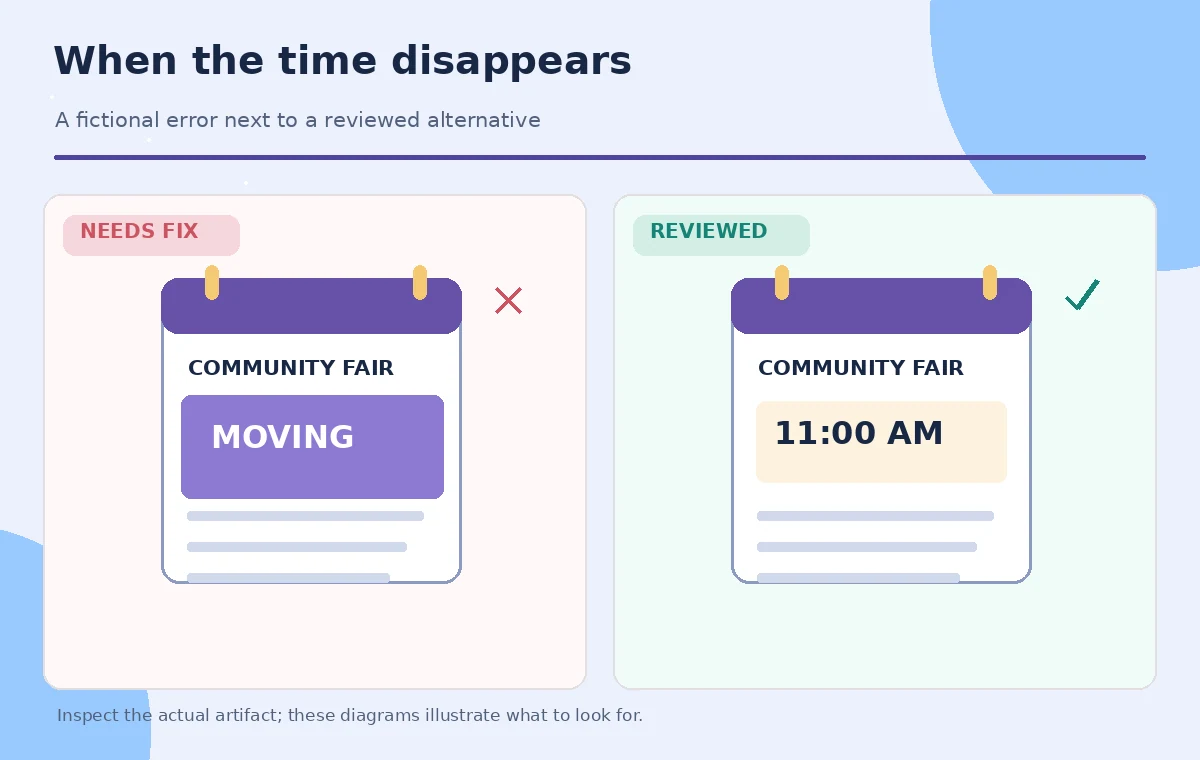
For the hypothetical 11 a.m. craft session, compare a draft where the clock icon flies in before its text against a reviewed layout where the text appears clearly and remains steady. These are editorial illustrations, not a measured Canva animation. If timing cannot be corrected in the current Magic Animate style, choose a simpler manual element animation or remove the effect from that page.
Respect reading order and reduced motion
The order in which a visual element appears may not match the order in which someone should read it. Keep a logical hierarchy: event title, date, time, location, and access instructions. A map pin is decorative support; the address must also appear in text. Avoid making a fast moving arrow the only indicator of an accessible entrance because readers may miss it.
Canva notes that device Reduce motion settings can limit animations and transitions. That is helpful but does not replace a static version of the schedule. Export or share a simple still image or PDF with all details present. Test with someone who has not seen the original slide and ask them to locate the time and accessibility contact without help.
Inspect the slide at phone size
Watch the whole presentation at the intended mobile display size. Small event cards that remain readable on a laptop may become a jumble when movement, crop, and line wraps combine. Pay particular attention to time ranges such as 10:30–11:15, to numbers near punctuation, and to labels sitting close to animated illustrations. Increase breathing room before adjusting motion speed.
Do not judge a page by a single attractive frame. Scrub to the least readable moment of a transition and compare it with the original. If an animated banner temporarily covers the contact number, shorten the banner or change the effect; adding a caption elsewhere is not a reliable fix. The final slide should be understandable without an animated reveal.
Audit the export rather than only the editor
A playback preview is not the same as the file a guest receives. Download a representative animated export if supported in your chosen format and plan, then play it independently on a phone and a desktop. Check for unexpected pauses, clipping, missing fonts, or a transition that hides the address just before the video ends. Record the export format and the version used for approval.
Pair the animated deliverable with a static schedule. If the platform or recipient cannot view motion, the backup must still communicate every critical fact. Do not put the only safety or accessibility information in a quick animated segment. If the organizer later revises a time, update both the motion design and the static copy from the approved source.
Separate style review from factual sign-off
Give different reviewers different jobs. The event coordinator checks dates, location, and the published program; a designer checks movement, typography, contrast, and margins; an accessibility reviewer checks reading time and the usefulness of the static alternative. Approval for appealing visuals does not imply approval for the schedule. Record unresolved issues explicitly rather than labelling the deck ready.
Keep comments on the page they describe. If the craft session moves from the main hall to the pavilion, the change belongs in the approved source first. Recheck the venue map label and any wayfinding animations. Do not ask an AI-generated transition to infer new details from a comment thread. Every factual revision should have one accountable person and one final reviewed version.
Release a motion-safe event preview
Run one uninterrupted final watch with audio muted to ensure the essential information works without sound. Confirm the opening time appears clearly; the page sequence tells a coherent story; no zoom, slide, or flourish cuts the street address; and the accessibility contact remains readable. Check the exported file rather than relying on the editor thumbnail. Make the static backup easy to access beside the animated post.
This article does not report a real fair campaign, animation-duration measurement, or controlled Canva trial. It provides a source-led workflow and conceptual drawings to guide review. A passing version is one whose approved event details survive every transition, not merely one whose motion looks polished. If any critical information is obscured, hold the animated export and share the static schedule instead.

How We Research
We reviewed the developer and product-owner documentation: Canva: Animated Presentation Maker, Canva Help: Apply, change, or remove animations, Canva: Magic Studio overview. These primary sources establish the available features, relevant steps, and important access limitations as checked for the November 2026 editorial draft. We compared documented behavior with the practical decision points in this hypothetical scenario. This article does not report a live trial, real customer records, measured system accuracy, or a verified production outcome. The illustrations are explanatory artwork rather than actual vendor screenshots or test results. Before using the steps with real people or sensitive material, verify the latest interface, current plan permissions, rights, accessibility requirements, and your organization’s approved source documents. Human reviewers—not AI-generated output—must authorize consequential claims, directions, and publishing decisions.
Frequently Asked Questions
It suggests animation and transitions; factual content still needs independent source review and editable text.
Canva lists it for Pro, Teams, Education, and Nonprofits; verify current access for the account.
No. Review the downloaded deliverable at the target screen size and in the actual sharing format.
Offer a fully readable static schedule and keep critical facts independent of transitions.
No. Choose clarity over consistency when a suggested transition interferes with reading time.