
An animator has made a short synthetic clip of a cardboard windmill with four broad blades. The first shot ends before the windmill completes its turn. Google Flow’s Extend feature can generate additional footage after an eligible Veo-generated clip, but nothing about that action guarantees perfect object continuity. A model could invent an extra blade, shift the hub, or reverse the wind. The windmill in this article is fictional and all diagrams are conceptual; they are not screenshots or a tested Flow export.
Confirm that the source clip is eligible for extension
Google’s current Flow Help says Extend applies to Veo-generated videos, not any arbitrary uploaded video. The same help material cautions that support varies by video model. Before planning the shot, open the models-and-features guidance and check the active model, aspect ratio, and supported duration. Do not advise the team to extend genuine workshop footage as though it were an eligible synthetic source.
If the windmill shot came from an external camera, use conventional editing or create an explicitly synthetic continuation as a separate creative asset. Preserve the provenance of the original clip. In this scenario, the starting point is a generated animation, so any following frames are also synthetic and must not be presented as evidence that someone built and tested a real windmill.
Freeze a compact continuity reference
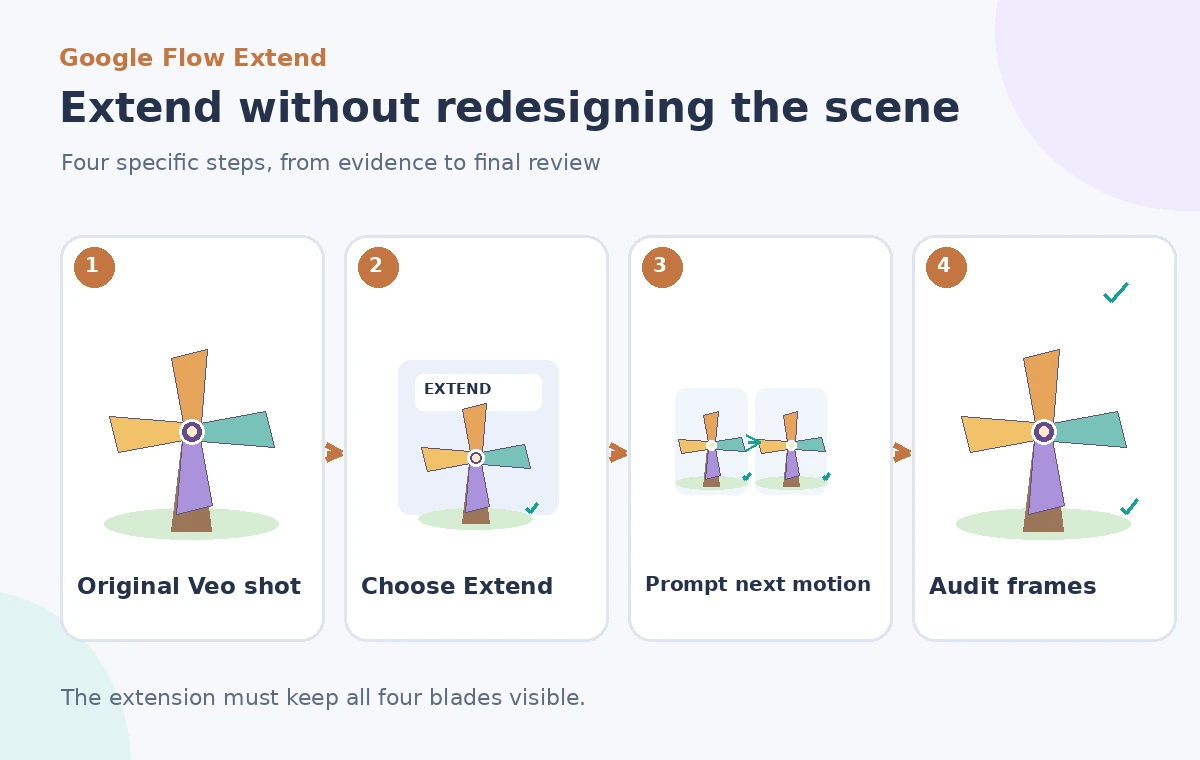
Create a reference frame at the last stable point of the clip. Count exactly four blades and record their spacing, cardboard color, central fastener, support pole, and background. Note which way the blades rotate and where the light comes from. A simple sketch with four numbered blade tips is more reliable than a long decorative prompt that never states what must remain unchanged.
Identify the action that is allowed to continue: one more gentle partial rotation with the camera fixed. Prohibit a sudden fifth blade, a different hub shape, a new hand entering the scene, and a different wind direction. These constraints serve as inspection criteria, not guarantees of what the generator will produce.
Use the documented Extend control
In an existing Flow project, choose the eligible clip, open the Extend control, and describe how its action should continue. The help page directs the user to submit that continuation prompt from within the project. Exact model capabilities are subject to change; Google currently documents different support among Veo model tiers and notes that some other edit modes cannot be applied to an extended clip.
Keep the first attempt narrow: “Continue the existing four-blade cardboard windmill turning gently clockwise; fixed camera, unchanged background and pole.” Avoid asking the model to redesign the scene, move the camera, and finish an instructional explanation all at once. A narrow continuation makes a continuity error easier to identify.
Inspect the seam before judging the new ending
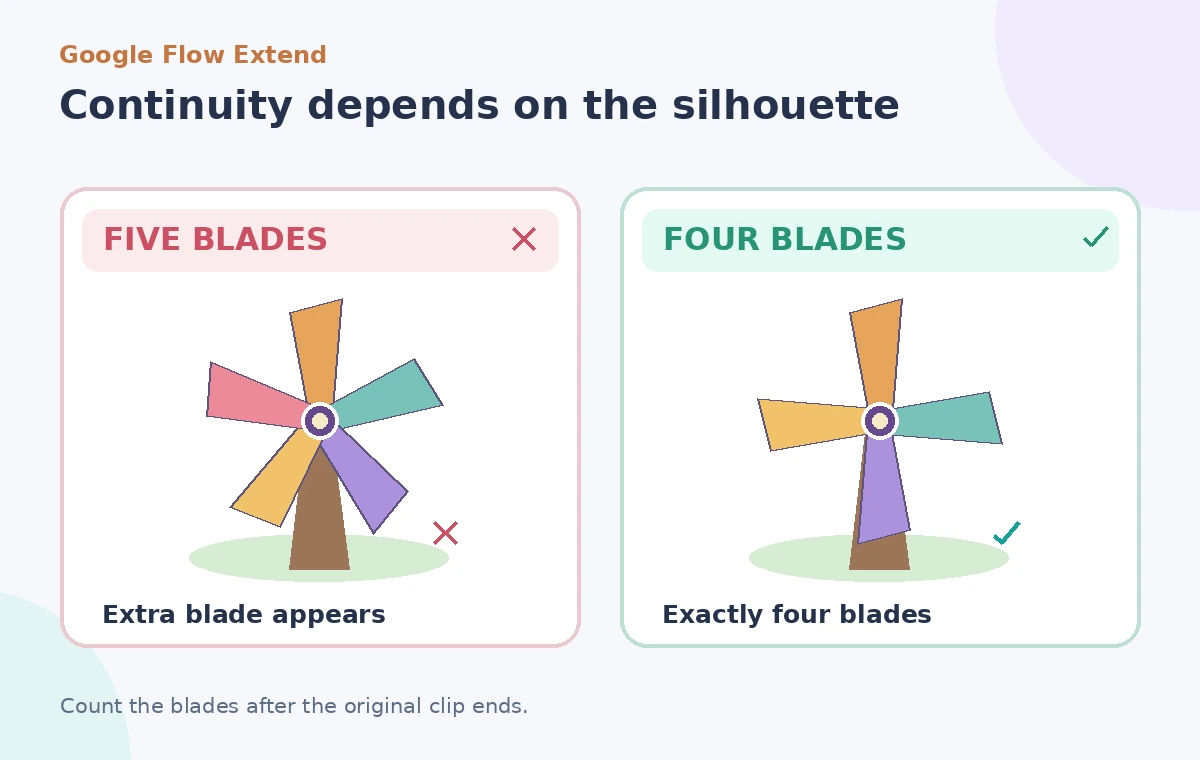
The first frame after the original clip is the most important checkpoint. Scrub across the transition one frame at a time and compare the blade tips, hub position, shadow direction, and camera framing. A smooth-looking crossfade can hide a structural mismatch: the windmill might quietly gain a fifth blade while turning. Check physical object geometry, not only whether the video feels cinematic.
The visual comparison illustrates an incorrect five-blade continuation beside a four-blade continuation that preserves the starting silhouette. Both sides are drawings that represent possible errors, not measured model outcomes. If the generated clip violates the approved constraints, discard that version rather than editing the reference description to pretend the extra blade was always there.
Verify motion and timing across the full sequence
Watch the first clip and extension together at normal speed, then inspect a few isolated frames. Track one recognizable colored blade to detect an apparent reversal or sudden jump. Verify that the pole stays fixed, the hub remains centered, and shadows move consistently if the light source changes. Do not rely on interpolation alone to excuse discontinuities that viewers will notice immediately.
If this is intended as a craft concept video, never turn an invented continuation into an actual construction step. A generated windmill turning beautifully does not demonstrate how to fasten a blade or ensure that a real toy would be safe for children. Keep genuine instructions in a separately verified script or filmed demonstration.
Know the limitations of extending an extended clip
Google notes restrictions on applying other edit modes to extended clips. Check the current documentation rather than assuming every edit tool remains available after extension. When multiple takes are necessary, keep each variation in the project history and maintain a simple version log so an editor can identify which clip was the last approved four-blade sequence.
Review credit consumption and feature availability under the selected account and model before generating many variants. Avoid quoting one fixed price or claiming a guarantee of identical visual output across plan tiers. The right workflow here favors a small number of carefully reviewed candidates over dozens of blind retries.
Mark synthetic footage clearly in the project
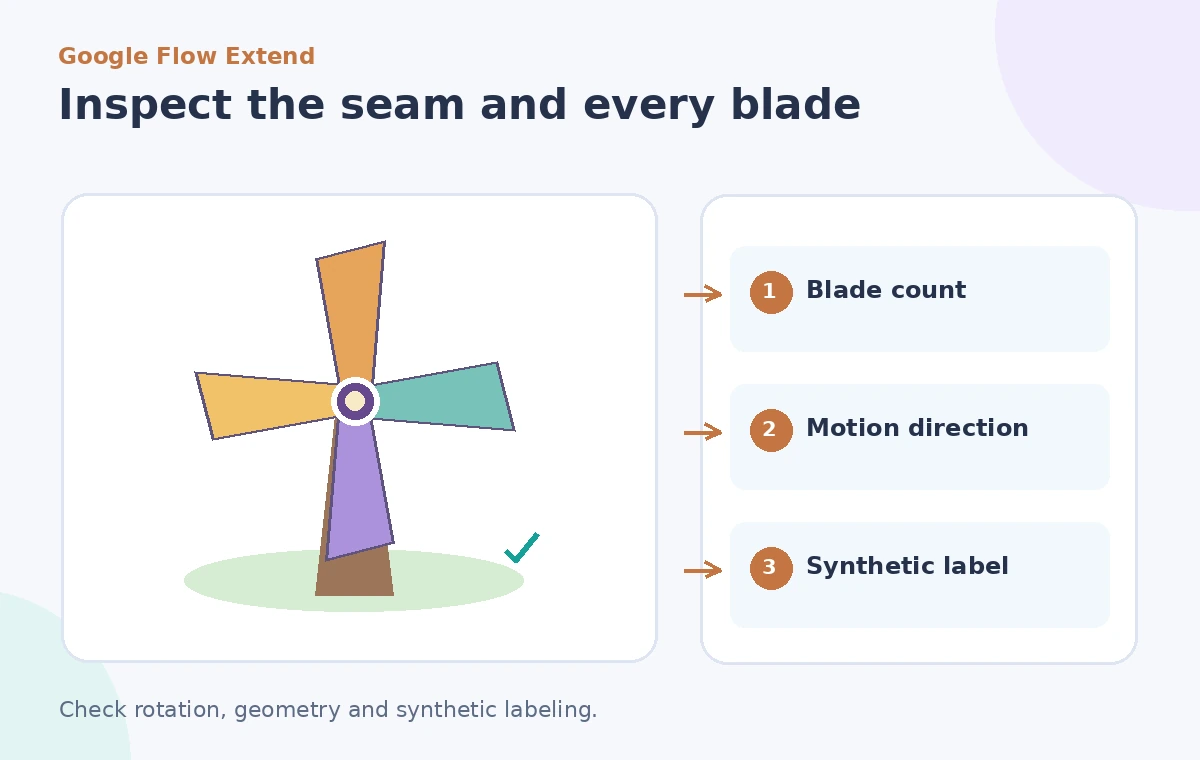
Store the original Veo-generated shot, the continuation prompt, and the selected extension as distinct items. A production note should state that the windmill sequence is AI-generated, not a recording of a real classroom build. If the clip appears beside genuine instructions, label the fictional animation so viewers do not mistake it for footage that establishes a particular construction method or material property.
Keep asset rights and any music or voices under separate review. Extending visuals does not automatically grant permission to insert licensed soundtrack material, nor does it make a generated demonstration scientifically accurate. An editor should approve both the picture and its surrounding caption before export.
Approve a four-blade continuity checklist
The reviewer checks the first and last frames, blade count throughout the motion, rotation direction, stable center fastener, background consistency, and disclosure. Reject a candidate if the windmill changes design between shots, even if its new footage is attractive. Approve an ending only when the sequence preserves the story’s simple visual rules and the source clip remains identifiable as generated media.
This is a modest use of generative extension, but it is also a useful general pattern. Freeze important details, generate one defined continuation, inspect the seam and the object silhouette, and publish with accurate provenance. Extending a clip makes more footage; it does not automatically preserve an object’s identity or validate a real-world process.
How We Research
For this November 2026 editorial review we read these named official resources: Google Flow Help: Edit videos and extend clips, Google Flow Help: Models and supported features. We compared their documented capabilities, input limits, result types, access restrictions and human-review requirements against the hypothetical workflow above. We did not access a live account, process real museum or visitor records, run a controlled vendor test, or measure output accuracy. All diagrams are original conceptual illustrations rather than screenshots or evidence of a successful live result. Confirm current eligibility, pricing, privacy terms, and interface details in the linked documentation before attempting the workflow.
Frequently Asked Questions
Google currently documents Extend for eligible Veo-generated videos. Verify the active model and supported features before starting.
No. A prompt can request continuity but a reviewer must inspect the generated frames and reject extra or distorted blades.
No. Google warns that other edit modes such as insert, remove, and camera cannot be applied to extended videos in the documented workflow.
Yes when needed to avoid misleading viewers, especially if it is presented near real construction instructions.
No. The scenario and its diagrams are illustrative; no live render or benchmark is claimed.