
A ceramics studio is editing a short product video of a hand-thrown vase on a slowly rotating turntable. The vase has a narrow loop handle and a hollow center that reveals the backdrop. The editor wants a quiet, uniform background, but an overzealous video cutout could close the handle opening or make the loop flicker during rotation. Filmora’s AI Smart Cutout offers brush-guided object selection and manual refinement; using it responsibly means checking the mask across time, not just accepting one attractive preview frame.
Decide whether the shot needs a cutout at all
Inspect the original turntable footage before editing. A clean physical backdrop with even lighting may be more faithful, faster, and easier to reproduce than replacing it digitally. If the current scene contains distracting shelves or visible cables, document exactly what should change and what must not: the clay form, glaze marks, handle thickness, opening, rim, and base contact shadow. Those details are actual product properties, not aesthetic suggestions.
Keep the original clip and its frame rate, dimensions, and duration. Choose a representative frame where the handle is clearly separated from the body and another where the handle overlaps the vase silhouette. The latter is often the hardest frame for a segmentation model. Plan to inspect the whole rotation and avoid judging the output only at the camera-facing angle where the object has its cleanest edge.
Locate AI Smart Cutout in the installed editor
Wondershare documents Smart Cutout as a Filmora AI Matting feature. Its current product instructions describe importing the clip, selecting the target with a smart brush, refining it with a brush or eraser, then applying the cutout and making further edge adjustments. The product page also describes mask inversion and frame-by-frame refinement. Exact menu labels and availability can vary by installed version, platform, and plan; check the desktop software rather than relying on a screenshot from another release.
Filmora’s product guidance distinguishes trying the feature from exporting without a watermark, which may require a paid plan. Verify local plan limits before committing a client’s deliverable. A feature’s existence is not evidence that every handle can be recovered automatically. The editor should retain the option of manual keyframing or reshooting when the source does not show enough separation between the vase and its background.
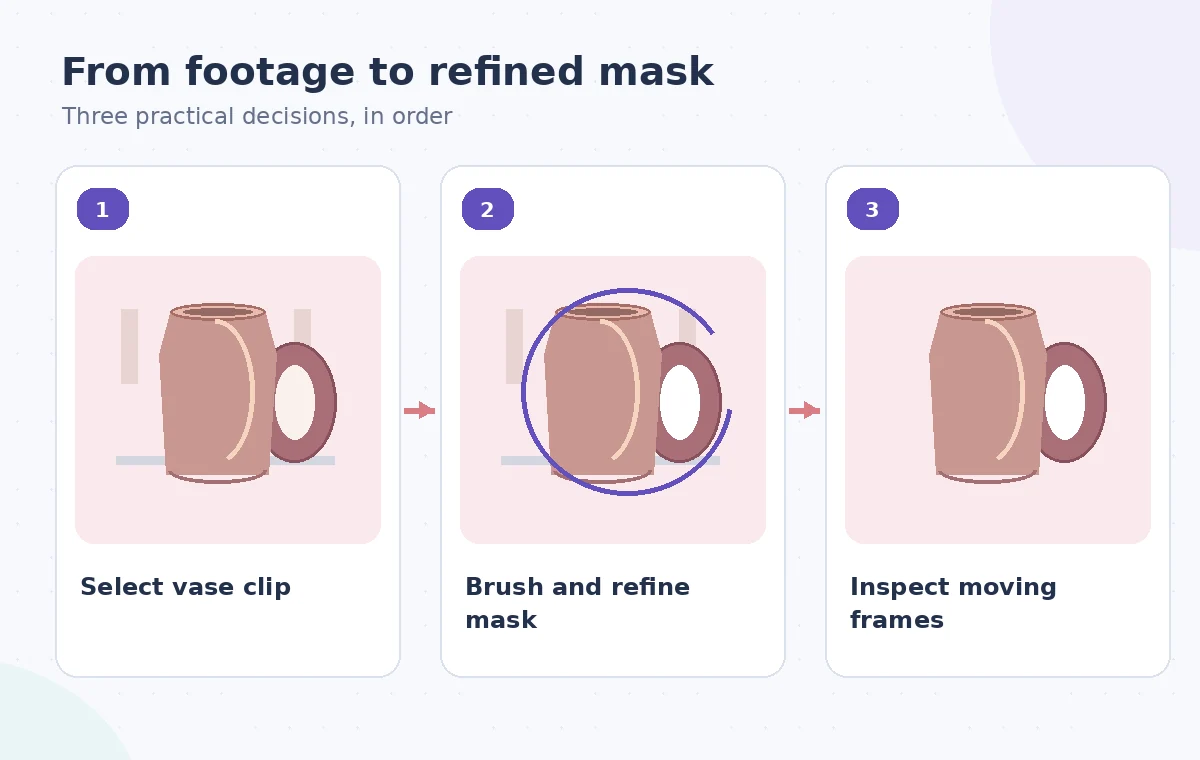
Brush the vase body and handle deliberately
Select the video clip and open Smart Cutout from the AI Matting tools. Start the selection on a solid, unmistakable area of the vase body. Extend attention to the loop handle without painting across the empty opening, and inspect the candidate mask on the first frame. If the model includes background visible through the handle, use the documented brush and eraser refinement tools to remove that region while preserving the ceramic rim around it.
Treat the outer silhouette and inner opening as two separate edge problems. The outside may be well detected while the handle’s center becomes a solid patch. Use a high-contrast preview background to identify which pixels are actually included. Do not interpret the presence of a neat selection glow as proof of precision. A thin glaze reflection can resemble the edge of the handle and confuse the initial stroke.
Use the AI tool selection checklist
Track the mask through the turntable motion
Move through the clip in several stages: front-facing handle, three-quarter view, edge-on handle, and return toward the front. At each position, verify that the mask follows the actual ceramic edge rather than a guessed smooth oval. Pay particular attention when the handle briefly overlaps the body; the inner gap may disappear naturally from camera perspective but must not be artificially widened or closed in other frames.
Inspect frame-by-frame around visible changes in the cutout. A matte that looks correct at the beginning can drift as lighting changes or a highlight crosses the handle. Watch at normal speed too, since one-frame gaps can create flicker that is easy to miss when viewing stills. If manual corrections are required on many frames, consider a simpler background treatment or a reshoot rather than accepting inconsistent product geometry.
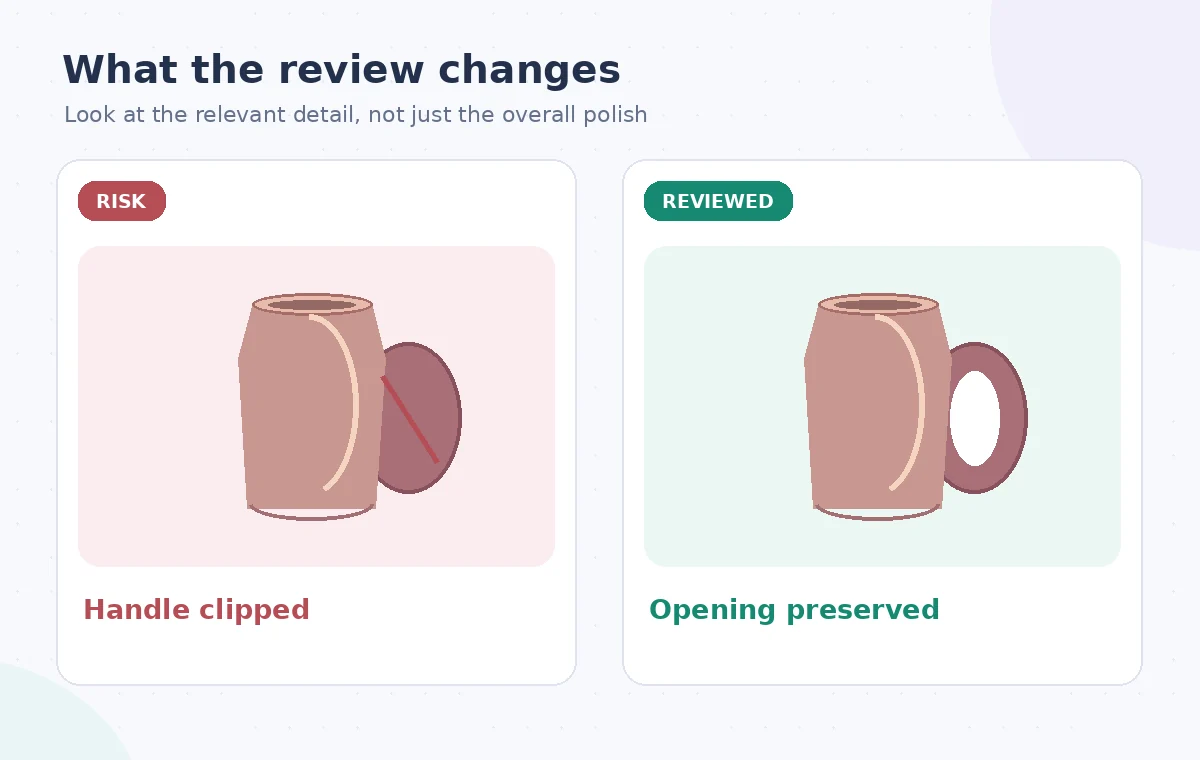
Refine edges without changing the physical object
Filmora documents feathering, transparency adjustments, and manual mask correction. Apply these with restraint. Heavy feathering can make the handle thinner or translucent, while too little refinement can leave a bright outline from the old background. Compare the edited edge against the unprocessed frame. A truly transparent hole in the handle should reveal the new background; it should not contain a blurred copy of the old studio wall.
Examine the contact shadow where the vase base meets the turntable. A cutout pasted into a flat new scene may appear to float even if its contour is exact. Use a plausible contact treatment only for presentation, not as evidence of the original lighting. Do not change the glaze color to disguise a poor edge. If this is a sales listing, verify that a buyer would still recognize the same vessel and any unique imperfections.
Plan a safer multi-tool workflow
Compare original, masked, and exported frames
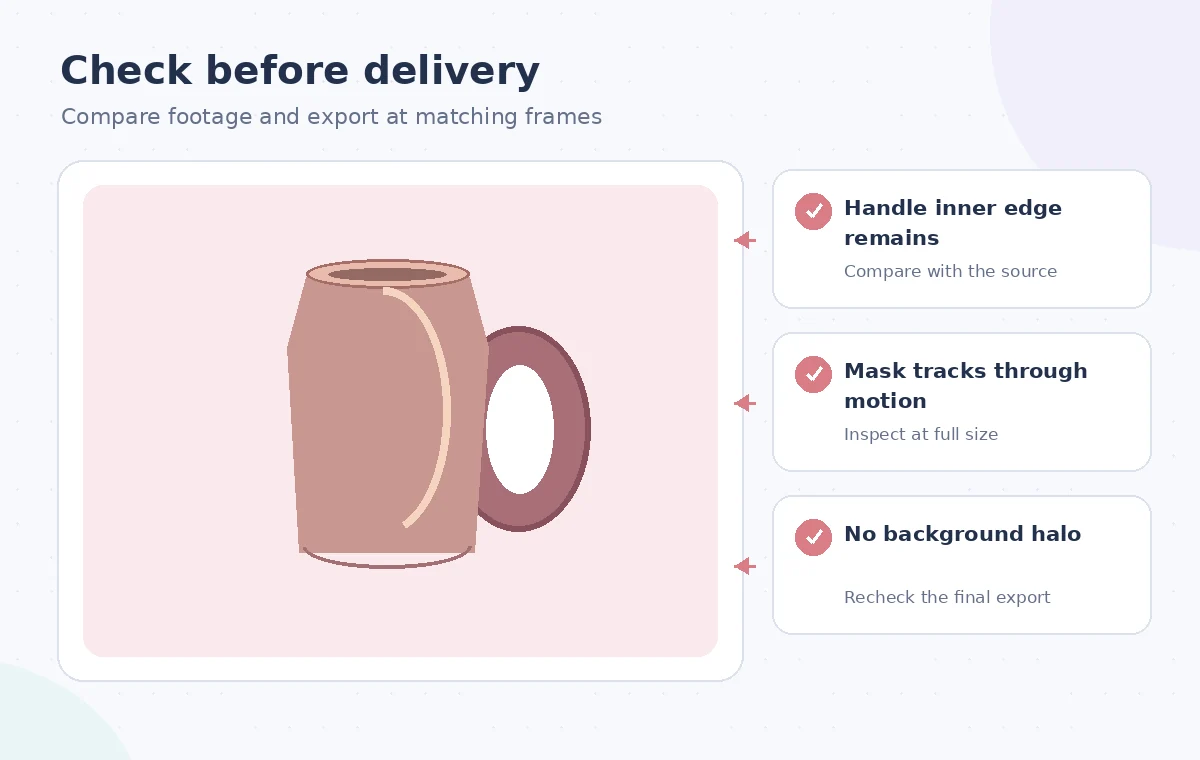
Capture reference frames from the source and final composite at the same timestamps. Compare them side by side at high zoom and at the actual playback size. Check the handle rim, opening, glaze pattern, base, and moving shadow. The comparison should isolate the desired change—background replacement—while showing that the vase itself has not been reconstructed, widened, or reshaped.
Reopen the delivered video file in an independent player and scan the complete rotation. Edges may behave differently after compression, especially around the small opening and thin highlights. A clean still preview in Filmora does not guarantee the exported video lacks jagged movement or halos. Preserve an editable project with the source attached so a client can request a safer background treatment without repeating the work from scratch.
Disclose the edit and keep product evidence separate
For a product page, describe the background as edited when relevant and retain original photographs that show shape and surface texture without synthetic staging. The background replacement is a marketing presentation change; it should not imply the vase was photographed at a location where it never stood. Avoid replacing a defect or changing the handle design without clear disclosure. A catalog should represent what a buyer will actually receive.
Keep a compact approval note recording the frames checked, the one or two difficult handle positions, any manual correction, and who approved the final visual. No measured performance claims are made in this teaching scenario. Filmora’s documented tools make a cutout practical, but consistency of a delicate object over time still depends on source quality and deliberate human review.
How We Research
We consulted Wondershare Filmora: AI Smart Cutout feature and steps and Wondershare Filmora: Official features overview. We compared the named capabilities and limitations against the workflow described here, then designed an independent source-preservation and human-review checklist. This is a hypothetical teaching example with original explanatory illustrations, not an account-based hands-on test, measured output, or actual software screenshots. We did not process real customer files, verify a subscription on a live account, or claim that a vendor certified the final result. Confirm the installed version, applicable permissions, current licensing, and site-specific requirements before following the steps.
Frequently Asked Questions
No. Smart Cutout supports brush-guided selection of objects and areas, while Portrait Cutout targets people; choose the feature suited to a vase.
Filmora documents brush and eraser refinement. Inspect both the inner and outer edges of the loop on challenging frames.
No. A moving mask may drift as the vase rotates or lighting changes; review the entire clip and inspect difficult frames individually.
Not necessarily. Filmora says a free trial can be used, but watermark-free export may require a paid plan.
Match source and output timestamps, inspect the handle and contact shadow, watch for flicker at full speed, and reopen the exported file.