
A neighborhood school is designing a flyer for a weekend book fair. A colorful paper-cut headline would make the poster appealing, but families primarily need the correct day, starting time, entrance, and contact details. Canva Magic Morph can apply generated visual effects to selected text or design elements. It is best treated as a decorative asset, not a trustworthy source for the important copy. This hypothetical workflow keeps the actual schedule in standard editable text and uses the generated effect only where legibility survives.
Keep the important facts outside the decoration
Write the event facts in a separate approved text block: Saturday, 10:00 AM–2:00 PM, school library entrance, and an organizer contact. Verify those facts with the event owner before changing the design. Put them in ordinary editable text rather than baking them into an AI-generated effect. A decorative headline can be replaced; a date that becomes unreadable can make the entire flyer fail.
Prepare two versions of the event line, one compact for a story and another suited to print. Test a simple black-on-white baseline first. If readers cannot find the start time within a few seconds, fix the hierarchy before adding texture or motion. Treat accessibility information and location details as mandatory content, not optional space for a decorative graphic.
Locate Magic Morph and isolate the headline
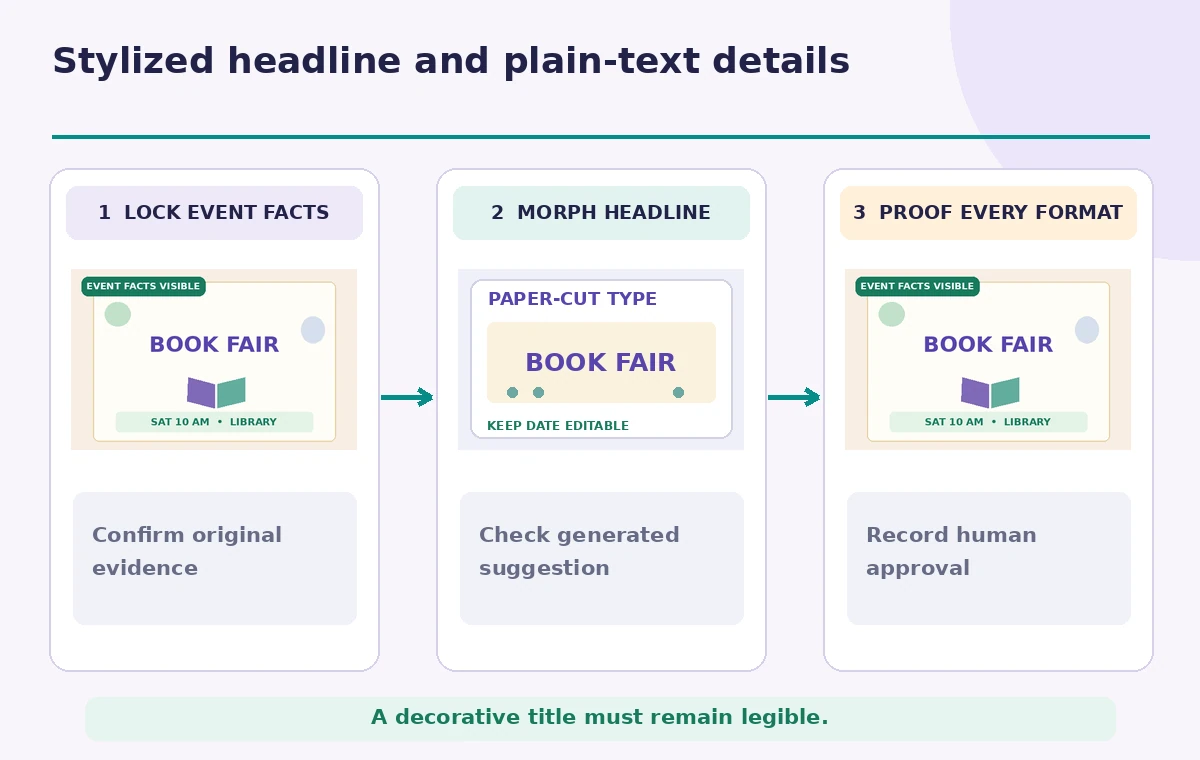
Canva’s own instructions describe opening the editor, searching for Magic Morph under Apps, selecting text, and writing a description of the desired effect. Keep a duplicate of the base design. Choose only a short headline such as “BOOK FAIR,” not a line containing phone numbers or pickup instructions. The effect is a generated visual treatment rather than a guarantee of accurate letterform reproduction.
Before generating, save the regular type as a separate object. Leave the body, date, and contact text untouched. A generation that distorts the word can be discarded without losing the approved event details. This reversible setup is especially useful when several volunteers will later resize the design for different platforms.
Describe a visual treatment without confusing letters
Write a restrained prompt such as “paper-cut books, warm violet and teal, sharp letter silhouette, no extra symbols.” Avoid textures that look like small numbers within the letters because they can mimic an altered date or address. A headline does not need to be photo-realistic to feel interesting. Consider high contrast against its background and enough space between the decorative text and surrounding information.
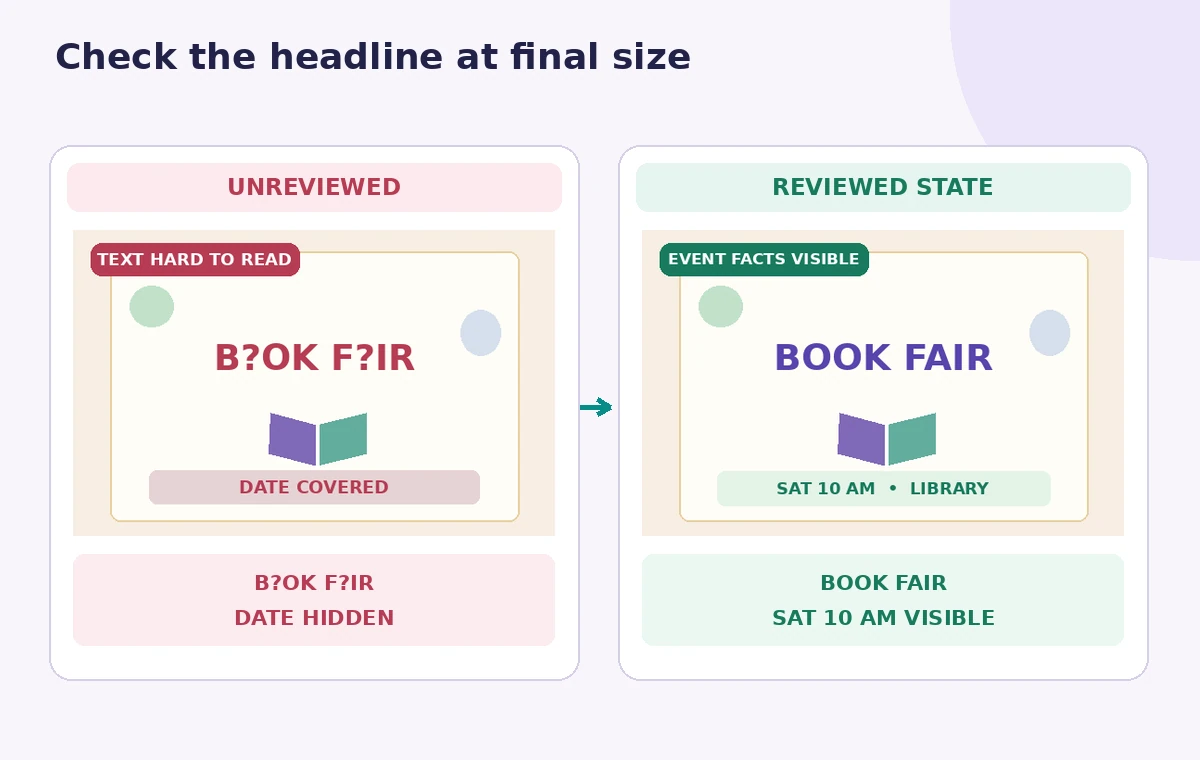
Generate a limited number of variations and compare each to the original wording, letter by letter. A design that turns an R into a B or closes the counter in an A may be visually attractive but no longer communicates the title. Do not let the number of generated options replace a focused proofing process.
Compare attractive effects with actual readability
The conceptual comparison contrasts an over-textured word that becomes ambiguous with a cleaner paper-cut headline. It does not claim to show a tested Canva output. Look at the design at its final size rather than zooming close on a 1200-pixel canvas. A title that reads clearly on a monitor may look like a decorative blob in a small social preview.
Have someone unfamiliar with the event read the headline and repeat the date and location. If they hesitate, simplify the effect or return to ordinary type. Contrast, spacing, and accurate copy matter more than a sophisticated surface pattern.
Protect factual details during resizing
Create the print, square, and vertical layouts from the same approved factual copy. A decorative headline may have different safe areas in each format; do not stretch it across the date. Keep the time and entrance visible without relying on tiny footnotes. Inspect the outer edges of each export to make sure no location line or contact information was cut off.
If different volunteers are responsible for different formats, designate one source of truth. Exported preview images can show issues, but the editable original should preserve the text for later corrections. Do not retype the schedule from memory or from an imperfect generated design.
Check accessibility and a no-effect fallback
Images of text are usually harder to edit and may be inaccessible to people using assistive technology. Supply the key event facts as actual typed caption copy on social platforms and readable text on the flyer. Use descriptive alt text that gives the event name and important details, not a list of glitter textures. A stylized title should not be the only place the event name appears.
Offer a clean high-contrast alternative for small screens and low-quality printers. If the generated headline clashes with a school logo or becomes illegible when photocopied, use the fallback rather than applying another round of effects. A successful design serves readers with different viewing conditions.
Review rights and design provenance
Ensure any externally supplied graphics or logo assets are authorized for the event. Magic Morph can create effects, but it does not remove the need to consider trademark appearance or licensing of other design elements. Avoid prompting for a replica of an identifiable commercial book cover or a local artist’s recognizable style.
Keep the selected prompt and the approved poster version in the working folder. If an effect resembles another organization’s identity, redesign it before publication. The purpose of this work is a legible community announcement, not a substitute for a designer’s rights review.
Carry out the final flyer proof
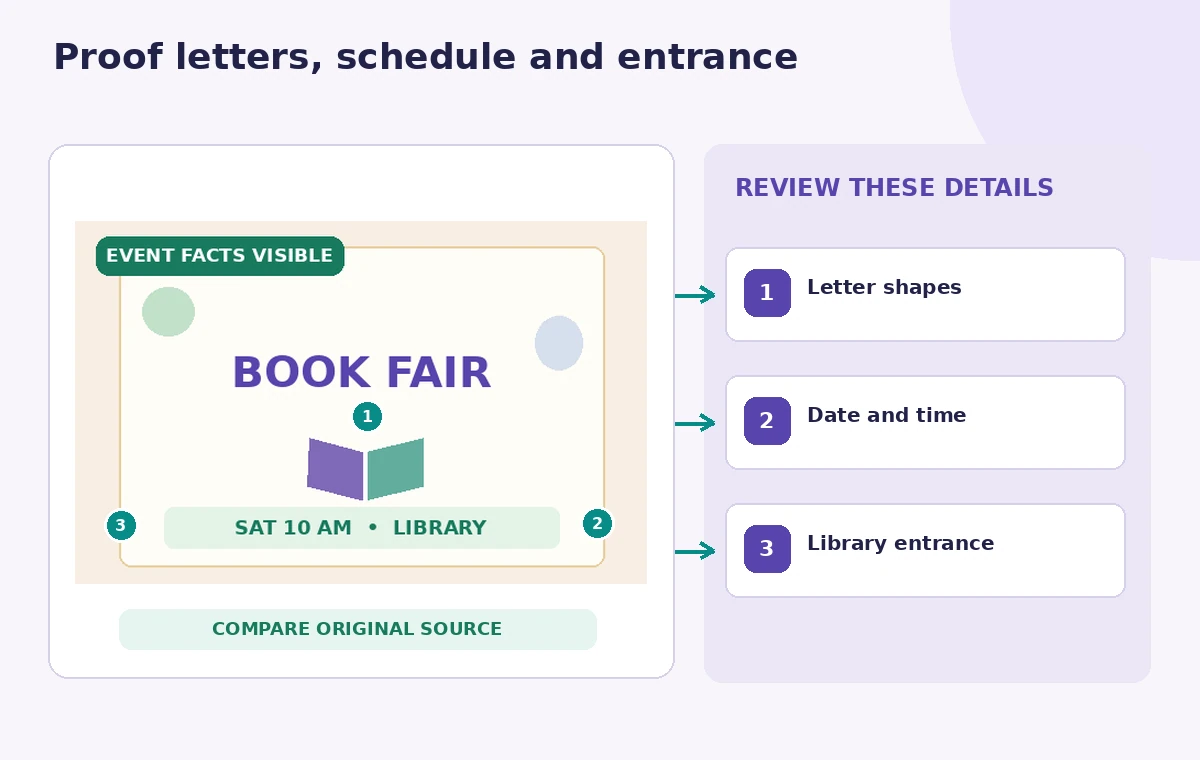
The final diagram marks three points: the headline letter shapes, the date/time line, and the entrance details. Review each at actual print size and phone-preview size. Ask a second reader to repeat the time and location from the exported image, not the editable canvas. Inspect for accidental cropping and for colors that collapse in grayscale.
Only publish the checked variant. Store the clean source and final exports together, and add the approved event details to the social caption. The AI effect is a creative flourish; the enduring value of the flyer is that families can understand where and when to arrive.
How We Research
Our editorial method for this guide was to read current named vendor documentation: Canva, AI text effect generator / Magic Morph. We mapped the documented controls, scope, access requirements, and known limitations to a narrowly defined hypothetical work scenario, then identified what a human reviewer must independently compare with the authoritative source. The illustrations are original explanatory drawings, not live screenshots, measurements, tested audio outputs, or customer case studies. We did not run a connected service account, purchase credits, verify a real organization’s permissions, or obtain real participants’ consent. Plan entitlements, interface labels, and costs can change. Review the vendor documentation and the source records before applying any action to real data.
Frequently Asked Questions
No. Generated text effects must be proofread letter by letter and at the final display size.
Prefer editable, plain text for dates, times, and access details so they remain accurate.
Canva currently describes finding it in the editor Apps section and selecting the text to transform.
No. Provide essential event details in normal type and accessible captions or descriptions.
Use a simpler treatment or the clean fallback instead of publishing an unreadable effect.