
A school orchestra wants to place a fictional rehearsal recording over a simple concert-poster background. The violinist is easy to recognize, but the long bow crosses the jacket, strings, and background in successive frames. This is exactly where a fast foreground selection can look successful in one still and fall apart in motion. After Effects Roto Brush 3 offers a semi-automatic matte workflow: identify the subject, propagate the selection, correct the edge, and freeze the result. The editorial goal here is not an instant perfect cutout. It is a repeatable review method that preserves the player, the bow, and the timing of a real performance.
Choose footage that exposes the difficult edges
Keep the original footage untouched and duplicate the composition before experimenting. Identify a short section where the bow moves across both a bright wall and a darker part of the violin. Mark the first frame on which the bow is fully visible, a frame where it passes in front of the torso, and another where it crosses a busy background. Those are three different segmentation tests, not three redundant screenshots.
Before applying any AI-assisted selection, decide whether the bow must be included in the foreground layer. In a concert promotion it usually should be: an invisible or cut-off bow changes the perceived action. Hair wisps may tolerate a slightly soft edge, but the bow and strings need continuity. A brief composite over a neutral color is an inexpensive way to expose holes that a rehearsal-room background can conceal.
Create a base frame with deliberate foreground strokes
Open the layer in the Layer panel and choose the Roto Brush tool. Adobe recommends drawing initial foreground strokes through representative areas rather than tracing around the perimeter. Start with the torso and arm, and use smaller strokes to help the selection include the violin and bow. A broad stroke that touches background can make later corrections harder. The first stroke defines a base frame for the propagation span.
Use background subtraction strokes where unwanted wall, music stand, or chair regions are selected. In After Effects these are made with Alt or Option while painting. Avoid brushing directly along the silhouette whenever possible. The tool is taking evidence about foreground and background; it is not a hand-drawn Bézier path that you can expect to remain identical at every moment. Save the base frame before moving far along the shot.
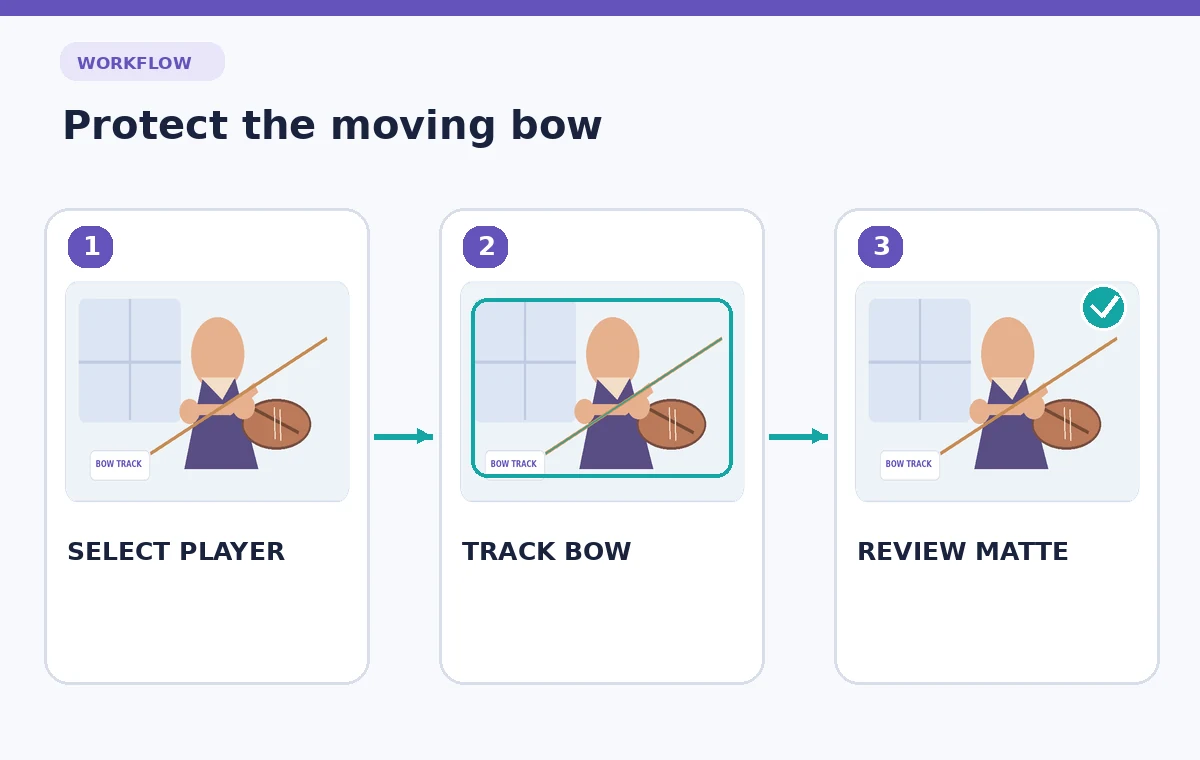
Propagate carefully and watch the bow tip
Advance through the segment and check how the matte changes. Roto Brush propagates from base frames across a span, and corrections influence frames in that direction. On a bowed instrument, small fast-moving features are especially prone to dropping out. Inspect the narrow bow tip, the hand gripping it, and the space between the bow and neck separately. A clean edge on the shoulder tells you little about those details.
When part of the bow disappears, correct the first frame where the loss becomes visible instead of making a large correction near the end. Add a restrained foreground stroke for the missing area and let propagation continue. If background material begins to follow the moving arm, subtract it where the error starts. Shorter review intervals around crossings usually save more editing time than a single long unchecked propagation.
Choose an AI Tool for Your Workflow
Refine hard and soft edges differently
The player’s jacket, hair, the wooden bow and the hair of the bow are not interchangeable edge types. Use the Refine Edge tool where strands need a softer reconstruction, then inspect the effect settings rather than applying one heavy feather to everything. Too much smoothing can round the violin into an unrealistic shape; too much feathering can make the bow look transparent.
Adobe exposes matte controls such as feather, shift edges, contrast, and reduce chatter. Those controls address different symptoms. Shift Edges changes the boundary position; Reduce Chatter is intended to limit unstable movement from frame to frame. Start conservatively, compare the original at full resolution, and adjust only after identifying which symptom you are correcting. Save a copy of the untreated matte as a baseline.

Compare the matte against two backgrounds
Place a high-contrast checker or colored solid behind the isolated figure and inspect for holes, halos, and portions of the original wall. Then switch to the actual concert-poster design, where color and lighting will influence how noticeable the defects are. A composite can pass one background and fail another. Neither preview is proof that the instrument was retained correctly.
Use a three-column editorial comparison: untouched shot, initial propagated matte, and revised matte. In a teaching diagram, deliberately show a broken bow in the middle state and a continuous bow in the revised state. That visual illustrates a specific failure mode rather than claiming a measured improvement from the software. The final decision still depends on viewing the real shot.
Protect motion timing and instrument geometry
Rotoscoping does not alter the violinist’s movement by itself, but poorly synchronized mattes can make an arm shimmer or leave a ghost trail. Scrub through fast direction changes one frame at a time. Look for a double outline around the bow, a vibrating cut line on the sleeve, or the strings switching from visible to invisible while the underlying shot remains consistent.
Keep the original audio synchronized to the footage. Avoid moving the cutout to improve the poster composition in a way that changes the moment the bow contacts the string. If the camera motion is rough, handle stabilization separately and document that choice. The viewer should see a carefully extracted real performance, not a digitally invented gesture.
Freeze only after the propagation review
Adobe recommends freezing the Roto Brush propagation when the matte is satisfactory. Freezing caches the selection so After Effects does not continually recalculate it; it is not a quality endorsement. Before pressing Freeze, inspect the start and end of the selected span, both directions of movement, and all bow crossings. If you need to repaint a segment afterward, unfreeze and recheck the affected frames.
Keep the layer naming clear: original footage, working matte, and poster background. Store an editable project file and a short note recording where the toughest matte corrections occurred. This makes it possible for another editor to fix a later-discovered artifact without starting the sequence over or misunderstanding which layer contains the real performance.
Run a release review at actual display size
Preview the finished asset at the size where it will be published, not just at the small composition viewer scale. The bow may be a few pixels wide on a mobile post. Verify that it stays present and the silhouette remains stable from the first visible note through the end of the clip. Check hair, fingers, bow hair, the violin neck, and the poster typography independently.
If an edge still collapses at a critical moment, shorten the composite, return to the original background for that beat, or do a manual mask correction. Those are acceptable editorial outcomes. A responsible article should show the checks that matter and acknowledge that Roto Brush does not guarantee flawless extraction of thin moving objects. The result is ready only when the team has reviewed the actual output.

How We Research
For this guide we consulted current primary documentation: Adobe Roto Brush and Refine Matte; Adobe Refine Roto Brush edges. We compared the documented feature purpose, editing steps, access limitations, and recovery controls with the specific failure modes illustrated above. All people, records, images and signal examples in the narrative and diagrams are hypothetical. We did not claim to sign in to a paid service, make a live recording, test feature accuracy, measure restoration outcomes, or establish any organization-specific permission. Our editorial method is to preserve the original input, review AI output against that input, check exceptions, and document the final human decision. Verify your installed version, account entitlements, organization policies, and production specifications before applying the technique to real material.
Frequently Asked Questions
No. Thin moving elements can be lost during propagation, so inspect the bow tip, grip, and crossings in motion.
On a clearly visible part of the subject, not directly over the object boundary. Add more restrained strokes for difficult elements.
It can reduce unstable movement of the matte edge across frames. It does not restore a missing bow on its own.
No. Review the full selected span, correct lost foreground and stray background, then freeze the result.
No. The diagrams explain possible failure modes; inspect the actual source and composite before release.