
A cycling club is preparing a portrait for its annual newsletter. The rider is standing beside a bicycle on a shaded trail, with a black helmet strap crossing a similarly dark jacket. The editor wants to lift the rider’s exposure while keeping the wooded background natural. Capture One AI Masking can help select subjects and backgrounds for editable local adjustments; the difficult part is checking whether small parts such as straps, spokes, and hair remain correctly assigned. This article uses a fictional photo to explain a careful layer-based workflow. It does not claim that an automatic selection is a perfect cutout or a substitute for inspecting the underlying pixels.
Define the portrait edit before making a mask
Write down the intended change: make the rider’s face and jacket easier to see without brightening the trail or altering the bicycle’s shape. Keep a baseline variant of the original image, including white balance and exposure settings. Note which objects must remain visually honest: helmet strap, chin, handlebars, wheel spokes and any safety markings on the clothing.
A frequent mistake is starting with a broad subject mask and then pushing exposure until the edit looks dramatic. That can make the dark strap blend into the face or reveal halos around the helmet. Use a conservative target and evaluate the rider at the actual size of the newsletter, where important edges may be only a few pixels wide.
Choose an editable subject selection
Capture One describes AI-assisted selections and combining masks in its assisted editing materials. Create a separate layer for the rider and use an available AI subject selection or AI Select workflow, depending on the installed version. A selection preview is a useful starting point, not an assurance that the algorithm captured the helmet strap and bicycle correctly.
Name the layer by purpose, such as Rider exposure, rather than calling it Finished mask. If the whole bicycle is not meant to be brightened, treat it as a separate region instead of assuming a single subject selection will understand your design intent. Avoid applying copied adjustment settings to unrelated photos without first inspecting their automatically generated masks.
Inspect thin edges and false inclusions
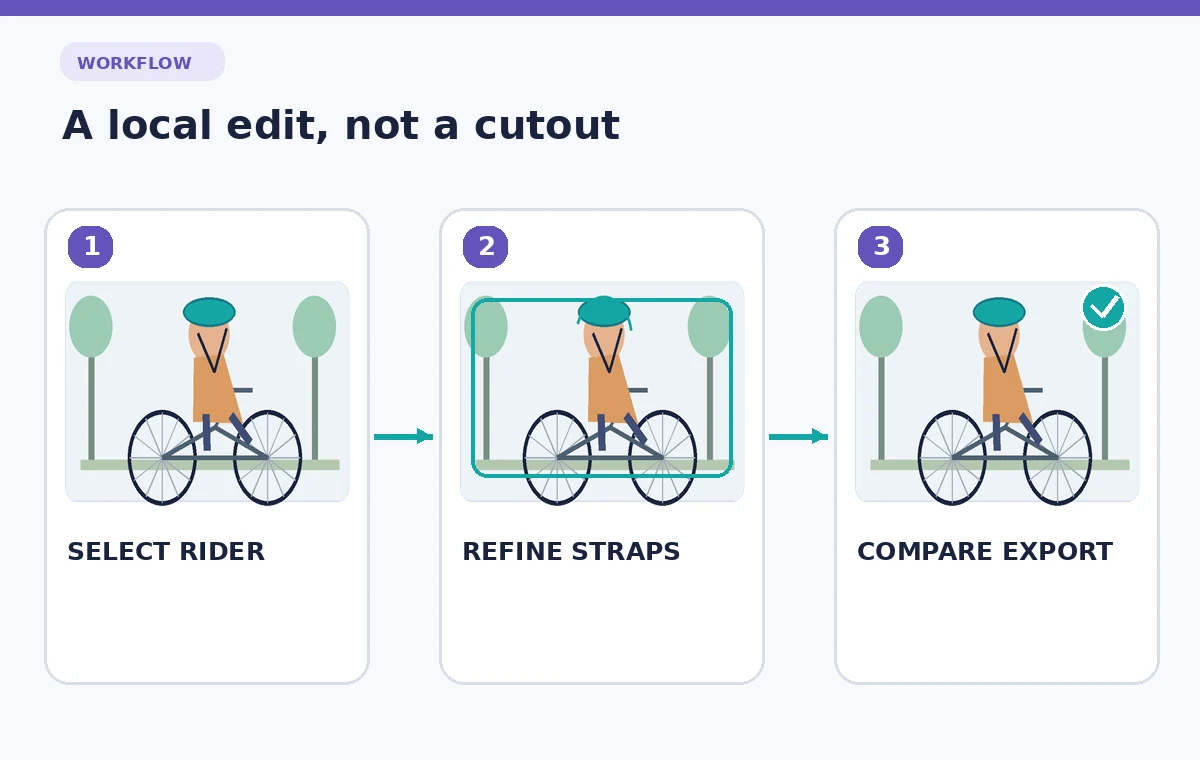
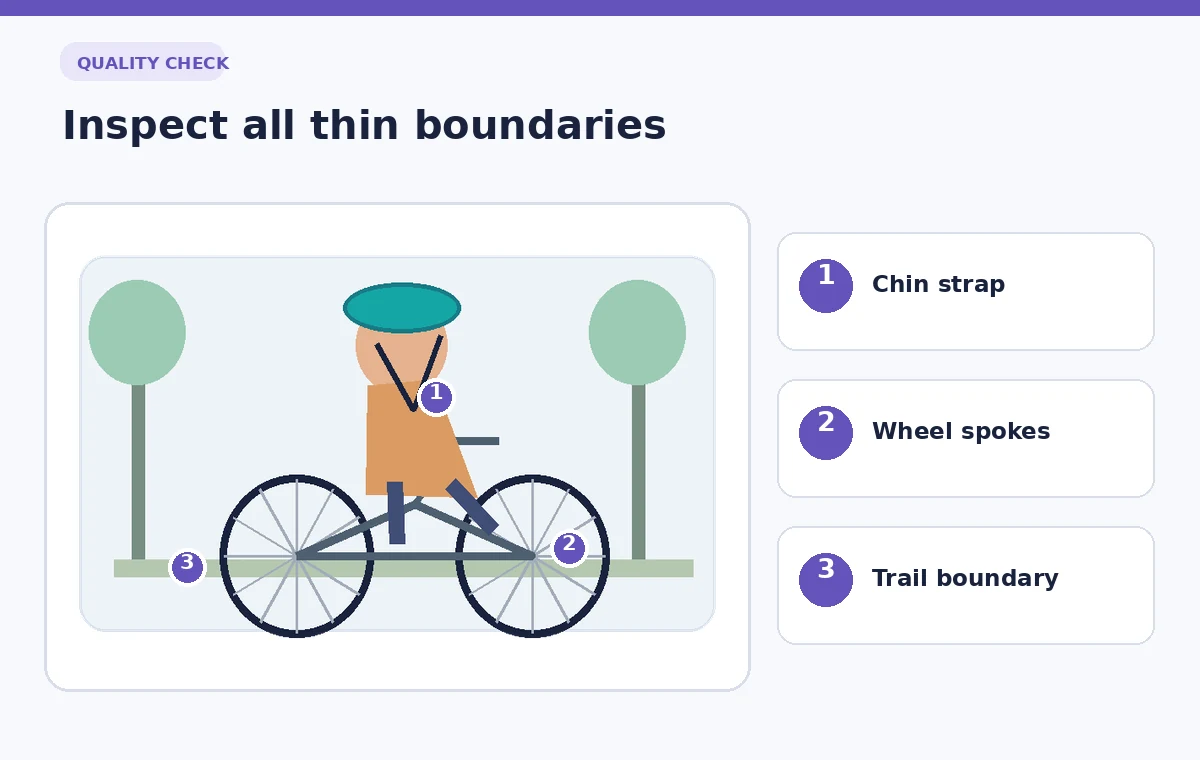
Zoom to the helmet strap where it crosses the jaw and jacket. Inspect the visible mask overlay and look for a narrow gap in the selection, a color halo next to the cheek, or the strap disappearing into the background. The spokes present a second test: a model may include the wheel as part of the rider or omit individual spokes.
Select the right goal for the image. If the bicycle is merely contextual, it can remain mostly untreated while the rider is brightened. If the bicycle must also change, work with a separate layer and inspect spokes against the trail. Keeping foreground and background assignments explicit is more reliable than forcing one massive mask to cover every object.
Choose an AI Tool for Your Workflow
Refine the mask instead of hiding edge mistakes
Use Capture One’s AI selection and mask combination capabilities as part of a non-destructive layer workflow. Add or subtract from the mask where needed and refine the selection around fine straps or gaps. The software’s combination modes can incorporate gradients and luma ranges, so a local adjustment can be restricted further without painting the entire scene by hand.
Check the correction at both 100 percent zoom and fit-to-screen. A tiny unselected strip can be invisible at reduced scale, while a broad gradient may create an obvious bright halo in the published layout. Do not assume that masking will export a transparent cutout: Capture One’s own AI masking guidance distinguishes local adjustment masks from background removal.

Adjust exposure with color integrity in mind
Raise exposure only enough to reveal the rider’s features and clothing texture. Compare the skin tone, jacket color, reflective trim, and helmet against the original. If the shadow recovery introduces unwanted saturation, make restrained color corrections within the relevant layer rather than changing the entire photograph to match one region.
Be careful near the trail boundary: a brightened shadow along the edge of the rider can resemble a glow if the mask extends into the background. Swap between the untouched variant and adjusted variant several times. The goal is a better editorial image of the actual rider, not a synthetic studio portrait that erases the conditions of the original ride.
Treat the background as a separate decision
If the background is distracting, create or use a separate background mask and make small adjustments there. A slight exposure or contrast reduction may help separate the rider without needing an entirely replaced scene. Capture One presents Combine Masks as a way to add, subtract or intersect masks while preserving editable structure; that flexibility is especially helpful when dark foliage overlaps dark clothing.
Check for accidental spill on the bicycle frame, wheel holes and helmet straps. A background mask that includes parts of the cyclist can darken the subject in thin, alternating bands. A simple black-and-white mask inspection can reveal holes or overlaps much more clearly than evaluating the finished color grade alone.
Compare three states, not a beauty filter score
Create a review layout showing the original, the first AI selection, and the corrected local edit. In a teaching illustration, the middle state can show a missing strap or a halo along the helmet, while the final state shows the strap retained and the background untreated. These are conceptual examples of what to look for, not before-and-after measurements from a product test.
Include a caption explaining exactly what changed: subject brightness, mask boundary, and background integrity. Avoid unsupported claims that the AI restored details that the source camera did not record. If the helmet strap is genuinely hidden in the original shadow, local editing cannot reliably reconstruct missing information; do not redraw it as if it were documented evidence.
Prepare the export and handoff for review
Export a version appropriate for the newsletter and retain the editable raw adjustments and unedited source. Inspect the exported image at final layout size, including any additional sharpening or compression introduced by the publishing system. Check that the helmet strap, wheel spokes, reflective patches, and facial edges are still coherent.
Ask the photographer or club editor to approve the composition, not just the brightness. If the mask creates a misleading image of safety equipment, revise it or use a different photograph. The lasting value of Capture One AI Masking is speed in creating editable selections while a person remains responsible for what the final image communicates.
How We Research
For this guide we consulted current primary documentation: Capture One Assisted Editing overview; Capture One Combine Masks feature update; Capture One AI masking Q&A. We compared the documented feature purpose, editing steps, access limitations, and recovery controls with the specific failure modes illustrated above. All people, records, images and signal examples in the narrative and diagrams are hypothetical. We did not claim to sign in to a paid service, make a live recording, test feature accuracy, measure restoration outcomes, or establish any organization-specific permission. Our editorial method is to preserve the original input, review AI output against that input, check exceptions, and document the final human decision. Verify your installed version, account entitlements, organization policies, and production specifications before applying the technique to real material.
Frequently Asked Questions
No. AI masks are used for local editing. Capture One distinguishes masking from exporting a subject with transparency.
No. Thin overlapping regions require manual inspection and potentially mask refinements.
Capture One documents add, subtract and intersect mask combinations, including AI selections and other mask types.
It can reveal unwanted inclusions and missing areas that are hard to detect under the final color adjustments.
No. Masking controls which pixels receive adjustments; it does not verify details that are not visible in the source image.