
A small museum has a 35-minute English conservation talk that includes a clear visitor rule: do not handle the fragile ceramic object. The media team wants brief vertical clips for social platforms. Adobe Express Clip Maker can propose short extracts from a longer recording, but selecting an exciting moment without its cautionary sentence can reverse the audience’s understanding. This hypothetical walkthrough shows how to screen proposed clips, protect the speaker’s intent, and inspect captions and framing before anyone publishes an excerpt.
Choose a source recording that fits the feature
Start with a recording the museum owns or is authorized to edit and redistribute. Check speaker consent, footage rights, visitor visibility, and any material displayed on screen. Adobe’s current Clip Maker guidelines specify English input, a file size up to 1 GB, and source-video lengths between one minute and two hours. A 35-minute talk fits the documented duration range, but access and processing behavior still depend on the account and the file. Do not upload embargoed collection records or private attendee information.
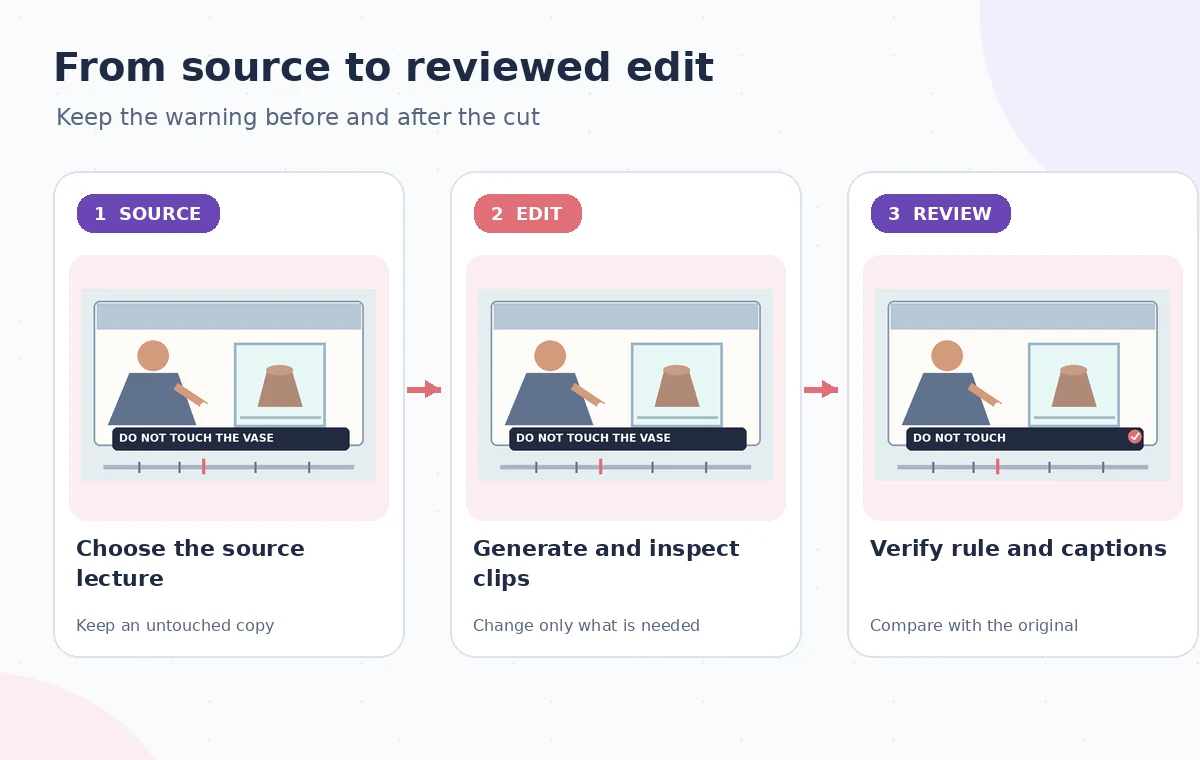
Watch the source video once and create a small timecoded list of statements that must retain their context: the rule about not touching the object, any exceptions for trained staff, and the speaker’s qualification about the fragility of a particular material. Record the exact original language rather than inventing a paraphrase. The guide’s ceramic example is fictional, and none of its pictured frames are claimed to come from a recorded museum event.
Generate clips using the actual Clip Maker workflow
Adobe’s help center says to open Social media from the Adobe Express homepage and choose Clip maker in Quick actions. Upload the eligible video, select an aspect ratio, choose whether to add captions, and generate clips. The result is a selection of candidate extracts, not automatically approved public statements. Review each candidate from the left panel before deciding whether it communicates a complete thought. For a handling rule, the beginning and ending are as important as the visual highlight.
Adobe describes trimming or extending candidates in its review interface, with an extension allowance of up to four seconds for an individual clip in that step. You can then open clips in the editor for additional work or download them. If the warning requires more context than the quick extension provides, use the editor or reconstruct a proper excerpt manually. Do not force a safety instruction into an unsuitable time slot merely because it fits a platform’s preferred length.
Inspect the complete warning before chasing a highlight
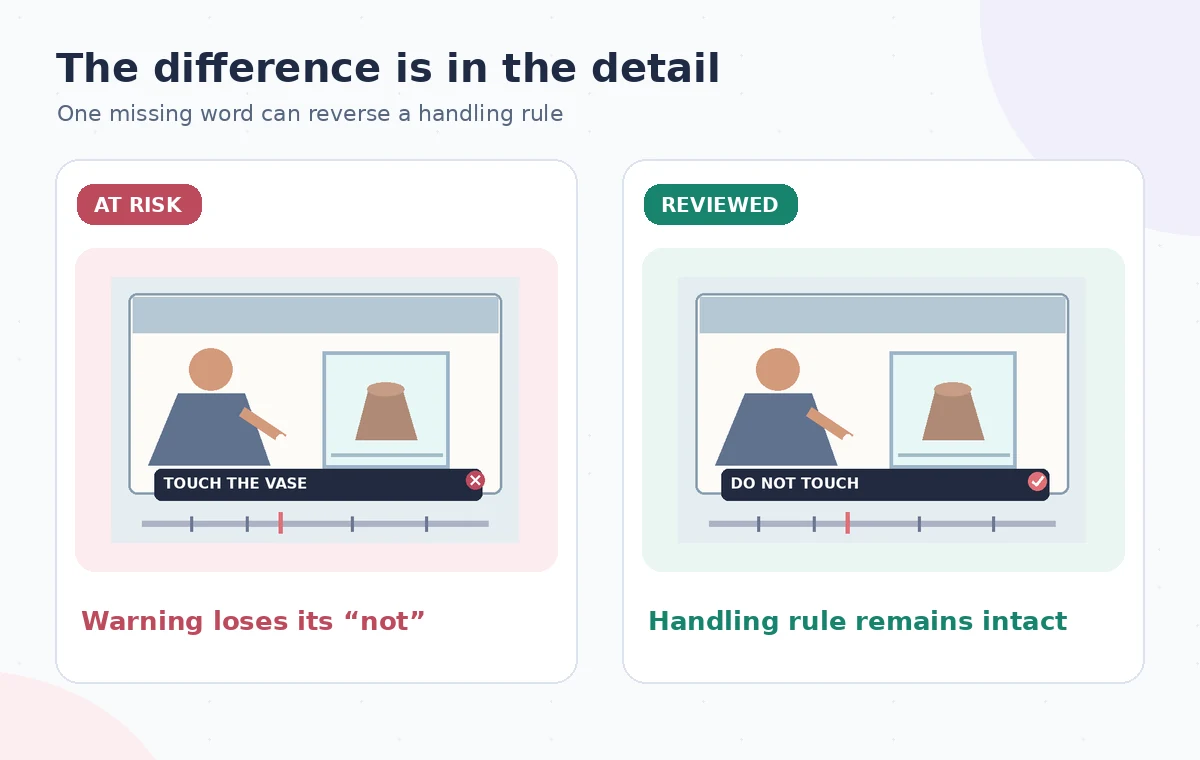
Play the original around the selected moment, noting what the speaker says before and after the excerpt. The difference between do touch the rim and do not touch the rim is one short word, and even accurate words can become misleading if the clip omits the condition or exception. For example, a sentence explaining that trained conservators may handle an object should not be edited into a general visitor permission. Keep enough verbal context for the audience to understand who is being addressed.
The comparison illustration makes a deliberately schematic distinction between a clipped prohibition and a context-preserving excerpt. It is not a capture from Adobe Express or a reported model mistake. Use the same review rule on every candidate clip: what would a viewer infer without seeing the lecture? If that inference conflicts with the original statement, reject the extract or rebuild it with a longer lead-in.
Use the AI tool selection checklist
Check captions at the words that carry the rule
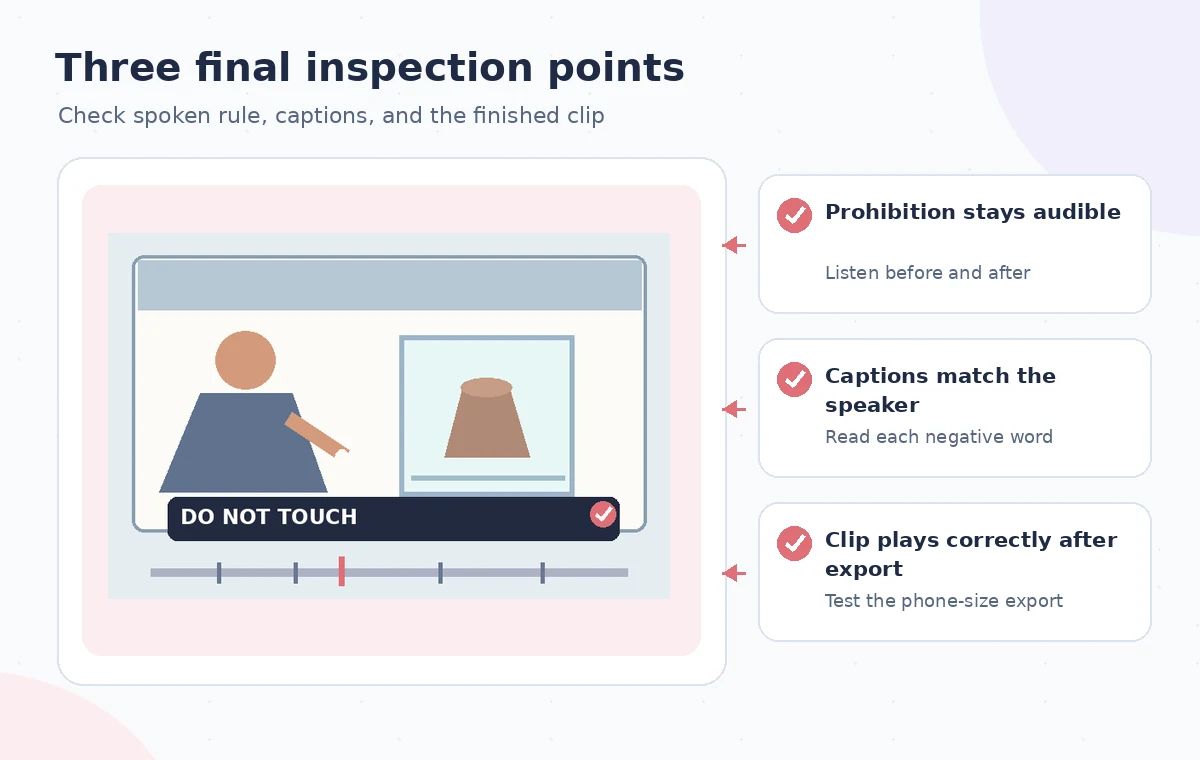
If captions were generated, read them while listening to the speaker and correct errors in negation, materials, artifact names, and time references. The printed word not needs special attention because an otherwise fluent subtitle could change the meaning of a handling rule. Check caption timing so one line does not appear over the wrong gesture, and ensure text stays within platform safe areas. Captions should not cover the object or the speaker’s demonstration of what visitors must avoid.
Run a separate silent viewing test: with audio muted, can someone still understand that handling is prohibited? Then listen with the screen turned away to ensure the spoken excerpt is equally clear. Captions must also identify material sound where necessary for accessibility, not simply reproduce the most dramatic phrases. A generated transcript is a draft until a person checks it against the recording and the museum’s official visitor policy.
Reframe to vertical without hiding the evidence
Use the aspect-ratio choice to match the intended channel, then inspect the crop on every critical moment. A conservation talk may show the presenter on one side and a fragile object or handling diagram on the other. An automatic center crop can remove the object while leaving the words, making the explanation confusing. Adobe’s help guidance describes selecting a clip to activate cropping controls, allowing the subject position to be adjusted before finalizing.
Keep original visual evidence visible when it is needed to understand the instruction. If a pointer or gloved hand moves across the frame, watch the entire action rather than checking only a static thumbnail. Avoid adding a stock image that depicts visitors touching the object when the audio explicitly prohibits it. If the shot cannot accommodate a useful vertical crop, retain a wider frame with intentional letterboxing or choose a different excerpt.
Plan a safer multi-tool workflow
Review output and the final caption together
Open each clip in the Adobe Express editor for a full review. Confirm that the headline, subtitles, and social caption all describe the same rule. A title such as How to Handle Our Vase could contradict a speaker who says visitors should never touch it. Use an accurate alternative such as Why This Vase Must Stay Behind the Barrier. Verify the official collection terminology and do not invent conservation procedures. Keep logos and rights credits that the museum requires.
Download a review copy and watch it outside the editor on a phone-sized screen. Check caption legibility, crop, cut points, voice continuity, and the first and last frame. Ensure the excerpt starts before the critical not and ends after the relevant condition. Hand off the exact file and accompanying post text for approval. A clip that seems correct in the timeline can still suffer text clipping or compression artifacts when exported.
Publish only an approved excerpt and keep the source
Assign the final decision to the museum educator or conservator who owns the visitor instruction. Archive the source timecodes, approved clip, and notes on any context restored in editing. If a mistake is reported, have a plan to stop distribution, replace the clip, and correct the associated social text. Adobe’s documentation explains how Clip Maker works; it does not assert that automatic selections understand a site’s safety policy. Human review is a release requirement, not an optional polish step.
This example did not process a real lecture or measure output quality. We show educational diagrams and a verification method, not actual Adobe interface captures or a certified safety video. Use the feature only when the generated highlight can preserve the full meaning of the original speaker. If there is doubt about a prohibition or exception, choose a longer manual edit or leave that moment out of the promotional clip entirely.
How We Research
We checked the named vendor documentation: Adobe Express Help: Create social media clips using Clip Maker and Adobe Express Help: Supported formats and guidelines for Clip Maker. We compared its stated user controls, availability warnings, workflow stages and limitations against the concrete scenario described here. We then developed original educational diagrams and a separate human-review procedure for the materials that need independent evidence. The scenario is hypothetical: we did not sign into a paid account, upload a real customer asset, operate the feature on the example, or measure output quality. The figures are schematic, not actual interface captures or recorded processing results. Product menus, permissions and plans can change; verify the current installed edition and applicable policies before relying on this method.
Frequently Asked Questions
Adobe documents source videos from one minute to two hours, with a maximum file size of 1 GB; verify current guidelines before uploading.
Adobe’s published requirements specify English for Clip Maker at the time of writing.
Adobe documents review-stage trimming and extensions of up to four seconds for a selected candidate, with further editing available in the editor.
No. Read them against the recording, especially words that change safety instructions, such as not or never.
The documented workflow lets you review, edit, and download clips. Publishing should be a separate approved action.