
A neighborhood repair program receives maintenance requests for shared tools. Staff want a visual plan that routes ordinary requests to the right queue without allowing a model to approve expenditures or dispatch technicians by itself. Zapier Canvas can generate draft system diagrams and suggest additional steps with AI. This hypothetical walkthrough treats the canvas as a planning artifact: a diagram is not proof that an automation has been built, tested, authorized, or activated.
Write the real decision boundaries first
Define the request types before asking Canvas to propose anything. The repair program collects equipment ID, fault description, urgency, location, and requester contact. A coordinator must validate the request, while a manager approves paid work or any safety-sensitive intervention. If a tool is reported sparking or overheating, the request must be isolated and escalated rather than sent through an ordinary booking flow. Make this exception explicit in the design requirements.
Avoid phrases such as automate the full repair process, which leave room for the system to invent authorization. Instead state what software may do: collect, tag, notify, and prepare a review queue. State what people must decide: whether equipment is safe to use, which contractor is authorized, and whether a charge is approved. Identify the actual staff role that owns the queue. A blank owner field is an unresolved operating question, not something the AI should fill with a plausible person.
Generate a first Canvas suggestion cautiously
Zapier’s help center describes starting from Canvas home, choosing Create canvas, and describing the system to generate an AI suggestion. The user can also skip generation and build a blank canvas. In the generated proposal, review the apps and steps before accepting them. Zapier documents options to edit the prompt, change named apps, and add steps suggested under Additional steps to consider. Do not mistake a suggested integration for an existing connection or an authorized data flow.
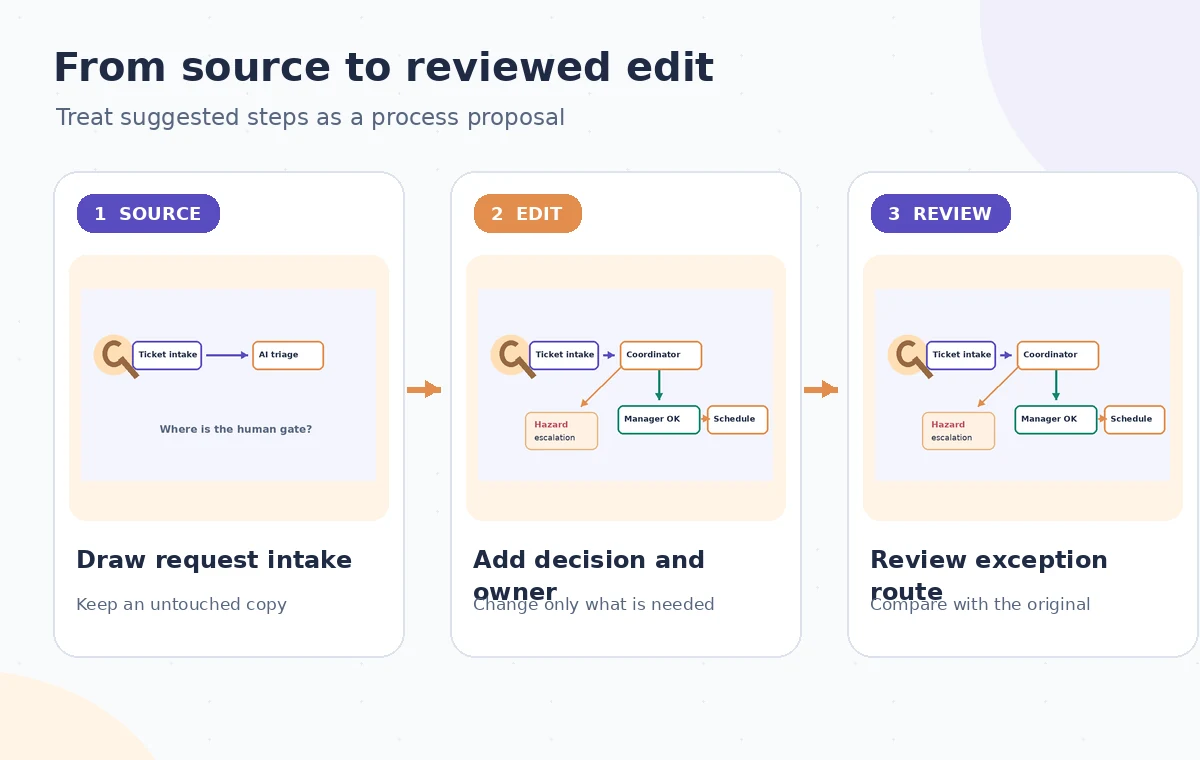
Use a deliberately constrained prompt: draft intake, triage, coordinator review, manager approval when required, and a manual dispatch step. Include a hold path for incomplete information or hazards. Ask for a diagram only at first. The Canvas may map forms, tables, workflows, agents, and other assets, but the illustration should not imply that such components are already deployed. Keep real employee contact details, customer data, and live payment credentials out of an exploratory draft.
Evaluate AI step suggestions against the policy
Zapier announced AI-powered step suggestions that examine existing Canvas steps and suggest a new step, such as a Zap, table, form, or chatbot. Its interface can offer step suggestions from an existing step. Use these suggestions as a list of candidate capabilities rather than as mandatory next actions. Every suggestion should answer a real requirement: who needs to know, what evidence they receive, and which decision—if any—happens before downstream action.
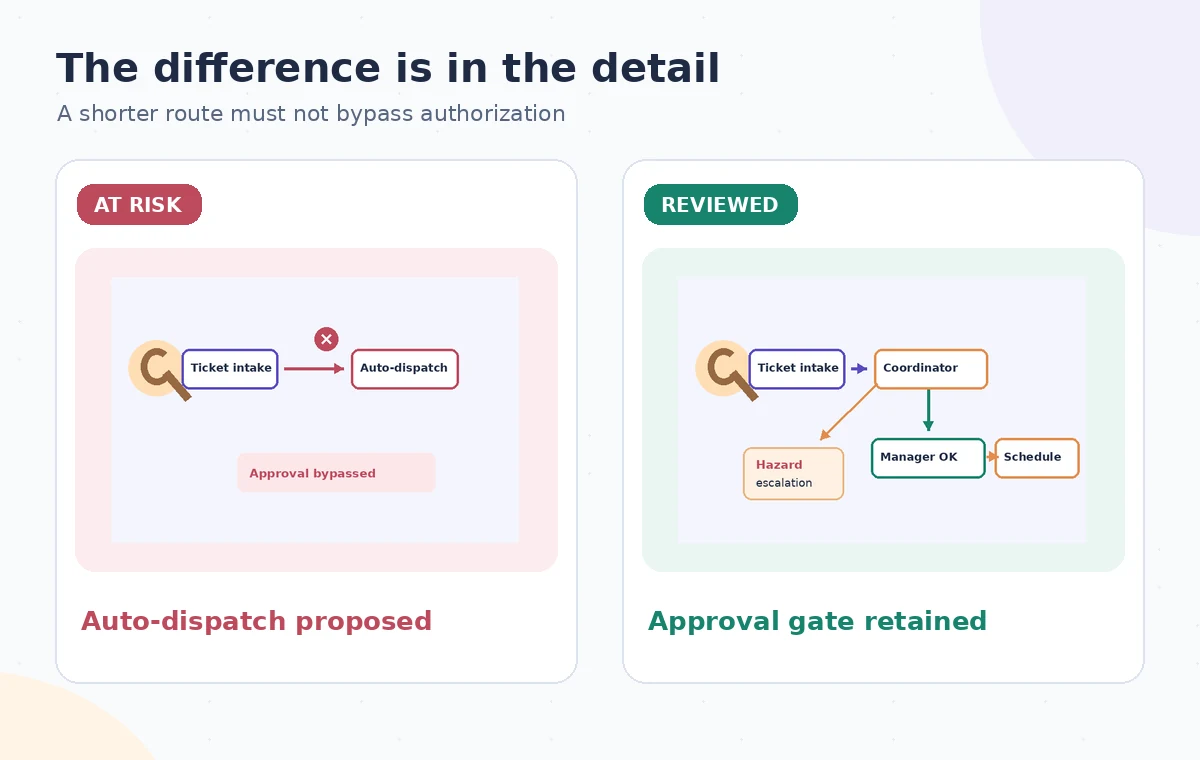
Reject any suggestion that goes directly from a classified ticket to dispatch or purchase. It might make the diagram shorter but would bypass the approval boundary. If the suggestion adds an AI classification, route low-confidence results to manual review; a predicted label is not a safety finding. When an app is suggested, verify its permissions and the organization’s data-handling rules before anyone connects it. Write down why a proposed step was retained, edited, or rejected.
Use the AI tool selection checklist
Draw an explicit human gate and failure route
Place a decision node after triage with at least three outcomes: approved to schedule, returned for more information, and hazardous or urgent escalation. For cost-bearing jobs, include the named manager’s approval and a documented record. The person receiving the request should be able to tell which queue owns the next action. A workflow diagram that collapses these paths into one green line is not a faithful operational design.
Zapier Canvas documents connecting steps and splitting paths, along with text and grouping objects. Use those visible connections to show handoffs and exception paths. Do not draw an arrow from a proposed approval box to an external app if nobody has confirmed the real trigger and enforcement. When moving boxes, check that connectors still express the intended decision order. A clear chart must show the same conditions the real process will enforce.
Keep a design review separate from Build it
Zapier’s documentation distinguishes generating the proposal, opening the canvas, and selecting Build it, which creates assets inside the Zapier account. That difference matters. An attractive draft can be shared for policy review without immediately creating workflows or connecting a production form. Agree who is authorized to build integrations and who may approve enabling any active Zap. A project manager’s approval of the diagram does not automatically authorize production access to customer data.
Review the system for data minimization: does an AI step genuinely need the requester’s personal phone number, or can it operate on a sanitized description and equipment code? Decide retention and notifications in advance. If a suggestion adds extra chatbots or agents, evaluate whether they increase risk without solving a defined problem. Document any tool allowance or plan limitations rather than assuming all proposed assets will be available to the account.
Plan a safer multi-tool workflow
Walk through three tickets before implementation
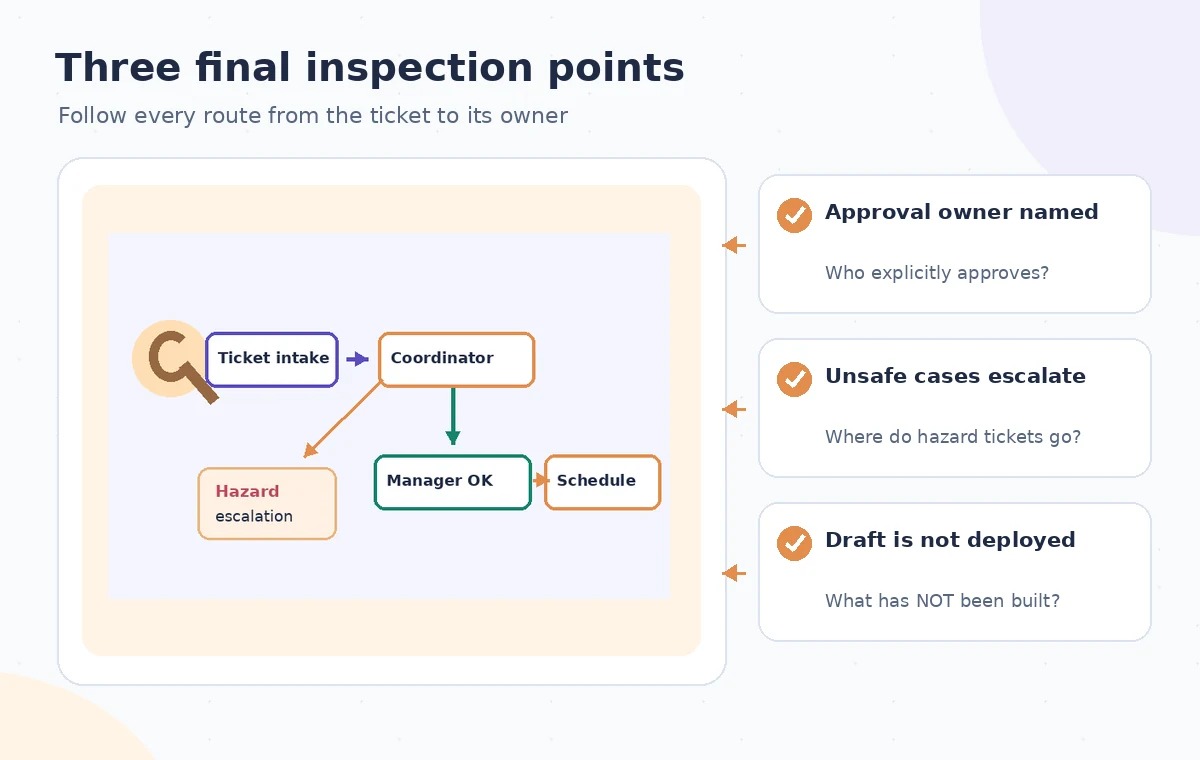
Use invented test tickets to exercise the diagram. First, a loose handle with complete information should reach coordinator review. Second, a missing equipment ID should stop and request clarification. Third, a sparking device should reach the hazard escalation owner immediately without automatic dispatch. Track each test path from intake to stopping point. If a line is missing, revise the diagram. Only after these static tests should implementers design a real, separately tested automation.
When building later, confirm that authorization is enforced by actual system conditions, not by a decorative approval box. Test failed notifications, duplicate submissions, rejected approvals, and people absent from their role. The Canvas cannot be treated as proof these runtime behaviors work. Maintain a document version and sign-off list so reviewers can see precisely which process was approved and which suggested steps were changed.
Hand off the canvas with a transparent status label
Share a reviewed copy or export with clearly identified owners, decision points, and open assumptions. Mark it as a proposed process until implementation and runtime testing are complete. A separate launch checklist can list credentials, forms, error handling, and rollback steps, but it should not be confused with the draft architecture. Keep the approved policy document nearby so a later AI edit cannot quietly remove the exception route.
For the final diagram audit, ask three questions: can any path dispatch work before a person approves it, can an unsafe request fall into a routine queue, and can a failed step disappear without an owner? If the answer to any is yes or unknown, the system is not ready to activate. The diagrams in this guide show conceptual paths, not an actual Zapier workspace or a tested automation.
How We Research
We checked the named vendor documentation: Zapier Help: Create a canvas to visualize your automated system and Zapier Help: Ask AI to suggest a new step for your canvas. We compared its stated user controls, availability warnings, workflow stages and limitations against the concrete scenario described here. We then developed original educational diagrams and a separate human-review procedure for the materials that need independent evidence. The scenario is hypothetical: we did not sign into a paid account, upload a real customer asset, operate the feature on the example, or measure output quality. The figures are schematic, not actual interface captures or recorded processing results. Product menus, permissions and plans can change; verify the current installed edition and applicable policies before relying on this method.
Frequently Asked Questions
No. A suggested Canvas step is part of planning; Zapier describes a separate Build it action for creating account assets.
Yes. Canvas is a diagramming space for manual and automated steps, including branching and text descriptions.
No. Keep cost and safety decisions with authorized people and treat uncertain classifications as review cases.
Edit or reject it and test the path before any automation is implemented.
No. Permissions, triggers, error handling, approvals and rollback must be separately implemented and tested.