
A nonprofit is preparing an application for a community garden grant. It has this year’s program guidelines, last year’s handbook, a budget template and an amendment issued after the deadline changed. Uploading all four to an AI workspace without version labels can create a convincing summary that mixes old and current rules. Acrobat PDF Spaces brings related documents and links together and can generate AI-supported summaries and answers with citations. This hypothetical workflow uses those features as navigation aids while keeping the officially dated grant documents—not the AI narrative—as the authority for eligibility, amounts and deadlines.
Assemble a dated source register before importing
Create a one-page index with the issuing organization, document name, revision date, effective period and authoritative public URL. Distinguish the current guidelines from the historical handbook in both filename and index. Include the budget form and deadline amendment as separate sources rather than copying their contents into an unlabeled note. Verify that each file came from the grantmaker’s official channel, not an emailed repost with an unknown edit history. Before uploading private application drafts, check the organization’s policy for cloud storage and third-party AI processing. A shared workspace is useful only when readers can tell which document has the authority to set rules.
Create the PDF Space using supported source types
Adobe’s PDF Spaces help describes a desktop workflow: choose PDF Spaces from the Acrobat homepage, create a space and add files from cloud storage or supported uploads, along with pasted text or website links where appropriate. Adobe’s FAQ says a space can hold up to 100 files; it also provides an AI Assistant and overview. Create a descriptive space for this application cycle, not a generic ‘grants’ bucket that will collect unrelated programs. Keep the old handbook only if it helps identify changes; otherwise archive it outside the active source set. Account entitlements and file-type limits should be checked in the live service instead of assuming universal access to every feature.
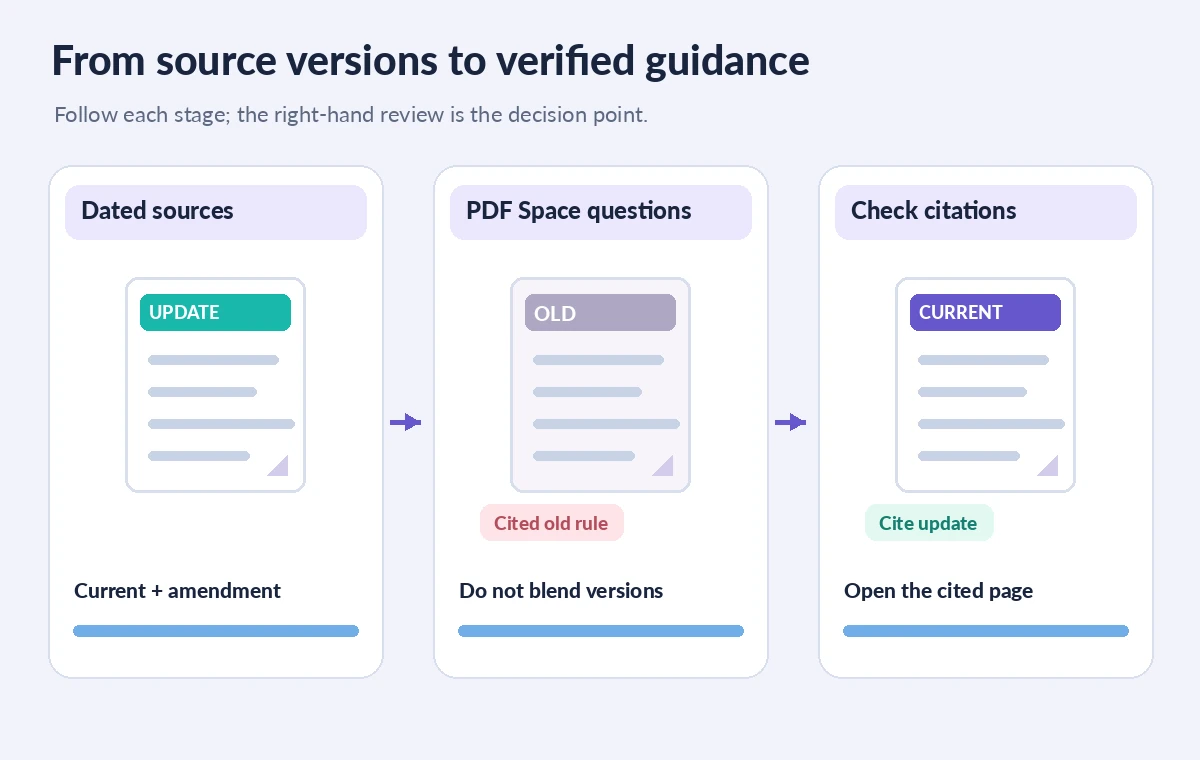
Tell the assistant which dated document governs
Ask a narrow question such as, “According to the guidelines effective this year and the dated amendment, what is the application deadline?” Add a requirement to name the source and its revision date, and to flag any disagreement rather than guessing. Never request a single blended answer from two contradictory rulebooks without explaining precedence. If the model cites the older handbook, open the citation and inspect the current document yourself. The process graphic illustrates a source register, a question and a citation review; it is not a copied Acrobat screenshot. A citeable paragraph is not proof that a page is legally authoritative or that an amendment has been applied.
Compare rules line by line across versions
Choose a small table of critical grant fields: applicant eligibility, maximum award, required match, spending window, submission deadline and mandatory attachments. For each field, capture the current wording and its source location; put last year’s wording in a separate comparison column with a visible ‘historical’ label. The dangerous middle state is an AI summary that uses the old grant cap alongside the new deadline. Correct it by quoting no more than the needed phrase internally and preserving a link to the governing document. Do not invent numeric values just to populate a neat chart. If sources disagree, escalate to the grant officer rather than treating AI confidence as a tie-breaker.

Follow citations back to the precise PDF page
Acrobat describes a citation-supported workflow, but the final reviewer still needs to open the referenced file and evaluate the relevant sentence in context. A grant limitation may be qualified in a note, an appendix or a later amendment. Check the heading, page number, effective date and definitions around every answer used for an application. Search for repeated phrases and negative conditions such as ‘not eligible’ or ‘unless.’ If an answer has no usable citation or points to the wrong document, mark it unresolved. AI can accelerate navigation; it cannot substitute for careful reading of exceptions that determine whether a nonprofit is allowed to apply.
Keep private drafts separate from shareable references
Adobe PDF Spaces can be shared as a guided experience with supporting content, summaries and a conversational assistant. Before sharing, check which source documents and generated notes the recipient will see. Remove personal financial details, donor names and internal deliberations that are not needed for the grant-rule brief. A document link may expose more than the one paragraph cited in a summary. Decide who can revise the Space and where the canonical review copy will live. Avoid making a public link merely to simplify collaboration with two reviewers. Information access and editorial approval are separate decisions: a collaborator’s ability to view the materials does not make that person the grantmaker.
Draft an eligibility brief with explicit uncertainty
Structure the human-reviewed brief as program name, effective documents, verified rules, unanswered questions and next verification owner. If the amendment changes the date but not the budget limit, cite each fact separately. Label interpretations as interpretations and send unresolved eligibility questions to the program administrator. Use the AI-generated overview only to discover potential issues, not as an untraceable source for applicant claims. Check numbers against the application form itself; guidelines sometimes describe what is allowed while the form enforces a different entry structure. Preserve the original files and review history so a later correction can be made without hunting through chat responses.
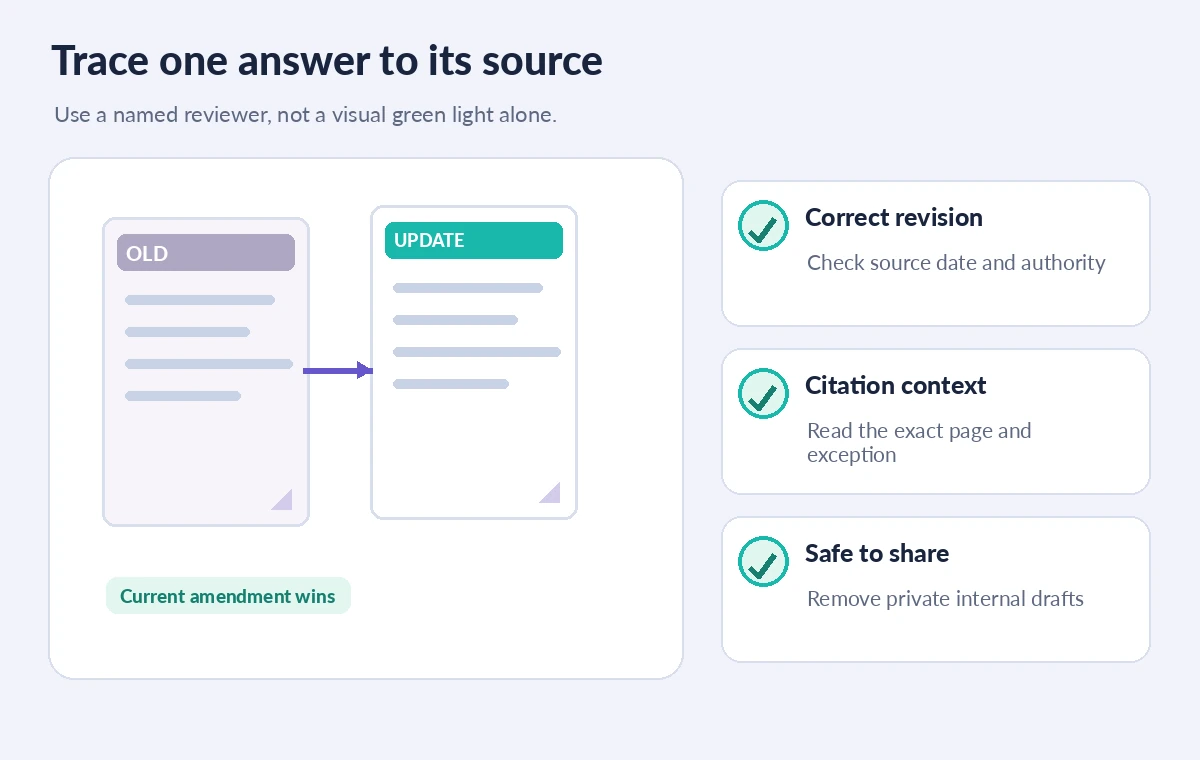
Release only the verified application checklist
Have a second person trace every required attachment, deadline and eligibility statement to the current source. Check the grantmaker’s website one final time for amendments or an updated FAQ before submitting. If an official rule changes, update the source register and the checklist, and retire the obsolete version instead of leaving conflicting instructions on the shared homepage. Do not claim that PDF Spaces validated an applicant or guaranteed award eligibility. The useful result is a version-controlled reading room and a checklist that an accountable reviewer can defend. Where the official sources remain ambiguous, say so and ask the grant office—not the AI model—to clarify them.
How We Research
We reviewed Adobe’s official Create PDF Spaces guide and PDF Spaces FAQ for source types, overview, citations, sharing and workspace capacity. The grant documents, comparison scenarios and visual citations here are fictional teaching examples. We did not create a live PDF Space, verify a real grant deadline or provide legal or funding eligibility advice.
Frequently Asked Questions
Yes. Adobe describes a multi-document workspace and its FAQ says up to 100 files can be organized in one space.
No. Citations help locate text. Check the official source, revision dates and any governing amendment yourself.
Only if it serves an explicit comparison, with prominent historical labeling so its rules are not mistaken for current requirements.
Sharing can include the workspace sources and summaries. Review access and remove confidential drafts before inviting collaborators.
Check the issuing authority and effective amendments, then seek clarification from the grantmaker rather than trusting a blended AI answer.