
An arts cooperative is editing a pottery workshop video. A trimming tool moves across the table, disappears behind the pot, and returns beside a participant’s hand. The editor wants to locate the relevant footage quickly without trusting automation to declare that the demonstration was safe. Google Cloud Video Intelligence Object Tracking returns object labels, bounding boxes, and time-related annotations for detected items. The following fictional workflow explains how those signals can guide a manual review; it does not report recognition results from actual footage.
Define what the editor needs to locate
Write a short list of review questions before submitting video: when is the trimming tool visible, when does it enter the demonstration area, and which shots should an instructor inspect? The tool’s presence is a visual cue; whether it was handled correctly depends on context outside a single rectangle. Do not treat a detected ‘tool’ label as proof that a warning was followed or that the correct tool was used. Keep the full teaching sequence available so a reviewer can inspect the minutes around a flagged frame.
Create a sample timeline with clip IDs, camera angles, edit versions, and approved instruction notes. If an instructor makes a verbal caution while a hand is out of frame, the reviewing workflow must still find it. Pair the visual track with the spoken transcript or manual shot notes, but do not turn the two into a fabricated causal conclusion. The outcome is a focused review list, not an automated risk score for pottery students.
Understand what OBJECT_TRACKING returns
Google documents requesting video annotation with the `OBJECT_TRACKING` feature through `videos:annotate`. Detected object instances can carry labels, bounding boxes, and time offsets relative to the source video. Unlike broad label detection, object tracking describes individual objects across time. For a simplified teaching example, imagine a pottery tool highlighted in several frames as the camera pans. The coordinates help an editor navigate; they are not a persistent physical identifier across every edit or reshoot.
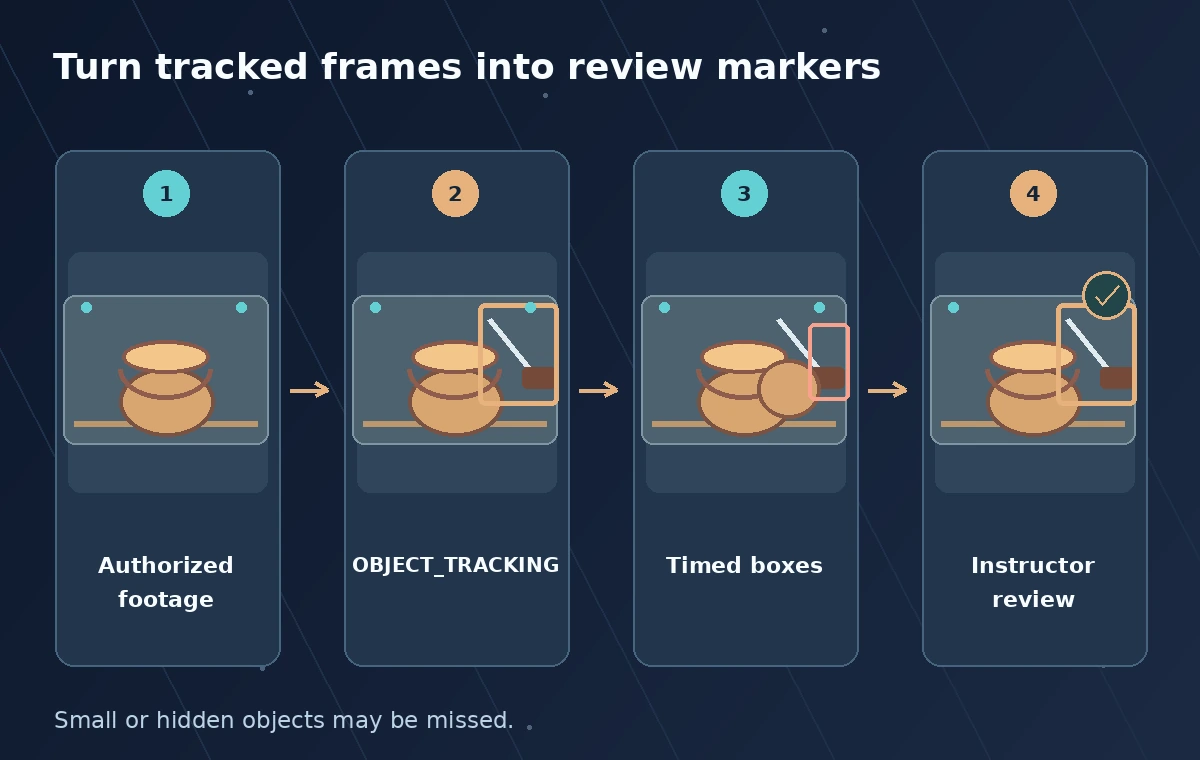
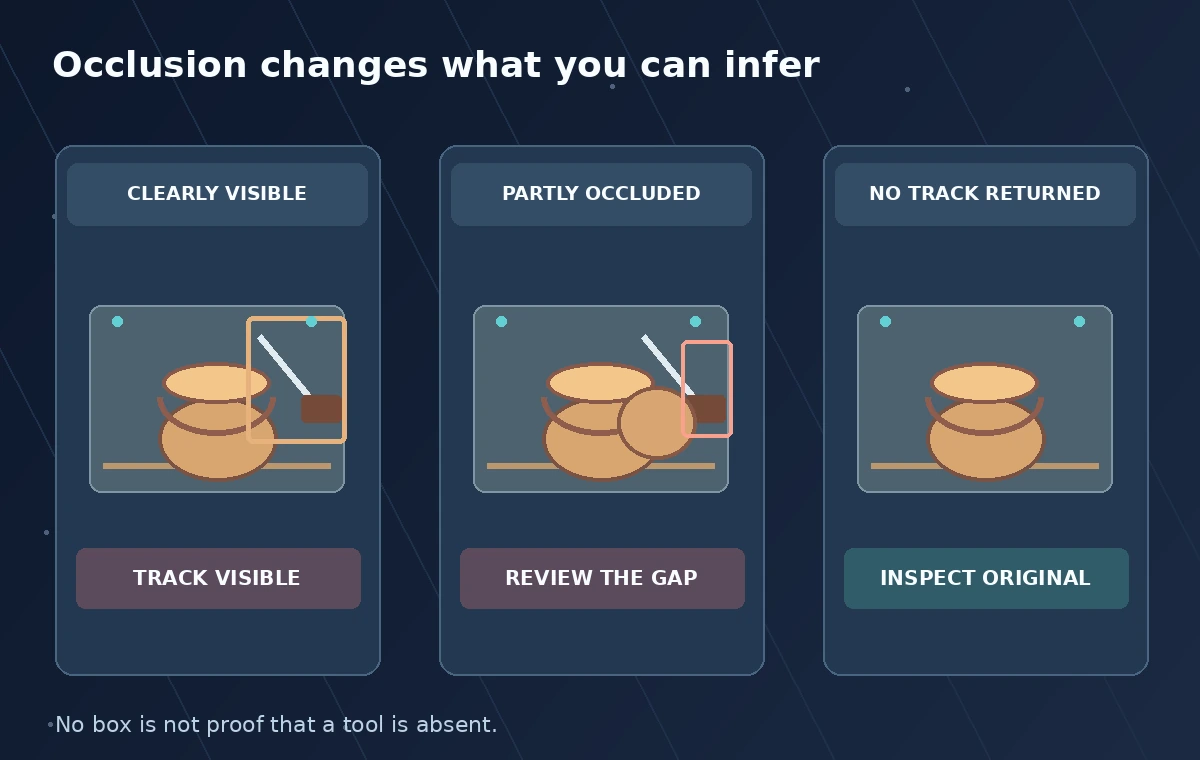
The official documentation warns that very small objects may not be detected. A thin wire, small blade tip, or partially hidden handle is precisely the kind of detail that makes automatic coverage an unsafe assumption. Changes in lighting, hand occlusion, motion blur, and changing camera angle can affect what is visible. Treat absent detection as ‘no useful track returned’ rather than ‘the object was absent’ and create a manual review path for missed items.
Prepare source media without distorting time
Keep the approved source clip in its original edit version and note its duration, frame rate, and start offset in the master timeline. The API documentation shows requests using a Cloud Storage URI or base64-encoded input content; choose the method that fits your authorized media pipeline. Secure the storage bucket and use only footage that staff may upload for processing. An external service does not resolve appearance releases, instructor permission, or participant privacy restrictions.
Record a stable clip ID in the job manifest. Because an object annotation references the input video time, a later editor who trims the opening or changes playback speed cannot reuse offsets blindly. Store a conversion from source time to edited-sequence time. If the export is revised, mark existing annotations as attached to the old cut. Keep a brief manual review note alongside machine suggestions rather than rewriting the master video or calling the annotation an accepted edit.
Read bounding boxes alongside the underlying frames
An object track is a sequence of estimated regions, not a continuous measurement of exactly where the item was in every unobserved frame. Display boxes on sample frames with the time offset and class label visible to staff. Show the original frame beside the overlay so reviewers can recognize if a box lands on a similar object, the participant’s hand, or the background. Two similar clay tools may be identified as separate instances, and an editor should not merge them solely because the labels match.
For a teaching comparison, draw three invented states: a clear tool in view, a partly hidden tool with uncertain placement, and a frame in which the tool is not detected. A diagram can show why a blank box is an unknown, not a proof of safety. Inspect the transition around any missing segment at playback speed. If the visual track is ambiguous, select a wider clip range for a human reviewer rather than smoothing over the gap in the published timeline.
Convert detections into editor-friendly review markers
Group nearby annotations into candidate review ranges, but preserve every source time and avoid manufacturing a continuous path across a long gap. For each marker, keep the clip ID, object label, beginning and ending offsets, editor status, and a thumbnail reference. The reviewer should be able to jump directly to both the annotated frame and the unannotated original. Mark whether the track was relevant, mistaken, occluded, or insufficient for the question being asked.
Add manual markers for speech, signage, and moments where the camera obscures what matters. A video intelligence service may help locate items, but it cannot confirm a ceramic tool was disconnected, washed, or safely used. In a training video, the instructor’s procedure and the visible physical action remain the authoritative evidence. Do not publish an automatic green ‘safe’ badge generated from object tracking or imply that missing boxes mean a check was passed.
Review privacy, storage, and cost boundaries
Apply video retention and participant permissions before sending media to Google Cloud. The workstation may hold identifiable people, faces, and voice recordings; object tracking does not grant rights to process them. Use least-privilege service identities for Cloud Storage access and separate raw footage from the lightweight annotations shared with contractors. Check the current API’s regional processing options, quotas, and price information for the project’s configuration instead of repeating a fixed cost estimate.
A production log can retain the job request type, input version, operation status, and reviewer decision without publishing identifiable images. Delete temporary exports according to policy once the editorial decision is finished. A failed or incomplete operation needs explicit status handling and possibly a manual fallback. If access to the original media is revoked, remove derivatives and review markers as required by the cooperative’s policy rather than leaving an automatically generated visual index accessible.
Run a final human playback and revision check
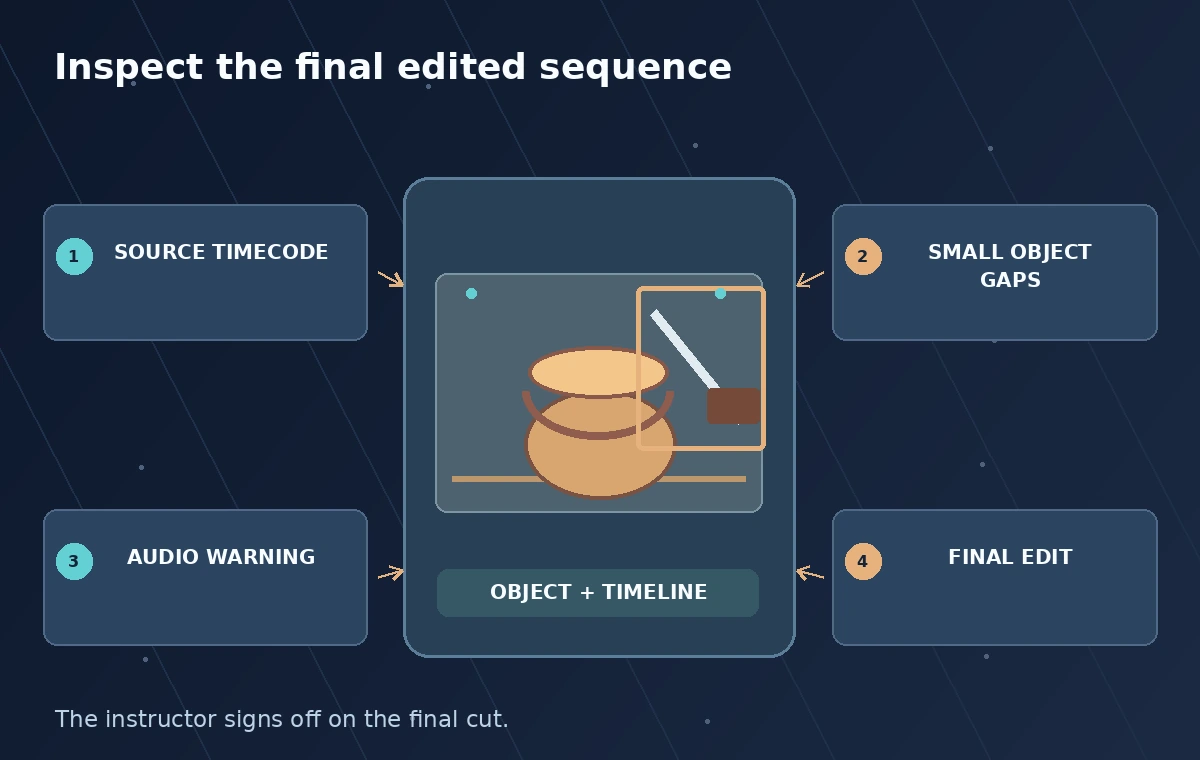
An instructor should review the marked ranges plus context before and after each transition. Confirm that the safety instruction appears at the correct moment, the hands and tools are not misleadingly cropped, and object movement has not been altered through cuts. Scrutinize any section where the model returned no useful annotation, because the missing region might contain the most important action. Use the same checks on the final rendered training file, not only the working timeline.
Document whether tracking actually helped locate footage and where it failed; do not claim an accuracy percentage without a measured sample and defined ground truth. The illustrations here are schematic boxes over original editorial drawings, not service screenshots or video test frames. A machine track can speed navigation in a long demonstration, but instructor review, participant permission, accurate audio, and the final cut decide whether the lesson is appropriate for release.
How We Research
For this November 2026 editorial research, we examined official documentation: Google Cloud Video Intelligence: Track objects; Google Cloud Video Intelligence: Object tracking overview. We checked the named feature, documented inputs, decision boundaries, and workflow constraints against the illustrated use case. All scenarios, sample identifiers, visual comparisons, and diagrams are original hypothetical teaching examples; we did not access a vendor account, run a live model or production API test, or measure recognition accuracy. The graphics are not screenshots, production telemetry, model predictions, or evidence that a particular organization adopted the workflow. We do not claim pricing, operational availability, security certification, factual identification, legal permission, or consent from these drawings. Before use, confirm current supported regions, feature availability, rates, quotas, licensing, data handling, and local institutional policy. An authorized reviewer must compare generated candidates or actions with original records and approve public statements or high-impact changes.
Frequently Asked Questions
Object tracking describes object instances with bounding boxes over time; label detection provides broader labels without the same per-instance boxes.
No. Google notes small objects may not be detected, and occlusion or difficult footage can leave gaps.
They refer to the video submitted for annotation. Track the offset if that clip is later trimmed or moved in a longer edit.
No. It can flag visual regions for review; an authorized instructor must evaluate procedure and surrounding context.
Only video your organization is authorized to process. Check participant permissions, storage access, costs, and data policies first.