
A small museum is preparing to borrow a display case for a temporary exhibition. In a hypothetical six-page loan packet, the collection team must pick up the case on June 3, return it on June 17, and obtain written confirmation of the transport plan. Those dates are fictional teaching data, not terms from a real agreement. A fast summary may be useful, but confusing collection with return would disrupt the entire schedule.
Adobe Acrobat offers Generative Summary for supported PDFs. Its section summaries and links back to source material help readers locate passages; they do not authenticate a signature, override a lender, or substitute for a complete review. This guide treats a summary as a navigation layer over the original document, with a separate date register and human approval at the end.
Prepare the original PDF before asking for a summary
Start with the file supplied by the lender, not a forwarded excerpt or a screenshot of its first page. Record the filename, version date, page count, and the lender contact responsible for corrections. If an appendix is separate, include it in the review scope. A summary of only the cover letter cannot reveal a different return condition buried in an attachment.
Check whether the PDF opens cleanly, whether text is selectable, and whether a scanned page needs careful manual reading. Adobe documents supported languages, application versions, online access, and sign-in requirements for generative AI. An image-heavy, restricted, or damaged file may not qualify. Never assume a missing summary means the underlying requirement does not exist.
Create a two-date evidence register
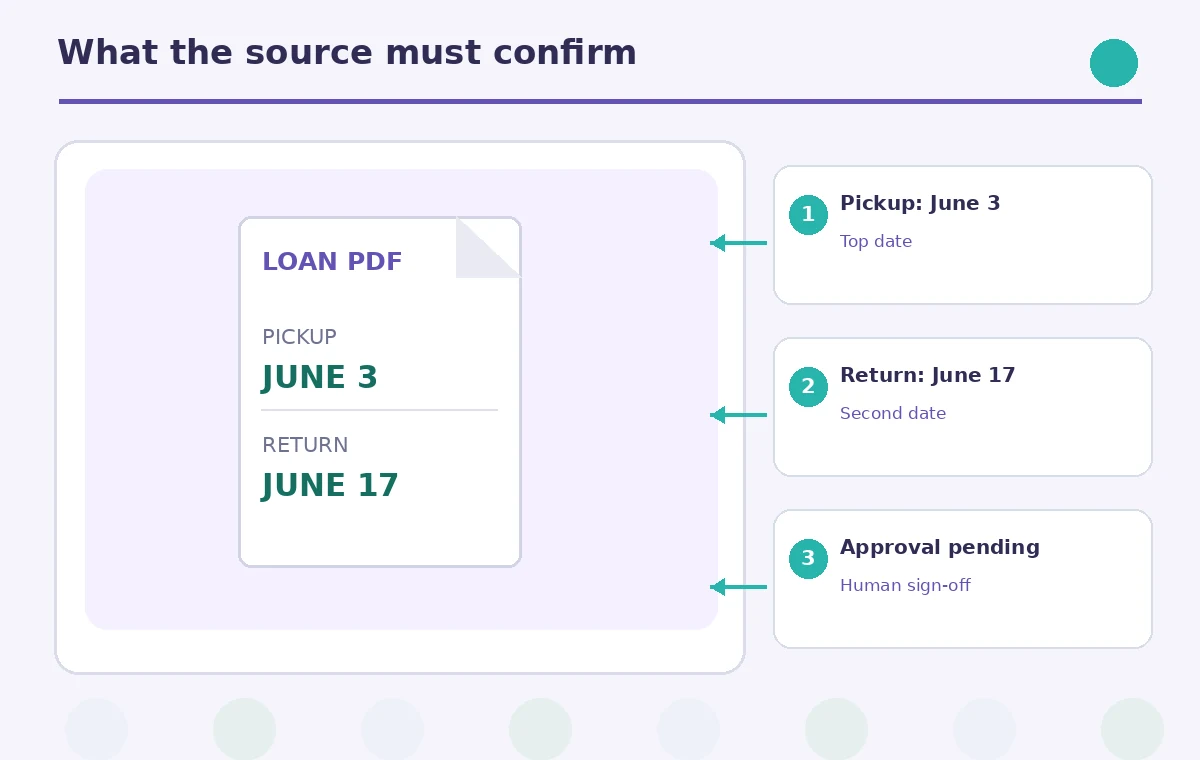
Before generating anything, make two rows labeled Pickup and Return. For this example, enter June 3 next to Pickup and June 17 next to Return, then add a source page and paragraph field for each. Leave the approval status blank until a responsible person actually confirms it. An internal planning date is not the same thing as an accepted lender requirement.
Add a third row for transport sign-off and a fourth for any special handling restriction. Those fields help prevent the convenient but false conclusion that a schedule is approved merely because all dates are populated. Keep the exact language for exceptions such as “subject to confirmation” in a notes column, not in an invisible footnote.

Generate a section overview in Acrobat
Open the supported PDF in Acrobat and select Generate Summary where that feature is available in the right panel. Adobe describes a generated overview with section headings and cross-references. Read the outline first: it should make locating shipping terms, insurance provisions, handling instructions, and signatures easier, but it may not prioritize the clauses your project regards as critical.
Use the cross-references to jump back to the relevant pages. If the summary puts “June 17” next to “collection,” do not rewrite the real PDF to fit the summary. Instead, inspect the exact passage, correct your register, and annotate the error for the reviewer. Treat a confidently written sentence with no supporting page as a question, not an answer.
Check each date against its source passage
Compare the Pickup and Return rows word for word with the loan agreement. Check calendar date, year, location, responsible party, and whether the event is mandatory or proposed. If a loan form says “return no later than,” that qualifier must remain visible. A generated overview may accurately repeat the number while still losing its role or qualification.
The comparison illustration deliberately shows an erroneous summary in which the two dates have been swapped. The corrected view restores their source labels and separates the unsigned transport approval. These are invented examples for teaching, not screenshots of an Acrobat session or measured model behavior. The visible page reference is the decisive evidence.

Handle missing pages and conflicting versions
If the summary mentions an appendix you cannot find, stop and request the missing source rather than improvising its contents. If two PDFs disagree, record both document dates and ask the lender which controls. Do not choose the more convenient answer on the assumption that the later file must be authoritative; it may be a working draft.
For teams, a short revision note is often more useful than a long AI-generated prose report. Include what changed, what page supports the change, and who must approve it. Avoid inserting signatures, contact details, or loan amounts into an external prompt unless the organization’s sharing policy authorizes it. Keep sensitive data out of demonstration examples.
Use follow-up questions as pointers, not decisions
Acrobat can route a summary into AI Assistant follow-up questions. Ask narrowly: “Which source section discusses return timing?” or “Where are transport responsibilities described?” Then navigate to the linked passage. Avoid asking “Are we safe to proceed?” because a language model cannot approve a loan, assess the condition of an artifact, or grant permission on behalf of a lender.
Before sharing the AI output, strip any sentence that sounds like a binding conclusion but lacks a source citation. Some useful statements can remain unresolved: “Transport plan: awaiting signed confirmation.” Preserving uncertainty is a successful result when the document does not contain the answer. The goal is a trustworthy work queue, not a falsely complete summary.
Combine AI Tools With Source Checks
Release a reviewed schedule to the exhibition team
Ask a collection manager to compare the evidence register against the source PDF while viewing both in parallel. Have the reviewer initial the pickup row, return row, and transport approval separately. Only after that review should the production calendar inherit the dates. Store the source version alongside the approved register so later editors can reconstruct why the schedule changed.
The final checklist asks three things: do Pickup and Return appear under the correct headings, do the linked pages support them, and is the approval visibly pending or confirmed? Acrobat can shorten the route to relevant text. It cannot guarantee that the lender signed a particular arrangement, so the responsible humans still own the decision.
How We Research
We reviewed these named official sources on November 4, 2026: Adobe Acrobat — Generate AI summaries; Adobe Acrobat — Generative AI technical requirements; Adobe Acrobat — AI usage policy and limitations. We compared the documented controls, version or account restrictions, and stated limitations with the editorial task described above. The scenario, dates, people, drawings, and before/after images are fictional teaching examples, not reports of a live product test. We did not measure output accuracy, purchase a subscription, or verify individual generation results. Readers should inspect the current interface and source assets before acting on the workflow.
Frequently Asked Questions
No. It organizes PDF content for review. Agreement approval, signatures, and policy decisions stay with the lender and authorized museum staff.
Adobe describes source cross-references in the summary. Follow them to inspect the original passage before copying dates or requirements.
Search the source PDF and its appendices. If it remains missing, ask the document owner rather than inferring a return deadline.
Not necessarily. PDF condition, supported languages, file restrictions, application version, and account eligibility can affect availability.
Only after authorized review of each source-linked requirement. A verified date register and the underlying PDF are safer operational records.