
A small coffee roaster is preparing an illustrative glass-jar label for a seasonal blend. The designer has approved vector artwork, but wants to see how the design curves over the front of a cylindrical container. Adobe Illustrator Mockup places vector art on raster photography or curated templates and adjusts it to the apparent object geometry. That is useful for a visual proof, yet it is not a print-production guarantee: type can become visually compressed near the jar edge, and required copy can be hidden by highlights. This workflow keeps the approved label as the reference and checks what changes when it becomes a mockup.
Lock the original vector label as the source of truth
Before creating a mockup, prepare one separate, approved vector label with the exact product name, net weight, allergen statements where applicable, and any other mandatory copy provided by the business. Keep an untouched master and place a dated proof copy into a working document. This example uses a fictional coffee jar and does not suggest particular compliance language or imply that a decorative proof meets food-packaging rules.
Group the label elements logically: brand mark, blend name, origin description, weight panel, and small-print copy. Check the text in an unwarped, full-size flat view first. If the font is already too small on a flat label, wrapping it around a jar will not make it more readable. Record the approved spelling and numeric fields in a separate checklist so the visual review does not depend on memory.
Prepare a photograph suited to the intended container
Illustrator Mockup supports the designer’s own raster photo as well as curated templates in the Mockup panel. Choose a jar photo with clear edges, a visible label area and realistic lighting. A dramatic three-quarter angle can be useful for promotion but may obscure part of the copy. A straight-on view often makes a more useful initial proofreading surface.
Photograph scale matters. Avoid judging the label from a screenshot of an unrelated container, because its curvature and dimensions may differ from the actual packaging. Keep the source jar image in the project and note whether it is a real photograph or merely a stock reference. If the company is ordering printed labels, the artwork must still be checked against the printer’s measurements and production specifications.
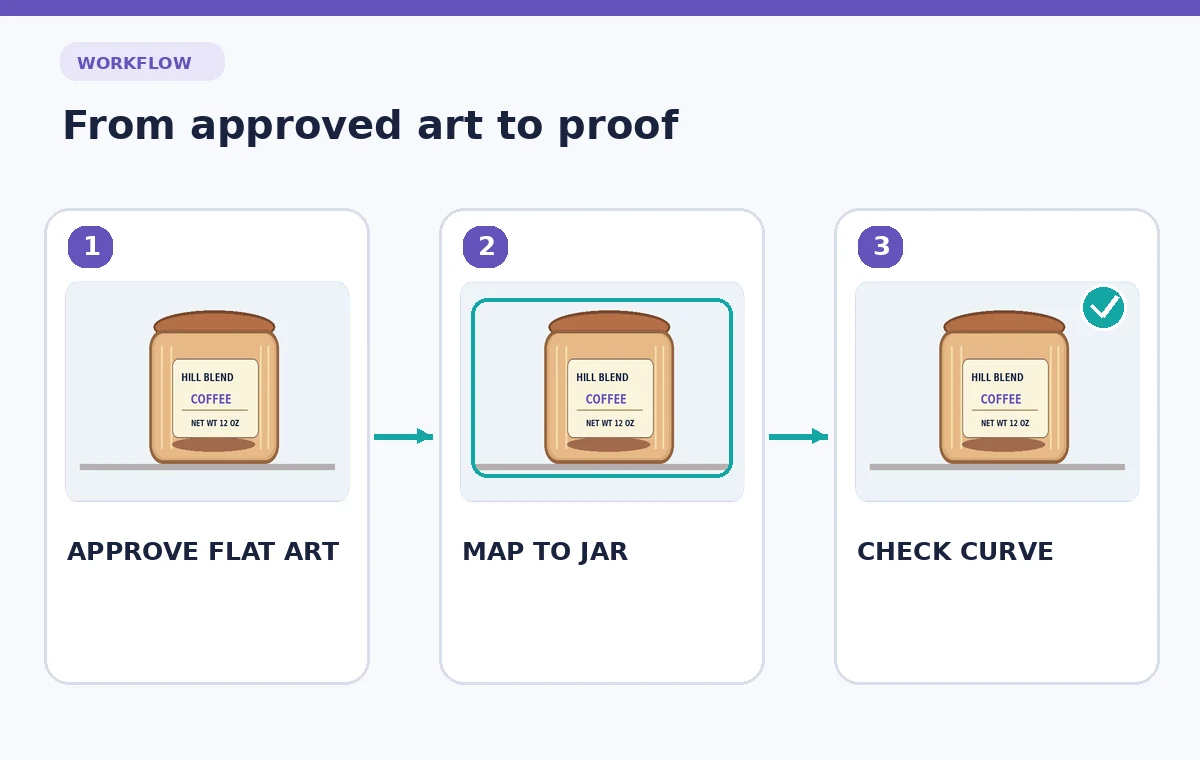
Build the mockup in the supported Illustrator workflow
Adobe documents opening Window > Mockup, selecting the vector art and raster image, and choosing Create Mockup. The vector artwork can then be moved and positioned on the object, with Illustrator adjusting its appearance to the surface. To test a curated mockup instead, select the vector graphic, choose Preview Mockup and select a template. These are editing workflows, not evidence that the printed label will match the simulated surface exactly.
Position the art so that the principal name sits in the area readers actually see when the jar faces forward. Keep any copy that must remain legible away from highly compressed sides. Do not stretch the flat master to compensate for the appearance on one photograph; make changes within a copy and decide whether the underlying design itself needs a revised hierarchy.
Choose an AI Tool for Your Workflow
Inspect the curvature instead of accepting the first fit
A cylinder compresses apparent letter width toward the sides. Examine capital letters and numerals in the blend name: a rounded O may look unexpectedly narrow and a weight figure may drift toward a glossy reflection. Use a zoomed comparison between flat vector artwork, first mockup placement and a revised placement with the label moved toward the center. Show the actual differences rather than three identically positioned jars.
Pay attention to straight rules and decorative borders. A border that appears curved in a mockup can still be a straight vector line on the original label; the warped preview is not a new cutting die. Make sure the visualization does not imply that anything is printed directly onto a surface if the physical packaging uses a separate adhesive label.
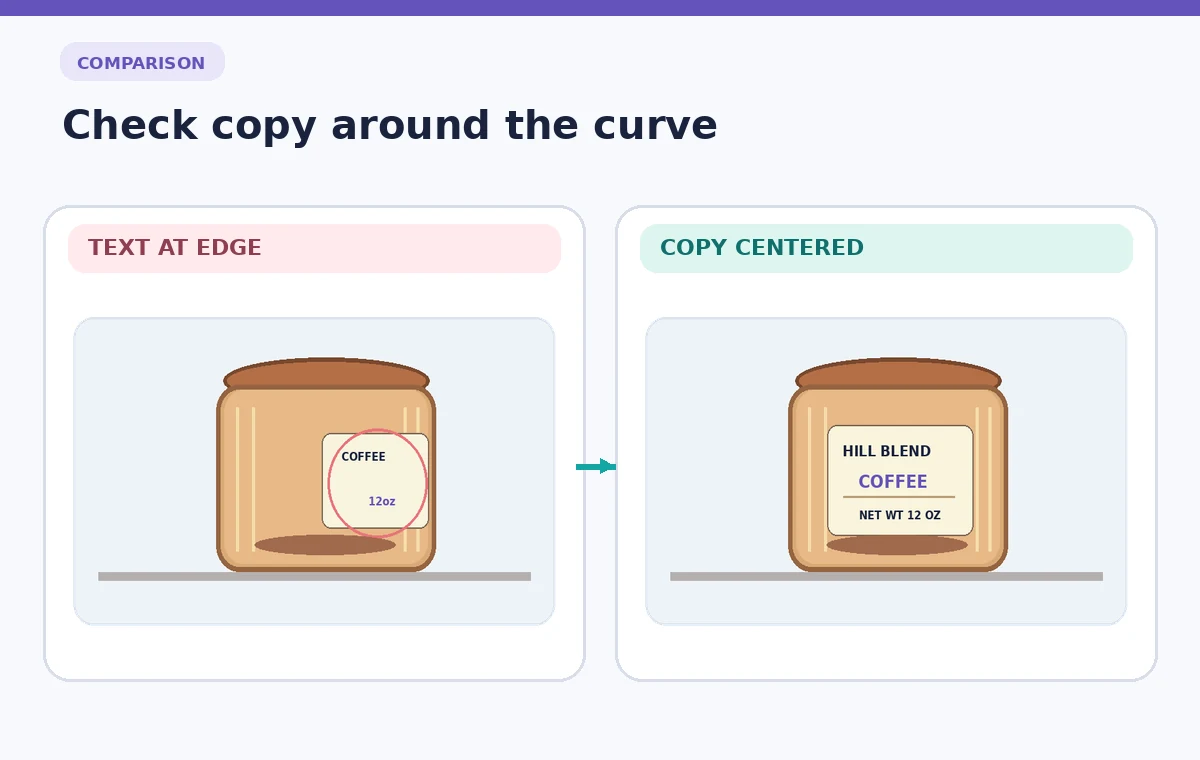
Keep required copy visible and unaltered
The mockup should never become the only copy of a product specification. Check spelling, weight units, batch identifiers if used, and any instructions against the original approved text. A partial label wrapped out of view is not necessarily wrong in a lifestyle image, but it should not be used as the sole proof that the copy is present or legally sufficient.
Use a separate flat proof for the full text and a front-facing mockup for the consumer appearance. Where small text becomes unreadable in the promotional image, do not invent clearer replacement lettering inside an AI-generated photograph. Export a layout that uses the true vector text or leave the mockup as a contextual illustration only.
Make controlled edits without damaging the master
Adobe notes that once a mockup is created, its vector artwork behaves as a symbol. The Properties panel offers editing routes such as Edit Content, Edit Image, and Edit Mockup Group. Treat these options as ways to change the mockup or artwork deliberately, not as a reason to overwrite the canonical label without review.
If a reviewer requests moving the origin line, update the approved vector source first, then regenerate or refresh the visual proof. Keep proof versions clearly named and avoid copying an old curved mockup into a new campaign without checking that the container image and label version are still the intended ones. A mockup can be reused effectively only when its product assumptions remain valid.
Review lighting, boundaries, and visual honesty
The photograph may contain specular highlights that partially cover a word or make the label look printed on glass instead of paper. Check the top and bottom edges, the jar shoulder, and the side boundary where the artwork begins to disappear. A credible mockup must look plausible and keep the product information consistent with the actual approved design.
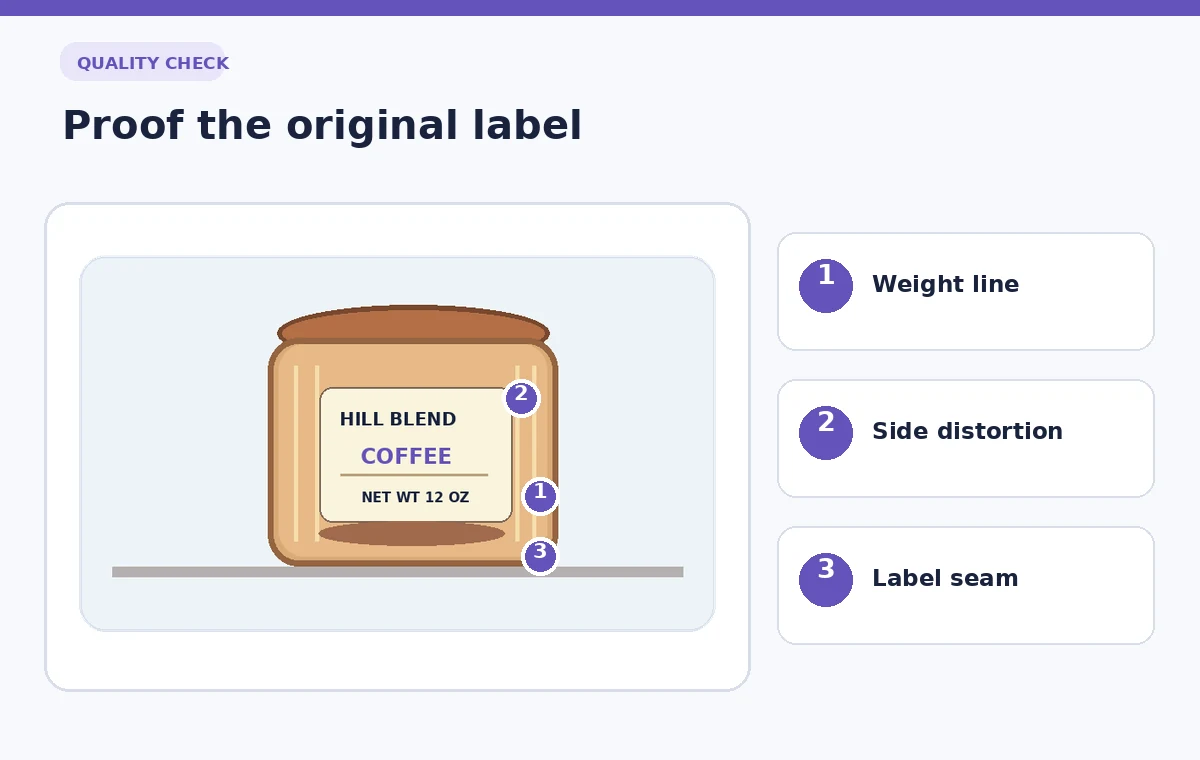
Use an annotated proof that calls out three specific risks: compressed weight text near the edge, an obscuring highlight, and a visible label seam. Show the label body and arrows to those details. This is a teaching illustration of review points, not a claim that Illustrator generated a flawless packaging asset from the demonstration.
Export a proof and retain the manufacturing handoff
Export a visual mockup for stakeholder feedback and an independent flat vector production file for the printer. Include the final label dimensions, bleed information and approved type outlines only if the printer has specified them. Do not derive a cutting template from the raster mockup surface. The proof serves a different purpose: it explains how the product might look on a shelf.
Before approval, ask one person to compare all required words and numbers against the flat master and another to assess visual legibility at intended display size. Log any unresolved concerns about curvature or lighting. A convincing mockup can speed decisions, but the true source of product information remains the verified artwork and production requirements.
How We Research
For this guide we consulted current primary documentation: Adobe Create mockups in Illustrator; Adobe Edit mockups in Illustrator. We compared the documented feature purpose, editing steps, access limitations, and recovery controls with the specific failure modes illustrated above. All people, records, images and signal examples in the narrative and diagrams are hypothetical. We did not claim to sign in to a paid service, make a live recording, test feature accuracy, measure restoration outcomes, or establish any organization-specific permission. Our editorial method is to preserve the original input, review AI output against that input, check exceptions, and document the final human decision. Verify your installed version, account entitlements, organization policies, and production specifications before applying the technique to real material.
Frequently Asked Questions
The feature creates a mapped mockup appearance; retain an untouched flat label master and inspect edits before using any updated artwork.
Yes. Adobe documents mockups made with a user-provided raster photo as well as curated image templates.
No. The printer still needs correctly sized flat artwork, and a photograph does not establish label dimensions or compliance.
Perspective and cylindrical geometry compress the visible appearance of graphics near an edge.
Use Illustrator’s documented edit options while preserving the approved master, then review the refreshed proof against the source copy.