
A neighborhood tool library wants an equipment checkout database. Airtable Omni can draft tables and an interface, but a requested item is not automatically an approved loan. This guide treats every example as a hypothetical editorial exercise, with human review of the underlying facts and a saved original before changes.
Model a request as a request, not a reservation
Suppose a fictional neighborhood tool library lends drills and folding tables to volunteers. A request form asks for an item, a date range and a contact method; the coordinator must approve before any pickup is promised. Define distinct states such as Submitted, Needs review, Approved, Checked out and Returned. Put the approval timestamp and coordinator’s name in separate fields. That structure matters more than the prompt that builds the app, because it prevents an enthusiastic automation from changing a status merely when somebody clicks Submit. Preserve a register of asset IDs, including equipment that cannot be borrowed.
Know what Omni can build and what it cannot guarantee
Airtable’s October 2026 Omni guidance says the assistant can build tables, fields, interfaces, forms and automations through natural-language requests. App building is available across plan types, while enabled AI functions, permissions and credit use vary. The documentation states that newly built automations are left off for review before activation. It also distinguishes creating a new base from the home screen from working inside an existing base. Omni can propose an initial system quickly, but it cannot certify that your borrowing policy or inventory numbers are correct. Provide those rules explicitly.
Write a precise schema prompt
Ask for an Equipment table keyed by a unique asset ID, a Requests table linked to equipment, and an Approvals table recording explicit coordinator decisions. Include a rule that two Approved loans must not overlap for the same asset. Tell Omni to create a review view filtered to Submitted and Needs review rather than updating those statuses automatically. Avoid uploading member addresses or personal identifiers simply to demonstrate the process. For a prototype, use fictional rows with clearly marked sample identifiers and dates. A good prompt also names negative requirements: no automatic confirmation emails, no deletions, and no active automation until a human reviewer signs off.

Inspect relationships, form fields and permissions
After Omni proposes a base, verify that a request links to exactly the intended equipment record. Distinguish an inventory row from a borrowing event; otherwise a second request could overwrite the asset’s description or prior return history. Open the standalone form as a test user and check which fields are visible and required. Airtable documentation notes that Omni can create standalone forms but not forms embedded inside an interface in the same way. Check the permissions of collaborators and the interface before entering real member details, and make sure ordinary requesters cannot modify approval fields.
Test a deliberately conflicting loan
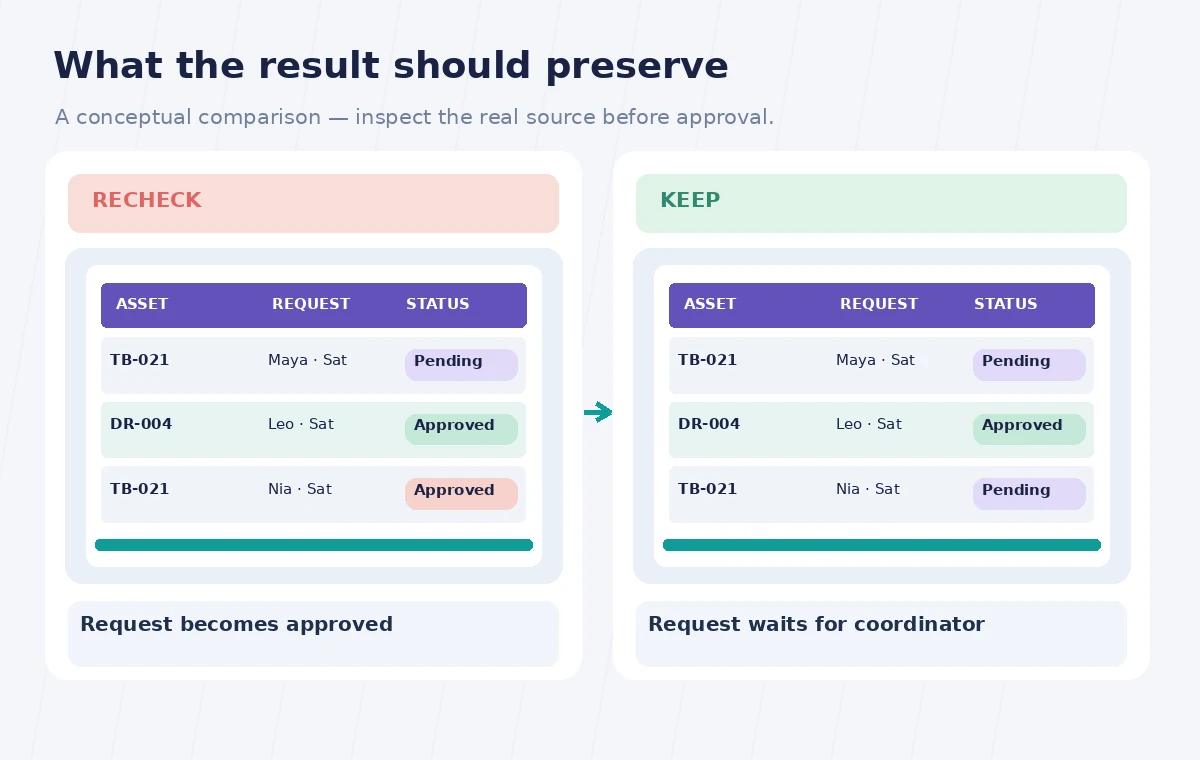
Create two fictional requests for the same folding table during overlapping hours. If the initial design treats both submissions as approved, that is a schema and workflow failure even if the UI looks polished. The comparison illustration contrasts an immediate approval chip with a gated state awaiting review. The coordinator should see the collision and determine whether another unit exists. Do not rely on an AI-generated formula to handle complex exceptions without independent verification. Record the conflict case as an acceptance test, then reset or delete only the invented sample data with care.
Keep automations disabled until reviewed
Omni can create automations but, as Airtable’s support article states, leaves them switched off for a person to review. Inspect each trigger, condition and outbound action: a change to Approved should not fire if the Approvals table lacks a confirmed decision. Use a draft notification to the coordinator as the first safe automation rather than an instant confirmation to the borrower. If a workflow sends email or changes records, review actual permissions and test in a separate base before turning it on. The assistant’s request for confirmation before deletion is useful but does not replace a broader change-management process.
Audit records and avoid silent rewrites
When importing a CSV, confirm its tab structure and source columns. Airtable notes that a CSV includes one spreadsheet tab, so a multi-sheet workbook requires a separate import plan. Check that serial numbers were not converted to scientific notation or stripped of leading zeros, and that duplicate rows were not merged. Omni can report what it changed, but staff should still compare counts, relationships and representative records with the original spreadsheet. Do not use a conversational summary as the sole audit trail for loan approvals. Keep owner, date and source-reference fields in the base itself.

Hand over a limited, testable first version
A working first release should allow a visitor to submit a request, a coordinator to view conflicting dates, and an authorized reviewer to mark approval without breaking existing inventory. Write simple acceptance checks for those three journeys and one failed duplicate-ID case. Review the public form’s privacy notice, data retention and notification text before publishing. Avoid claims that an AI-built application is production ready simply because sample records display correctly. The tool can accelerate setup; accountability for inventory access, lending policy and personal data remains with the organization.
How We Research
We reviewed the official Using Omni AI in Airtable and Introduction to Airtable basics documentation on November 1, 2026. We checked the stated feature controls, prerequisites, limitations and practical failure cases against the sequence above. Availability and plan terms can change, so readers should consult the live help before using the tool. The organization, names, records, photos, numerical examples and diagrams are fictional. We did not run a live account test, upload a real person’s materials, or measure model accuracy. Suggested comparisons are editorial verification procedures, not claimed empirical results.
Frequently Asked Questions
Yes. Airtable documents a Build an app with Omni option on the home screen as well as tools inside a base.
The current Airtable support guide says newly created automations remain turned off so a person can review them.
Not safely unless the organization explicitly designed that policy. Keep Submitted and Approved as different states.
Permissions determine which actions Omni and users can take. Review role access and field exposure before sharing.
No. A CSV carries one worksheet; plan separate exports or a structured import for a multi-tab workbook.