
A community center wants a short walkthrough of its lost-and-found kiosk without recording a staff member’s voice. Microsoft Clipchamp offers text-to-speech narration with language, voice, pitch, and pace controls. The dangerous mistake is not robotic delivery; it is a polished synthetic voice that says pickup closes at 6 PM while the kiosk sign and official policy say 5 PM. This hypothetical article uses the documented Clipchamp editor path and a source-checked script to plan, preview, and export a voiceover. It also explains when to split long text and how to align the speech with the on-screen action.
Approve a factual script before generating speech
Collect the current lost-and-found policy from the manager responsible for the kiosk. Note the pickup hours, proof-of-ownership requirements, location, and what staff should do with unclaimed items. Confirm the wording of any privacy or ID requirement; a generated voice should not create extra promises about when property can be collected. Draft a short sentence for each visible step, and read the whole script aloud as if you were using the kiosk for the first time. Mark facts in a separate source table. If a policy is unsettled, do not guess a friendly-sounding time. A sentence such as ‘ask the desk for current hours’ may be safer until the owner decides.
Use the documented Clipchamp Text to speech workflow
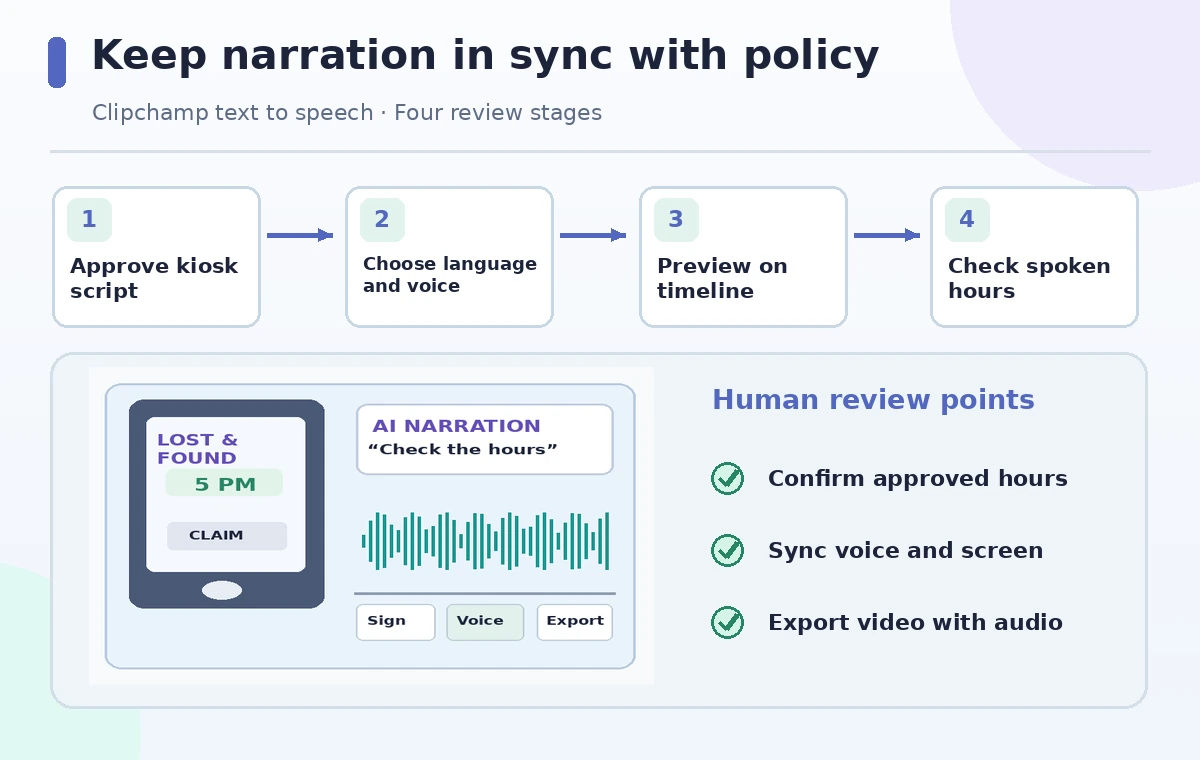
Microsoft’s Clipchamp instructions describe opening a video, choosing Record & create and Text to speech, selecting a language and voice, optionally adjusting pitch or pace, entering a script, previewing, and saving. The resulting voiceover appears on the project timeline and in media. The steps are described for personal accounts and broadly apply to work and school, although interfaces and entitlements can differ. Clipchamp uses Azure AI Speech for text-to-speech processing. Treat the generated voice as a narration tool, not a policy checker. Keep the original script beside the editor and make changes there first so they can be reviewed before regenerating audio.
Choose a neutral voice and readable pace
Pick a voice that audiences can understand without implying it belongs to a real staff member. Preview a sample containing the time, an abbreviation, and a location name. A ‘5 PM’ phrase can sound different depending on voice and language settings, so listen to the actual audio instead of relying on how the script looks on screen. Adjust pace for comprehension rather than fitting as much text as possible into a short clip. Leave pauses when viewers must locate a kiosk field or read an on-screen instruction. If the tutorial serves multilingual visitors, create separately approved translations and check each version with a qualified reviewer instead of assuming one language’s spoken hours will transfer correctly.
Build audio sections that match the visible steps
Place the voiceover on a timeline with the recorded screen or demonstration shots. Keep a visible action on screen long enough for the corresponding sentence to finish. For example, when narrating ‘scan the claim ticket,’ show the ticket field before the viewer hears ‘tap Submit.’ If Clipchamp’s text-to-speech character limit interrupts a longer script, Microsoft recommends creating multiple text-to-speech items. Use logical sentence boundaries so the resulting clips can be timed naturally, and insert short gaps where the user needs to process an instruction. Do not speed up a safety or identification requirement just to match an arbitrary video length.
Compare the wrong time to the reviewed announcement
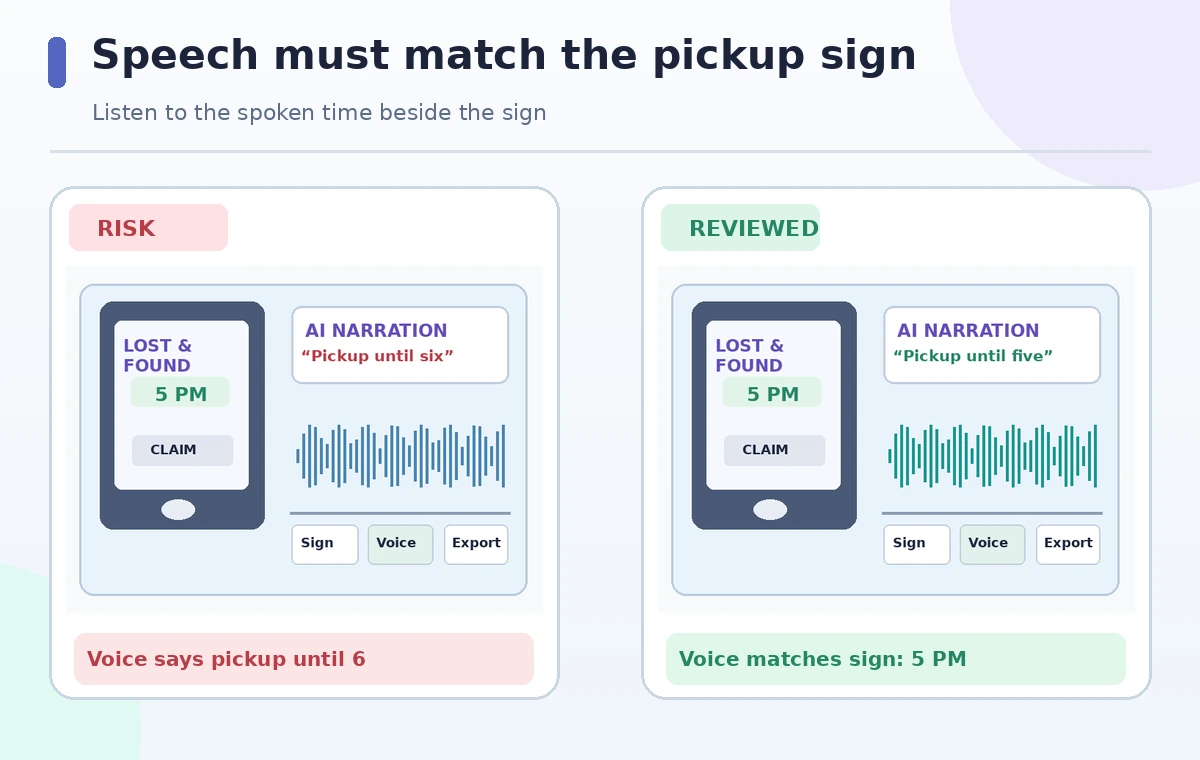
The side-by-side drawing illustrates an invented mismatch: an AI voice says ‘until six’ while the official kiosk sign clearly reads ‘until five.’ The corrected version aligns both. This is not evidence of a Clipchamp model failure. It is an editorial check that applies to any generated speech. Read the finalized script beside an authorized policy document, then listen to the rendered voiceover without subtitles to catch wrong numbers. Watch simultaneously to ensure the visual sign has not been covered by captions or a pointer. A perfectly synchronized animated waveform cannot verify the meaning of the sentence being spoken.
Inspect pronunciation, clip edges, and captions
Names, location codes, and opening hours deserve special attention. If the voice pronounces an abbreviation oddly, revise the script into clearer spoken words without changing the policy. Listen at the beginning and end of each audio clip for accidental truncation or overlapping sounds. If another piece of music plays under narration, confirm that the speech stays intelligible. Add accurate captions and describe important visual steps in accessible text. Captions generated from the script are still a second output to check against the actual spoken audio. Ask a viewer unfamiliar with the kiosk to follow the video and identify any missing step or confusing pause.
Check export format and data exposure
Microsoft notes that GIF exports do not retain audio, so export as video if a spoken tutorial is required. Review the final video file outside the editor; preview playback may differ from an uploaded version. If the screen capture includes customer names, claim ticket numbers, or personal contact data, blur or remove those before publication. Prefer a sandbox or demonstration account that contains no real visitor records. Do not use synthetic narration to imply that staff are monitoring the kiosk continuously unless the center actually offers that service. Keep a plain-text version of the instructions for visitors who cannot play audio.

Approve and version the instruction as policy changes
Have the kiosk owner confirm the pickup hours one last time, and record the script version and date of the exported video. If hours change later, edit the source script, regenerate only the affected speech clips, and update any on-screen signs or captions at the same time. Replace stale uploads or label them as archived rather than leaving contradictory tutorials online. The final quality check is practical: a visitor who watches the video should know where to go and when, without needing to guess which source to believe. An attractive AI voiceover is useful only when it carries accurate, approved instructions.
How We Research
We consulted Microsoft’s Clipchamp text-to-speech guide and voiceover workflow documentation, including language, pace, character limits, timeline, and the warning that GIF exports omit audio. The kiosk hours and mismatch are hypothetical. We did not generate or listen to Clipchamp speech, test a subscription, or verify any real facility’s policy.
Frequently Asked Questions
Yes. Clipchamp text to speech uses Microsoft Azure AI Speech and places the generated voice on the timeline.
Yes. Microsoft documents Advanced settings for pace and pitch, subject to available voices.
Split it into multiple text-to-speech items at natural sentence boundaries; character limits vary by language.
No. Microsoft notes that GIF exports have no audio; export a video file instead.
Check the approved facility policy, listen to the rendered speech, and compare it to on-screen text before exporting.