
Two hosts record a community gardening podcast from different rooms. One speaker is loud and clear; the other is soft-spoken, with a quiet fan in the background. Automatically improving both tracks at maximum strength could make the voices appear equally loud while making the quieter speaker sound hollow or clipped. Riverside Magic Audio can enhance recorded or uploaded audio and offers per-track intensity adjustments in supported workflows. The goal of this hypothetical example is an intelligible, natural conversation with the speaker’s pauses and personality still intact—not an invented claim about measured noise reduction.
Keep the isolated recordings and obtain permission
Before editing, confirm that all recorded participants consented to the session and its planned publication, and keep the separate original tracks. A mixed recording hides where each voice ends and where overlapping speech occurs; individual tracks let you compare the low-voice speaker independently. Write down three passages to evaluate: a soft sentence, a normal exchange and a moment when both speakers talk. Save a neutral monitor mix with no AI processing. Use headphones and the intended listening device, since weak consonants may seem intelligible on studio speakers but vanish on a small phone. If a recording has confidential guest material, review upload permissions before processing it in a hosted platform.
Confirm current Magic Audio controls and eligibility
Riverside’s help describes Magic Audio in its editor for recorded or uploaded tracks. On desktop, open the recording, choose Tracks and expand an individual participant, then enable Magic Audio. The documented per-track workflow allows an intensity percentage between original and enhanced audio. Check the actual subscription and export entitlement rather than promising that a trial or every plan can download enhanced results. Riverside also documents a broader apply-to-all route; the two workflows are not identical when a quiet speaker needs a gentler setting than the louder host. Magic Audio does not apply to screen-share tracks, an important distinction when reviewing the full session.
Process only the track that needs help first
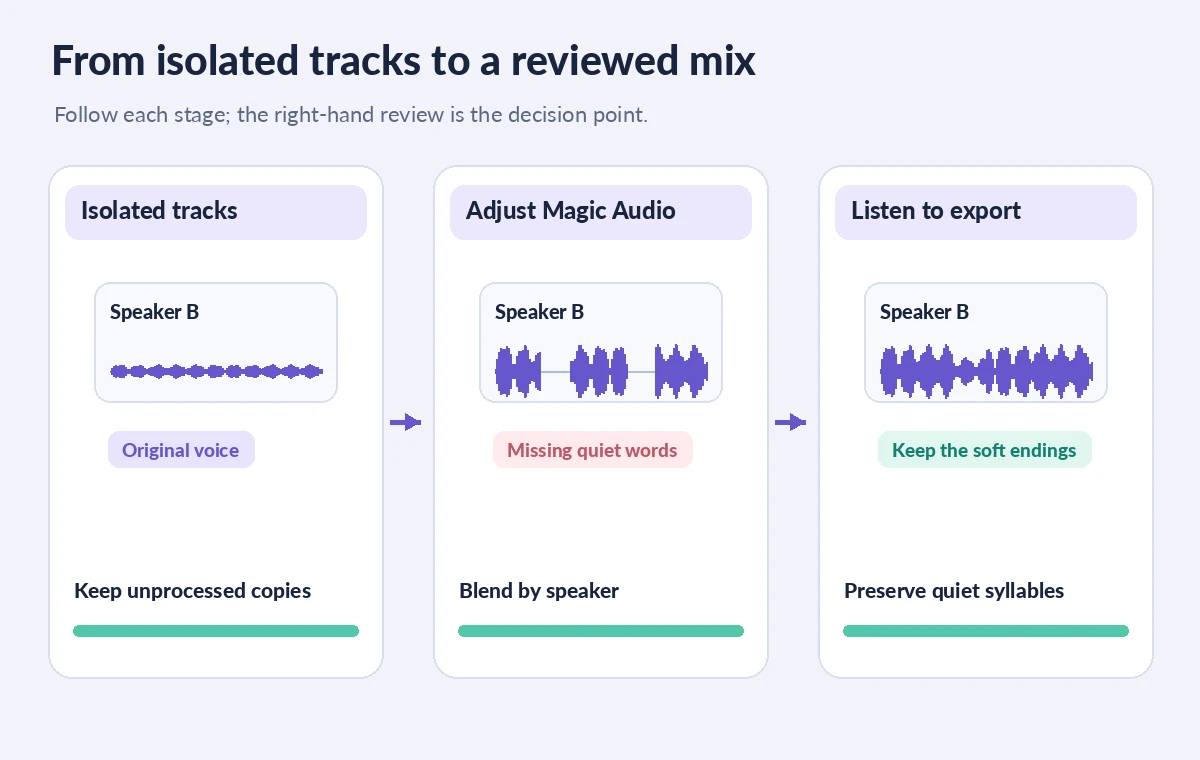
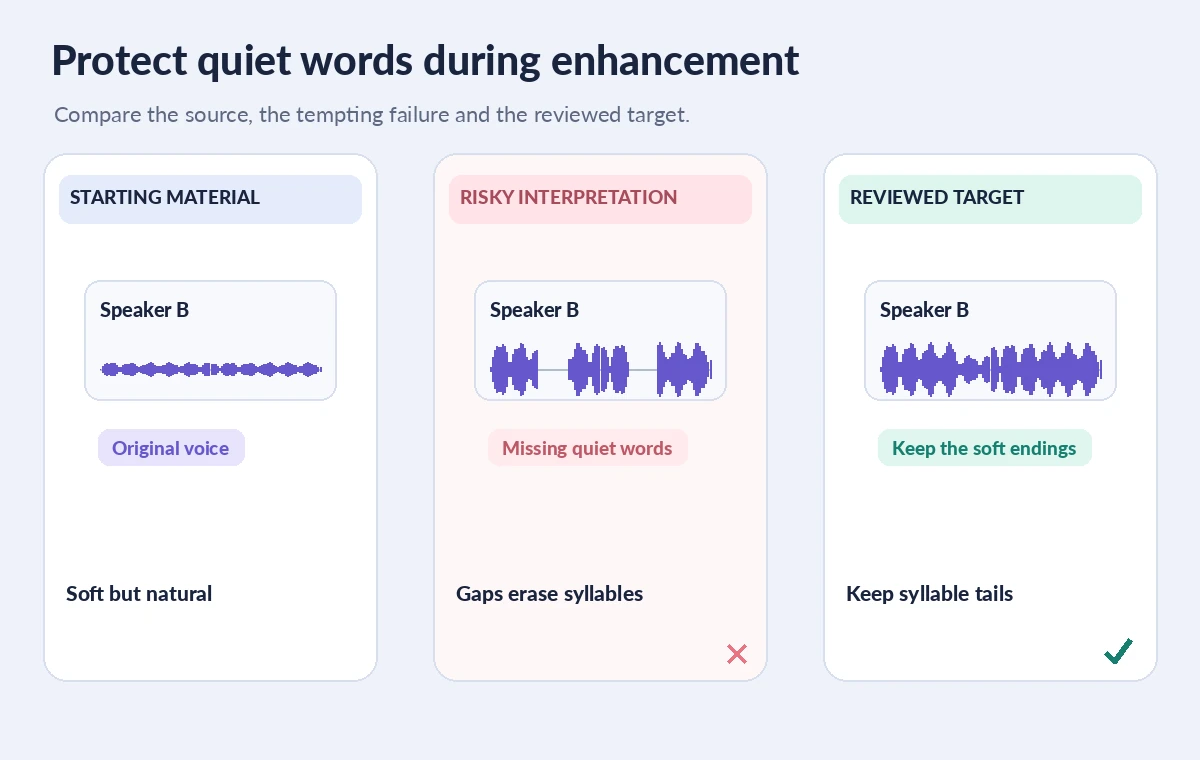
Begin with the quieter speaker’s track rather than applying maximum enhancement across the project. Listen to a complete sentence before and after. The objective is to make the words easier to follow without stripping away breath, mouth movements or a natural pause. Slide the intensity down if the voice becomes metallic, nasal or excessively gated. Treat those descriptions as possible failure modes, not as measured outcomes of a specific Riverside run. Keep an annotated time range where the fan is present and another where both speakers overlap. The dominant voice may need little processing and can remain largely original. Matching perceived presence is not the same as making every waveform equally tall.
Compare original, aggressive and restrained sound
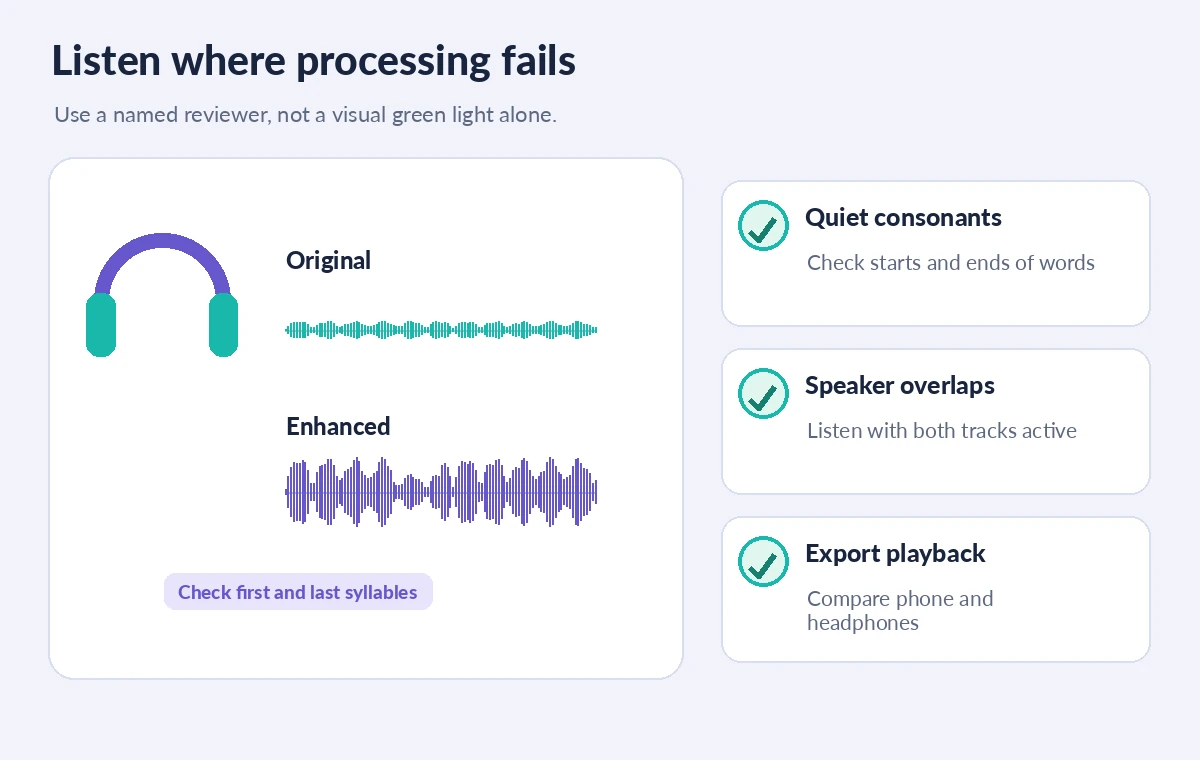
Toggle or compare the unprocessed recording with an enhanced version at a stronger setting and a more restrained target. Listen to the ends of words such as ‘seed,’ ‘plant’ and ‘shade’ where a gate-like artifact can erase soft consonants. Pay attention to the first syllable after a pause, room-tone pumping and abrupt changes as the speaker turns away from the microphone. The waveform sketches in this article illustrate what to monitor; they are not actual recorded or processed measurements. If a segment still sounds poor, leave more of the original or ask for a clean pickup line instead of forcing AI treatment to create information that was never captured.
Check overlaps, transitions and speaker identity
Play conversational turn-taking with both tracks enabled. A processing setting that sounds attractive on a solo track may expose artifacts at the moment a second speaker interrupts. Confirm that one speaker’s low-level acknowledgement has not disappeared underneath a more aggressively treated track. Preserve meaningful laughter, inhalations and interruptions when they matter to the story. Avoid deleting room sound completely if it makes the interview feel unnaturally discontinuous; consistent ambient context can help listeners perceive a conversation. If two people sound too similar after enhancement, reduce processing before you attempt further loudness matching. Speech intelligibility and a natural speaker identity take priority over a studio-polished effect.
Do not layer incompatible tools accidentally
Riverside states that, when Magic Audio is enabled on an individual track, Normalize Audio and Remove Background Noise controls are unavailable. Plan the order of operations accordingly and do not describe those options as independent effects that can always be stacked. Keep a reference version before making a global change. For any separately exported stems, check whether the download represents the full enhancement rather than your chosen intensity blend; Riverside documentation distinguishes the high-quality enhanced track download from adjustable editor intensity. That distinction matters if a producer intends to finish the mix in another audio program. Label exports by processing version in filenames, not in the artwork displayed to listeners.
Review export and playback, not just the edit preview
Open the actual exported file and play the same three marked passages as the editor preview: soft speech, cross-talk and the transition out of a pause. Inspect the opening and ending for truncation and verify that music does not mask consonants. If Riverside’s plan or export limits prevent delivery of the enhanced cut, do not promise an export workflow you cannot complete. Keep the raw files available as a recovery path. Compare through a phone speaker and ordinary headphones, and invite someone unfamiliar with the conversation to flag hard-to-understand words. Audio quality control should document whether the audience can follow the words, not merely whether a waveform looks smoother.
Finish with a consent and publishing checklist
Make sure guest names, factual claims and any editorial cuts are approved; Magic Audio is not a tool for correcting what was said. Check that the final audio still belongs to the recorded speakers and does not imply they said different words. Verify rights to music and other inserts before publishing. Archive the original tracks, final mix and a small note identifying applied processing. Retain or delete raw audio according to the agreed policy. If one voice remains difficult to understand even after careful work, it is better to disclose the recording limitation or re-record a passage than release aggressively enhanced, distorted speech. A natural result is judged by listening, not by assuming a model always improves everything.
How We Research
We consulted Riverside’s official individual-track Magic Audio guide and apply-to-all guide for intensity controls, compatibility, export requirements and the screen-share restriction. No real podcast was processed or auditioned for this article. The waveforms and before/after states are educational drawings, not Riverside interface captures or measured acoustic outcomes.
Frequently Asked Questions
Yes. Riverside documents per-participant intensity controls in the supported editor workflow.
No. Inspect subtle words, breaths and overlap; reduce intensity when artifacts make speech less intelligible.
Riverside says Magic Audio is for participant audio and supported uploads, not screen-share tracks.
Riverside notes those controls become unavailable when Magic Audio is active in the individual-track workflow.
Riverside notes that its direct high-quality Magic Audio download is fully enhanced, rather than using the chosen blend. Check the correct export path.