
A volunteer organization records a short spoken lesson on safely setting up a folding event table. The narrator hesitates during a transition, pauses before a caution, and waits after a numbered instruction. Descript’s Shorten word gaps action can identify long spaces between transcript words and reduce them in bulk. But a longer pause is not always a mistake: it can allow a viewer to complete a step or register a warning. This hypothetical editing workflow shows where automation saves time and where a human should protect meaning. It is not an account test, a measured audio comparison or a recommendation to remove every silence.
Mark the pauses that carry instruction
Start with the approved script and identify places where silence has a job. In this scenario the narrator says ‘Lock both legs’ and leaves time for the viewer to check the latches, then says ‘Keep fingers clear of the hinge’ before demonstrating the fold. Those gaps may be long by design. Mark them as protected in the transcript or in a separate editing note. Also identify pauses that serve speech rhythm at sentence endings, points where on-screen graphics change, and breaks between numbered tasks. Do not define one universal target gap until you have reviewed a sample. A pace that sounds polished for a podcast can be unsafe or exhausting for a step-by-step training clip.
Keep an untouched recording and time-coded edit notes
Duplicate the composition or export an untouched reference before automation. Check that the transcript reflects the spoken words in the right order; transcription mistakes can make gap detection less intuitive. Note the source file and date, and preserve any original video synchronization. If the narration is part of a locked training course, verify that the audio editor’s timing changes will not cause instructions to precede the relevant action. Work on a review copy rather than destructively modifying the only master. A simple log can name sections such as opening, demonstration, caution and recap, with a reviewer responsible for each. This turns the editing pass into a recoverable process instead of an irreversible speed-up.

Locate the Shorten word gaps action
Descript’s current help center places Shorten word gaps in the right-side AI Tools panel. Its search controls let editors choose gap conditions, such as gaps longer than a selected duration, and set a shorter target length. It can operate on a selected gap or use Shorten all for multiple results. The feature uses AI Credits on current plans, with separate tracking for some legacy plans. Verify that your workspace has the necessary access before planning a large batch. Because interface labels and quotas can change, use the current Descript documentation rather than a saved screenshot to navigate. Test one unimportant hesitation first and listen with the corresponding video.
Set a threshold from the lesson, not from a generic preset
Imagine a two-second dead spot where the speaker searches for a page, followed by a purposeful one-second pause after a warning. A global rule that shortens every gap above a half-second could damage both. Start by scanning the long-gap search results and sorting them by instructional role. Treat time thresholds as candidates for review, not as quality scores. Shorten one accidental hesitation enough to restore the sentence’s flow, then keep the purposeful warning pause. A useful practice is to document an approximate rhythm for normal sentences while exempting demonstration and caution sections. The numbers here are illustrative editing choices, not Descript’s recommended settings or measured listening results.
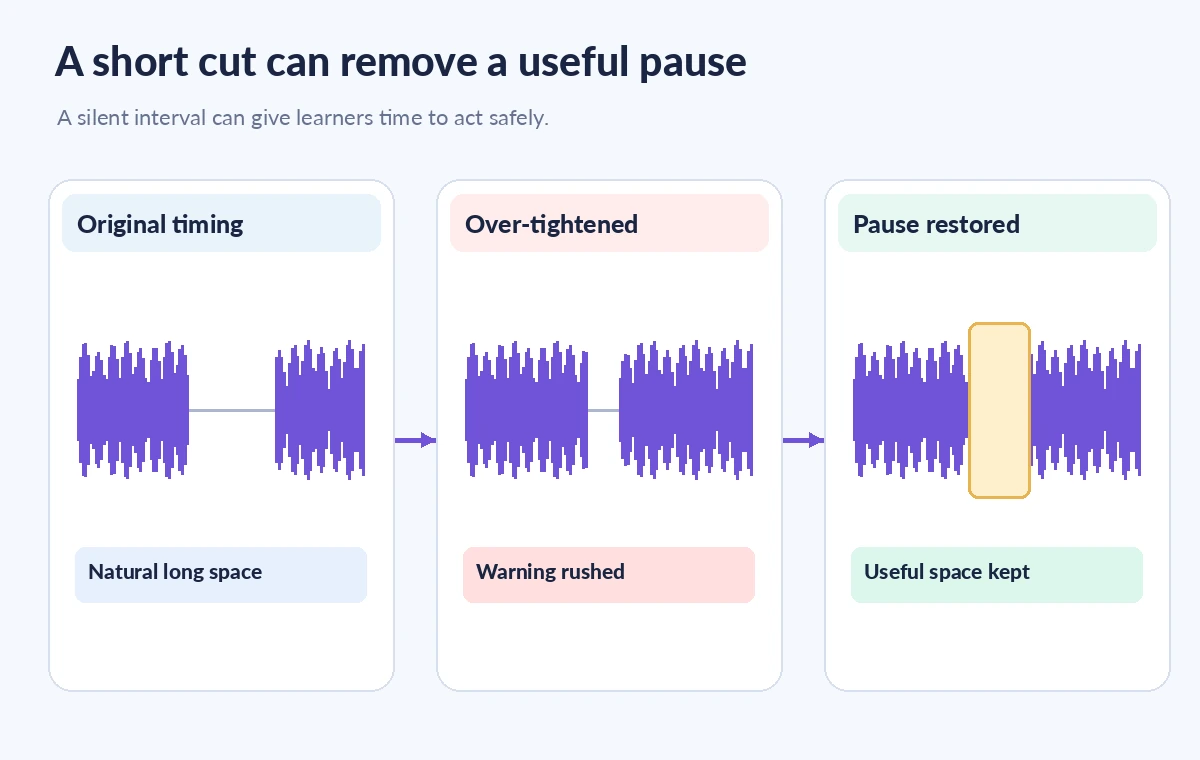
Compare the three stages before accepting bulk edits
Review the untouched waveform, a candidate shortened version and the version with a protected instructional pause restored. Listen for clipped consonants, odd breaths, robotic pacing and places where the next sentence starts before the learner can follow the visual demonstration. A waveform diagram can show spacing conceptually but cannot guarantee perceptual quality. When a warning loses emphasis, undo that gap change or choose a longer target. A tighter segment is only successful if a new listener can still understand the instruction at the intended speed. Keep all three states accessible for a fast A/B check and avoid citing the hypothetical graphic as an actual audio analysis.
Check transitions across captions and screen actions
If the lesson has captions, verify every caption’s appearance against the revised audio; moving narration can expose stale subtitle timing. Look specifically at the words naming physical actions: ‘press,’ ‘wait,’ ‘release’ and ‘stop.’ Where the video shows an operation, the voice should not describe the next operation before the current one is visible. Inspect the end of each numbered step in the video timeline and repeat playback at ordinary speed, not only at scrub speed. Preserve breathing room around safety cautions, visual labels and URLs viewers must read. Removing silence can alter cognitive load even when no speech is cut, so treat accessibility and comprehension as release criteria.
Use targeted edits instead of one irreversible sweep
Descript’s help describes Shorten and Shorten all, as well as preview behavior and more granular editing through the script editor or wordbar. For this training case, use one-at-a-time review around safety language and bulk actions only on a well-defined routine segment, such as introductory small talk. Record which regions were edited automatically. If an unintended jump appears, compare against the untouched reference and restore the specific gap rather than applying another blanket cleanup pass. Keep edits reversible where the project workflow allows. Avoid unnecessary voice regeneration or heavy processing merely to hide a bad transition; such changes may make a recorded instructor sound less like themselves.

Release after a learner-focused quality check
Ask a reviewer unfamiliar with the editing decisions to play the full lesson without looking at the waveform. Can they follow the setup in sequence? Do the words match the demonstration? Are warnings clearly separated from actions? Invite feedback specifically about where the pacing felt rushed or ambiguous. Log corrections and update the final captions and transcript only after the audio version is approved. Keep the original recording, approved script and reviewed output together with dates. Shorten word gaps is valuable for eliminating stalls that distract learners; the final authority on timing is the task’s instructional meaning, not the number of seconds removed.
How We Research
We relied on the official Descript Shorten word gaps guide for panel location, gap filters, Shorten versus Shorten all, previews and AI Credits. This is an editorial workflow based on published documentation, not a demonstration of an editing session or a measured improvement in speech comprehension. Example timings, waveforms and cautions are instructional hypotheticals; actual narration needs human listening review.
Frequently Asked Questions
The documented action reduces pauses between words; still audition edits because timing changes can make speech feel clipped or hurried.
Yes. Descript documents Shorten for individual results and Shorten all for the current result set.
Do not assume so. Mark teaching, warning and demonstration pauses yourself and exclude them from broad edits.
Descript states that it uses AI Credits on current plans; verify your own plan and remaining usage before starting.
Listen at normal speed, check caption timing, confirm demonstrations match spoken steps and restore any missing warning emphasis.