
A workshop presenter records a short webinar in a cluttered office. They use their hands to show how a small part fits together, so a clean-looking virtual background that erases fingertips would make the lesson harder to follow. Descript’s Green Screen effect can isolate a visible person without a physical green screen and place a different background beneath the foreground layer. This hypothetical example uses a fictional recording rather than a live Descript export. The goal is not the most polished backdrop at any cost; it is a readable explanation with intact gestures and honest spatial cues.
Choose footage that the mask can reasonably follow
Review the unedited clip before opening any effect. Prefer one clearly visible presenter, a camera that is not shaking, and separation between skin, clothing and the wall. Motion blur from rapid hand gestures, hair against a similar-colored background and objects crossing the person’s body will challenge automated isolation. Identify the moments where the hands show critical dimensions or point to an object. These become mandatory inspection frames later. If the source has only a tiny on-screen speaker, removing the background may accomplish little; a simple crop or solid side panel could work better.
Preserve a reversible original
Duplicate the sequence or keep a clearly named original take, including its untouched audio. Don’t replace the only copy with a flattened export. Take note of the original frame dimensions, frame rate, caption position and on-screen objects. For a demonstration that shows a tool or tabletop part, decide whether that object is part of the lesson: a person-only cutout may remove it along with the background. Film or edit in a way that keeps the essential prop on its own track when possible. Reversibility lets the editor back out of a misleading or ugly mask instead of hiding the defect in a busy design.
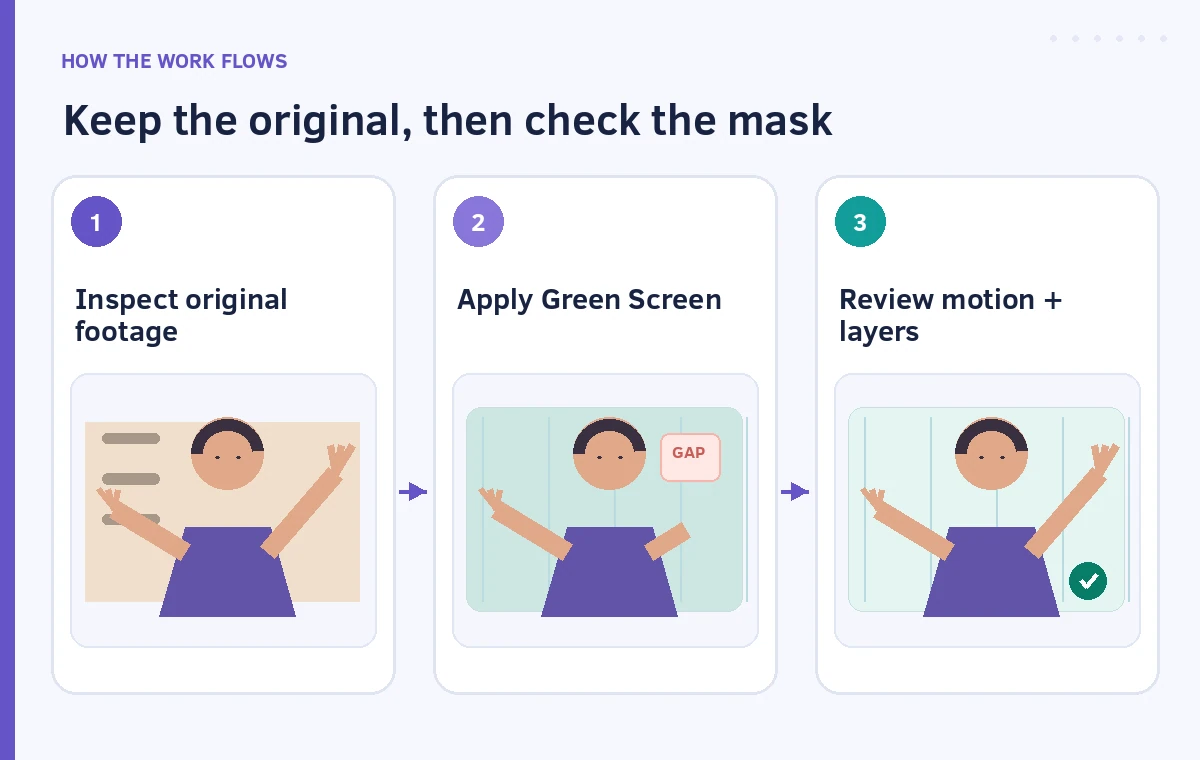
Apply Green Screen to the correct layer
Descript’s official guidance says to select the video layer, then use Effects and the Green Screen option. It automatically detects the subject and removes the background; an internet connection is needed for the AI processing. This is different from Chroma Key, which is intended for a colored physical screen or flat background. Make sure the subject clip, not a full-screen title card, is selected. Wait for processing to complete before judging an incomplete frame. Toggle the effect off and on to compare the exact silhouette, particularly around the speaker’s moving wrists and fingers.
Put a purposeful background behind the presenter
Use a calm solid color, subtle gradient or relevant neutral room image. Descript allows images, video and GIF layers behind the Green Screen subject. Arrange the replacement behind the presenter and keep captions, diagram labels and pointers in appropriate foreground layers. Check that the backdrop does not make the scene seem to be at a different real location when authenticity matters. A fictional workshop branding panel is often preferable to an office photograph that could imply sponsorship or attendance. Avoid high-contrast patterns directly behind moving hair and do not use the background to conceal missing parts of the silhouette.

Examine the high-motion failure cases
Scrub or play through a purposely selected review set: hand up, fingers spread, hand crossing the torso, hair moving, the presenter leaning away and an object held near the face. Look for missing fingertips, double edges, floating sleeves or background bleeding through an arm. Compare the same timestamps with the original effect disabled. Freeze frames are useful for diagnosing a defect, but playback matters because shimmering edges may not show in a single image. Keep a simple shot-time log rather than asserting that every generated frame was individually inspected. If a gesture becomes unreadable, choose an unmodified insert or a tighter alternative shot.
Check captions, slides and visible context
The new background should make the instructional content clearer, not bury captions or product labels. Use readable contrast and keep a consistent safe area for title text, subtitles and lower thirds. A presenter may point to a physical whiteboard: deleting the board while preserving the pointing gesture can be misleading. Consider an inset of the real whiteboard, a close-up of the part or a cut back to the original frame for that segment. Confirm that labels have not shifted or become detached after reframing. Quality control must include the meaning of the scene as well as pixel edges.
Use a practical fallback instead of pushing the model
When Green Screen makes a critical hand disappear, a neutral rectangular video window can be a better editorial choice. Another option is splitting the sequence: keep the unmodified camera view for prop demonstrations and apply background replacement only to direct-to-camera introductions. You can also choose a less complicated foreground or trim a short irreparable region if doing so does not alter the instruction. Do not fabricate missing finger detail, claim the tool reconstructed it, or use a different gesture to imply an action that was not performed. The viewer should still recognize the original movement.

Export and compare the finished teaching clip
Check the output at normal playback size and on the kind of screen learners will use. Review silhouette stability, caption legibility, audio sync, crop, color and the moment any graphic overlaps a gesture. Keep the original recording and a short list of editorial changes. Ask a reviewer unfamiliar with the footage whether they can understand the hand demonstration without watching the raw source; then verify the demonstration against the source itself. Neither a successful-looking render nor a clean still proves every frame is good. This method is a proposed production checklist, not a measurement of Descript’s detection accuracy.
How We Research
We used Descript’s official background removal guide and Green Screen workflow for effect placement, supported layer types, non-destructive toggling and online AI processing. The webinar footage, mask failures and illustrated frames were constructed as teaching examples; we did not run a Green Screen render or measure accuracy. Product UI and plan restrictions can change, so confirm these in the current editor.
Frequently Asked Questions
No. It is an AI subject-isolation effect. Descript distinguishes it from Chroma Key, which is used with a physical colored background.
Do not assume it will. Inspect the specific prop and consider a separate camera insert or the original scene for essential demonstrations.
Fast motion, blur and similar foreground-background colors can make subject boundaries ambiguous. Verify in motion against the raw clip.
Descript documents non-destructive Green Screen toggling. Preserve the original project or footage as an additional safeguard.
Play critical gestures, examine hair edges, review the backdrop and captions, and compare suspect timestamps to the unmodified video.