
A volunteer coordinator records a quick welcome message in a crowded storage room. A bright poster behind the speaker competes with instructions, so the team wants a quiet background for the training portal. Descript Green Screen can isolate the person from the original video and replace the setting without a physical green screen. That does not make every frame trustworthy: fast-moving hands, loose hair, translucent glasses, and a safety poster may create bad edges or remove important context. This guide uses a hypothetical welcome video to show how to plan, check, and disclose a background replacement rather than treating an AI effect as flawless footage.
Decide whether the background should be replaced
Look at the recording with the team before editing it. A poster showing an evacuation route or a location-specific safety sign is not disposable decoration when its presence explains the procedure. If the room itself matters, retain the authentic scene or move the presenter and film again. If only visual distraction is the problem, choose a neutral approved background that does not suggest the presenter stood in a different facility. Record whether the video is a greeting, a formal instruction, or an evidence record. The last category may prohibit visual manipulation entirely. Preserve a copy of the untouched footage for internal verification.
Prepare a clip that gives the segmentation a chance
Descript recommends a clearly visible person and good contrast from the background. Pick a segment with adequate light, a steady camera, and limited motion blur; no AI cutout can reconstruct fingers that are invisible in the source. Keep the presenter within the frame during all gestures, and do not crop hands tightly simply to conceal weak edges. If possible, use a still backdrop behind the presenter at recording time. Ask the speaker for consent to the intended edit and review the privacy of other people visible in the original, especially if their faces may remain near the edge of the cutout.

Apply Green Screen to the correct video layer
Start a Descript project, add the clip, and select its video layer. Descript documents finding Green Screen under Effects or the layer properties. Activate the effect and let the service process the subject. The vendor notes that the AI operation needs an internet connection. Inspect the result before choosing a replacement: if part of a shoulder disappears, switching to a fancy background will not fix the mask. Keep an untouched duplicate of the clip or a version history marker so you can compare the effect fairly. Interfaces can move, so use the effect name rather than memorizing an old screenshot.
Choose a background that supports the message
A soft solid color or approved room illustration is often better than a dramatic virtual office. Match the brightness and camera angle to the presenter so the subject does not look pasted onto an unrelated scene. Avoid replacing a recognizable workplace with a seemingly real location that implies an event took place there. If the video describes a specific physical route, show an approved facility diagram as a separate labeled graphic rather than staging the person in front of fabricated architecture. Make sure the new background does not cover gesture direction or create a misleading association with a sponsor or institution.
Scrub every moment with moving hands
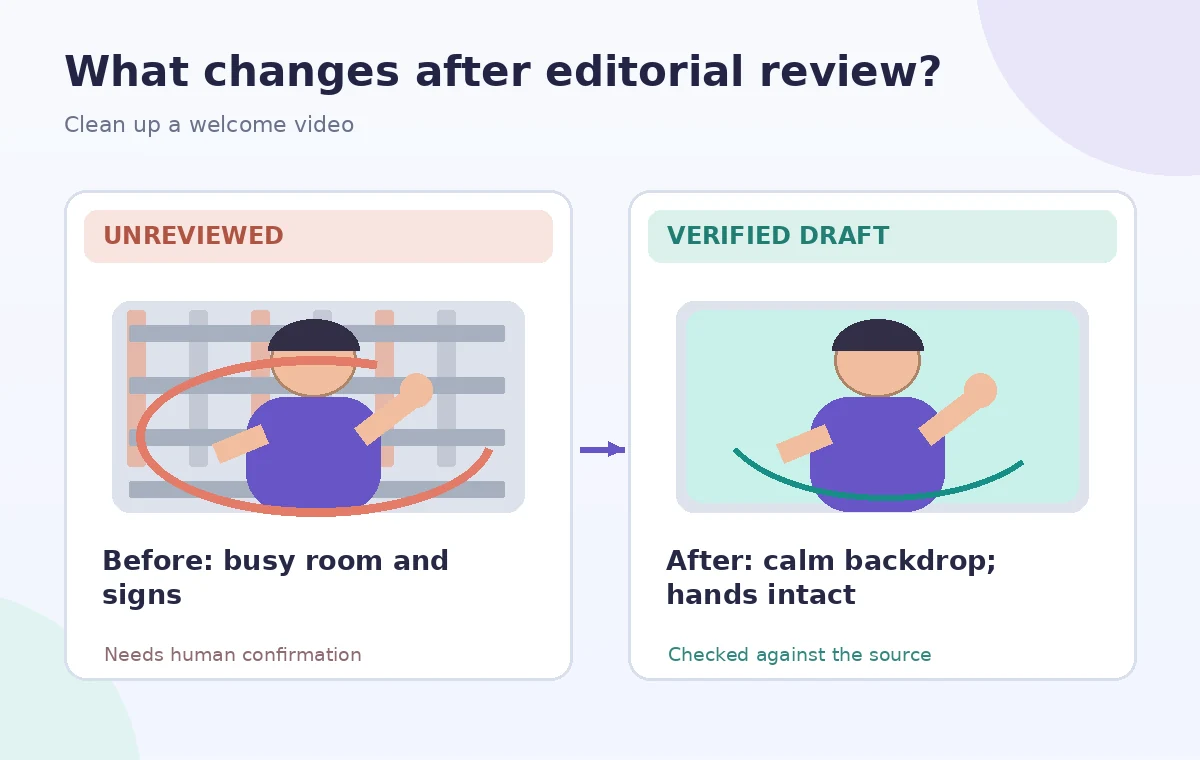
Hands are important to a welcome video that demonstrates where to find a name badge or how to ask for help. Move frame by frame through the gesture: a fingertip can vanish, a hand can become transparent, or part of the original room may reappear between fingers. Check wrists, hair flyaways, collars, eyeglass frames, and the edge of any object the presenter holds. The right correction might be a simpler background, a shorter edited shot, or returning to the original footage. Never redraw a hand with a diagram and present it as unmodified reality. The viewer needs the actual gesture to remain understandable.
Preserve the presentation’s timing and sound
Background removal affects pixels, not the content or accuracy of the spoken welcome. After applying the effect, play the entire clip with audio to catch synchronization problems introduced elsewhere in editing. If you change the cut length, check title timing and any captions separately. An abrupt background switch at a cut can feel like a continuity error; a single consistent treatment across the relevant segment is easier to follow. Do not use the effect as a substitute for removing sensitive speech or personally identifying content. Those require content decisions, consent, and direct review of the audio track.
Test the replacement in the destination layout
A backdrop that looks clean in an editor preview may reveal halos after compression, particularly around hair against a dark color. Export a sample at the planned resolution, view it on mobile and the actual training screen, and pause around the fastest movement. Check contrast between the presenter and background as well as text readability. If the team uses a picture-in-picture layout, verify that the subject is not cut by the smaller frame. Keep the original clip accessible to the internal reviewer so the change can be judged against the source rather than only against the polished result.
Explain the change without overstating the tool
For a welcome video, a simple production note can say that the background was edited for clarity. Avoid claims that Descript guarantees clean edge detection, preserves every object, or proves a workplace location. The vendor documents the removal effect but does not certify the specific hands, props, or hair in your footage. A human editor must decide whether every gesture remains legible. If an edited frame could affect safety interpretation or trust, use the real scene and improve the recording in other ways instead. Save the project settings and source rights documentation.

Archive an approved and reversible version
Keep the untouched source, the editor project, the chosen background asset with its rights information, and the final video in a dated folder. Ask both the presenter and the training owner to approve the specific export. Note any source segments that could not be cleaned without harming a gesture, and do not hide them from the approver. The sample scene and visual comparisons in this article are conceptual demonstrations; we did not submit footage to Descript, measure segmentation quality, or create a verified before-and-after test. Product controls should be checked again if the vendor changes its interface.
How We Research
This guide is grounded in first-party product documentation: Descript — Green Screen Video Editor. We checked the vendor’s named capability, interface guidance and eligibility notes as described in its official help material, and constructed a separate fictional teaching example to show where editing judgment is needed. The checklists and drawings are conceptual editorial illustrations, not screenshots or outcomes from a live user account. We did not operate this service, process private customer content, measure AI quality, or certify the example’s safety or accuracy. Our source review checked the named Green Screen layer effect, AI isolation, and internet requirement. The editorial protocol emphasizes moving fingers, hair boundaries, contextual authenticity, and how a replacement background appears after export. Because interfaces, plan entitlements and rules can change, reconfirm availability with the vendor and obtain appropriate subject-matter approval before using the workflow for real people.
Frequently Asked Questions
No. Descript describes AI subject isolation without a physical chroma screen. A well-lit, clearly separated subject still improves the editability of source footage.
An AI segmentation mask may confuse fast motion, blur, or low contrast with the background. Check frames individually and retain the original where needed.
Only use images you have permission to use and that do not misrepresent the location or imply an endorsement.
No. Background replacement is a visual operation. Review and edit audio and transcripts separately.
Yes. Have the presenter and content owner review the exact export, particularly if setting changes may influence perceived context.