
A reaction shot can end a fraction too early for the next cut. Adobe Premiere’s Generative Extend is designed to add a brief continuation to a supported clip, offering an editorial option when original frames run out. Consider a fictional interview scene in which a guest listens, smiles, and turns slightly toward the host. The editor wants one extra beat before cutting back. The drawings here are storyboard plans, not frames generated by Adobe. They explain where the artificial continuation begins and why a convincing face or motion seam needs review. Crucially, this feature does not invent or prolong spoken dialogue.
Identify the missing beat on the timeline
Find the exact cut that feels rushed and ask whether moving the edit point or borrowing existing source handles solves it without AI. A reaction shot should support a real emotion in the conversation; the viewer must not be tricked into believing a person reacted in a way they never did. For documentary or sensitive interviews, the appropriate answer may be a different cut or an accurate on-screen transition. Our hypothetical clip shows a listener leaning gently toward the host, with a small planned extension after the last original frame. Mark the true last source frame in the working timeline. That boundary matters more than making the shot feel uninterrupted.
Check clip eligibility before you extend
Adobe says Generative Extend is a cloud-based tool and documents restrictions on resolution, frame rate, color handling and certain clip operations. The current guide lists supported source resolutions from 360p up to 4K UHD; extended video generated above 30 frames per second is produced at 30 fps, and HDR sources can yield SDR extensions. Check the precise project requirements rather than assuming a high-end camera file will maintain every original property. Adobe’s step-by-step guide requires video clips at least two seconds long. Save a sequence version with the untouched clip and check the account’s actual feature access and credit usage before starting.

Extend only the needed edge
Select the Generative Extend tool from Premiere’s toolbar, identify the beginning or end of the target clip, and drag the edge to add the short missing time. Adobe currently documents up to two additional seconds for video, although a transition might need much less. The generated region is identified as AI content in the sequence. The process illustration distinguishes original filmstrip frames from a short generated tail and points to the boundary that deserves inspection. Do not show the diagram as a tested result; a real rendition can vary. Generative Extend supports one side of a clip at a time, with further workarounds documented for more complex edits.
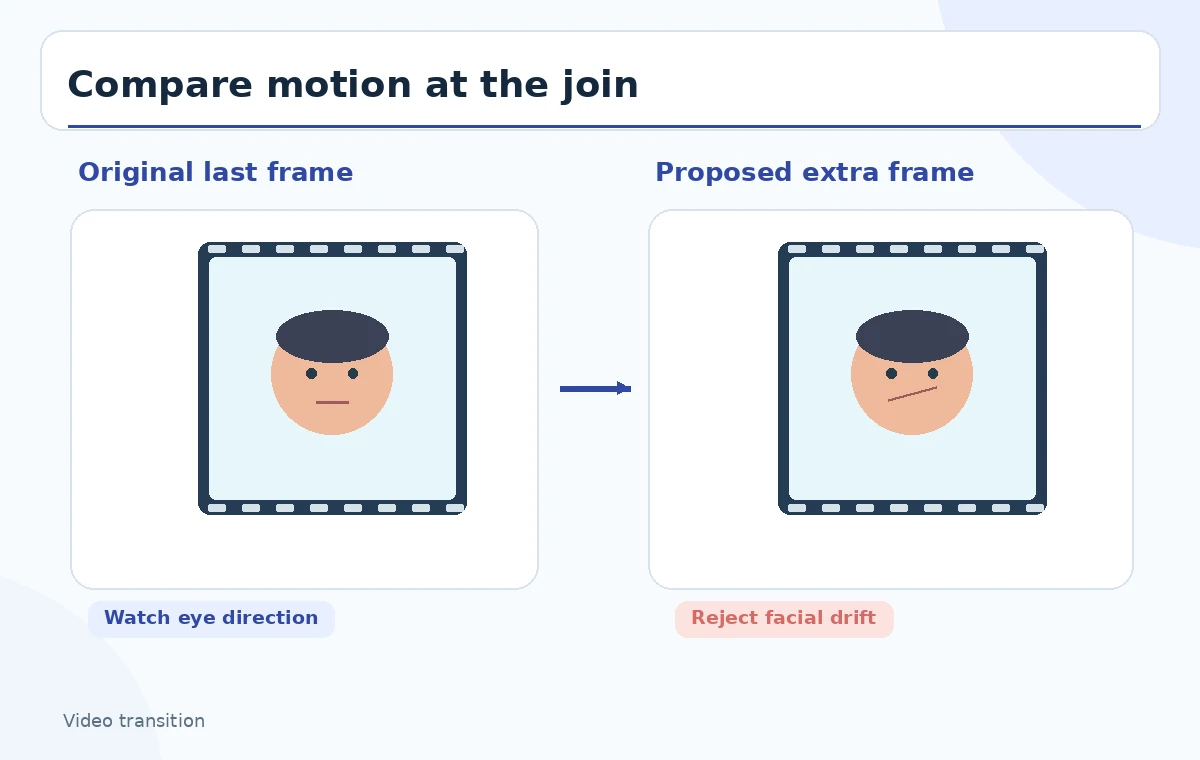
Judge motion and identity across the seam
View several frames before and after the original-to-generated boundary, preferably at full resolution and at normal speed. Check eye direction, blink behavior, lip shape, jaw contour, earrings, glasses and shoulder position. Also inspect the background: repeated light shapes or a shifting doorframe can be more distracting than face movement. A quick timeline preview can conceal a one-frame jump. Pause on the exact seam, play through at normal speed, then view the same cut in the context of the sentence preceding it. The comparison diagram contrasts a plausible continuation with visible continuity risks; it illustrates what to look for, not an achieved output quality.
Keep dialogue and music outside the promise
Adobe states that Generative Extend cannot create or extend spoken dialogue; dialogue is muted during an extension. It also lists music-containing clips as ineligible for audio extension. If the reaction shot overlaps the host speaking, preserve authentic production dialogue on the appropriate audio track and avoid treating generated ambience as a substitute. The program can extend supported room tone or background audio under documented conditions, but the result still requires listening for pumping, discontinuity and room changes. The shot is a visual breathing space, not a way to fabricate a new utterance. Keep a traceable copy of the original dialogue timing.
Account for post-production limitations
Some downstream actions are restricted for extended clips. Adobe lists Speech to Text and text-based editing limitations for the generated portion, plus issues with media search indexing, timecode and markers. Speed changes and time remapping need special handling; multicam clips may need flattening first. If you are delivering an interchange project, check compatibility early rather than discovering it on deadline. Label the generated segment in the handoff and retain the unextended source. The feature can save an editorial beat, but it changes the media-processing characteristics of the timeline. A reproducible project includes the generated asset and an alternate non-AI edit.
Compare alternative cuts fairly
Build an A/B review with a standard cut, a slightly longer original handle if it exists, and the proposed generated tail. Ask whether the extra beat improves understanding or just slows the scene. A dissolve, a natural pause from another camera, or a static illustrative insert may be more honest and simpler than synthetic frames. Do not call the extension ‘seamless’ until an editor inspects the real render. In the image, frame rectangles show where an unrealistic expression or drifting background would trigger rejection. No render times, frame-quality metrics or audience response are presented, because we have not produced a video here.

Review in the actual delivery format
An edit that appears acceptable on a large desktop preview may reveal motion jitter after export, frame conversion or compression. Play the final file on the intended device and inspect both the transition and the subject’s expression. If the deliverable is a factual report, compare the synthetic reaction against the recording and publication standards; a manufactured reaction can mislead even when its animation looks good. Document how many frames were synthesized in the actual project, if any, and whether disclosure is required by the commissioning organization. The review checklist focuses on the eyes, hair edge, background reference line and audio continuity at the seam.
Retain edit provenance and an easy rollback
Adobe identifies AI-generated sections and documents a Revert to Original control, though it can be unavailable in certain situations. Keep an untouched sequence and the source media so that an editor can reconstruct the original cut without depending on a single generated asset. Confirm who may approve synthetic content and whether the subject has agreed to the relevant use. Export the intended version and listen to its audio without multitasking. It is safer to accept a slightly abrupt authentic cut than to introduce a false emotional response. This tutorial offers a review method, not proof that a particular AI continuation was created or authorized.
How We Research
We reviewed Adobe’s Generative Extend overview, its step-by-step instructions, and its known issues. These sources support the described feature limits and workflow as documented, not any specific outcome. We did not run Premiere, submit footage to Adobe, purchase credits or measure AI-generated frame quality. The filmstrip drawings are explicitly conceptual.
Frequently Asked Questions
No. Adobe states that spoken dialogue is not extended; do not use the tool to invent an interviewee’s words.
Adobe documents up to two seconds of video extension in the current workflow. Check the installed release and clip eligibility.
Not necessarily. Adobe documents generated-video conversions, including SDR output and a 30 fps generation ceiling for sources above 30 fps.
Reject or regenerate the result, try a different edit, or return to the original footage. Inspect eyes, facial edges and background geometry.
Only with appropriate editorial standards, subject permissions and disclosure where required. Real reactions must not be misrepresented.