
Turning a wide campaign photograph into a tall story can mean losing the subject, stretching faces, or inventing an unhelpful background. Adobe Express Generative Expand offers another option: extend the edges with generated visual content. This guide follows one fictional coffee-shop photo across a square feed post and a vertical story. Its useful output is a two-format approval sheet, not a promise that AI-generated details are real. The workflow uses Adobe’s documented Expand image feature, with separate checks for composition, credits, and claims made by the artwork.
Decide what must remain true across sizes
Start with a master image and a nonnegotiable subject list. In the coffee-shop example, the cup label, barista’s hand and original beverage must remain unchanged. Safe expansion space includes a neutral counter or an out-of-focus wall; an invented second product or new sign would change the claim. Define a 1:1 feed layout and a 9:16 story layout before generating anything. Keep the original crop as a reference, because visual similarity alone will not reveal every subtle alteration.
Mark a protected subject box on the original and reserve a separate region for text. If the target aspect ratio cannot make space without inventing sensitive details, choose a conventional crop or redesign. A stretched photo is not acceptable, but neither is a convincing expansion that quietly redraws the product being advertised.
Use the documented Expand image controls
Adobe’s Expand images instructions describe opening an image, selecting Edit page and Resize, enabling Expand image, choosing a size, and then reviewing generated results. Adobe says the image must span the page’s full width or height; the feature applies to the current page rather than multiple pages at once. If you need several formats, use Duplicate & Resize where appropriate so the original design is not overwritten.
The same official guidance calls Expand image a premium feature that consumes one generative credit. Do not infer a particular monthly credit allowance from that statement: allowances and plans can change. Before a multi-format campaign, check the account’s available features and estimated number of generation attempts.
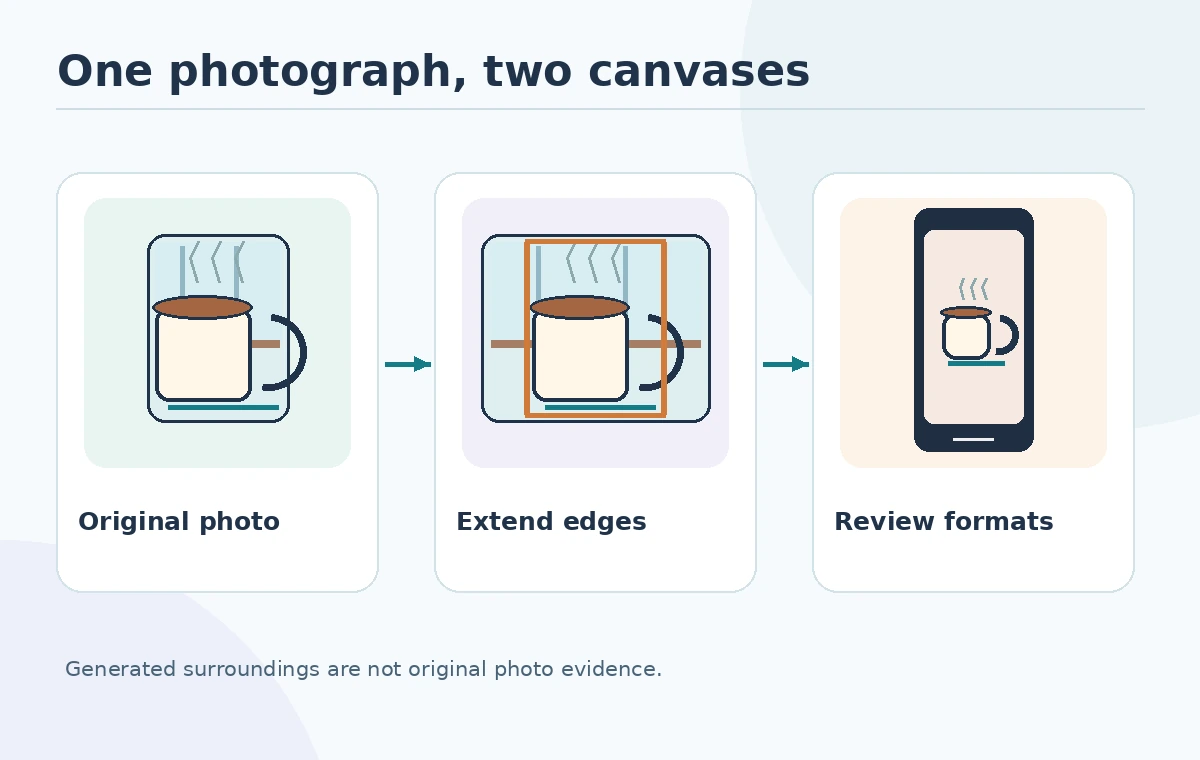
Compare the original photo with the expanded edges
For the fictional coffee cup, place the wide original and the vertical result side by side, aligned at the cup rim. Inspect the boundary where source pixels meet generated space. Look for duplicated handles, inconsistent counter lines, misplaced shadows, impossible reflections or unexpected typography. These are visual review criteria, not claims that every output has these errors. Do not let generated steam cover a compliance disclaimer.
Use a three-zone overlay: source photograph in the center, generated extension outside it, and the protected text-safe area. It makes reviewers ask the right question: which pixels carry evidence and which are synthetic filler? Save a rejected variant with a brief reason rather than running endless generations until the design merely feels attractive.
Keep typography and calls to action in editable layers
Place headline, price, date, legal text and the actual call to action as separate editable text objects after expansion. Do not ask the image generator to invent a brand slogan embedded in a wall or product label. Check spelling, line breaks and mobile-safe placement inside each target canvas. A story needs generous clearance at the top and bottom for app interface elements; this is an editorial layout precaution, not a fixed universal pixel specification.
Have a reviewer read the promotional claim aloud while looking at the image. An AI-added café window can convey ambience, but an AI-added award badge or a second cup could make an unsupported claim. If generated content appears to change what is for sale, switch to a plain color background or a narrower crop.

Build a two-format acceptance table
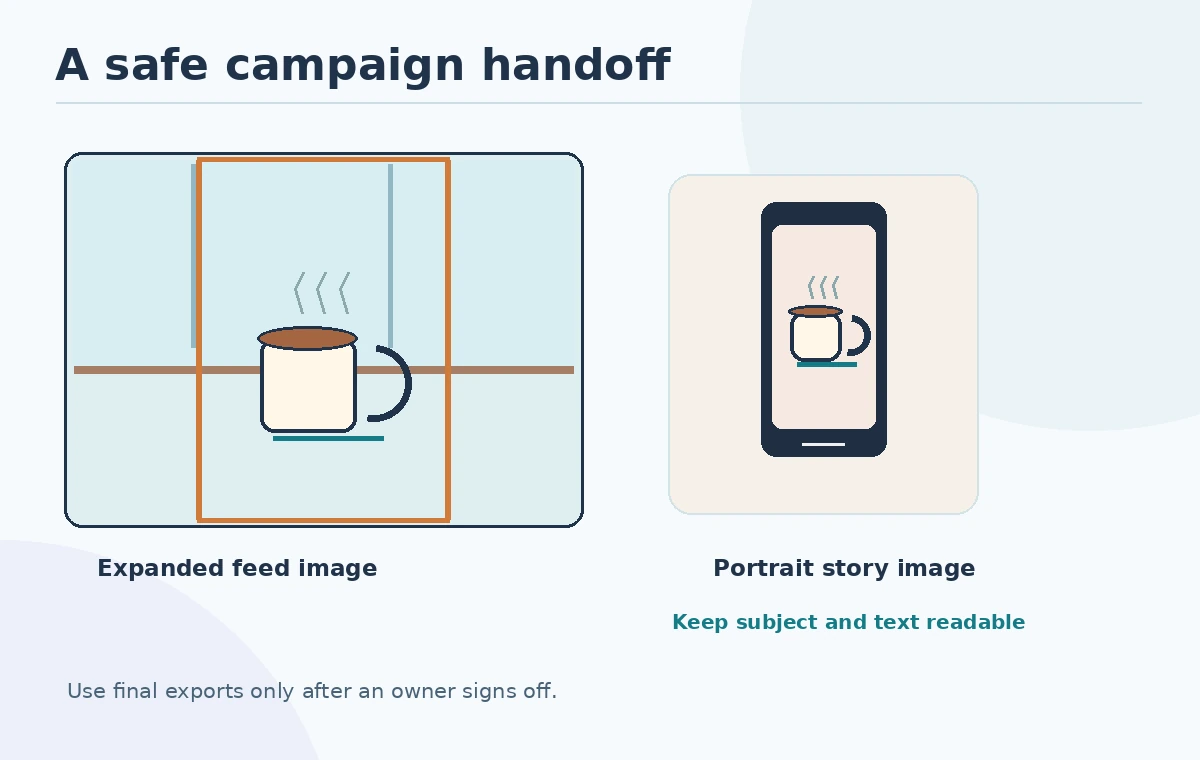
Create a small handoff table with columns for file name, intended channel, aspect ratio, protected object, generated regions, text reviewed and owner approval. For example: square feed post—cup verified—right wall synthetic—caption checked; vertical story—cup verified—upper and lower wall synthetic—button area clear. The table is an internal example, not a tested performance comparison.
Review each output at the size it will actually be viewed. Inspect thumbnails to catch a lost focal point, then open at full size to inspect seams. Compare the two designs together: the color mood and product identity should remain consistent even though their negative space differs.
Budget attempts without assuming image quality
Count an attempt as a generated result request, not as a finished social asset. Two formats may require multiple attempts and manual cleanups. Since Adobe explicitly states that Expand image uses a generative credit, record credits consumed alongside rejected designs. If the account has insufficient access, a standard crop or carefully constructed background can be more predictable and inexpensive.
Do not claim a return on investment based on a fictional campaign. A useful log records source ID, intended crop, candidate number, defect, decision and reviewer. That creates a repeatable quality gate and makes it clear why a slightly less dramatic image was selected for publication.
Export only approved formats and preserve provenance
Save the untouched source, the editable Express project, approved versions and an approval record. Check compression, text contrast and whether the export has accidentally clipped a legal line. Make sure the expanded background does not suggest nonexistent physical features in an actual product image. If the content needs AI disclosure under the distributor’s rules, review those rules separately from Adobe’s feature documentation.
The strongest deliverable is an image pair with a clear boundary between factual subject pixels and generated surroundings. If reviewers cannot tell which details can be trusted, simplify the visual. This is particularly important for products, before-and-after imagery and scenes presented as documentary photography.
How We Research
We consulted Adobe’s official Expand image guide on October 27, 2026, including its current-page, image-coverage and credit notes. The coffee-shop layouts, source-zone overlay and handoff table are proposed editorial procedures, not tests of Adobe Express or a statement about an account’s credit balance.
Frequently Asked Questions
No. Adobe describes generating new surrounding content to fill added space. You must still inspect whether the new content fits the scene.
Adobe says Expand image applies to the current page and not multiple pages at once; handle each needed layout individually.
Adobe describes it as a premium feature and says it uses one generative credit. Check your own plan and current allowance.
Keep prices and other consequential text as editable design layers so they can be reviewed, changed and localized accurately.
Keep the original photograph, generated candidates, final exports and a note identifying synthetic regions and the reviewer.