
A customer-support trainer needs a short software walkthrough showing how to export a sample expense report. The live application contains private client names in the navigation sidebar, so a direct capture could expose data unrelated to the lesson. Synthesia AI Screen Recorder can record a browser tab, blur selected areas, transcribe narration and convert the material into editable scenes. The ability to blur must not be confused with guaranteed privacy: the wrong capture mode or a new pop-up can still reveal data. This workflow creates a safe dummy environment, plans privacy zones and checks the finished tutorial before it can be shared. All interface drawings are fictional examples.
Create safe demo data before opening the recorder
Use a staging account populated with obviously fictional entries such as Sample Client A and Demo Invoice 04. Replace real personal identifiers, payment details and access keys before recording starts. Make a list of UI elements that may show sensitive data: navigation, browser tabs, notifications, search results and downloadable files. Close unrelated windows and disable notifications. Do not rely solely on blur to make an unsafe production account publishable. If confidential information does appear, omit the affected segment or create a fresh capture. An AI-assisted editor cannot retroactively prove that no private content escaped into intermediate assets or exported files.
Choose the documented recording mode and extension
Synthesia’s AI Screen Recorder help article explains extension installation for Chrome and Edge. Within a video, choose Record, then Record Screen, select the capture scope and microphone option, and start recording. The guide also supports uploading an MP4 screen recording for processing. For the privacy-sensitive demonstration, choose a specific browser tab rather than an entire desktop or app window. Confirm which tab the platform is allowed to capture. Avoid enabling the microphone when narration will be generated from an approved script later; if live narration is required, choose the appropriate input and rehearse the exact steps. Check the user interface in your workspace rather than assuming every account offers identical controls.
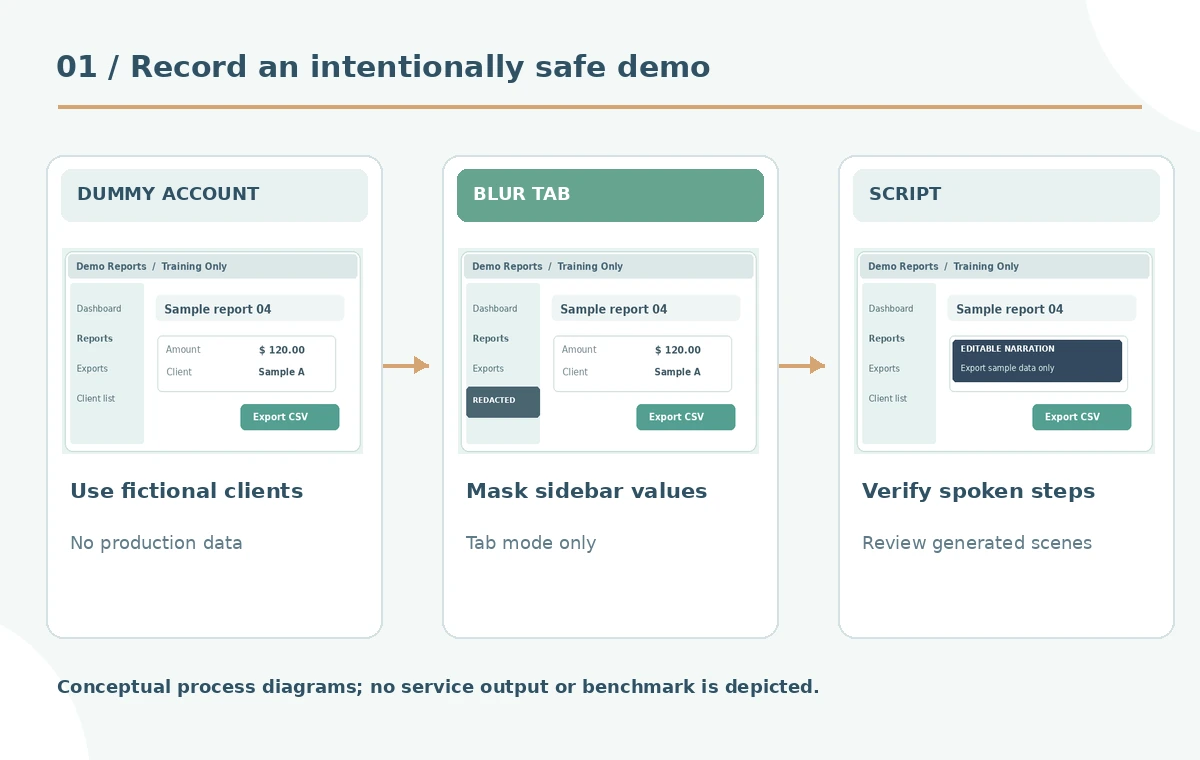
Apply blur before sensitive panels enter the frame
The official guide says Synthesia’s blur function works when recording a browser tab, not full-screen or window capture. Set persistent blur areas before the recording begins, using the extension’s Blur control to mark sidebar fields or identifying elements. During the recording, the toolbar can pause while additional blur regions are added. This is a crucial limitation: a tutorial captured in the wrong mode cannot rely on those controls. A changing table, autocomplete list or modal may display personal data outside the original blur rectangle. Prefer dummy data and retakes to piling many patches over a confidential session. Keep a preflight screenshot of the chosen capture area for review.
Record one short, deliberate workflow rather than everything
For the sample export lesson, show only three tasks: open a demo report, choose CSV export and confirm the saved filename. Avoid exploring unrelated tabs or searching through customer accounts. Use slow, purposeful cursor movement and pause briefly before each menu action to help viewers follow the sequence. Synthesia documents a three-second countdown after recording starts and creates a new scene when recording ends. Keep the browser maximized where practical; the help article notes that no manual resolution setting is offered for the recorder, so a tiny window can look blurry. A two-minute clean capture is often more teachable than an overlong wandering demonstration.
Review how the voiceover becomes editable scenes
If live microphone narration was recorded, Synthesia can transcribe it into an editable script and create scene divisions. The guide describes removal of filler words and automatic scene splitting for longer uploads, including recordings over five minutes. Do not assume the transcript is verbatim or retains every hesitation and warning. In the sample task, the sentence “Only export the demo report, not actual customer records” is a critical instruction. Compare generated script text against the spoken source and restore any missing negation or qualifier. The diagram’s three scenes are a suggested review structure, not an observed result from Synthesia. Keep the approved version of the script separately.
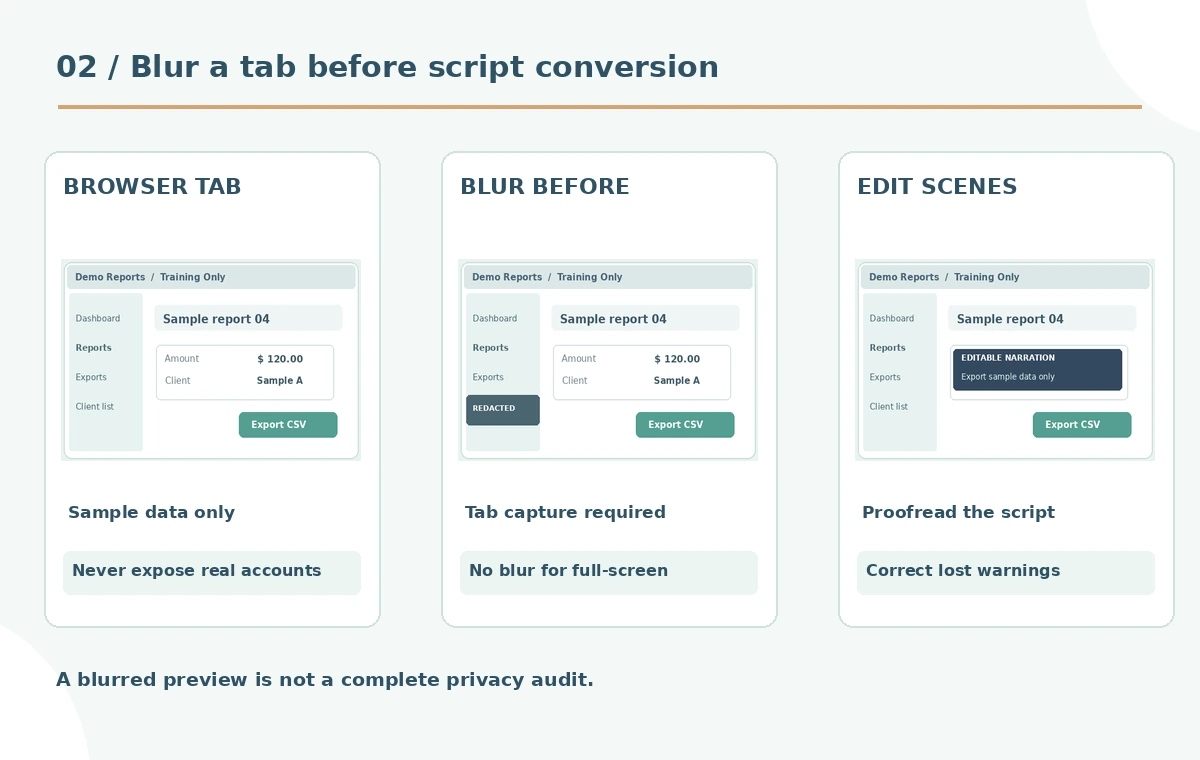
Inspect blur and captions after scene generation
When the recording is transformed into scenes, inspect every thumbnail, source frame and animated transition. Confirm sensitive text remains obscured when the page scrolls, browser zoom changes, or a modal opens. Be especially careful with downloadable file names and URLs exposed at the top of the browser. If a blur region fails, do not merely hide the problem behind a caption; regenerate or replace the affected capture. Check subtitles for incorrect menu labels or altered export instructions. An auto-generated avatar narration is not proof the software currently behaves exactly like the demo, so date the walkthrough and recheck the actual app when publishing.
Check platform upload limits and fallback options
The official Synthesia article documents MP4 upload with a maximum of 500 MB and a 30-minute recording limit. It also describes a local recording download option if processing fails. These are operational constraints, not a suggestion to publish a long source file unchanged. Store the raw capture only in the approved project location, applying the organization’s data-retention policy. If the recording contains material that should never have been captured, remove it from working copies and redo the tutorial with dummy data. No automated conversion should be treated as a substitute for access controls or proper deletion procedures, which vary by organization and product.

Perform a privacy and task-success release test
Have a reviewer unfamiliar with the task follow the final tutorial without editorial help. Can they locate the correct menu, export only a demo CSV, and recognize the confirmation state? Then conduct a frame-by-frame privacy audit: check the first and last frames, sidebars, pop-ups, narration, captions and file names. Look for personal information repeated in synthetic avatar speech or extracted script text even when blurred on screen. Record the reviewer, version, simulated demo environment, supported app release and outstanding uncertainties. The safest outcome is a concise, clear walkthrough containing no real private records, rather than a dramatic AI-generated presentation whose capture cannot be audited.
How We Research
We reviewed Synthesia’s current AI Screen Recorder knowledge-base instructions on October 28, 2026, including browser-tab-only blur, generated scenes and MP4 upload limits. We did not install the extension, capture an account, or process a tutorial. All privacy panels, CSV exports and scene cards are original conceptual illustrations, not test results.
Frequently Asked Questions
Its help article says Blur works for browser-tab recording, not Full Screen or Window modes.
Synthesia documents transcription into a script and scene creation after processing a recording.
The guide describes downloading the recording locally as a fallback so it can be uploaded or edited later.
The help article lists MP4 uploads of at most 500 MB and at most 30 minutes.
Not automatically. Prefer synthetic demo data, review every exported frame and ensure captions and narration reveal no private values.