
A shelter wants a calmer presentation of a fictional dog’s adoption video, but the recording includes a busy gate behind the animal. A generated alternative background may help focus attention while also creating serious risks: missing paws, fuzzy ears, and a false impression of the environment. Runway’s Video Backdrop is an updated option to explore for this kind of task. Runway retired its old standalone Remove Background tool in April 2026, so instructions based on the old AI Magic menu would be misleading. This tutorial uses a drawn demonstration rather than a real generated clip or a real adoption listing.
Decide whether a replacement background is appropriate
Start with a straightforward editorial question: does the busy environment actually distract viewers from the dog, or does it provide useful truthful context? An adoption organization should not hide visible injuries, exaggerate the size of a room or create the appearance of a setting the dog has never visited. Ask the adoption coordinator to approve what must remain visible: the dog’s markings, full outline, harness, posture and expression. Keep the unedited footage available for legitimate reviewers. If the original clip conveys a real safety or welfare fact, choose modest cropping or color correction instead of a generated background. The goal is legibility, not changing what the animal is.
Use the current Runway entry point, not old tutorials
Runway’s August 2026 deprecation page lists the old Remove Background tool as retired on April 10 and points users to the Video Backdrop app. An older article describing the standalone AI Magic menu is therefore unsuitable as a step-by-step guide today. Open the current Apps experience, locate Video Backdrop if available to your account, and inspect the on-screen inputs and credit estimate before proceeding. Runway also documents Video Backdrop among eligible Explore Mode tools for certain legacy Unlimited subscriptions, but plan entitlements and credit behavior change. Do not promise a free render, an exact supported duration or specific controls without checking the workspace interface.
Prepare a clean input with a clear subject
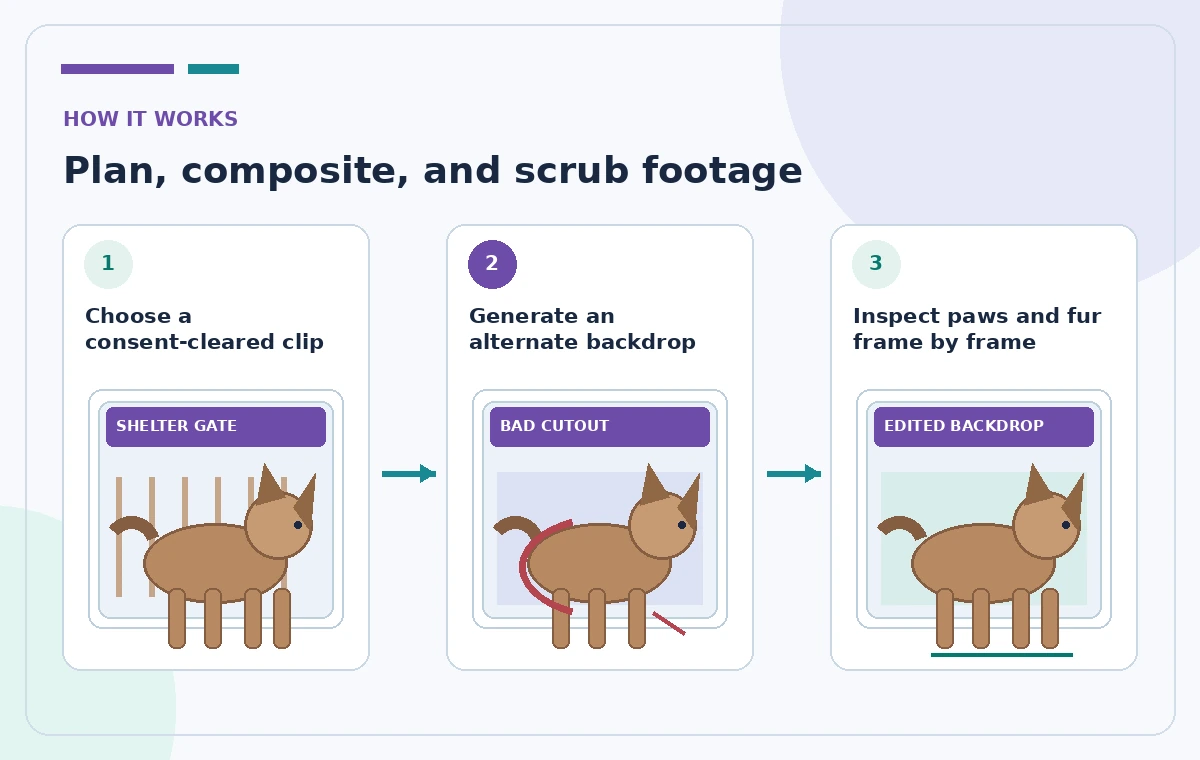
Select a clip where the dog is visible, the camera movement is moderate and no other animal repeatedly crosses the subject. Verify the photographer’s permission and the shelter’s authorization to use the footage. If a person appears, confirm whether consent and privacy requirements permit processing or publication. Export an approved original and note its dimensions, frame rate and duration so changes can be compared fairly. Avoid footage with extreme blur or a leash repeatedly crossing the paws if the background operation would be likely to merge those fine edges. A better source reduces misleading defects more reliably than a complicated prompt.
Describe the backdrop without inventing a real location
Use a neutral proposed background such as a simple, softly lit studio wall, not a luxury home or named public park. Avoid statements that imply the dog lives in the generated space. If the app offers creative guidance, keep it limited to the environment; do not ask it to change breed characteristics, coat length, color or age. Save a brief record of the requested treatment. Never treat an AI-generated floor as proof of the shelter’s actual facilities. The output remains an edited promotional asset, and a transparent caption may be needed so prospective adopters can distinguish illustrative setting from documentary footage.
Check edges over time, not in one pretty frame
Look at the original and candidate output side by side and scrub slowly through the entire clip. Stop when the animal turns its head, lifts a paw, shakes its tail or passes in front of the old gate. Watch for inconsistent fur detail, a foot disappearing, transparent ears, artificial halos, a leash that breaks into two pieces and a shadow that travels independently of the dog. These defects can be brief and impossible to see on a still thumbnail. In the conceptual comparison image, one middle frame intentionally shows a missing paw to illustrate what a reviewer should reject; it is not a measured product failure.

Do not hide the shelter’s actual conditions
A tasteful composited background can be used for a promotional card only if the presentation remains honest about what viewers are seeing. Publish factual photos or unedited clips elsewhere in the adoption profile when appropriate so a prospective adopter is not left with a false impression. Keep all core facts—behavior notes, medical disclosures provided under shelter policy, size and identification—outside the generated scene, in authorized records. Avoid inferring temperament from visual effects. If the dog seems calmer only because an AI scene hides movement or noise, that may change the meaning of the footage. Seek program-owner approval before applying edited media to an actual animal listing.
Review continuity, shadows and accessibility
The final video should preserve contact between paws and the apparent floor, plausible shadows and stable boundaries from frame to frame. Do not overclaim physical realism or use a fake measurement of mask quality. View the finished clip on a small screen and with captions enabled; a busy artificial background can make subtitles harder to read even if it looks clean on a desktop display. If the original footage has meaningful audio, verify that it remains synchronized and has not been unintentionally replaced. Prepare text describing the dog and disclose that the background is illustrative where context calls for it.
Keep a traceable edit and export procedure
Store the approved original, chosen output, prompt or adjustment notes, editor identity and export settings in an appropriate project folder. Check whether the platform download has the resolution, watermark and file format the publishing team needs. Make sure the clip plays properly on the intended page without cropping the dog’s body in a vertical presentation. If the render is unsuitable, return to the source and consider a conventional edit rather than endlessly regenerating until a plausible mistake goes unnoticed. Do not describe a conceptual workflow as an actual hands-on test of Runway or claim that the service consistently preserves fine fur.

Approve the final clip with human welfare review
Before publication, ask someone familiar with the dog and a separate video editor to review the entire clip. One confirms that the portrayal is fair; the other checks compositing edges, image quality and captions. Note any unresolved sections, retain the source, and avoid publishing if the edited version hides important features. If Video Backdrop is not available in the account, consult the current Runway documentation for supported alternatives instead of following retired feature instructions. The most useful video is not necessarily the most convincing generated scene: it is the version that helps viewers see the animal accurately and decide what questions to ask the shelter.
How We Research
We reviewed the following official developer or help resources for this article: Runway Help — Deprecated Standalone Tools; Runway Help — Unlimited plan details. Our editorial method was to compare the documented function, prerequisites, sharing and licensing constraints, and the failure modes that could change a real decision. We wrote an illustrative workflow and an independent human-verification checklist rather than claiming a test of any particular account. We did not receive private user data, simulate real approvals, interview actual participants, verify a real print job or measure AI accuracy. The four accompanying pictures are original conceptual diagrams, not screenshots or measured outputs from these services. Features, prices and access may change; confirm current product details in your account and obtain the relevant policy, privacy or production owner’s sign-off before consequential use.
Frequently Asked Questions
The standalone tool was retired on April 10, 2026. Runway lists Video Backdrop as its replacement.
No. Review moving edges throughout the full output and reject misleading artifacts.
That would be misleading. Make the illustration clear and preserve truthful listing context.
Availability depends on the plan and generation mode. Check the current estimate inside the account.
Reject the edit and use the original clip or a more conservative editing method.