
A community science center has an original illustrated robot mascot and wants it to deliver a short welcome line. No human performer should be implied and the exact opening hours need to remain accurate. Runway Character Script to Video can pair a character image with typed dialogue and a voice, or accept an audio file. This guide plans a nine-second fictional announcement and checks text, mouth movement, sound and disclosure. It deliberately avoids the old standalone Lip Sync tool, which Runway lists as deprecated. Every character image and video frame here is a hand-made diagram, not a generated result.
Write the message and get the facts signed off first
The science center’s script should be short enough to speak comfortably: “Welcome to Discovery Night. Our doors open at six. Please check the event page for updates.” Confirm the actual event name, time and URL with the organizer before uploading the script. Put the approved wording in a versioned document. If a date changes, the generated audio and video must be regenerated or edited with clear provenance; a visually convincing robot cannot validate the factual details it speaks. Decide whether the clip will run with captions, on a website or as a social ad, because audience expectations and accessibility checks change the delivery.
Use the supported Character Script to Video app
Runway’s Character Script to Video guide documents a character image, a script and either a selected voice in Text mode or a supplied audio file. Users can start from presets or upload their own centered character illustration. The company’s deprecation notice identifies the older standalone Lip Sync feature as replaced in May 2026. For a new tutorial, use the currently documented app rather than instructing readers to navigate to the retired tool. Check live plan access before paying for a generation; the documentation states the app consumes credits rather than relying on unlimited Explore Mode generations.
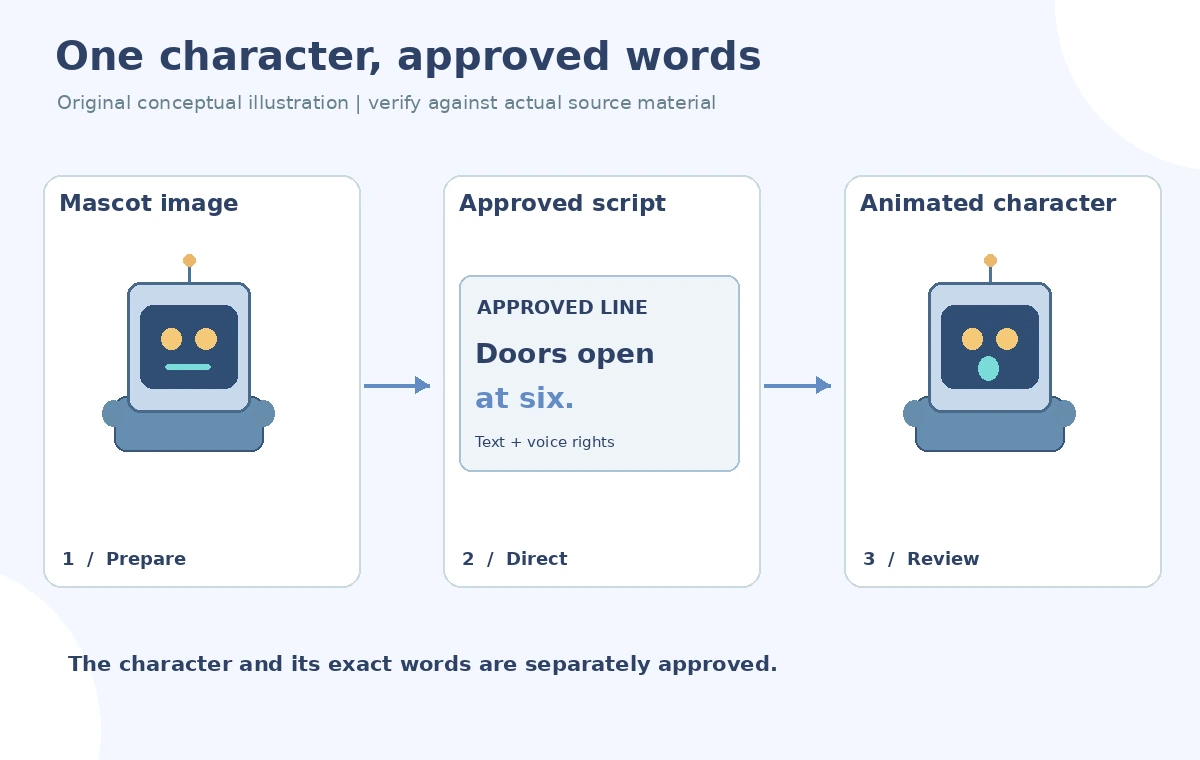
Design a single readable illustrated face
Use a front-facing robot with visible eye area and a clear lower-face display that can plausibly function as a mouth. Avoid tiny lines or oversized decorative panels that may be mistaken for speech features. Center the robot in a 16:9 frame with breathing room for captions and the event logo, but keep critical lettering outside the generated character artwork. A drawing of a fictional mascot has fewer identity and impersonation concerns than animating a real staff portrait, yet the illustration and voice must still be owned or licensed. Save the exact reference image so the character can be regenerated consistently.
Choose typed text or approved recorded audio
In Text mode, paste the approved sentence and select a voice you are permitted to use. In Audio mode, provide a clean approved recording rather than hoping the system will correct a noisy one. Runway documents these two input paths, but it does not promise that a generated voice is perfectly timed or that text pronunciation will always be right. In a science-center announcement, terms such as exhibit names, local place names and event times deserve special attention. Play the chosen voice independently when possible. Do not clone a volunteer’s voice without specific informed permission for this synthetic use.
Review lip movement across the whole sentence
A good-looking still frame says nothing about synchrony. Review vowels, plosive sounds and pauses at normal speed, then step through portions where the display opens or closes. A robot face can use stylized light bars rather than realistic lips, but movement must still support intelligible speech. Watch for sudden changes in the robot’s eye shape, antenna count or body markings between frames. The three-stage storyboard in this article shows a planning model, not a capture from Runway. Reject any variant that mangles “six” into a different number or shifts a caption to imply an unapproved event promise.
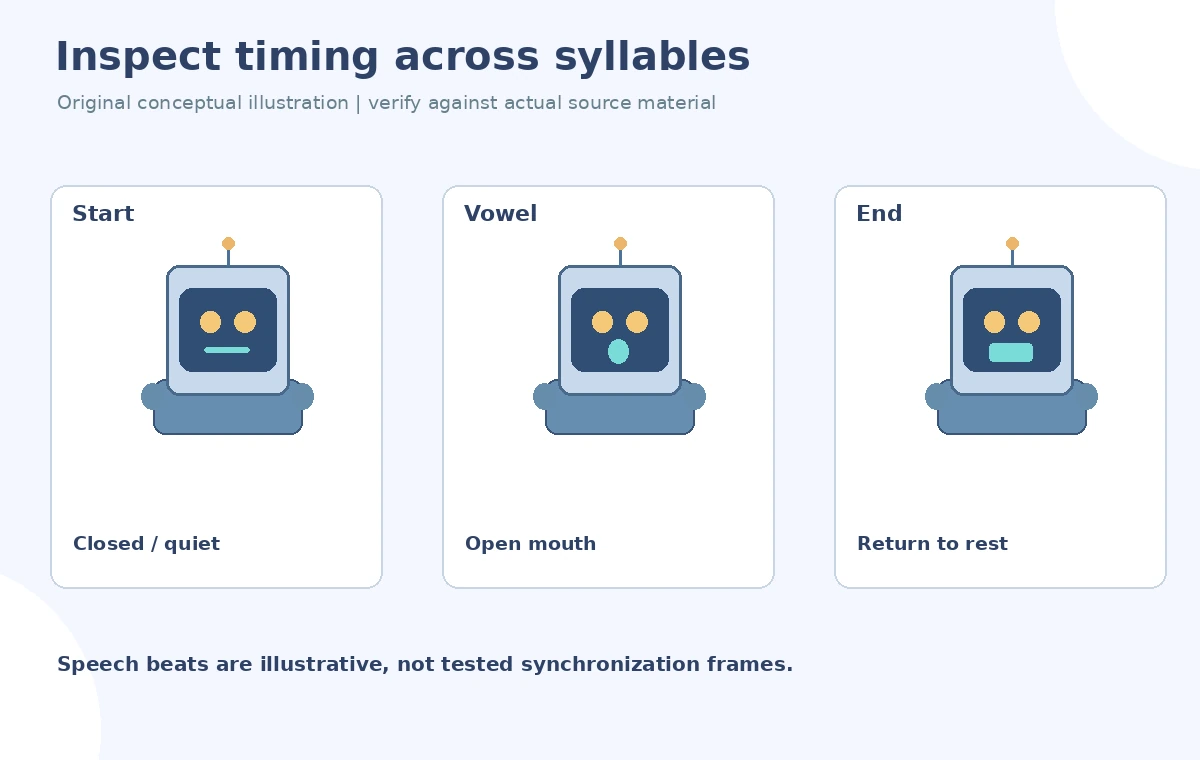
Separate animation from captions and factual overlays
Create captions from the approved transcript and manually align them to the final audio, rather than copying words that happen to appear inside a generated frame. Place the event date and ticketing information as editable graphics in the final editor. If the robot’s scripted words are fictional marketing dialogue, disclose that the character and voice are generated in contexts where viewers might mistake the video for a recording. Check caption contrast on a phone and keep the lower third clear of facial features. Export a silent version only when its meaning remains accessible through captions.
Ask the right questions about voice and character rights
Confirm ownership of the mascot drawing, the right to synthesize or license the selected voice and permissions for any included background music. A preset voice may have usage limits determined by the active account; do not infer unrestricted commercial rights from the existence of an export button. If the mascot resembles a real person or protected character, avoid it or obtain specific authorization. Never create a fake endorsement from a staff member or public figure. The review form should list artwork source, voice source, approval owner, script revision and intended channels so later repurposing does not silently exceed the permissions.

Approve the rendered clip against the original brief
Put the final output beside the script and the original mascot art. Check literal wording, correct opening time, voice intelligibility, lip or display timing, stable character silhouette, captions, output orientation and the presence of an appropriate synthetic-media label. Export a master and a social cut if required, keeping the approved text graphics editable. A reviewer who was not present during generation should be able to locate the authorizing script in seconds. If the tool cannot articulate a name or number clearly, revise the recorded audio or replace the shot; do not conceal that defect behind energetic motion or a fast montage.
How We Research
We checked Runway’s Character Script to Video documentation and its standalone-tool deprecation list on October 28, 2026. This verifies the app’s input modes and avoids recommending the retired Lip Sync menu. No Runway generations, voice recordings or synchronization tests were performed; the robot and frame comparisons are illustrative drawings.
Frequently Asked Questions
No. Runway lists standalone Lip Sync as deprecated; use the supported Character Script to Video app for this case.
Yes. Runway documents uploading a character image or using one of its presets.
Yes. The app offers Audio mode as an alternative to typed text and a selected voice.
No. Factual claims must be checked against the organization’s approved script.
Use clear disclosure when viewers could reasonably mistake a generated performance for an authentic recording.