
A small tea company has a licensed photograph of one plain-labeled metal tin beside a cup, but the website hero needs a few seconds of gentle camera motion. Image-to-video generation is tempting because a single still can become a moving scene. The real creative risk is not whether the tin moves convincingly; it is whether the product label, lid, color and proportions remain truthful from first frame to last. Runway documents Gen-4.5 Image to Video with a source image and a motion-focused prompt. This guide designs a conservative, hypothetical shot and a frame-by-frame approval process. The illustrated frames are drawn examples, not Runway generations or proof of tested product fidelity.
Define the nonnegotiable product details
Obtain permission to use and modify the starting photograph, and confirm who can approve advertising claims. Record the exact packaging silhouette, lid seam, label typography, ingredient statement and visible color. A generated clip must not invent a seal, certification mark or benefit claim. Choose one simple creative goal: a gentle camera push toward the tin while the cup and table remain fixed. A spinning camera orbit would require inventing unseen sides of the package from a single photo, raising the likelihood of imaginary details. Save the unmodified source alongside a thumbnail with protected product regions outlined. That makes later comparisons concrete rather than relying on memory of what the label looked like.
Frame the first image as a usable opening shot
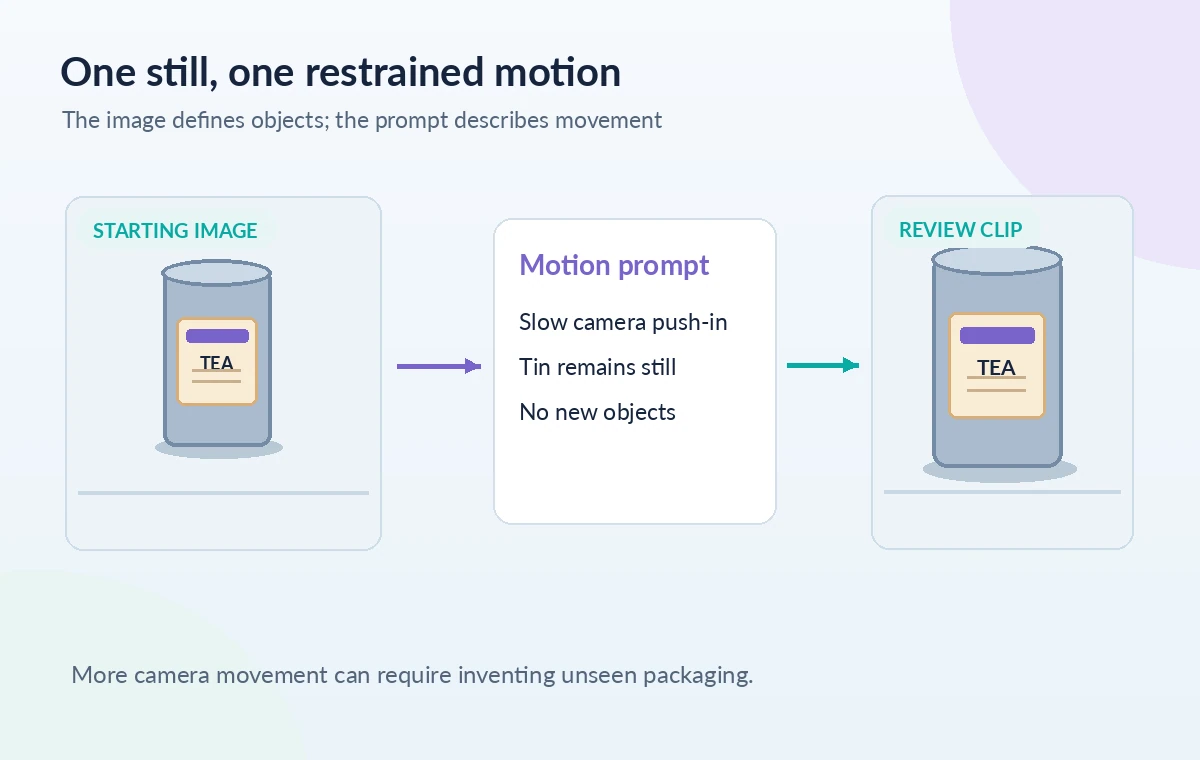
The source image controls the initial composition, lighting and subject arrangement. Runway’s image-to-video prompting guide emphasizes that the image provides those visual facts while the prompt describes action over time. Crop or pad the starting photo for the intended landscape or vertical deliverable before submitting it. Keep the tin fully in frame, with enough room for the subtle movement and without tiny type already impossible to read. If the product must remain legally exact, consider conventional keyframe animation of the verified still instead of generation. A short generated scene may suit mood and atmosphere, but it is not automatically an acceptable representation of inventory. Review how the image itself might be used under your account’s current terms.
Choose Gen-4.5 and an economical trial scope
Runway’s current Gen-4.5 help lists Image to Video as a supported control, with image and text inputs, durations of two to ten seconds and plan-dependent access. Model availability, pricing and interface names can change; check them in the live app before allocating credits. Start with one deliberately short concept, not a list of simultaneous rotations, lid openings and camera moves. Select a suitable aspect ratio for the final placement and retain the input file. A generation attempt is not a guarantee of a usable output. Budget for rejected takes and manual finishing rather than presenting the listed credit rate as the total cost of a commercial shot. We did not sign in, spend credits or make any model requests.
Prompt the motion instead of redescribing the object
A controlled draft prompt might read: ‘Slow camera push-in toward the stationary tea tin. Cup stays still. Soft window light remains steady. No object rotation or new objects.’ This is example language, not an executed prompt. The reference photo already describes the tin, tabletop and color palette. Avoid contradictory commands like ‘static camera’ and ‘fast orbit’ in the same request. Define what must remain motionless, what is allowed to change and how the shot finishes. Even a well-worded prompt cannot enforce correct typography or factual product identity. The diagram shows the image as a fixed opening frame and the prompt as a narrow instruction that acts over a timeline; it is not a screenshot of Runway’s controls.
Review motion as a sequence of frames
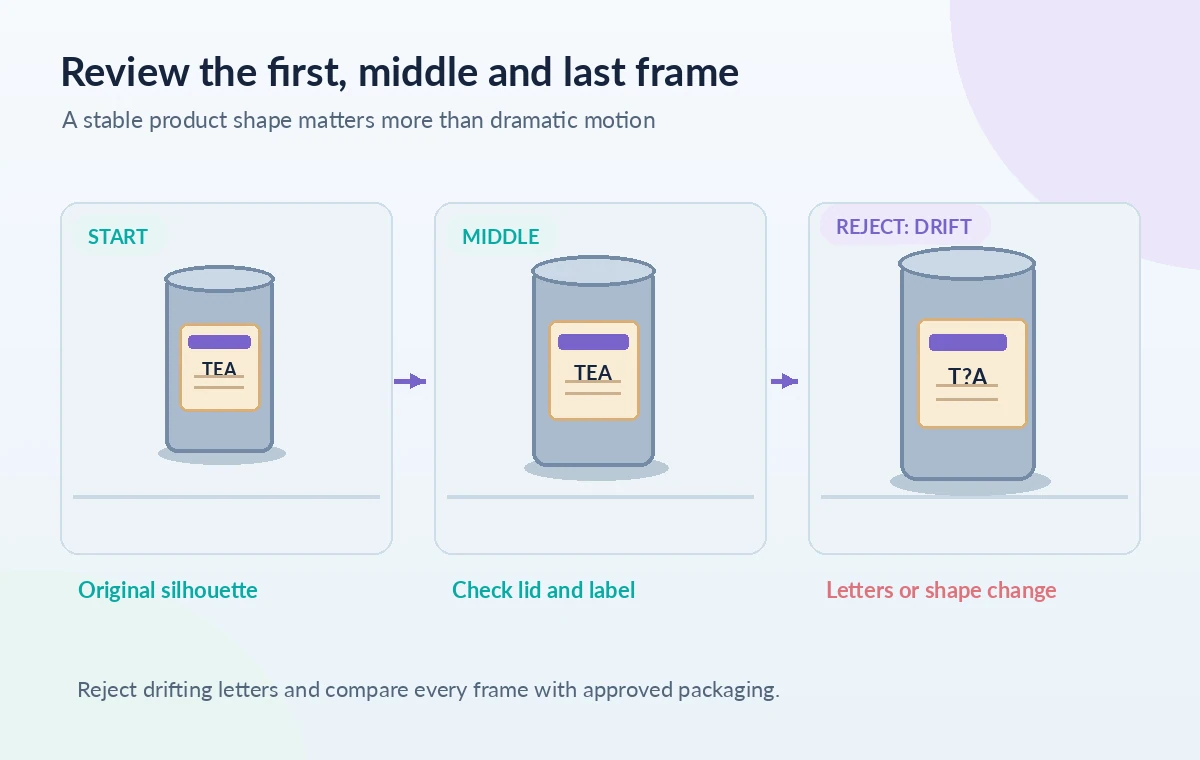
Do not judge the result only from its most attractive middle frame. Sample the start, midpoint and final frame, then watch the entire clip at normal speed. The tin’s top ellipse should not become a different shape; the label edges should not drift, split or gain letters. Check reflections on the lid and table for physically coherent movement. If the cup starts floating or the camera appears to jump while its background stays frozen, reject the take or revise the motion. A strong first frame can conceal later distortion. The before and after figures in this guide are conceptual drawings of ‘stable geometry’ and ‘unacceptable drift,’ not scored outputs from a real test.
Audit the label at full resolution
Pause at several positions and compare product text against the source image or an approved vector label. Tiny lettering may warp even if the scene looks plausible on a phone. Ask whether a prospective buyer could be misled about ingredients, weight, certification or even flavor. If essential on-pack text cannot survive generation reliably, layer accurate graphic elements in a conventional editor or switch to an animation of the actual photograph. Do not treat AI-generated writing on a package as legally verified. For the teaching graphic, a magenta inspection boundary points to the lid seam, label rectangle and product shadow. These are locations for human checking, not measured model failure rates or proof that any particular clip passed.
Make a restrained revision decision
If the generated motion is mostly right but the product shifts shape, simplify the movement before trying increasingly detailed prompts. A gentle push-in preserves more of the known source than an invented rear view. Compare alternate takes using the same checklist: label fidelity, geometry, lighting, motion continuity and ad claims. If none passes, use conventional editing with a slow digital zoom, separate background parallax and verified product layers. The purpose is to select the method that keeps the customer-facing image honest, not to force generative video into a scene it cannot support. Keep review copies and document which parts of the eventual marketing asset are synthetic.

Export responsibly and record the source boundary
Check the final video’s aspect ratio, cropping, opening frame and last-frame behavior in its actual web placement. Inspect whether platform compression changes the visibility of small label text. Confirm any required disclosure, usage permission and client approval; these are not granted by the act of generating a clip. Keep the original photograph, example prompt, approved take and any separately composited accurate label artwork. Model access and feature limits can change, so review Runway’s current Gen-4.5 help rather than an older Gen-4 tutorial. No image in this article is an actual Render or a tested result. The useful deliverable is a repeatable product-identity acceptance procedure that works even if a generation needs to be rejected.
How We Research
We consulted Runway’s Gen-4.5 help and its image-to-video prompting guide for supported inputs, duration range and the distinction between source-image composition and motion instructions. We did not use a Runway account, upload a photo, generate footage, compare outputs or verify commercial licensing for the fictional tea brand. All frame comparisons are original instructional artwork and represent inspection questions, not measured tool behavior. Official documentation reviewed: Runway Help: Creating with Gen-4.5; Runway Help: Image to Video Prompting Guide. Recheck the live docs before proceeding because interfaces, availability and model support can change.
Frequently Asked Questions
Yes, in Image to Video mode the starting image and a motion description are the relevant inputs documented by Runway.
Runway’s currently published Gen-4.5 guide lists durations from two to ten seconds; verify live controls before creating.
No. Compare every visible product claim and label against approved artwork; replace unreliable text in postproduction or use conventional animation.
It generally asks the model to invent less unseen geometry, but only inspection of the resulting sequence can determine acceptability.
No. The guide defines a review method and reports no actual generated outputs or success rates.