
A café owns a short tabletop video in which a white ceramic vase sits beside a book while the camera moves past it. The editor wants to try a terracotta planter instead, while leaving the book, table grain and camera move recognizable. Pika Swap Anything is designed to alter subjects, props and settings in existing footage. This guide shows how to write a narrowly scoped change request and inspect the result frame by frame. The vase and planter are fictional editorial drawings, not evidence of an actual Pika output or a controlled software test.
Define one replacement and lock everything else
Start by writing a one-line change contract: replace the white ceramic vase with a modest terracotta planter containing three green leaves; preserve the book cover, table edge, lighting direction and camera move. Keep the original clip untouched and name a duplicate for experiments. Identify whether the vase is ever hidden behind the book or a moving hand. That detail matters because the new planter must follow the same depth ordering. A broad instruction such as “make the café more cozy” would invite changes to the setting, making it hard to decide whether the requested object swap succeeded. A narrow brief establishes a defensible rejection rule.
Use the current Pika swap workflow, not the add-object tool
Pika’s current help center describes Swap Anything as changing subjects, outfits or settings with references, while the earlier Pikaswaps functionality focuses on substituting an existing region. The Swap Anything application accepts a video and allows specifying what should change. This differs from Pikadditions, whose purpose is to add a new element to an existing clip. When you already have a vase at the target position, adding another planter could leave two objects on the table. Choose a swap rather than an addition, and check your actual interface before following plan-specific settings, which can evolve.

Prepare the source clip and optional object reference
Choose a short section with one clear subject, visible table contact and a limited camera movement. Avoid a shot where the object disappears completely behind several hands until you have verified the simpler case. A clean planter reference can describe the shape, rough color and leaf placement, but an image reference does not guarantee identical geometry in every output frame. Crop reference images to exclude unwanted surroundings. Note the original clip resolution, frame rate, duration and source permissions. Do not erase or overwrite the original file when saving a candidate; the source is needed to verify continuity and detect invented details.
Write a scoped prompt with negative preservation instructions
Specify the target precisely: “Change only the small white vase on the left side of the table into a round terracotta planter with three leaves. Keep the book, wooden surface, shadow direction, camera movement and surrounding café unchanged.” Use preservation language as an instruction rather than a claimed guarantee. If an edit region or mask is provided in your version, place it around the vase with enough room for the replacement’s shadow and leaves. A selection that clips the new silhouette can create floating geometry; a selection covering the whole table may permit an unintended redesign. Save the prompt beside the candidate video.
Inspect contact points, scale and hidden surfaces
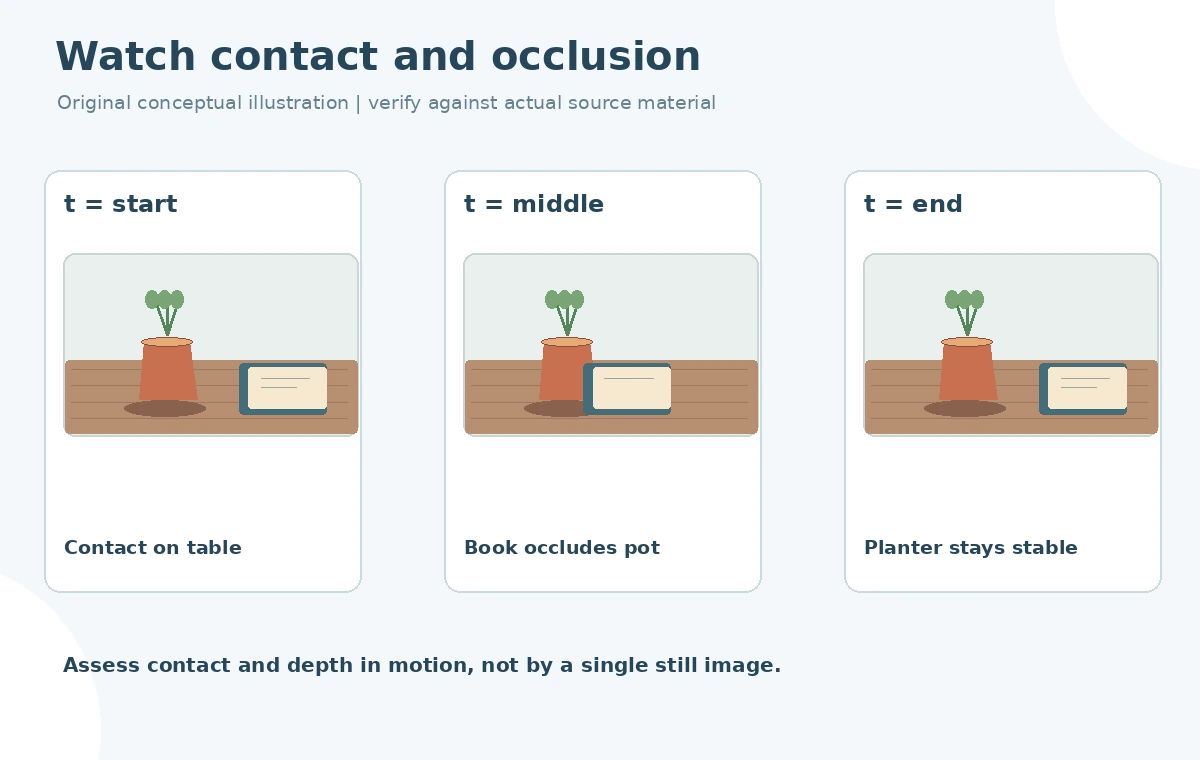
At the beginning, middle and end of the candidate, compare the planter base with the tabletop plane. It should not slide or hover when the camera moves. Check whether a table seam bends around the pot and whether any newly exposed area behind the original vase is plausible. Observe the planter’s height relative to the book so it does not change scale as the viewpoint shifts. Leaves may be newly synthesized, so avoid treating their number or exact arrangement as a faithful record of a real product. The diagram illustrates possible checks, not an actual model success rate.
Test occlusion and moving shadows in motion
Pause wherever the book edge briefly overlaps the vase location and wherever the shadow falls across a wood knot. If the planter incorrectly draws over the book, the depth relationship has failed even if individual frames look attractive. Scrub the sequence forward and backward to catch flicker, shape morphing and lighting discontinuities. Compare the final frame directly with the first; a plant that grows extra leaves mid-shot should be rejected for a factual advertisement. Re-run a shorter segment or simplify the replacement rather than hiding a visible error behind a quick transition. Review full-speed playback after frame stepping.
Protect product truth, permissions and audio
If a café or retailer will use the result as an advertisement, label a wholly imagined planter as an illustration rather than implying the shop sells that exact product. Secure rights to the base footage and any uploaded reference. Preserve original dialogue and background sound unless the requested workflow expressly includes an approved audio change. Check whether the café’s name, price signage or menu typography has been altered in the scene: generated frames should not become the source of commercial facts. A creative mockup may be useful for a pitch, but it is not proof of stocked inventory or an actual product shoot.

Export a comparison package rather than a single favorite
Deliver the original clip, selected candidate, short before-and-after storyboard and a QA sheet. Mark the frames checked for object contact, book occlusion, constant color, consistent leaves, table geometry and uninterrupted audio. Keep rejected variants with a short failure label only if doing so is helpful to the editor. Watch the actual export on a normal screen rather than judging the preview thumbnail. Acceptance means the declared change is visible, the surrounding scene is credible and no source-based claim has been silently rewritten. If those conditions are not met, the correct editorial outcome is to keep the unmodified footage.
How We Research
We read the Pika Help Center and Swap Anything app description on October 28, 2026 to distinguish swapping a prop from adding a new element. We did not upload café footage or run comparative generations. All depicted vase, planter, occlusion and lighting diagrams are original conceptual artwork and must not be mistaken for product screenshots.
Frequently Asked Questions
Its purpose is to change or swap existing scene elements. Pikadditions is the separate add-object workflow.
The app describes preserving foundational motion, but every candidate still needs a continuity review.
You can describe the desired change; references are useful when exact appearance matters and the interface supports them.
Only with appropriate disclosure and approval. A creative mockup is not proof of a real product.
Floating contact, wrong occlusion, flickering shape, altered labels or unexplained changes to the rest of the scene.