
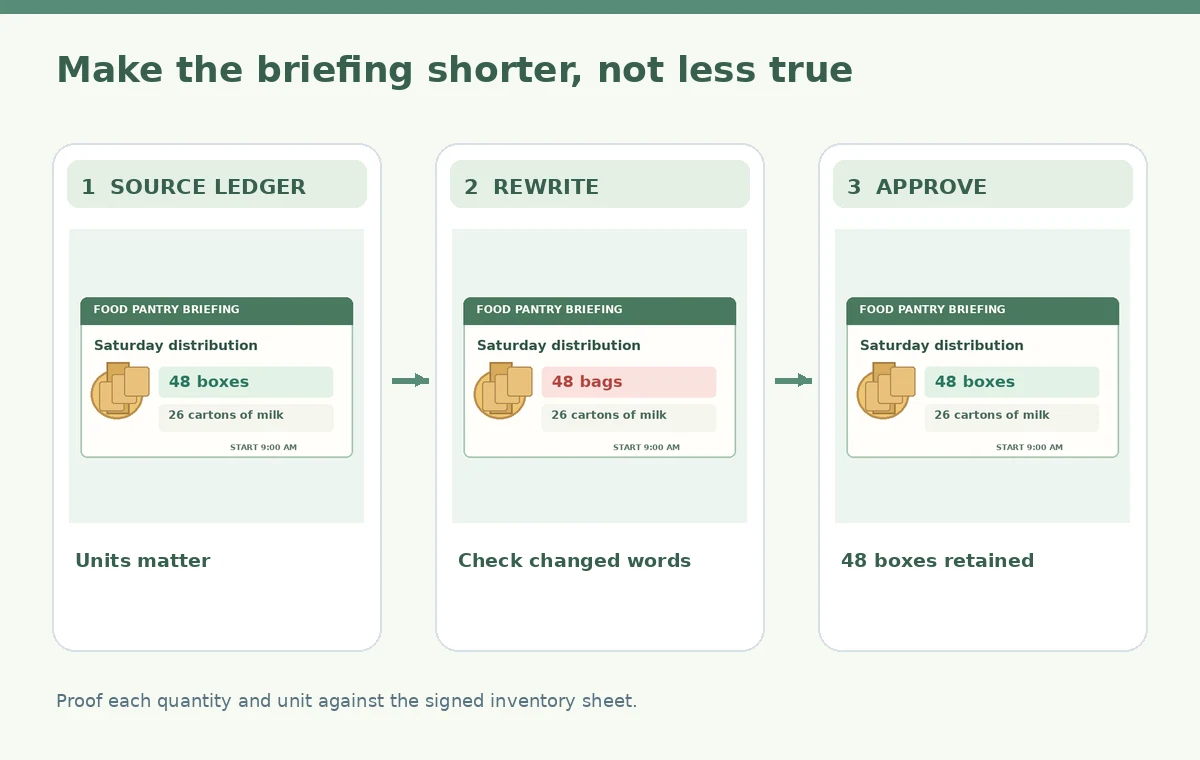
A food pantry is updating the briefing slide volunteers see before Saturday’s distribution. The source ledger lists 48 boxes of cereal, 26 cartons of milk, and a distribution window that starts at 9 a.m. The existing slide is wordy and difficult to scan. A shorter version would help, but an AI rewrite that silently turns boxes into bags or changes the date would cause real operational confusion.
Microsoft documents Copilot-assisted editing and rewriting in PowerPoint, including options that may condense or refine text. Feature availability, editing controls and licensing depend on the installed app and account. This article is a hypothetical quality-control workflow based on Microsoft support documentation, not a report that we asked Copilot to alter actual pantry records.
Freeze the source ledger before rewriting
Obtain the approved inventory report and identify the person responsible for final counts. Record the precise date and location of the distribution, not just a heading saying ‘Saturday.’ Copy the inventory units exactly: 48 boxes of cereal and 26 cartons of milk. A quantity without its unit is ambiguous. Keep the source file unchanged so the team can trace every figure back to the underlying ledger.
Create a short factual checklist separate from the design: counts, item names, units, distribution hours, eligibility notes, and contact details. Mark any numbers that are preliminary. If the distribution window could still change, label it pending approval rather than letting an AI-generated slide state a confident final time. The document owner, not Copilot, resolves uncertain data.
Reduce the task to editable slide text
Open the approved presentation and identify the text box that actually needs rewriting. Microsoft explains that Copilot can help refine presentation content, but behavior depends on app version and licensing. Keep charts, logos and the inventory spreadsheet outside the requested edit where possible. The tool should improve reading, not redesign quantities or replace the underlying data source.
Duplicate the slide or version the deck before changing text. Make a plain transcription of the original lines and the associated source-row IDs. A reviewer can then compare the text independently of font size, icons and chart layout. Avoid asking the assistant to ‘make the numbers more persuasive’ or to infer missing totals, because such requests can turn a style edit into a data edit.
Prompt for a narrow rewrite with locked facts
Ask Copilot to condense the volunteer introduction into short bullets while preserving every count, item name, unit, date, location and qualification. Specify that it must not add services, guarantees or delivery commitments. Choose the appropriate rewrite or editing control available in the current interface. Review the proposed changes instead of assuming the tool will follow every restriction precisely.
A useful prompt can say: ‘Make this slide easier to scan; preserve 48 boxes, 26 cartons and the 9 a.m. start exactly; flag anything unclear.’ Do not paste confidential donor information into an unsupported workflow. Work within the organization’s Microsoft 365 policies and confirm which Copilot features are enabled for the account.
Perform a cell-by-cell factual comparison
Compare the revised slide to the frozen checklist. In a hypothetical rejected example, ’48 boxes’ becomes ’48 bags.’ The count remains the same while the unit changes, making the error easy to overlook. Inspect every noun following a number, the date, the time and any conditions such as ‘while supplies last.’ Avoid relying on a quick read of just the large headline.
Use a small review table with source wording, proposed wording and approval result. Correct mistakes directly from the ledger rather than from a second AI paraphrase. An attractive slide that misstates one unit is not ready. If an automated rewrite changes a number in a chart or speaker notes, trace the affected content back to the underlying source and recheck it.

Preserve conditions and avoid promises
Volunteer instructions may need careful limits: donated goods are available while supplies last, and special requests may depend on staff decisions. A rewrite that replaces those conditions with ‘Everyone receives a box’ creates a commitment that the team has not approved. Inspect modal verbs, negations and qualifying clauses with the same care as numbers.
Read the revised slide aloud to a person who knows the distribution procedure. Ask what action they would take from the slide alone. If the compressed wording suggests the wrong pickup time, an unconditional entitlement or a new inventory item, restore the necessary words. Brevity is useful only when it retains the operational meaning of the approved instructions.
Check layout, notes and accessibility after rewriting
Shorter sentences should improve navigation, but line wraps, reading order and chart labels can still break. Inspect the actual PowerPoint slide in presentation mode. Verify that a screen reader encounters the title before the inventory counts and that colors are not the sole way of distinguishing item categories. Keep the accessible source text consistent with what appears visually.
Check speaker notes and duplicated slides for stale figures. A presenter could quote the original ’48 boxes’ from notes while the slide shows ’48 bags,’ or vice versa. Rehearse the slide with an actual volunteer and compare what they remember after viewing it. Fix factual or accessibility conflicts in the deck, then rerun the final proof.
Capture approval and maintain a correction path
Record who approved the facts, who checked the slide and which ledger version supports the numbers. Save a dated copy of the final deck for the distribution team, and make it clear how to obtain an updated briefing when counts change. Do not publish the slide solely because Copilot produced grammatically smoother language or a visually pleasing layout.
After the event, archive the approved slide alongside the ledger snapshot, rather than replacing the historical version with later totals. If a new shipment arrives, issue a new briefing with a revision date. Copilot can help make communication concise; responsible humans must still decide which numbers are correct and when the slide can be used.

How We Research
This article was prepared on November 4, 2026 from these named official vendor references: Microsoft: Edit with Copilot in PowerPoint; Microsoft: Frequently asked questions about Copilot in PowerPoint. We reviewed documented controls, availability caveats and stated workflow boundaries, and designed an independent hypothetical editorial check for the particular task described. We did not access a vendor account, upload live media or private records, generate candidate results, measure output quality, or claim that any illustrated failure occurred in a real tool. The WebP graphics are original teaching diagrams, not product screenshots. Plan restrictions, labels and capabilities can change. A responsible editor must still verify the underlying source, permissions, source data, accessibility, final exported artifact and sign-offs before public release.
Frequently Asked Questions
Microsoft documents AI-assisted editing and rewrite functions in PowerPoint. Exact controls depend on the app version, subscription and organization settings.
No. Compare every count and unit with an approved ledger after rewriting. A changed unit may be more dangerous than a visibly changed number.
No. Ask the inventory owner to resolve missing values. An AI editor should not create operational facts or commitments.
Inspect speaker notes, duplicated slides, reading order, alt text, chart legends, presentation-mode wrapping and the actual distribution date.
Keep the original slide, approved ledger snapshot, revision history and human approval record so corrections can be traced.