
A small library has approved three training slides for caring for older shelves: inspect the book spines, dust the empty shelf, and return the books in the correct order. Turning the deck into a narrated clip could help volunteers review the task on their phones. But a synthesized video can be fluent and visually pleasant while changing the order of those steps. In a handling lesson, that is a content error rather than a stylistic choice. The fictional slides in this guide are for demonstration, not an actual library policy.
Pictory documents a PPT to Video workflow that processes an uploaded PowerPoint and presents an editable storyboard. Its generated result may include a standard narration and music track. The editor therefore has several independent things to audit: the source order, the scene text, the illustrative footage, and what the voice actually says. Approval of the slides does not automatically approve the new video.
Freeze the approved source before uploading
Export or preserve the original PowerPoint as a dated reference, keeping notes about which staff member approved the steps. Identify every essential word that should survive conversion: inspect, dust, return; the direction of the sequence; the warning against wiping directly over books; and any local archival rule. If the deck contains a photo of a specific shelf, confirm it is licensed for training reuse. Remove unrelated private staff notes or volunteer names before submitting a file to an external service.
Write a scene ledger with a row for each slide: source slide number, one-sentence learning objective, must-retain terms, and expected visual. It lets a reviewer work through the video without hunting through the original deck every time. Keep the ledger outside Pictory so the audit is not lost when the project is revised or regenerated. If a slide is ambiguous, correct it in the approved source first rather than relying on AI narration to guess the policy.
Use the documented PPT to Video workflow
Pictory’s July 2026 help page directs users to the PPT to Video option on the homepage, where they can upload a presentation or try a demo file. After starting generation, the tool processes the slides and opens a storyboard. The guide also describes selecting the presentation language when source-language summarization is needed for scene text. This is a useful starting point, not a guarantee that the output repeats each slide exactly. Recheck the current interface for workspace-specific options.
Inspect the entire storyboard before selecting Generate Video for the final file. Pictory says the storyboard may include default voiceover and music and allows changes to voice, visuals, transitions, and brand elements. Do not accept a polished default narrator as proof that the scene language is accurate. For a quiet training video, background music may compete with words such as before, after, or never; a deliberate low-music or no-music choice can be better.

Audit the order of scenes and generated summaries
Align each storyboard scene to its PowerPoint slide by meaning, not only by its thumbnail position. A sentence that combines dusting and inspection could tempt an automated summary to say “dust before inspection,” which is different from the approved sequence. Use the ledger to compare every instruction. Check whether a slide with two substeps was split into scenes that preserve their order, and whether a transition skips a necessary caution. If one clip summarizes several slides, look for the missing step explicitly.
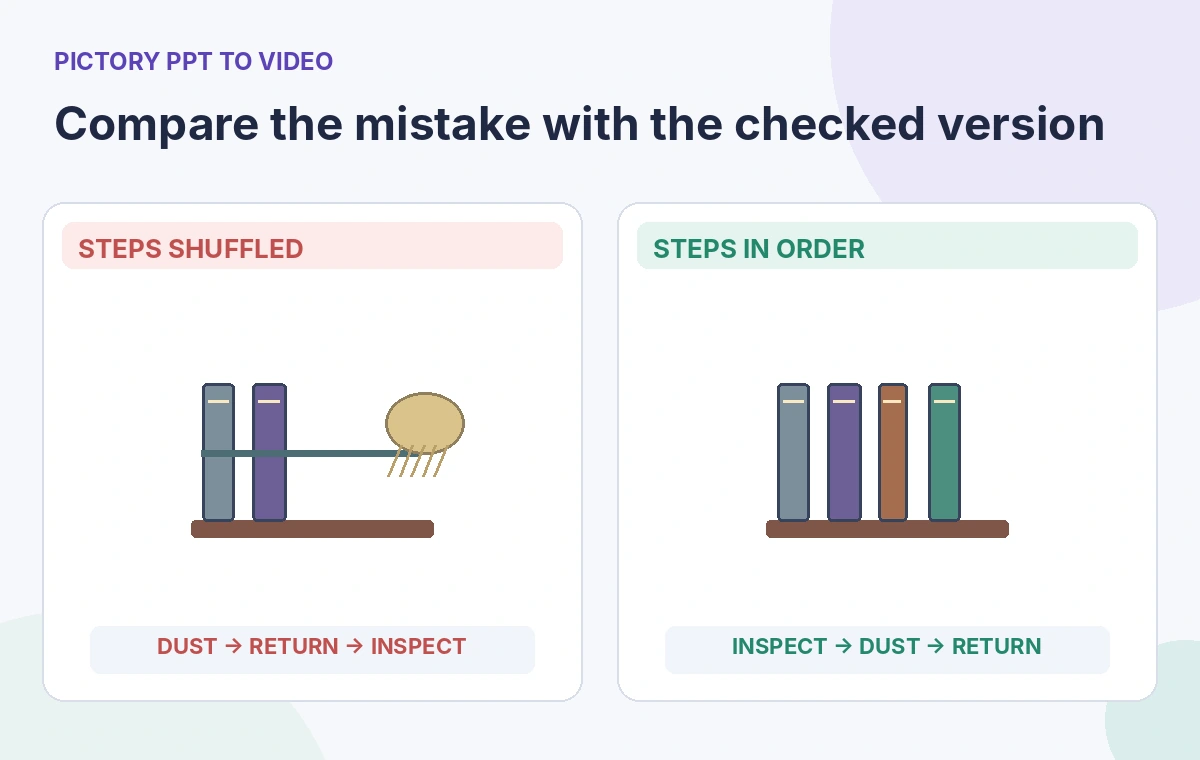
The comparison drawing shows one scrambled sequence and one correct sequence with an inspection frame before dusting and reshelving. These are illustrative visual states, not screenshots or observations from a Pictory test. Human revision may involve reordering the storyboard, adjusting scene text, or choosing a different visual. If the source deck itself is inconsistent, ask the librarian for the definitive version rather than inventing a smoother sequence.
Use the AI tool selection checklist
Replace attractive but misleading stock footage
An automatically selected clip might show a worker spraying liquid directly onto a book spine while the narration describes dry dusting an empty shelf. Viewers often learn from the picture even when the script is accurate. Replace any image that demonstrates the wrong action. Prefer authorized photographs of the actual shelving equipment or simple diagrams that show hand position and sequence clearly. For a training video, a neutral visual is safer than a cinematic one that contradicts the lesson.
Check accessibility alongside fidelity. Captions should retain short negations, the screen should leave enough reading time, and the narration should not rush through a transition that contains a safety or preservation rule. If additional explanation is needed, add it to an approved speaker script and review the change. Never pretend that Pictory measured volunteer understanding or that stock footage documents your library’s actual handling method.
Review the generated voice and music choices
Play the completed preview without looking at the slides and write down the instruction heard in each scene. Compare that transcript to the source ledger. Synthetic narration can pronounce book classifications oddly or obscure a small word with music. Turn down or remove unnecessary music, review pronunciations, and keep narration consistent with the institution’s accessible communication style. A cheerful voice is not the same as accurate training.
Then watch the clip silently with captions on. Does the on-screen sequence still make sense? Are labels legible at mobile size? Have decorative transitions made it look as though reshelving happened before inspection? Pictory allows editing the visuals and voiceover in its storyboard, but a human must decide which version should become policy training. If there is any conflict, let the approved deck prevail and correct the video before export.
Learn to combine AI tools carefully
Use a three-person release chain for sensitive lessons
A practical handoff divides review into source accuracy, media execution, and accessible delivery. The library subject-matter owner signs off that the order and rules match the approved slide set. The video editor checks every scene and the audible narration. A third reviewer checks captions, font size, visual contrast, and pause length on the actual exported file. These checks are roles, not a claim that every small library has separate staff for them.
Store the final MP4 with the original PowerPoint and a version note describing what was condensed. If a procedure changes, update both source and video rather than editing an isolated clip and forgetting the other copy. The diagrams demonstrate what to verify; the library described here, the storyboards, and the voiceover are invented examples. No PPT was actually uploaded or rendered for this guide.

How We Research
We reviewed Pictory’s PPT to Video help guide, updated July 2, 2026, and its video preferences guide. Those pages establish the PPT upload, storyboard, customization, and video-generation stages. The shelf-care sequence and review scenarios were written specifically for this article; we did not test the tool, convert an institution’s presentation, or validate an actual training policy.
Frequently Asked Questions
Do not assume that. The documented flow may summarize PPT content into scene text. Compare every essential phrase and its context against the approved source.
Yes. Pictory documents an editable storyboard with controls for visuals, voiceover, transitions, and branding before final generation.
A default track can compete with spoken instructions, especially short negatives and sequencing words. Review audibility in the final export.
Yes. A visually plausible clip can show an action that contradicts the lesson. Replace it with authorized, accurate footage or a clear diagram.
At minimum, the owner of the source procedure and someone able to review the video and captions should compare the export to the approved deck.